How to create WhatsApp QR Code
This guide provides a clear walkthrough on how to generate a WhatsApp QR code. By following this guide, you will be able to create a customized QR code that directs users to initiate a conversation with you on WhatsApp, streamlining communication and engagement.
1. Navigate to https://qcode.my/dashboard/qrcodes
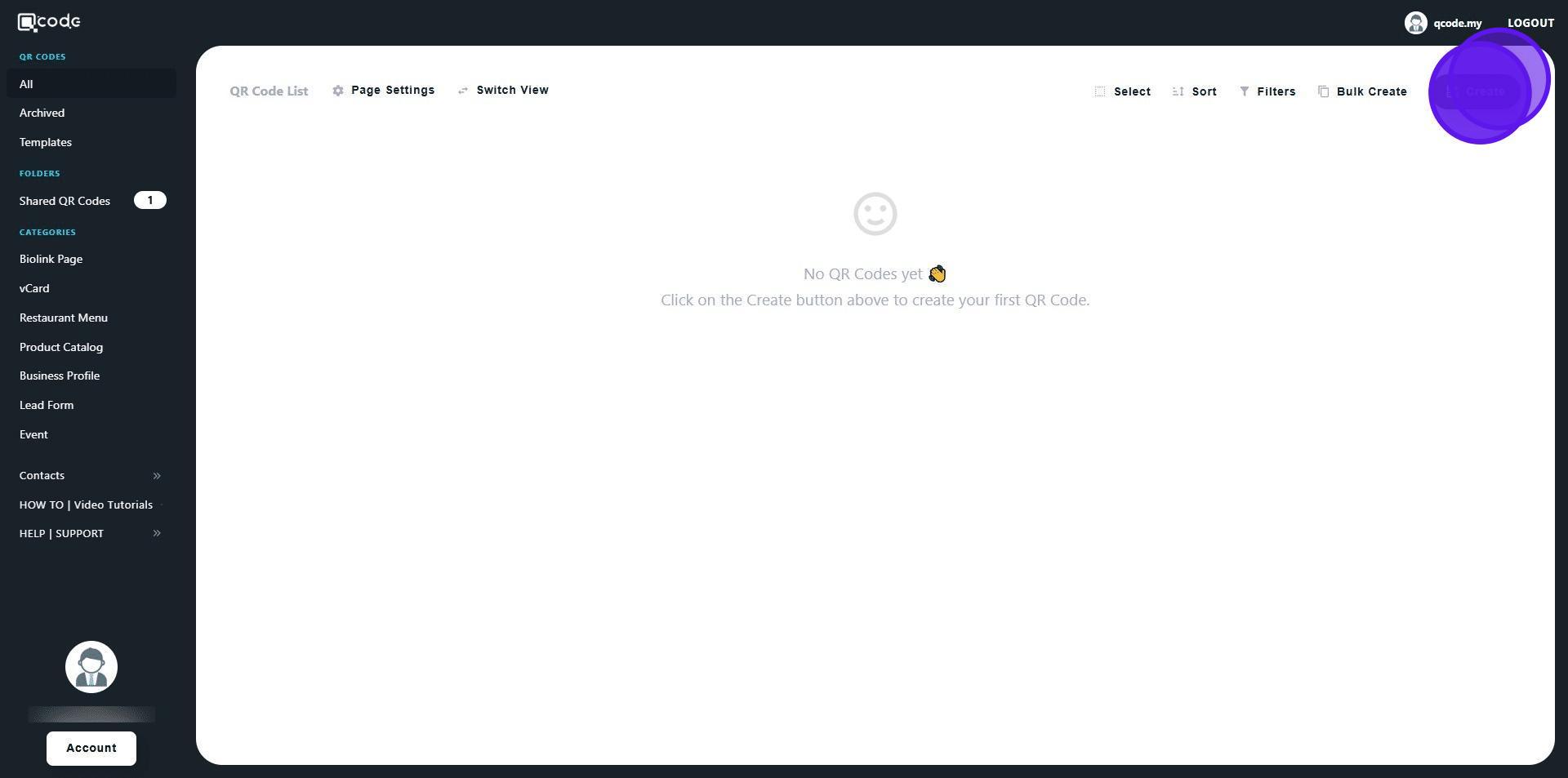
2. Click on Create to start creating your WhatsApp QR Code
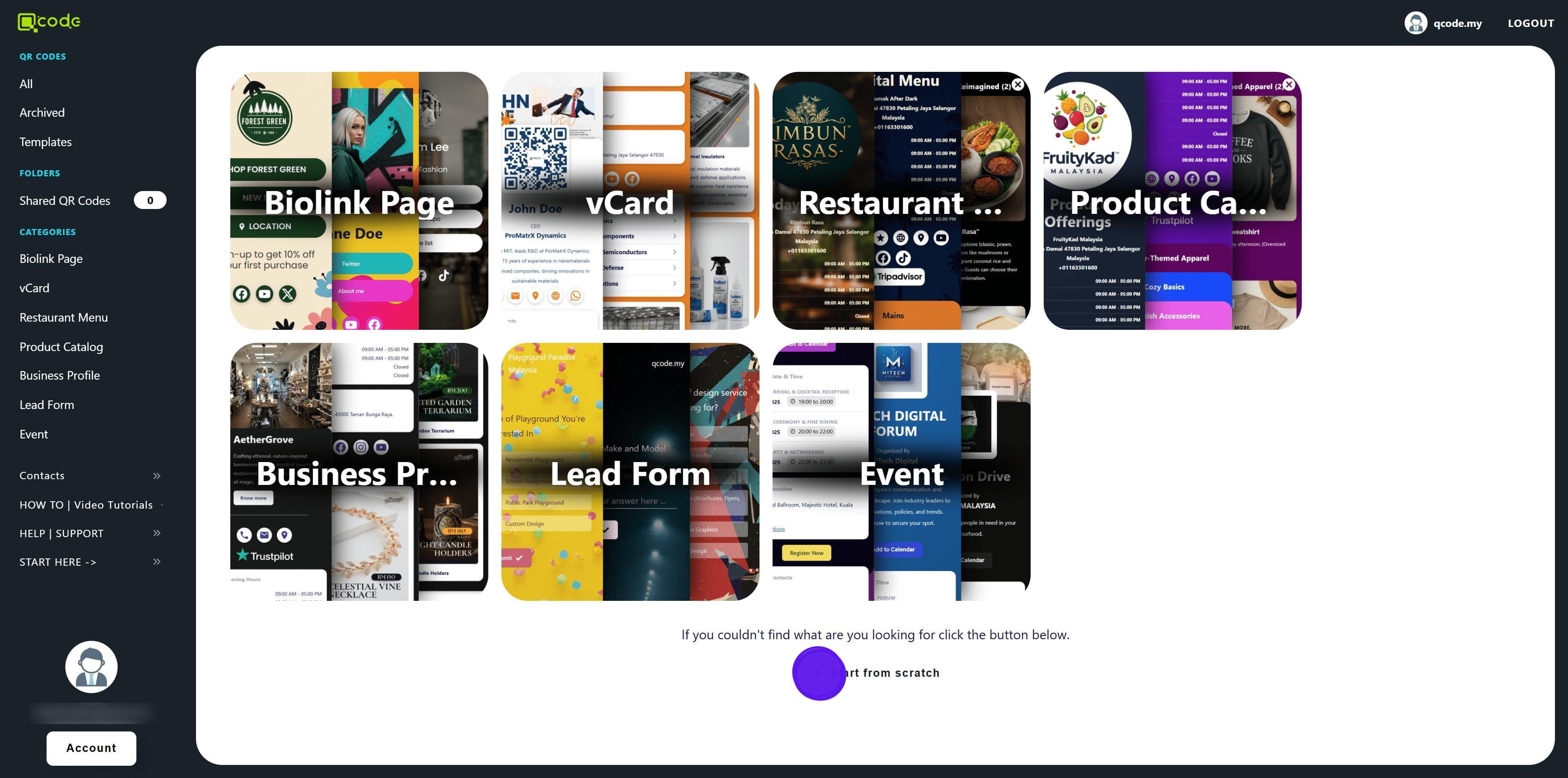
3. Click on Start from scratch
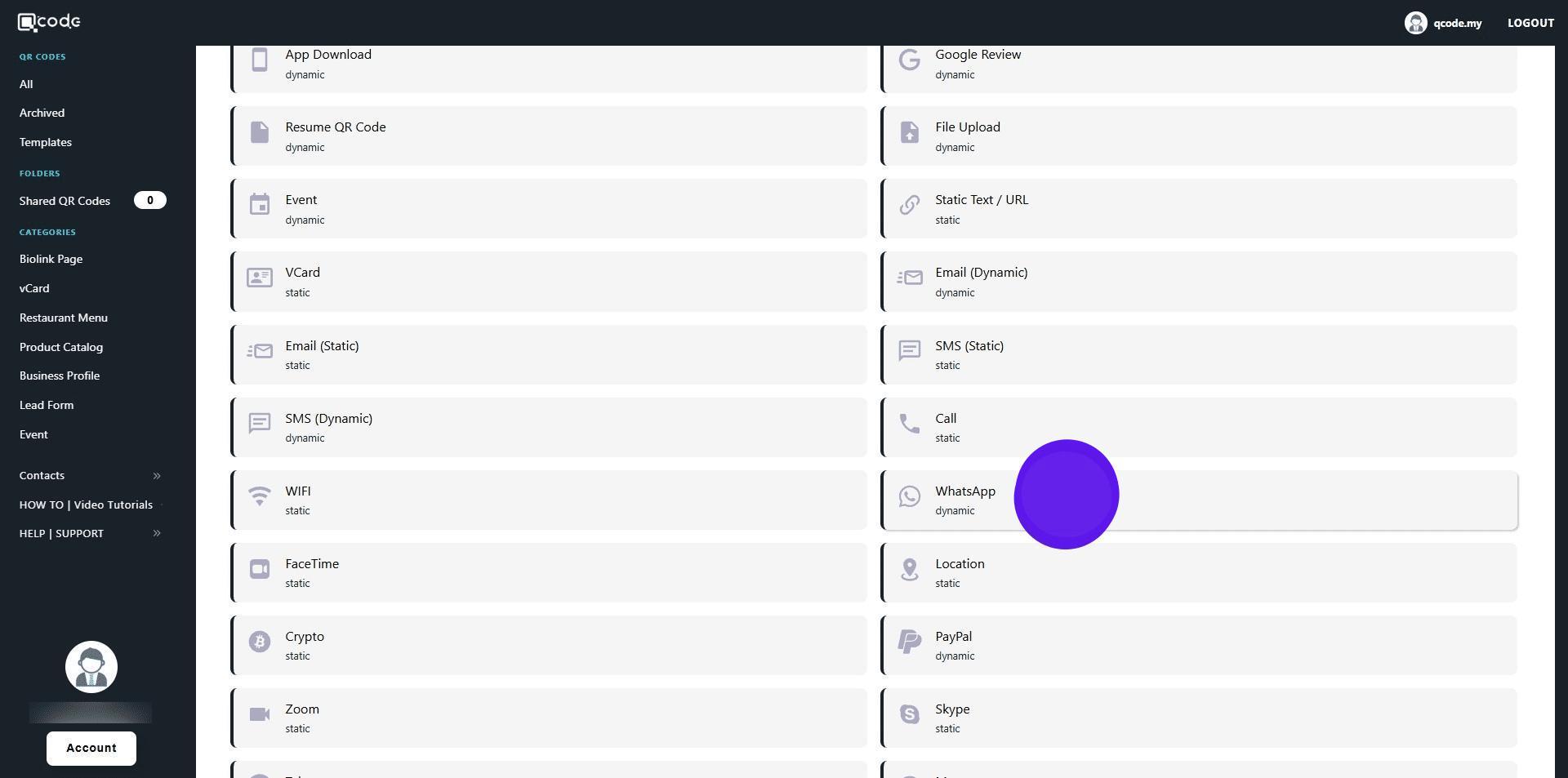
4. Select WhatsApp
5. Enter your Phone number here
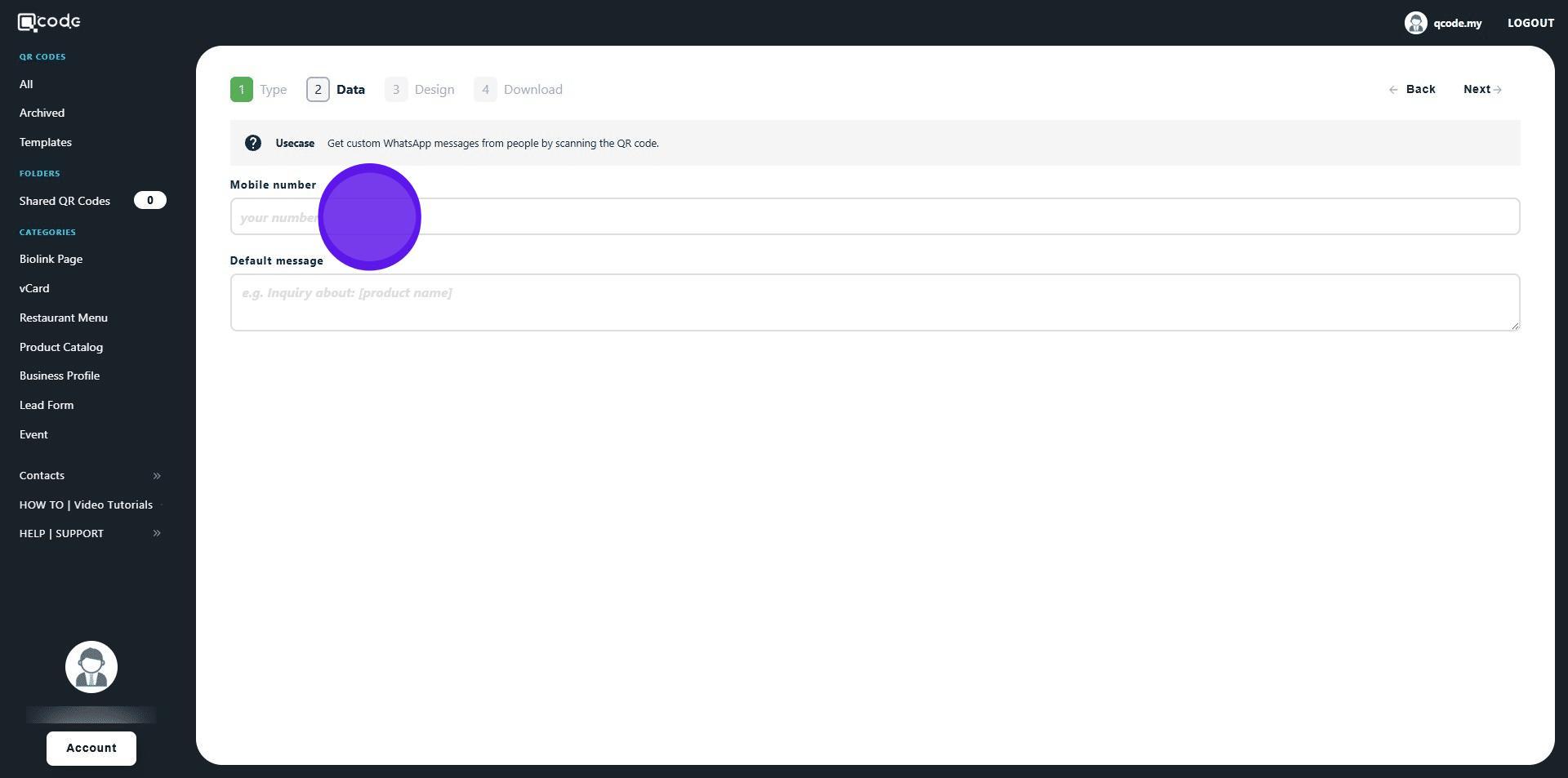
6. Type in the pre-filled WhatsApp message here
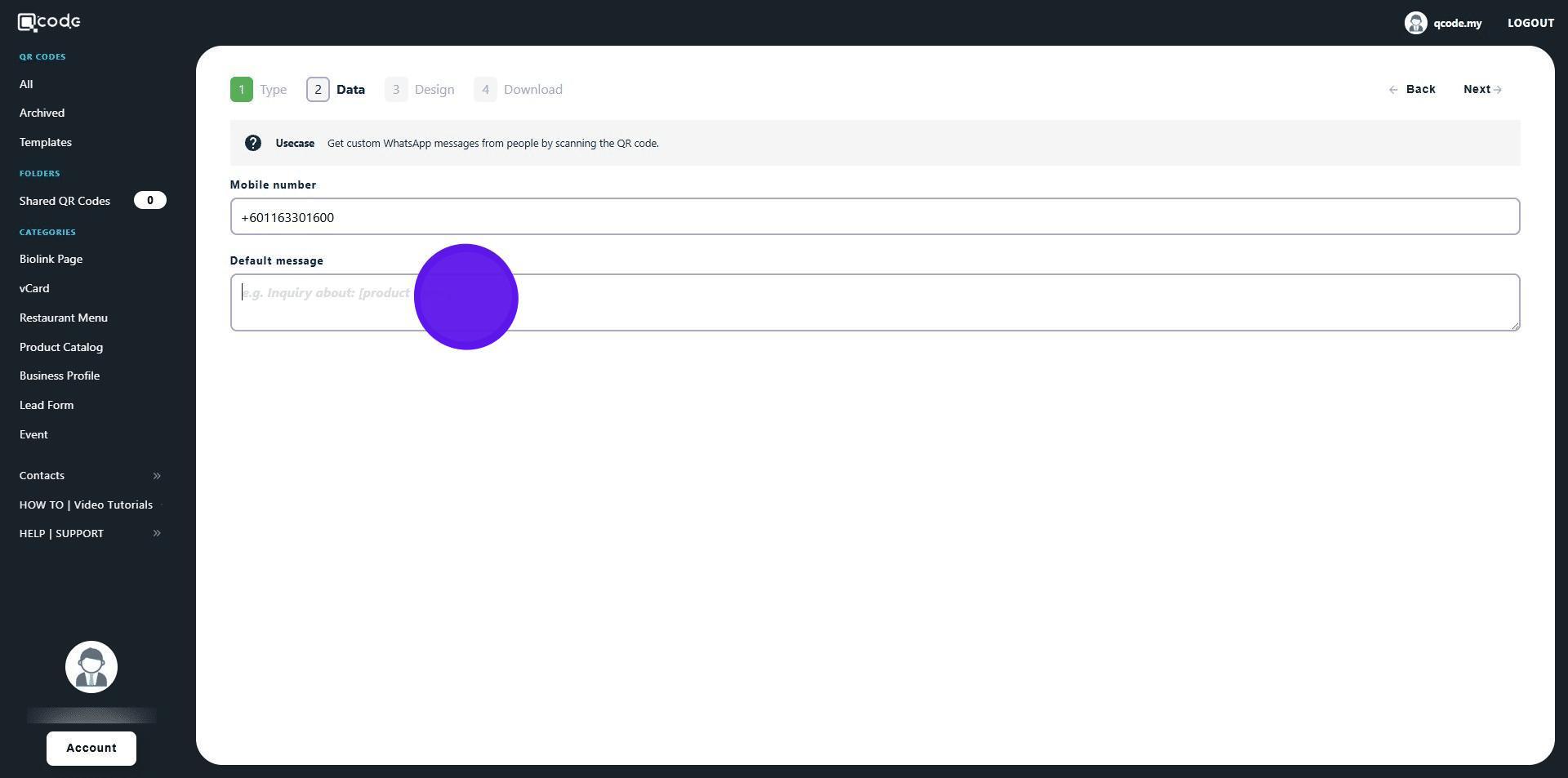
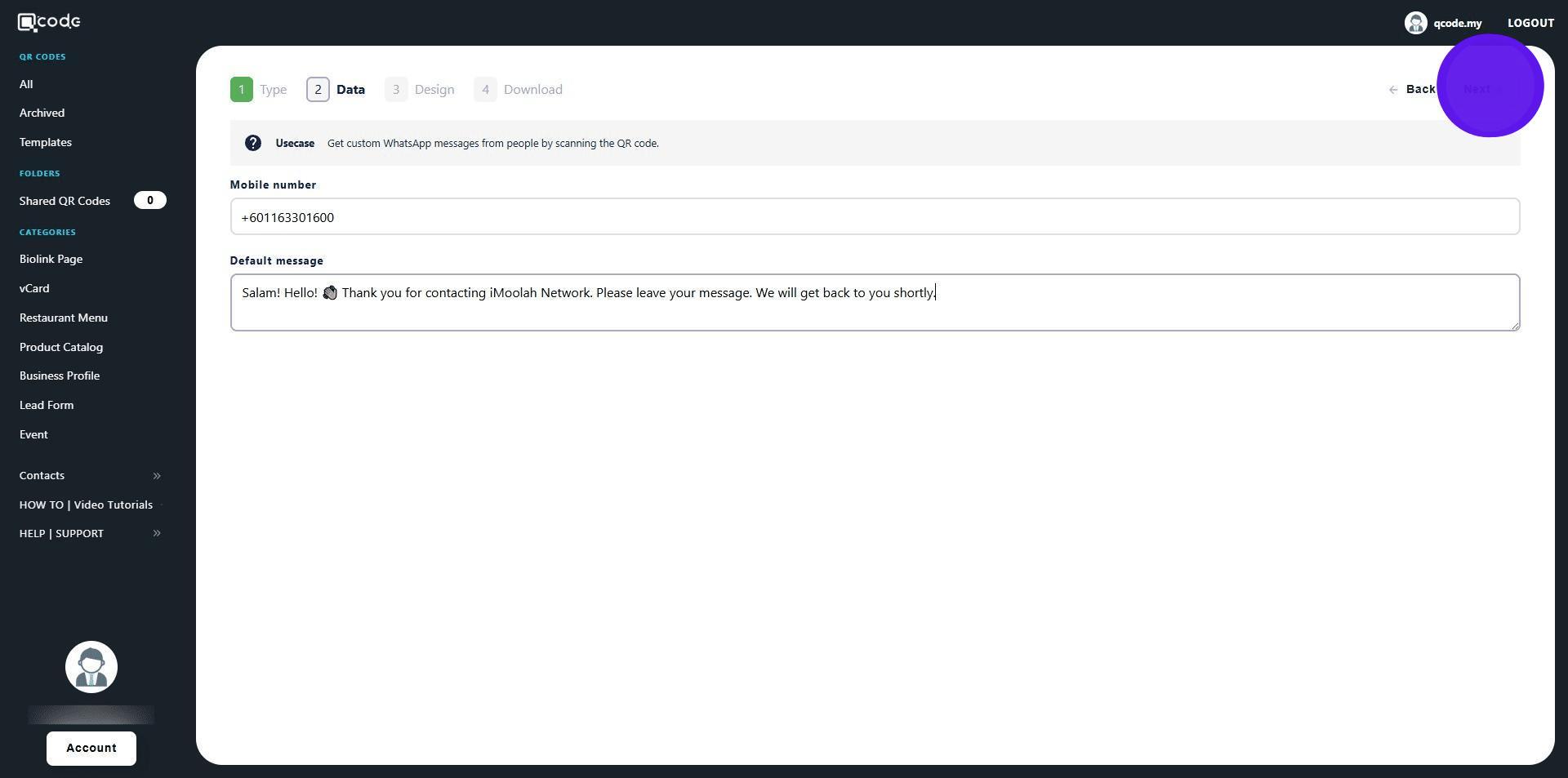
7. Click on Next to move to the next page
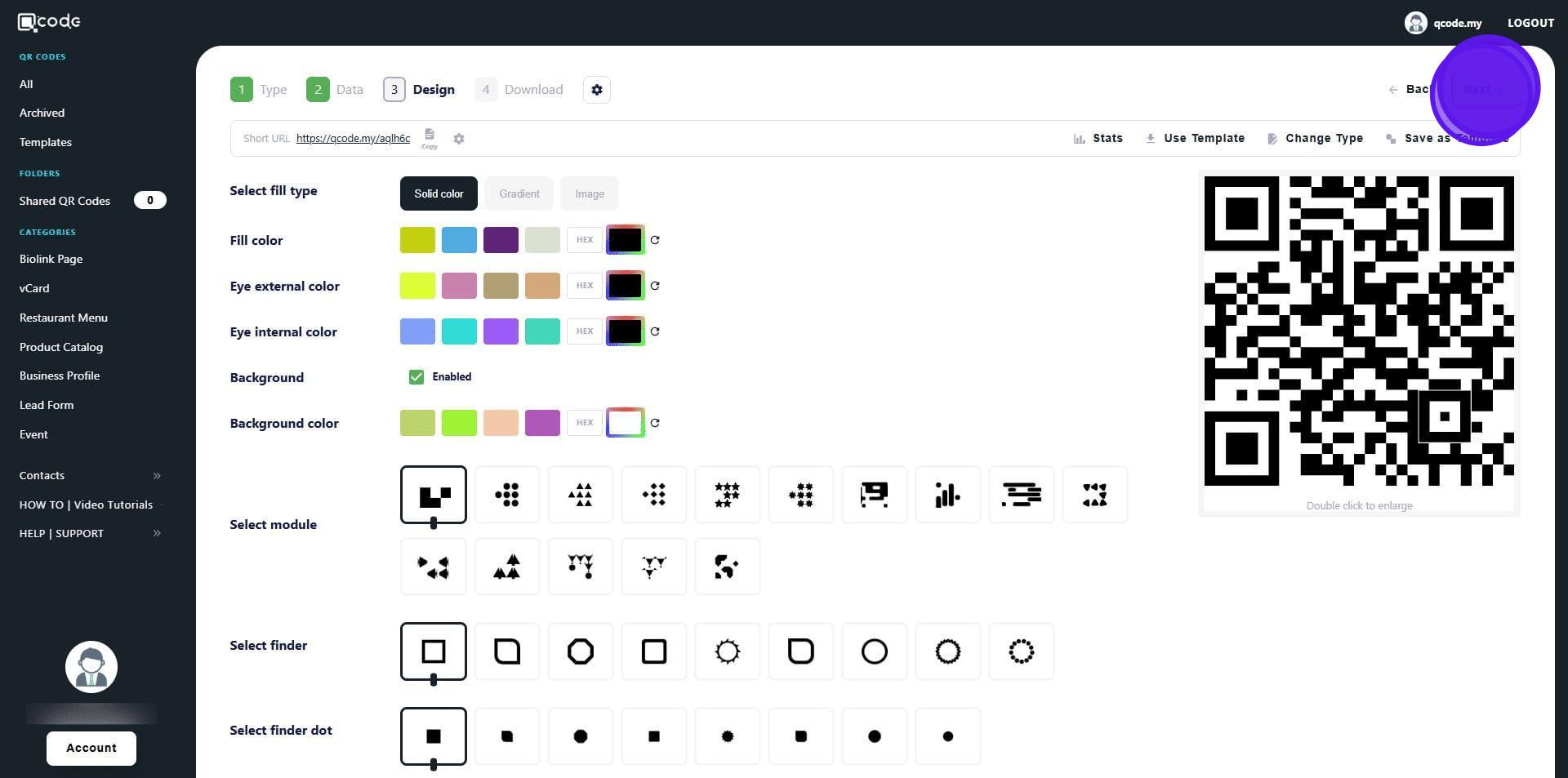
8. Here you can customize your QR Code. Click the link to learn more: https://kb.imoolah.network/guides/YUFgbQ5mkC4Zy2JfZH25
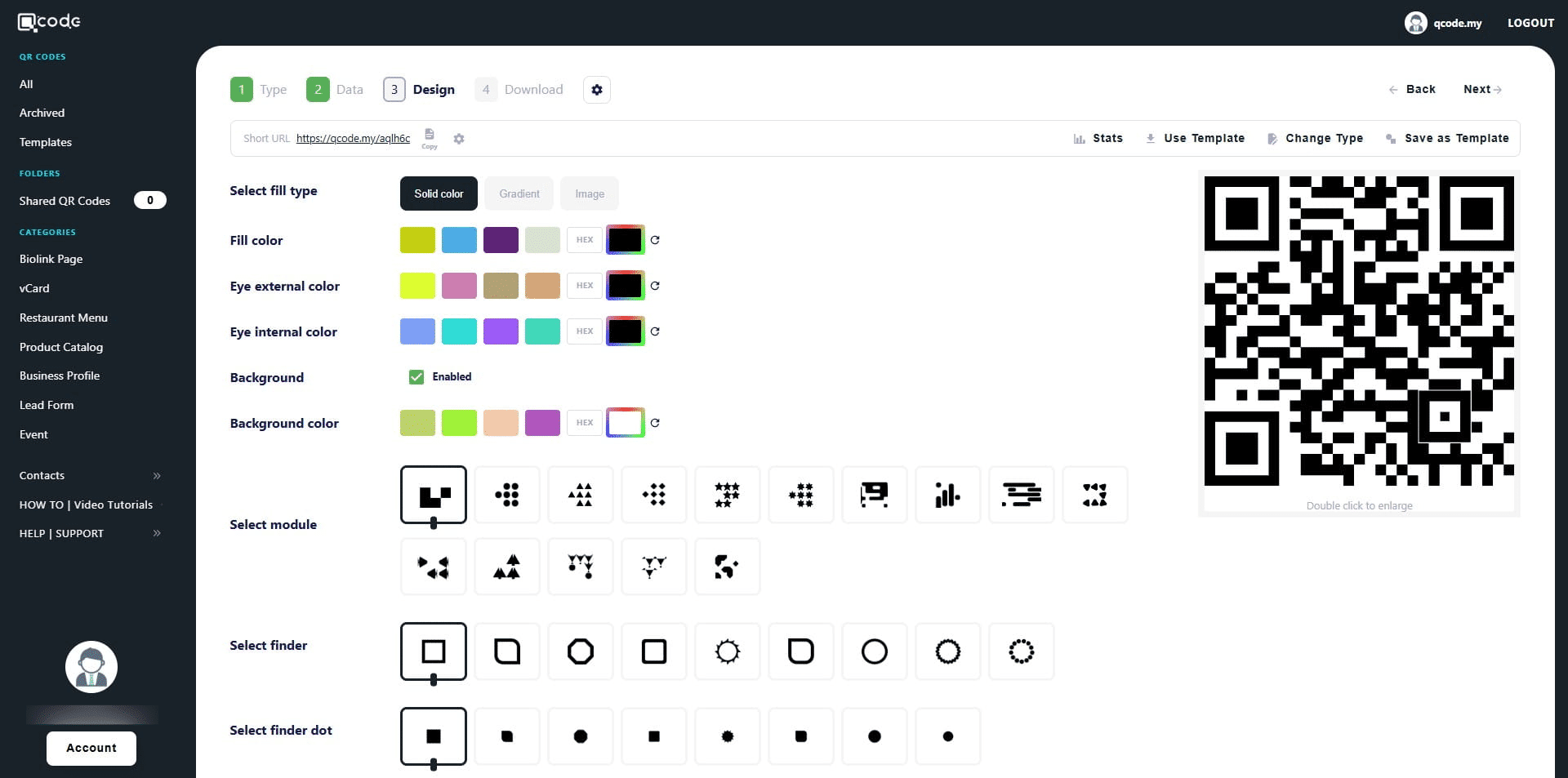
9. Click on Next to move to the final page
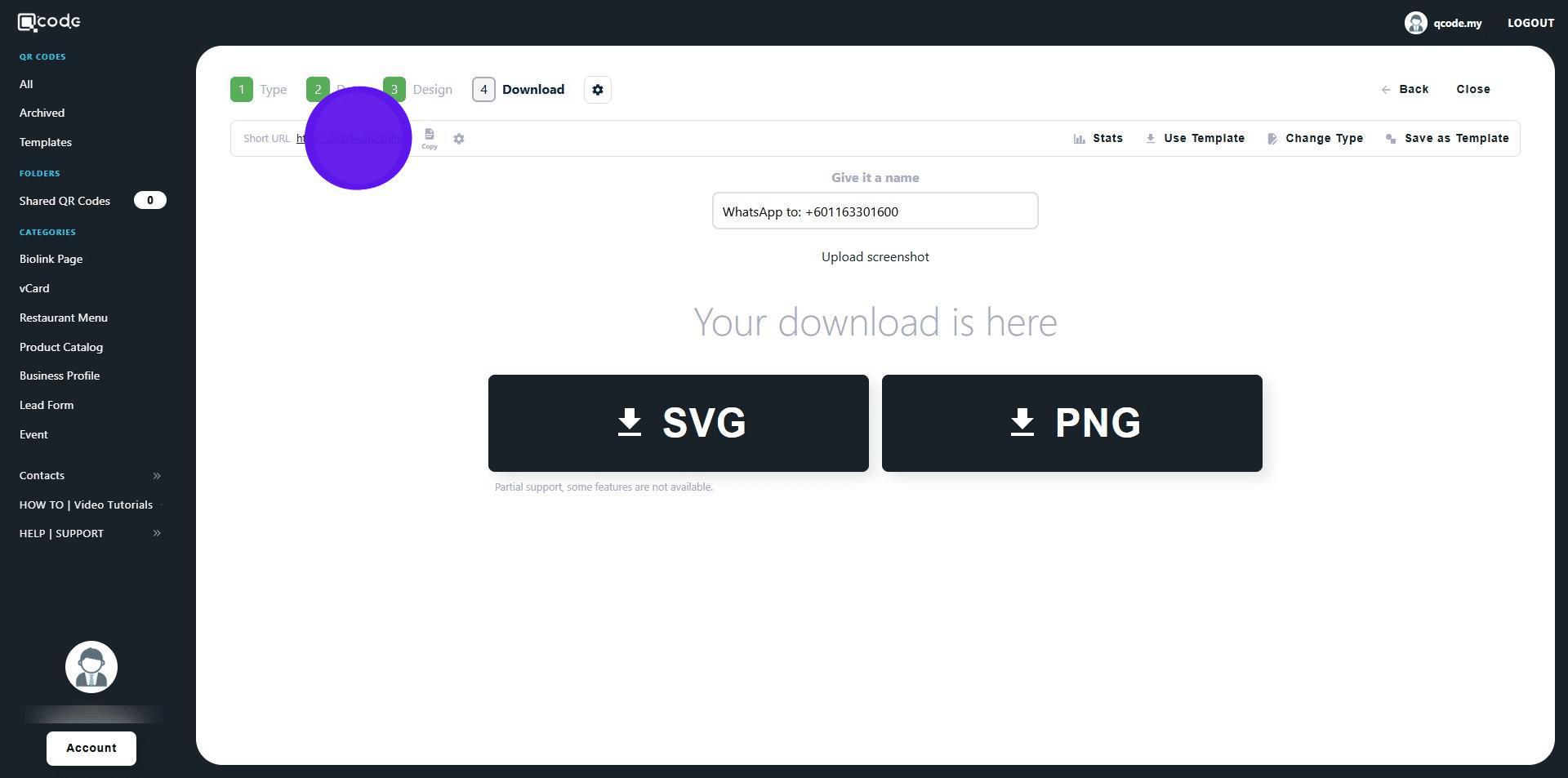
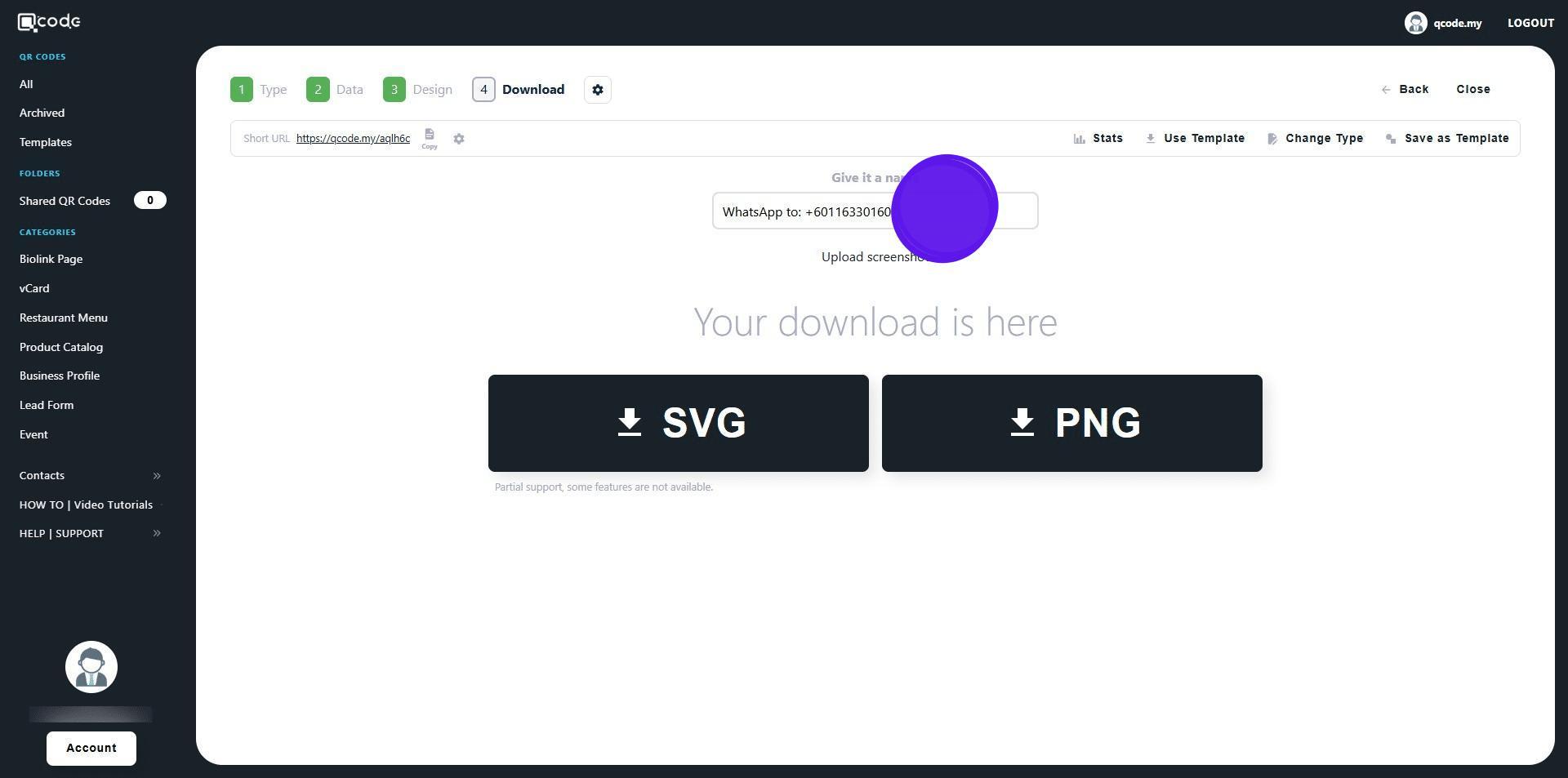
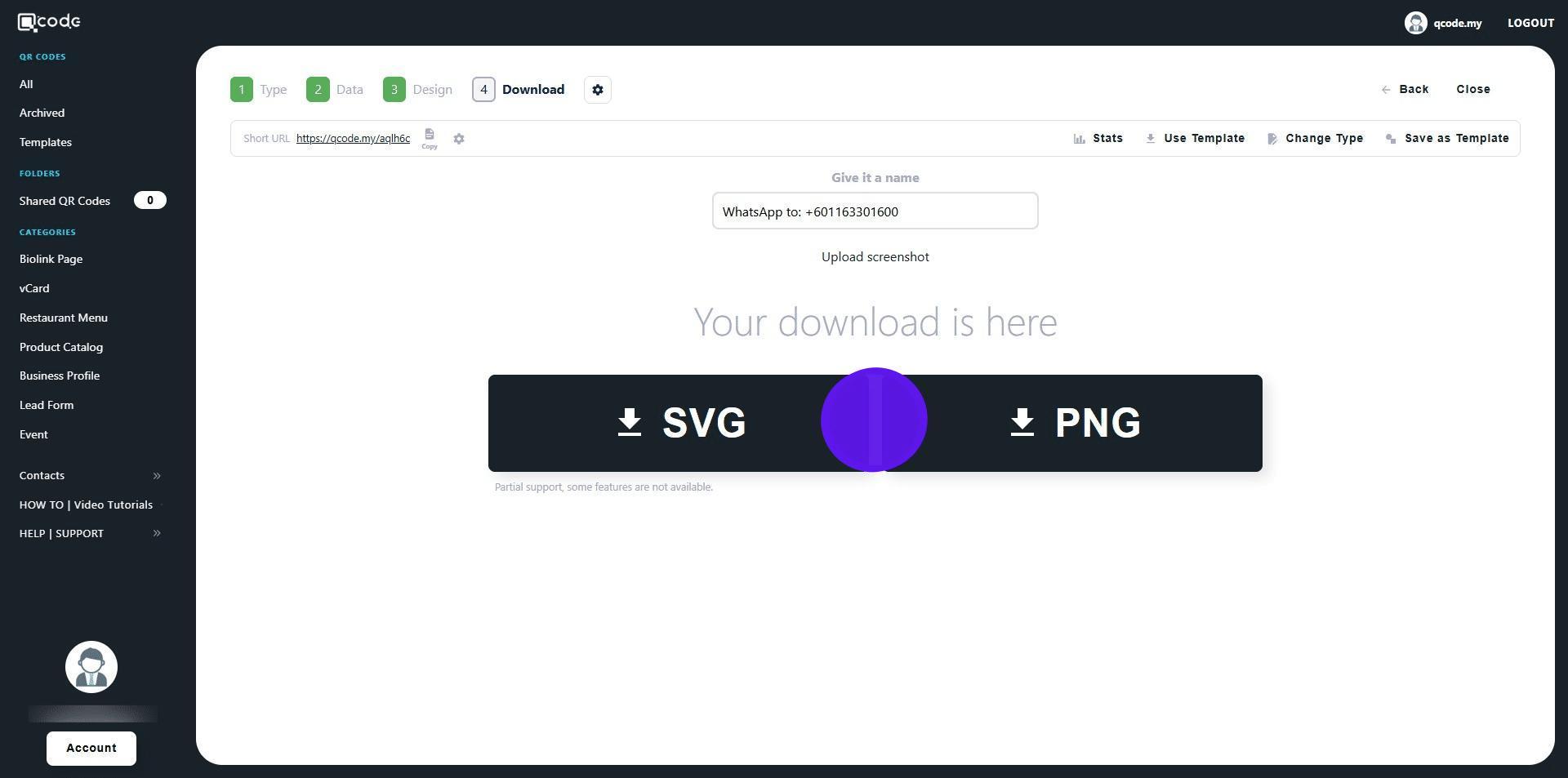
10. Give your QR Code a name by typing here
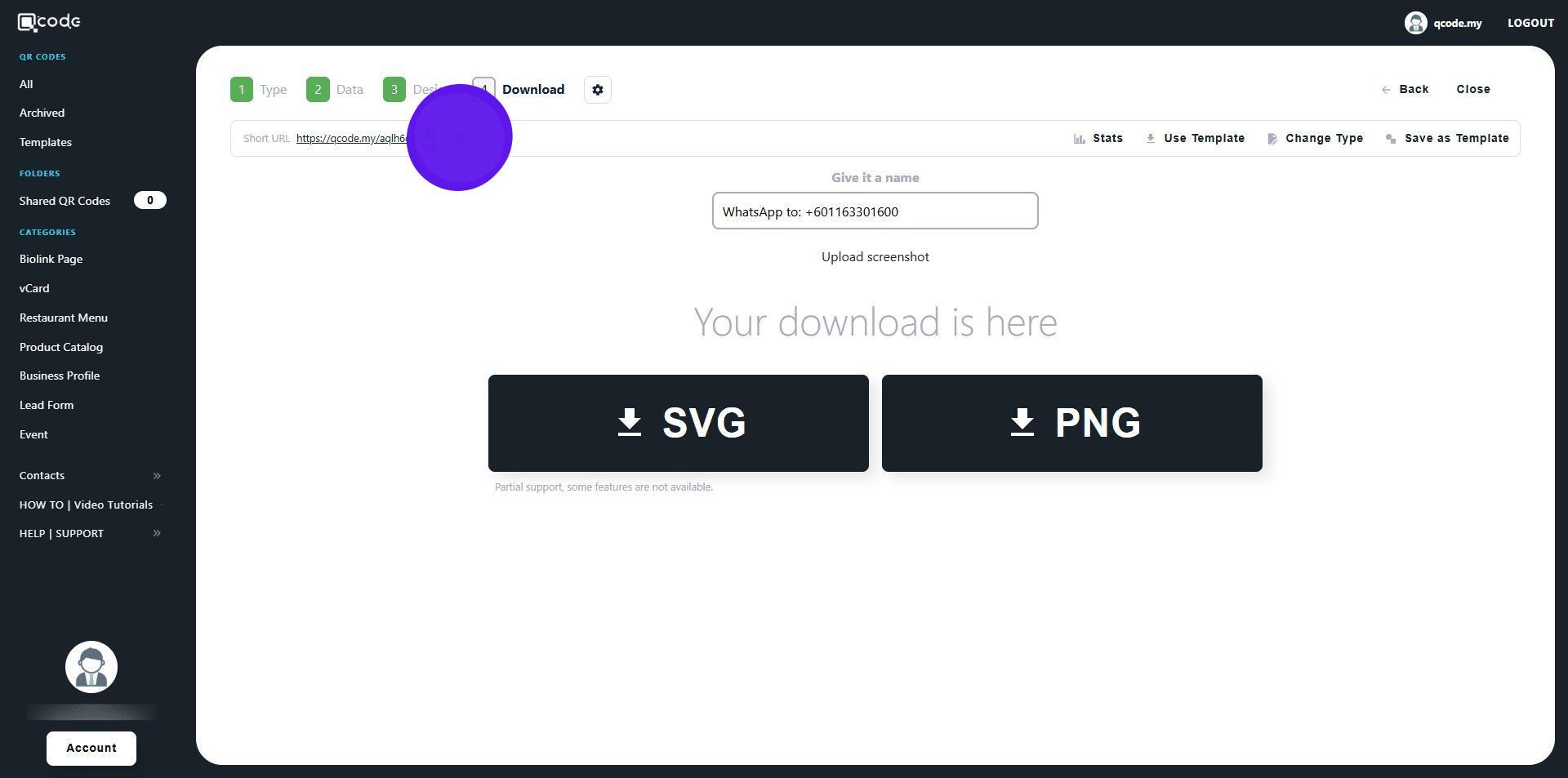
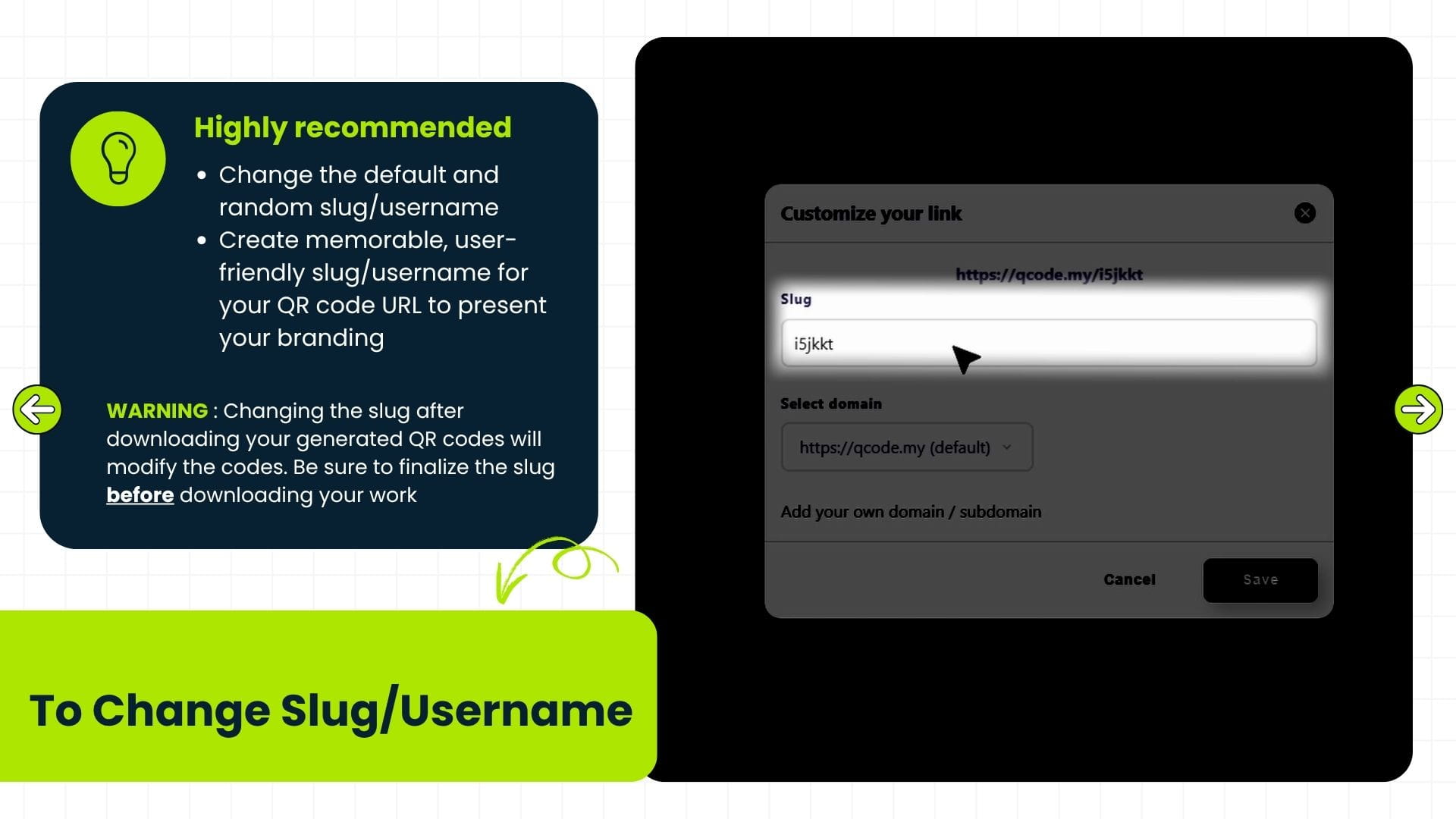
11. Click on the cog icon to change your Slug/Username. Click the link to learn more: https://kb.imoolah.network/guides/WyWZY38vTRTbItuows4P
12. Changing the slug after downloading your generated QR codes will modify the codes. Be sure to finalize the slug before downloading your work
13. Click on SVG or PNG to download your QR Code in the desired formats
14. Click on the Short URL link to view your WhatsApp message