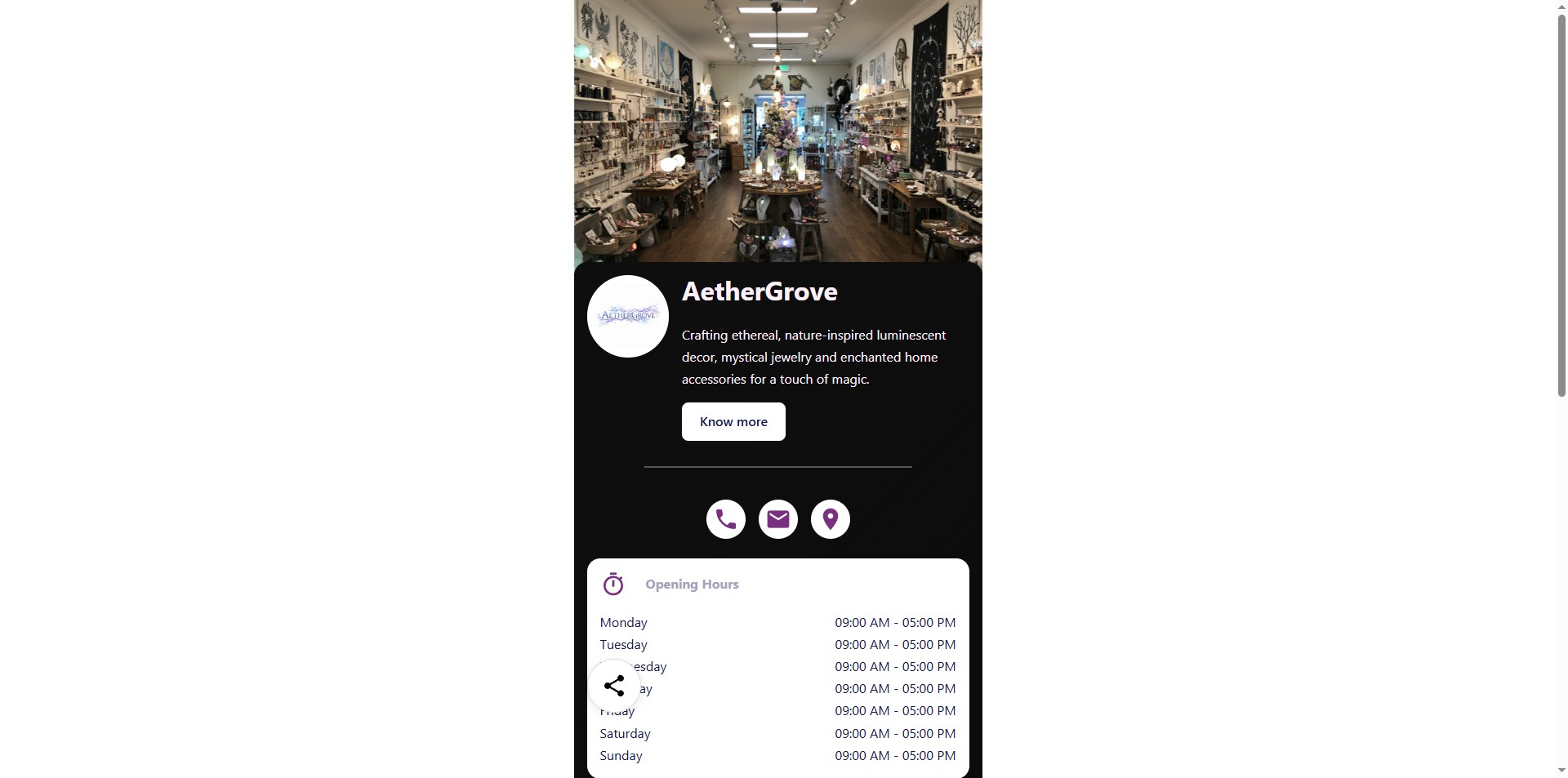
How to add a PDF File in Business Profile
1. Navigate to https://qcode.my/dashboard/qrcodes
2. Click on Create to start creating a File Upload QR Code
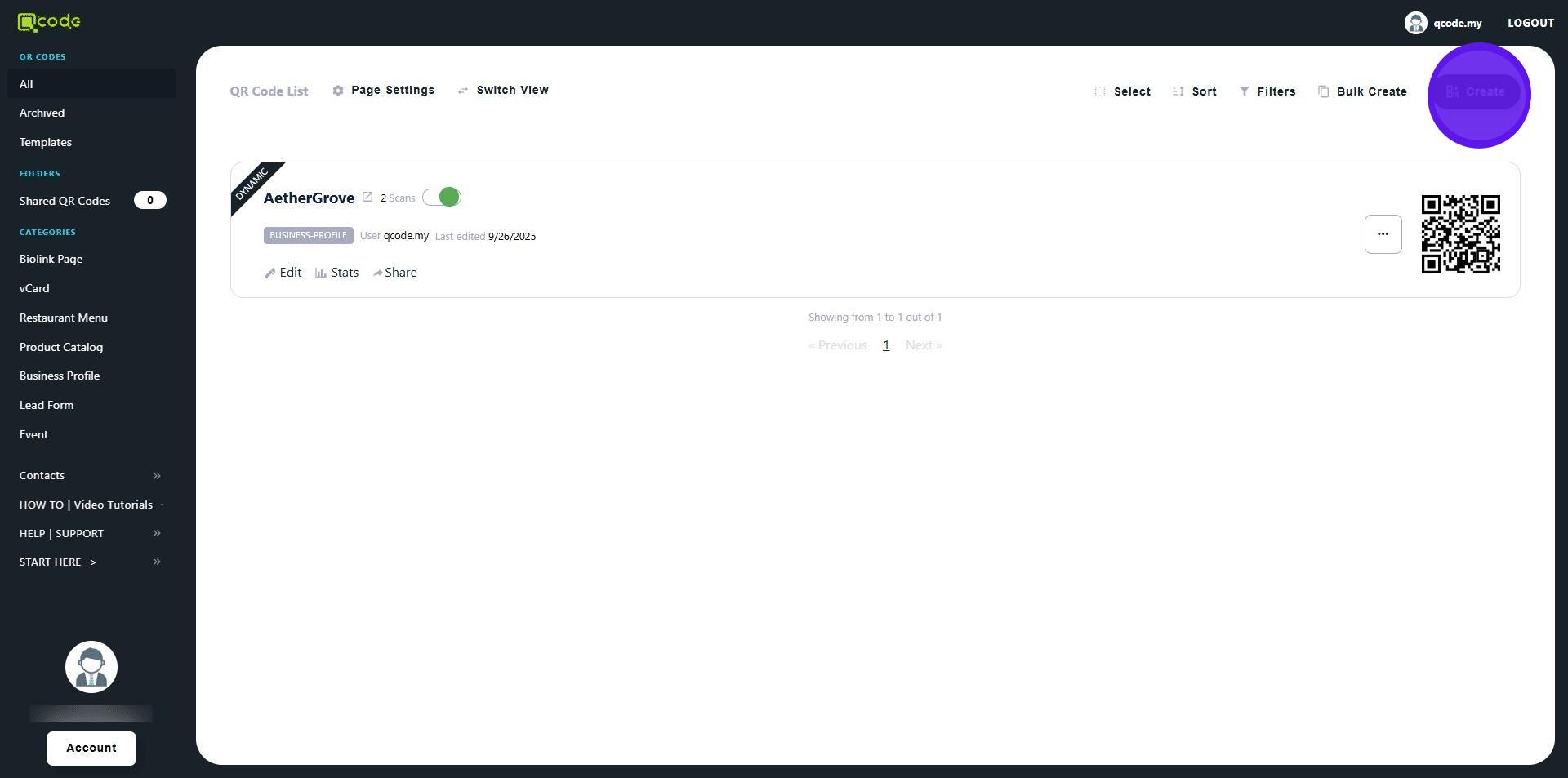
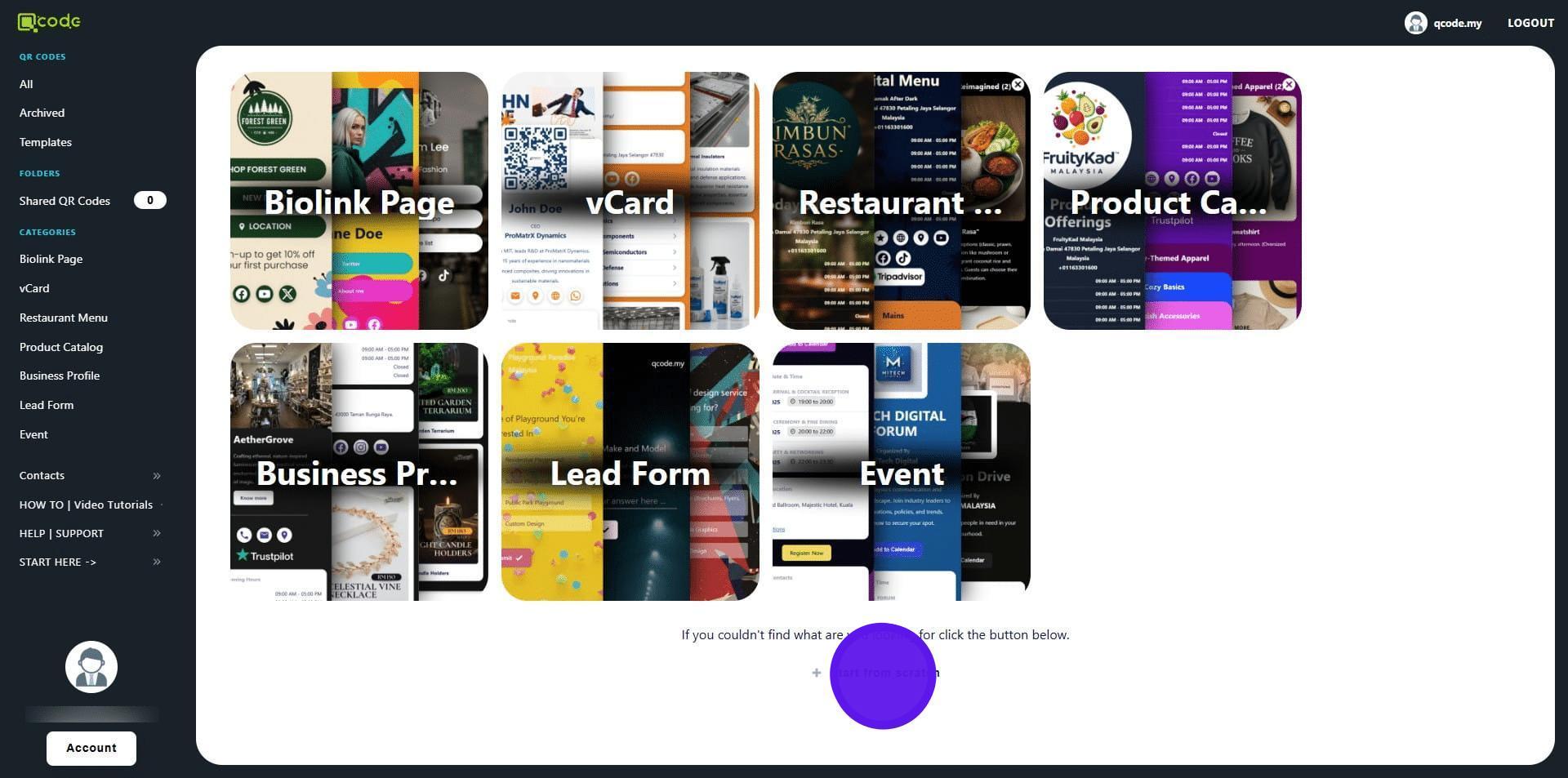
3. Click on Start from scratch
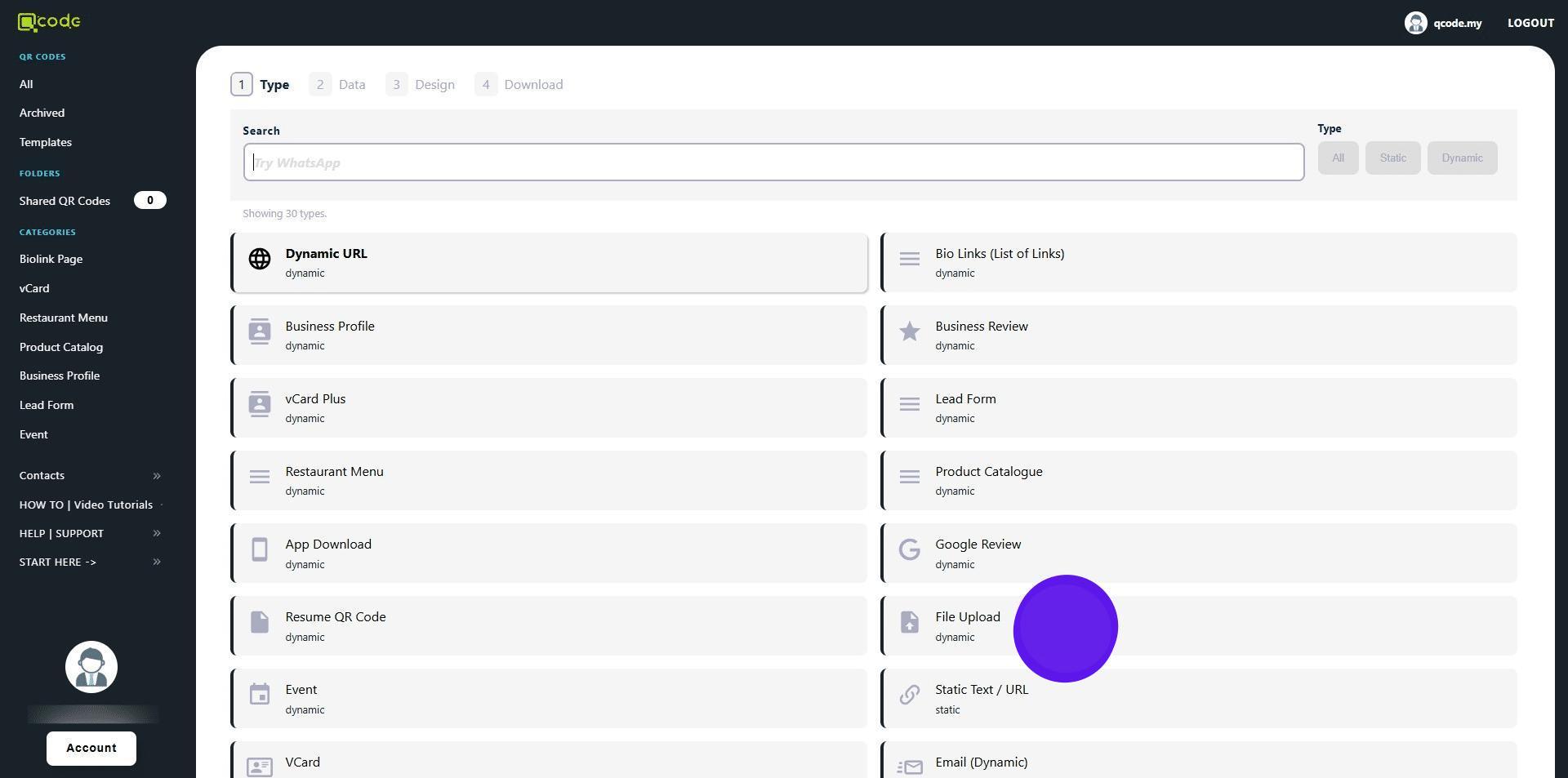
4. Click on File Upload
5. Click here to type in the name of your File Upload
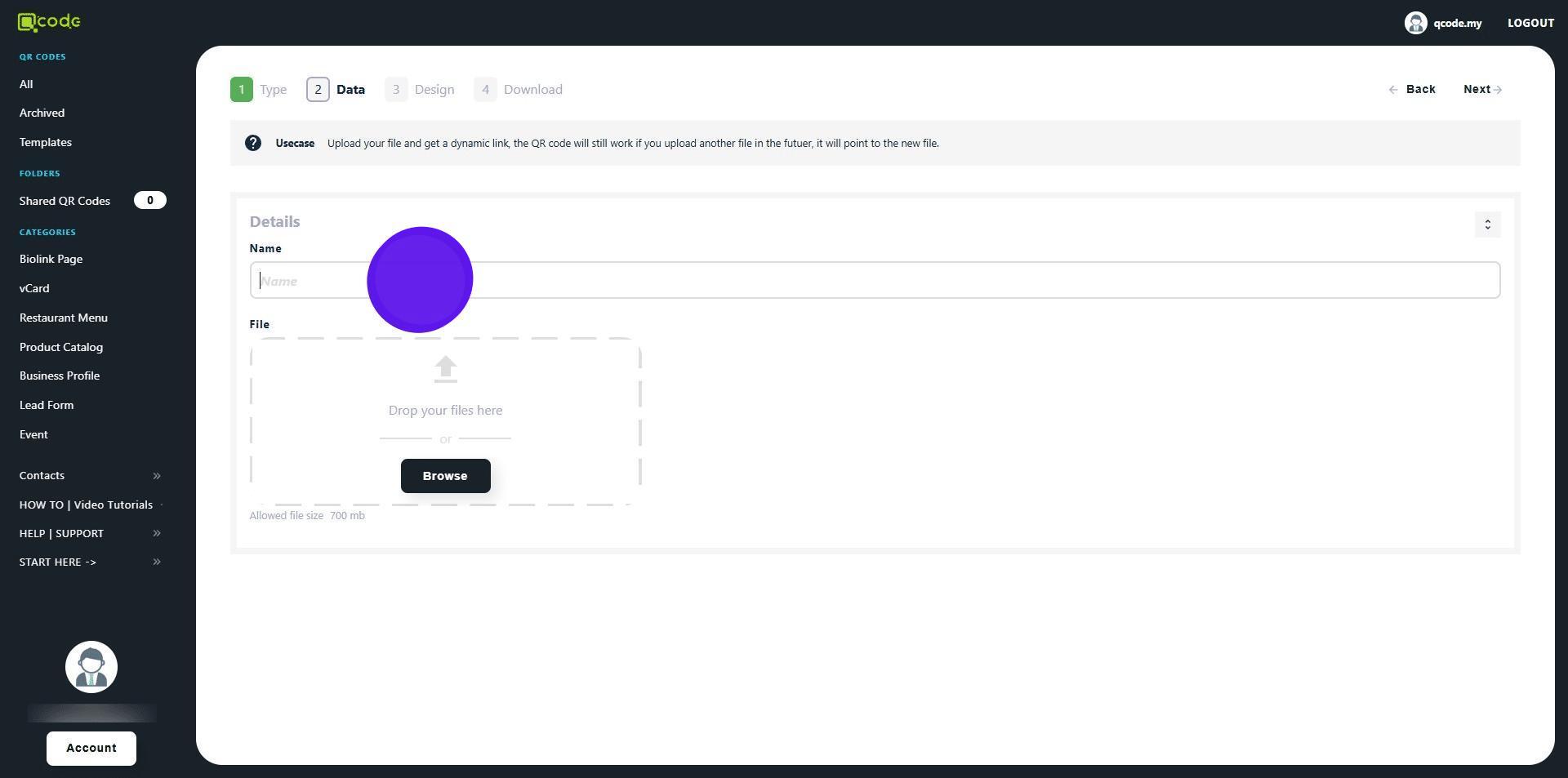
6. Click on Browse to upload the file
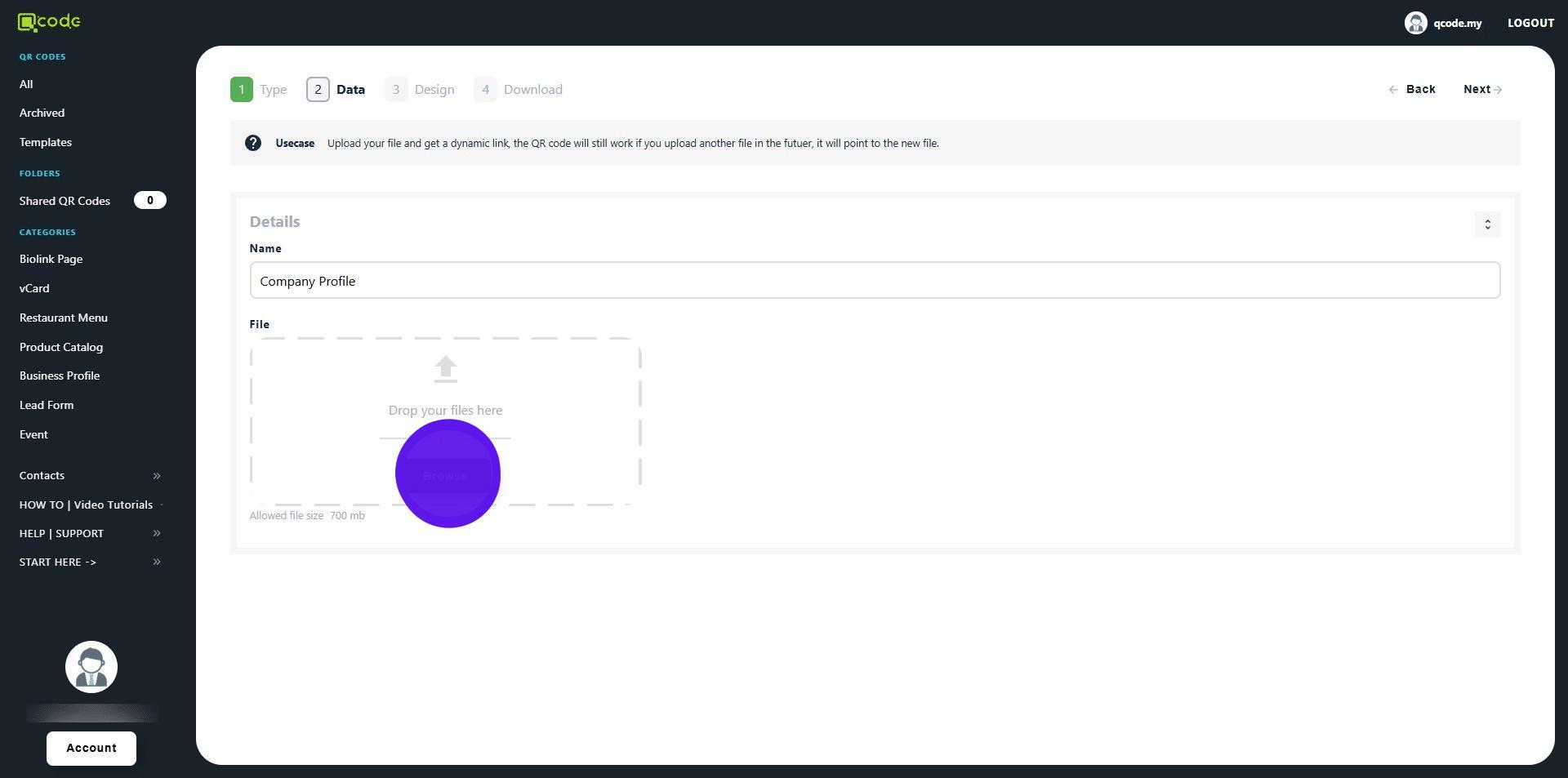
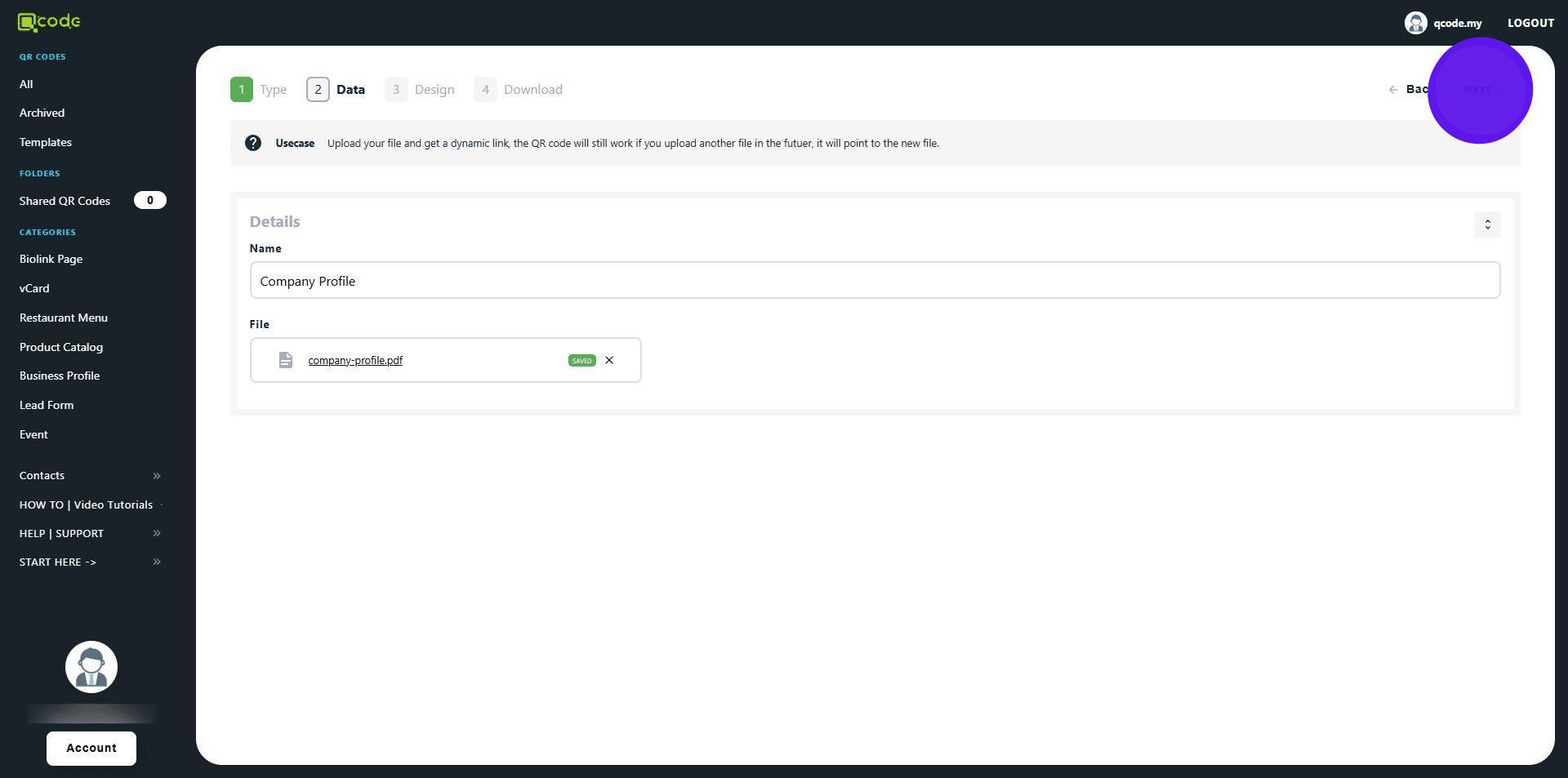
7. Once the file has been uploaded, click on Next to move to the next section
8. Here you can customize your QR Code. Click the link to learn more: https://guide.imoolah.net/guides/th01m4kP4I4CYfwici1W
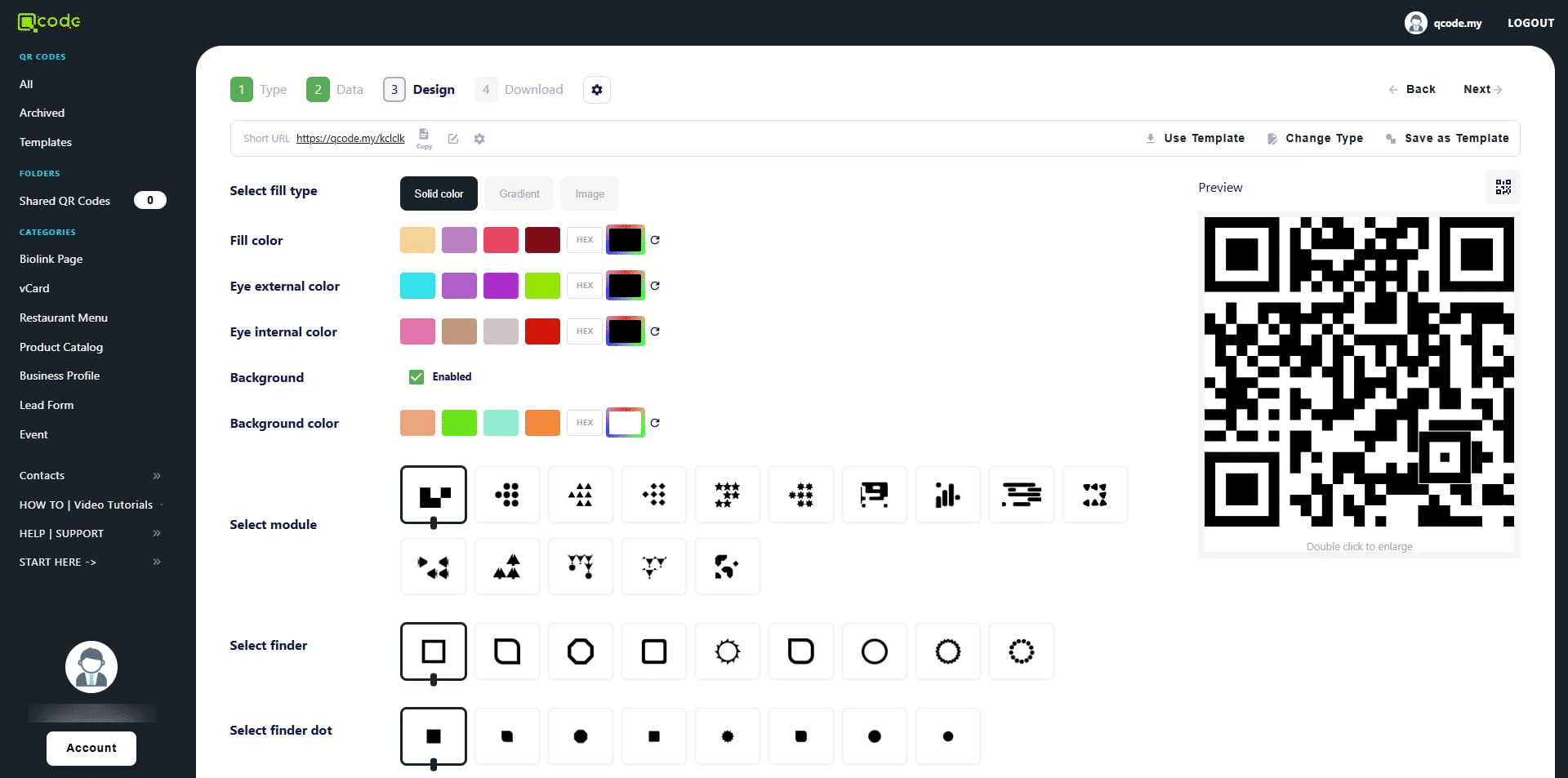
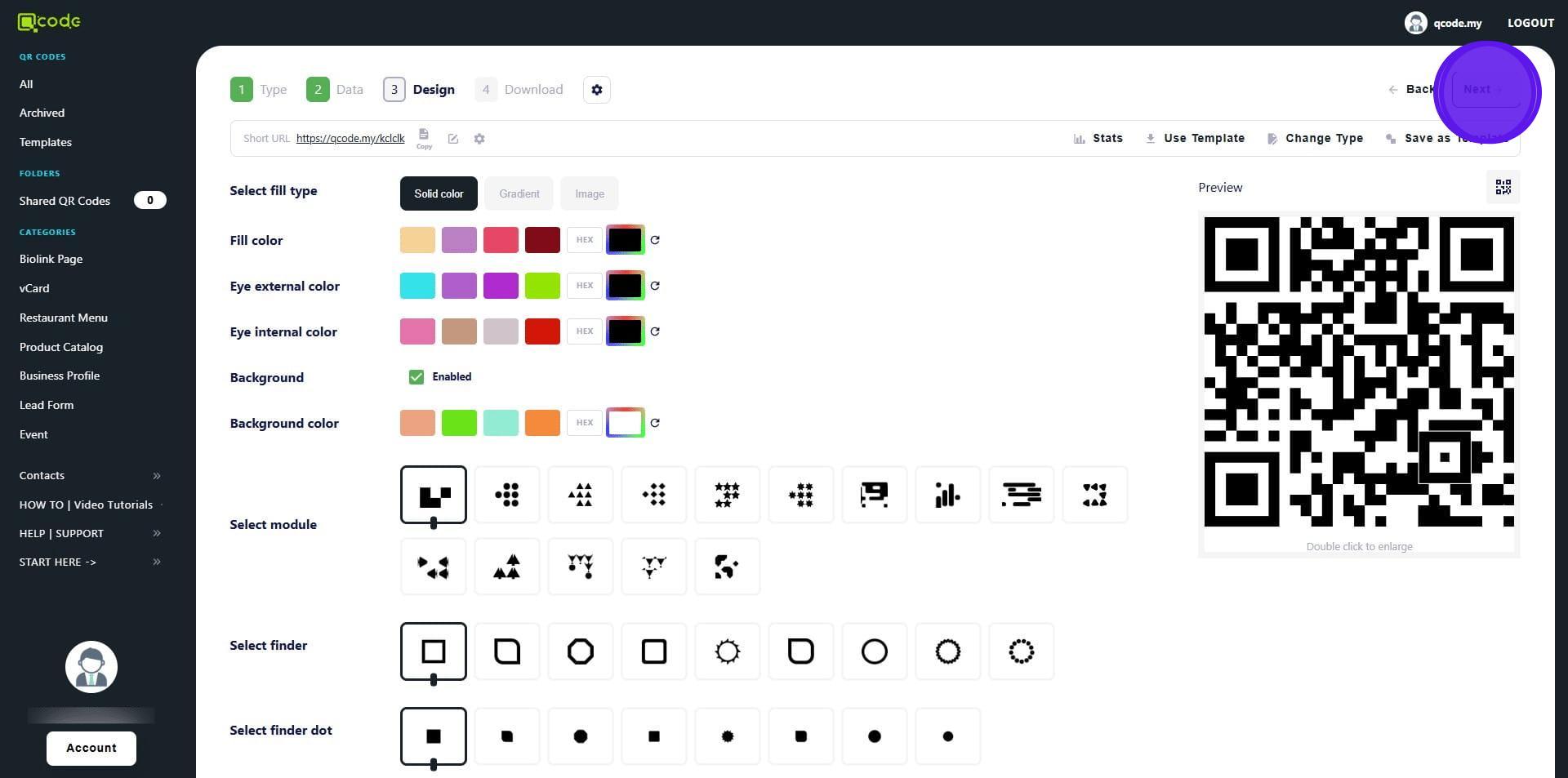
9. Click on Next to move to the final section
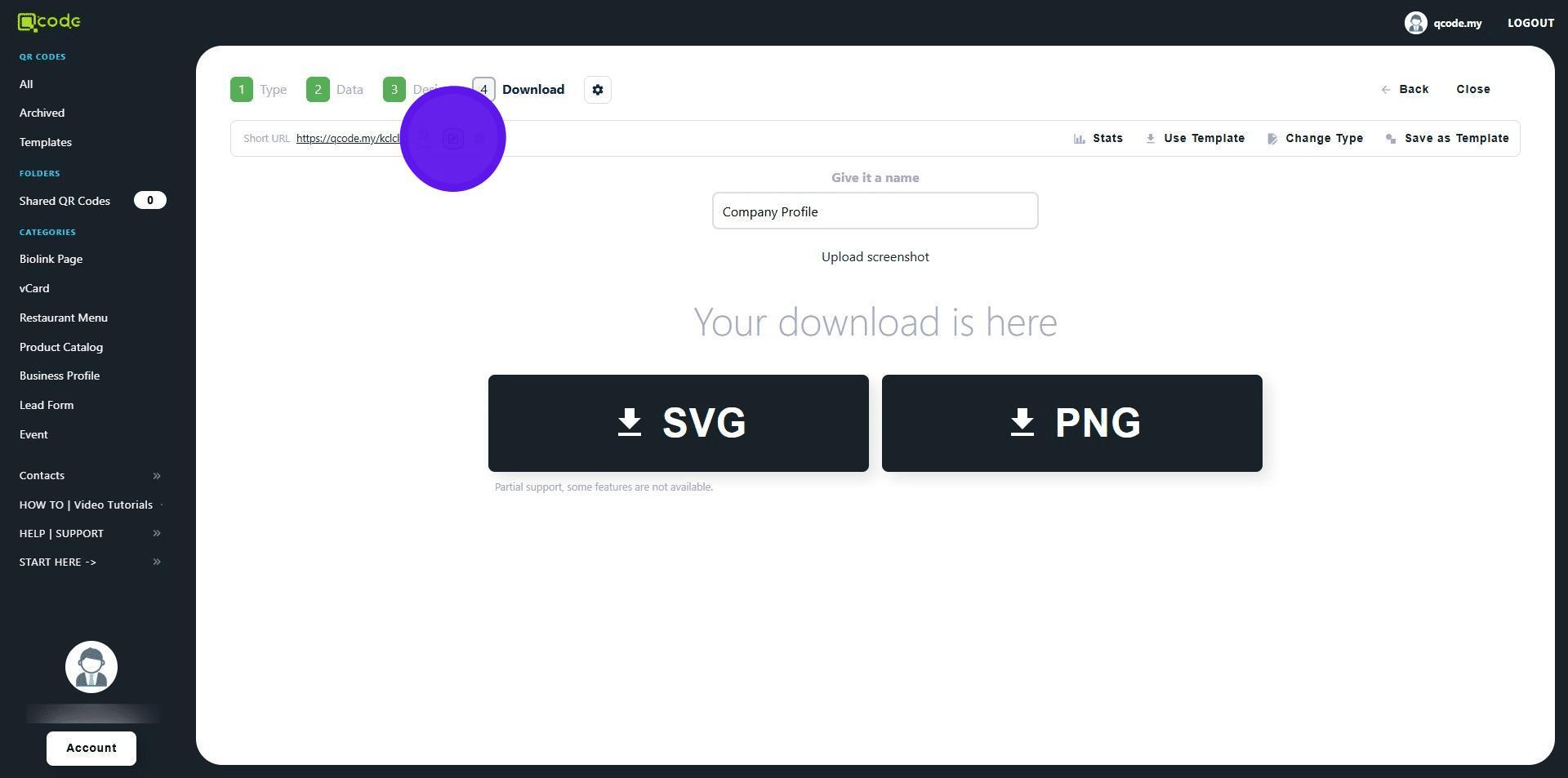
10. Click on the Pencil icon to change your Slug/Username
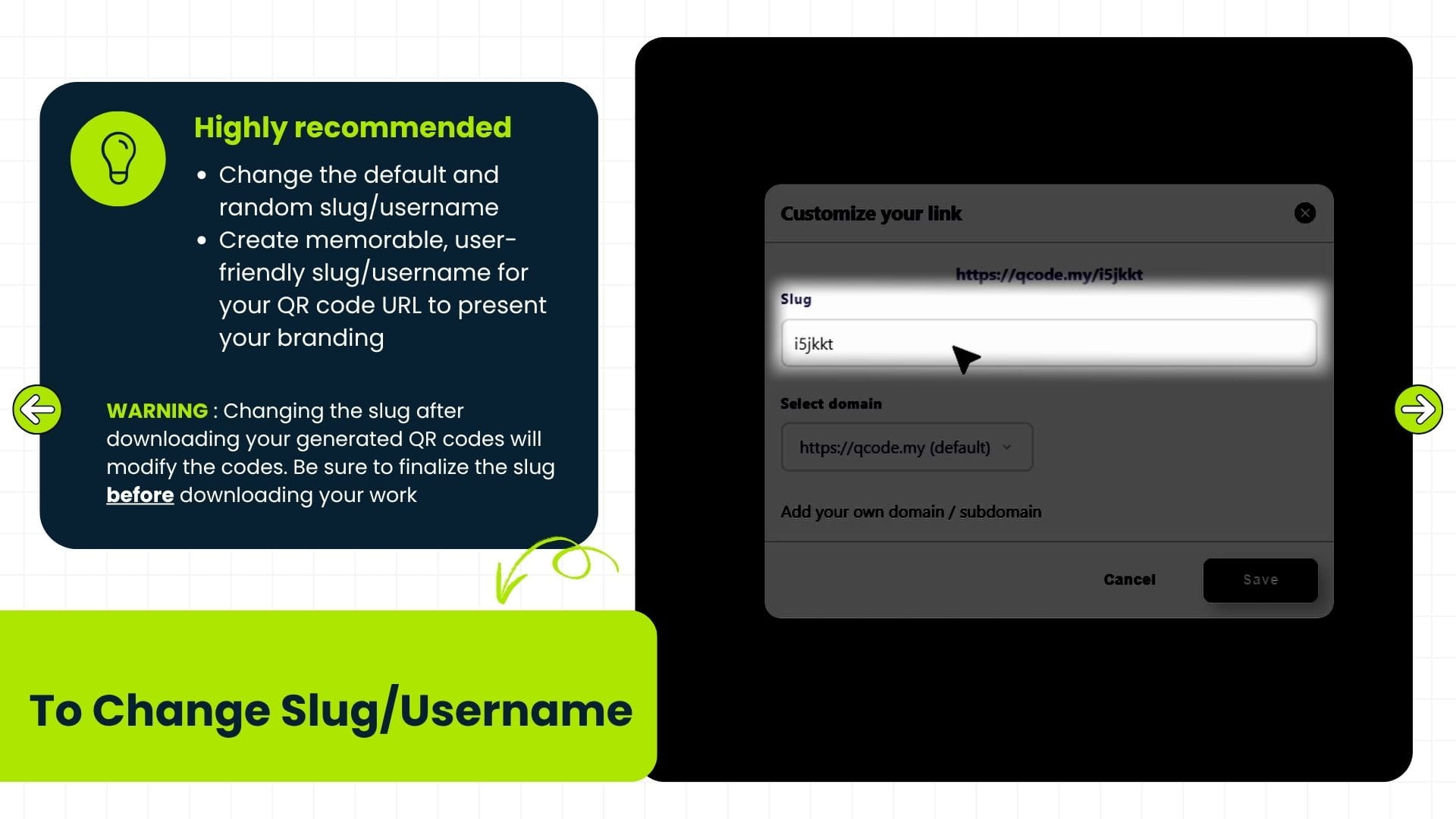
11. Changing the slug after downloading your generated QR codes will modify the codes. Be sure to finalize the slug before downloading your work
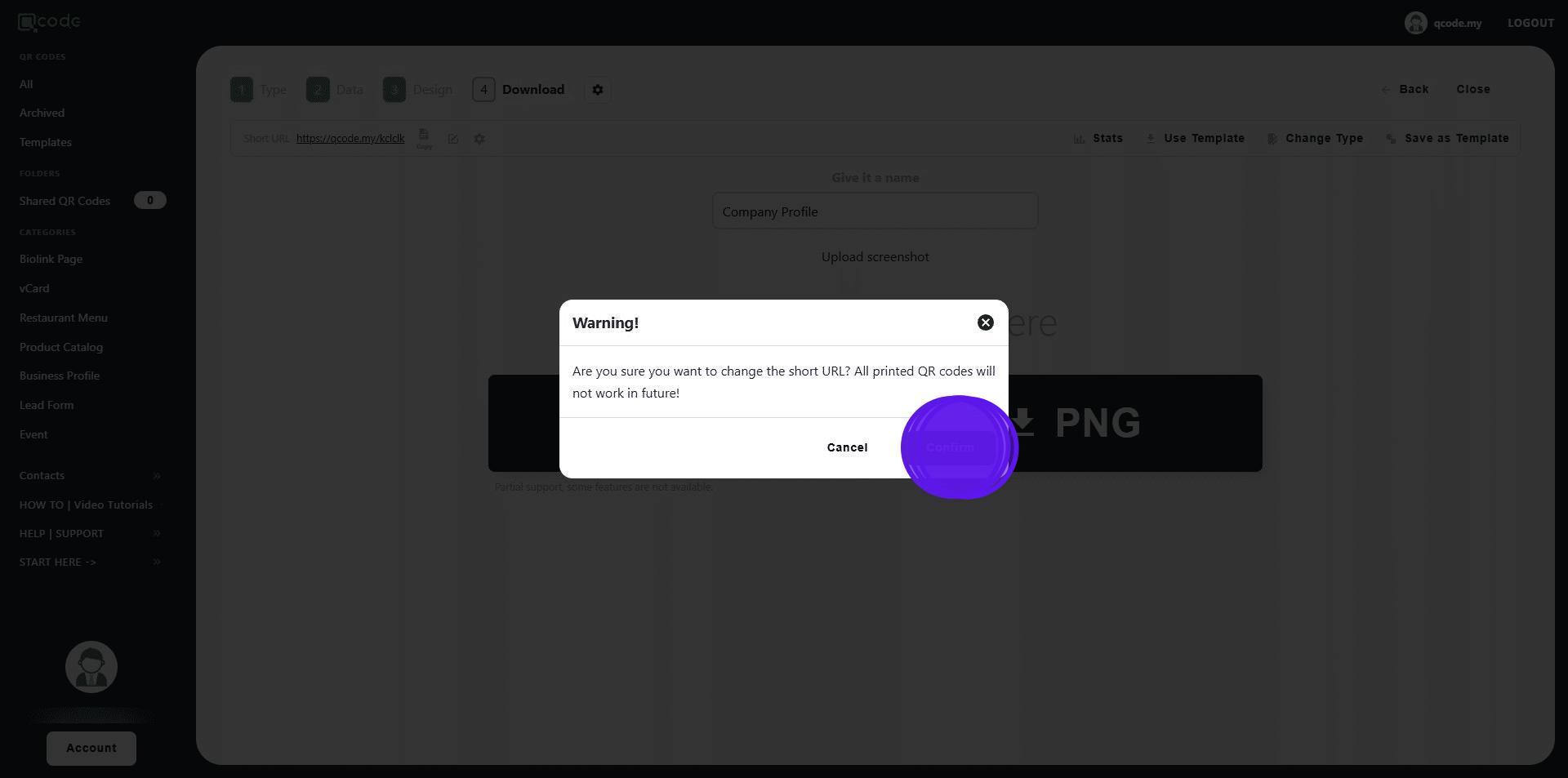
12. Click on Confirm
13. Click here to type in your new Slug/Username
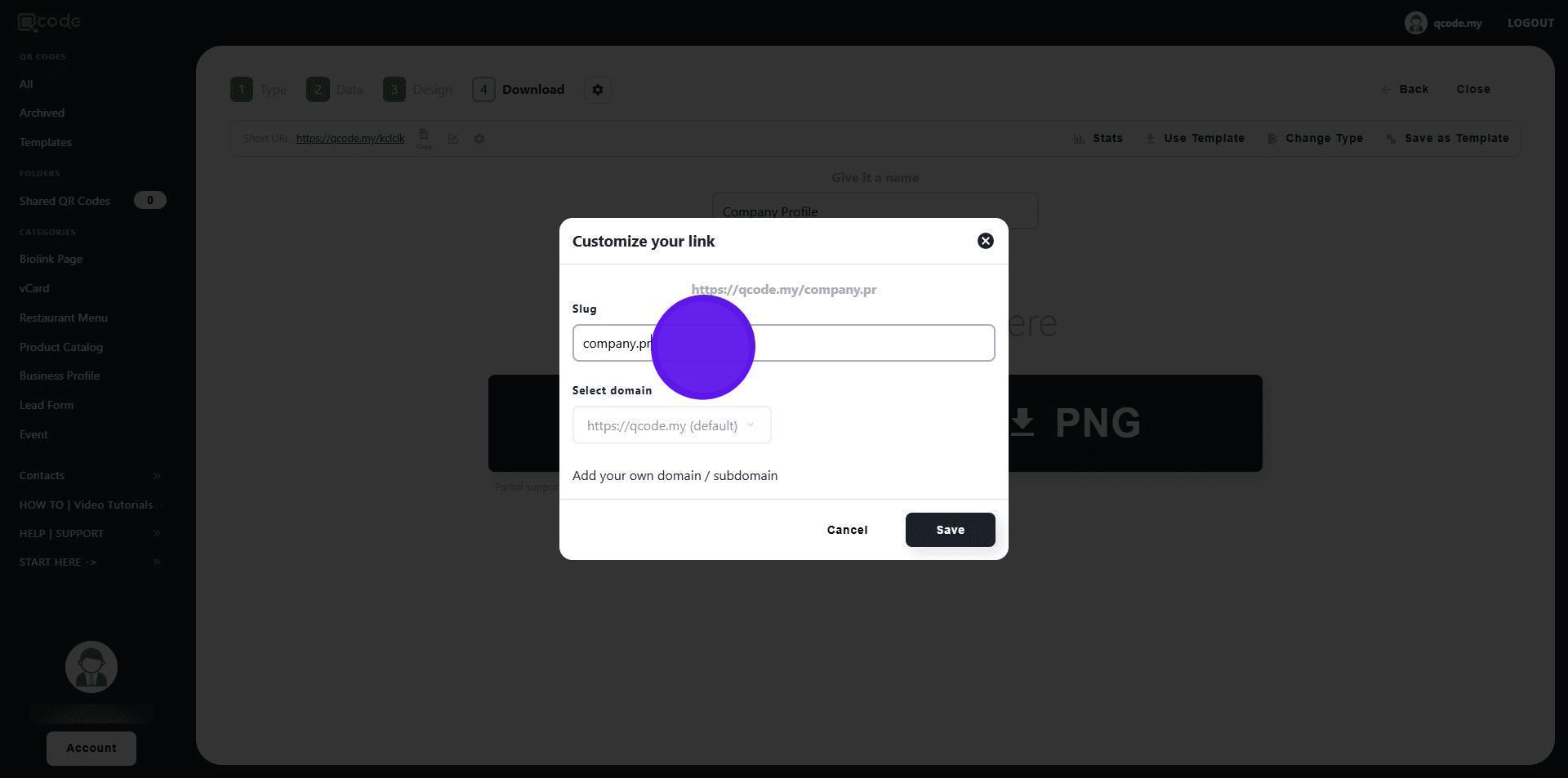
14. Now copy the Slug/Username here
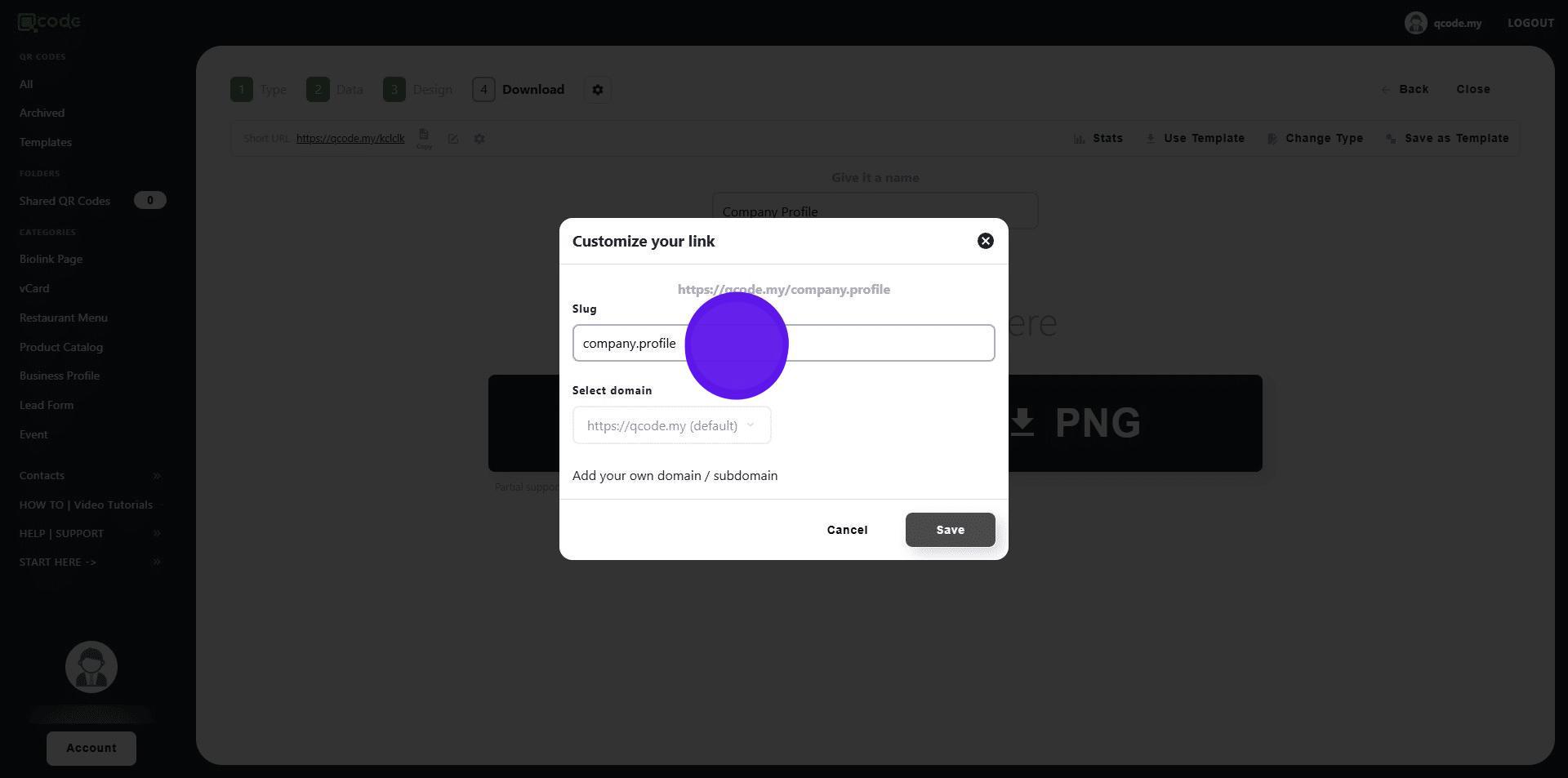
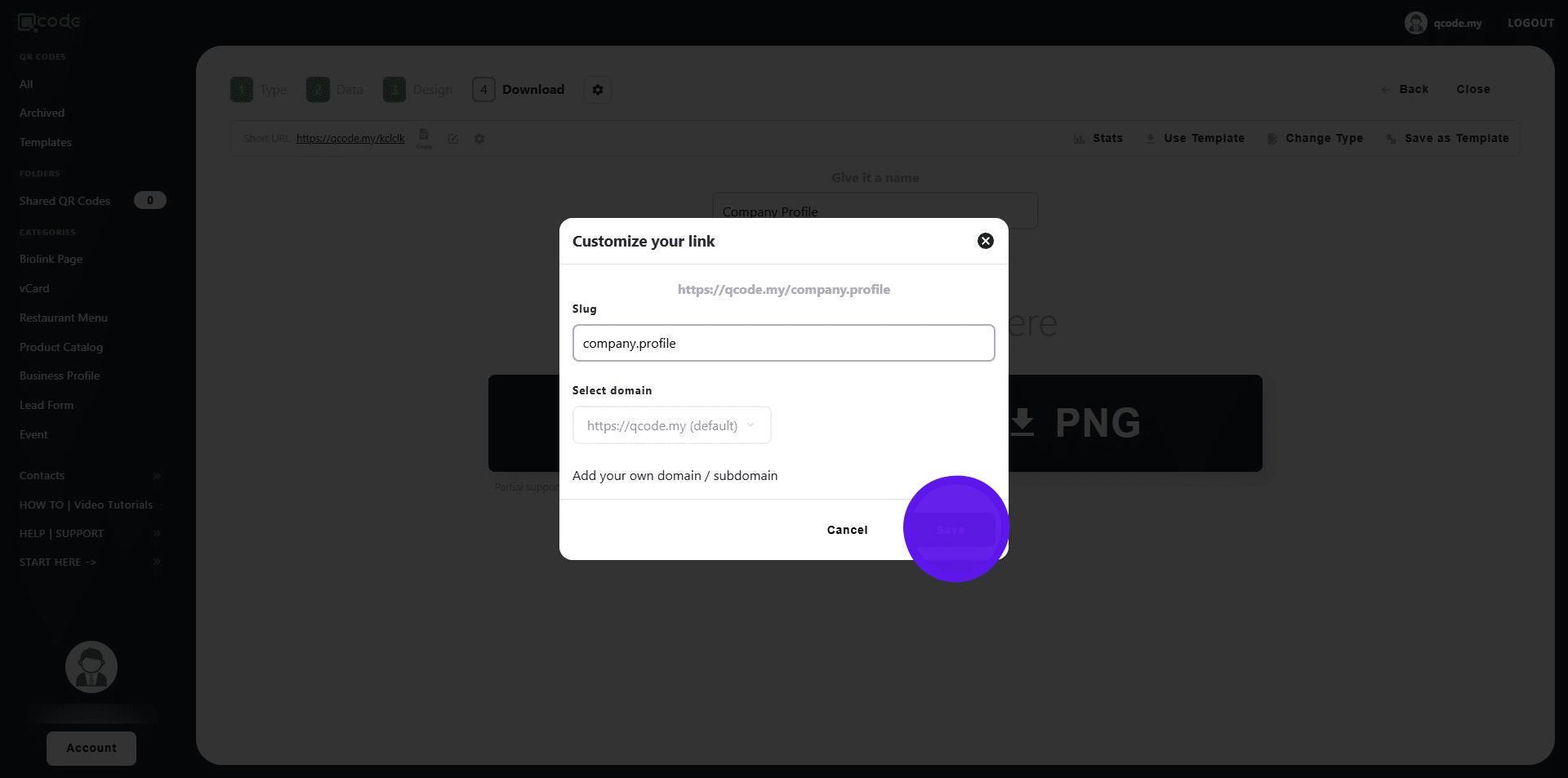
15. Click on Save to save the changes
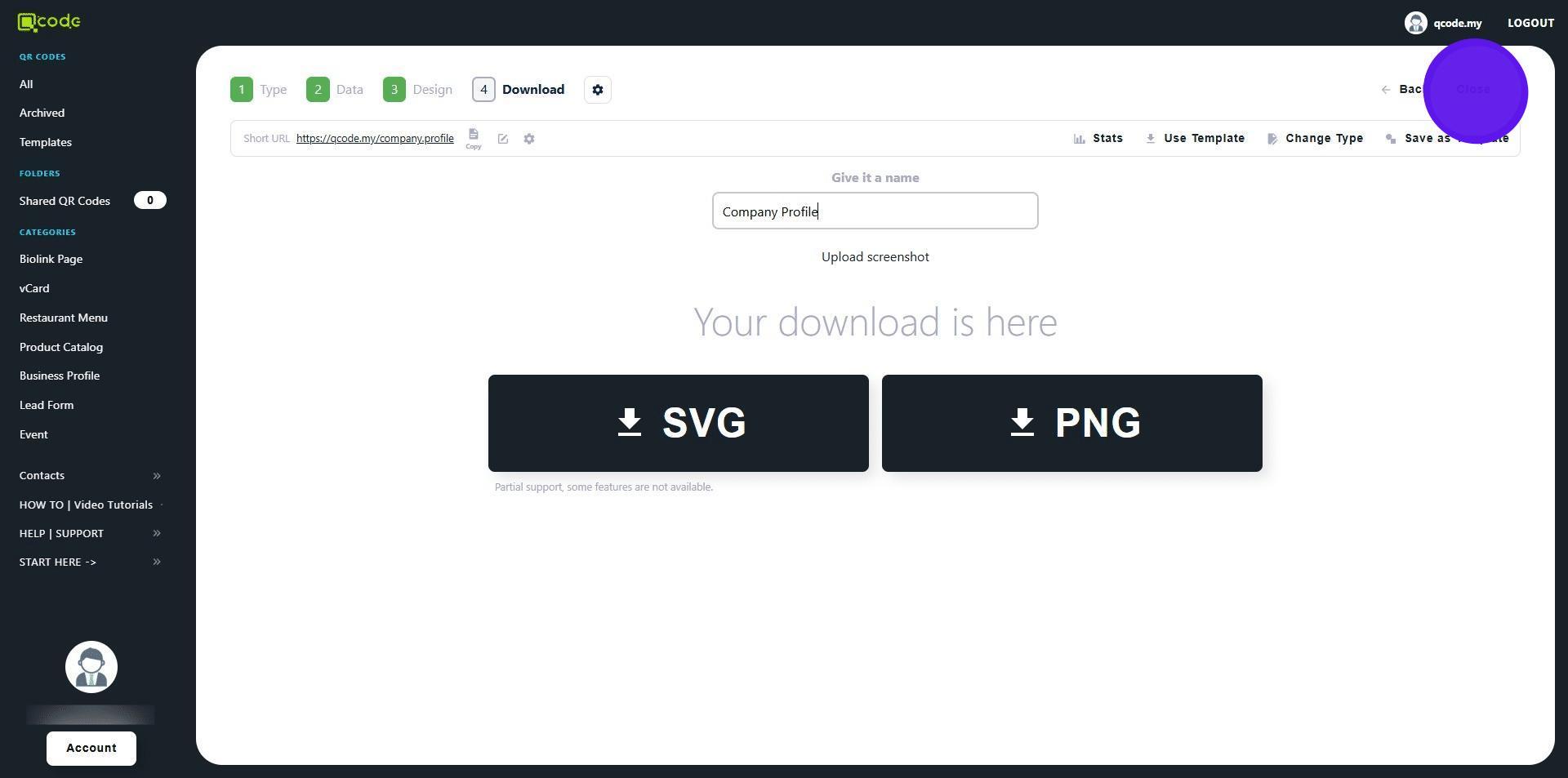
16. Click here to give your QR Code a name
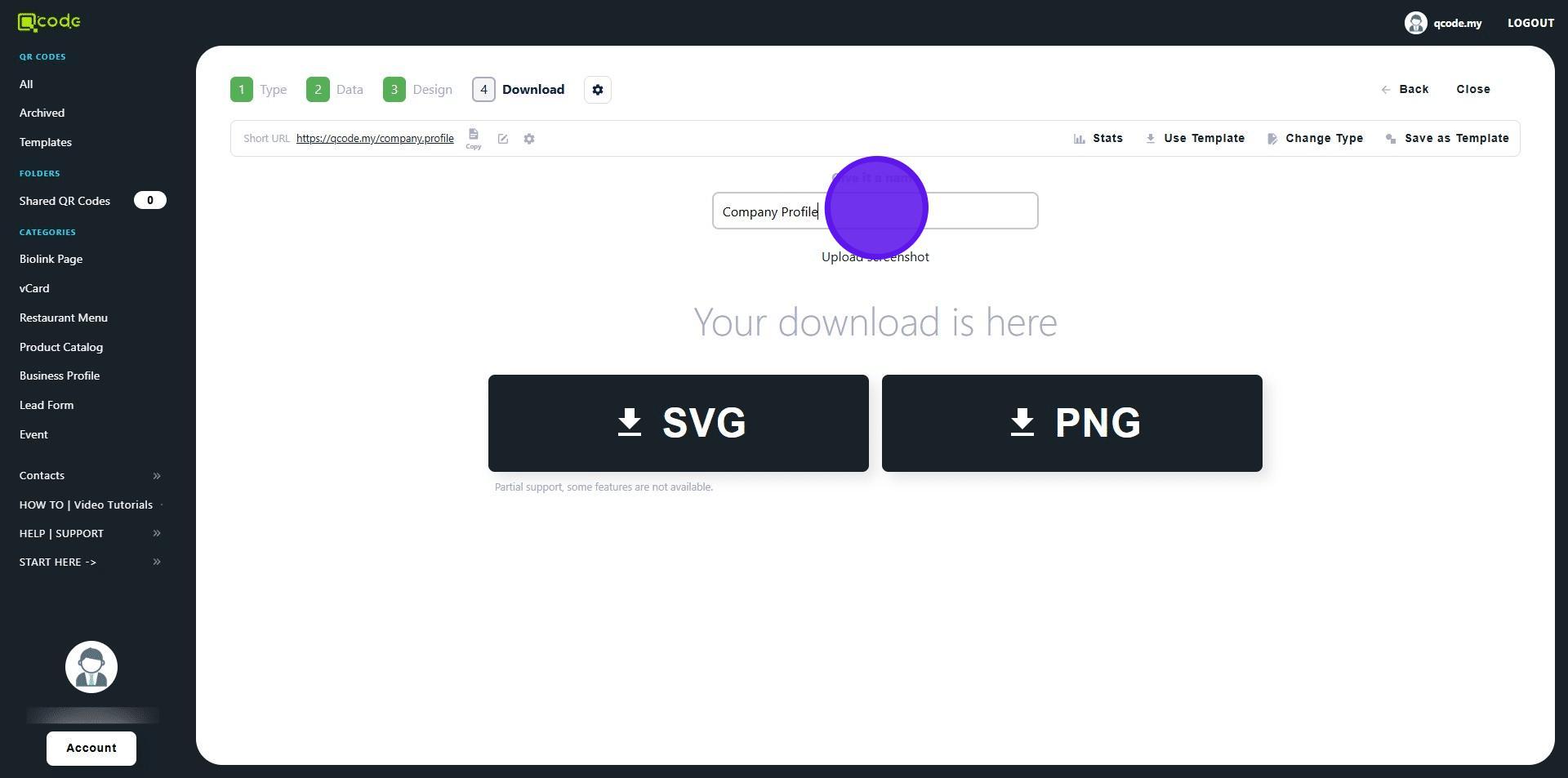
17. Click on Close to exit
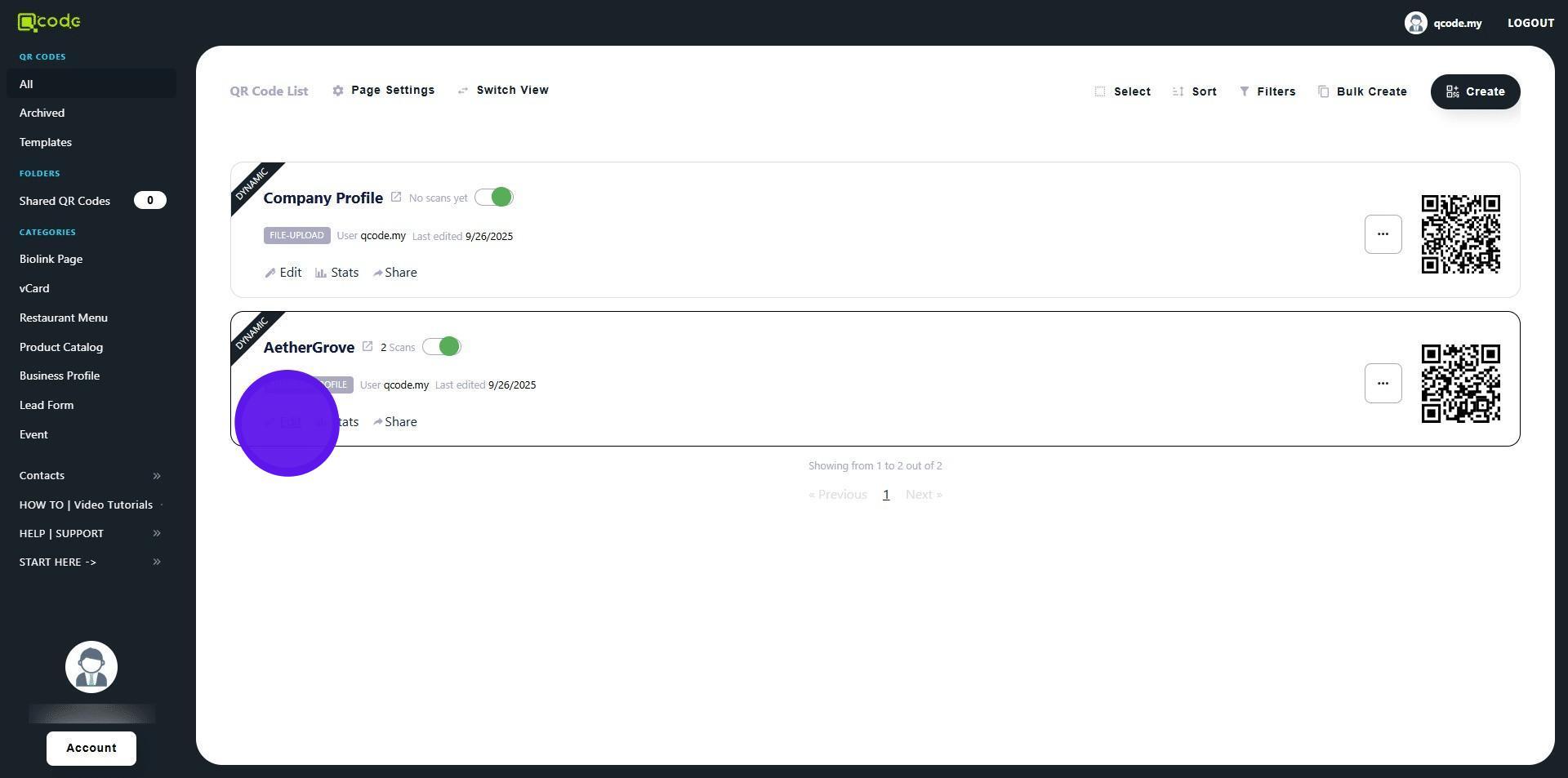
18. Click on the Edit button on the Business Profile that you want to edit
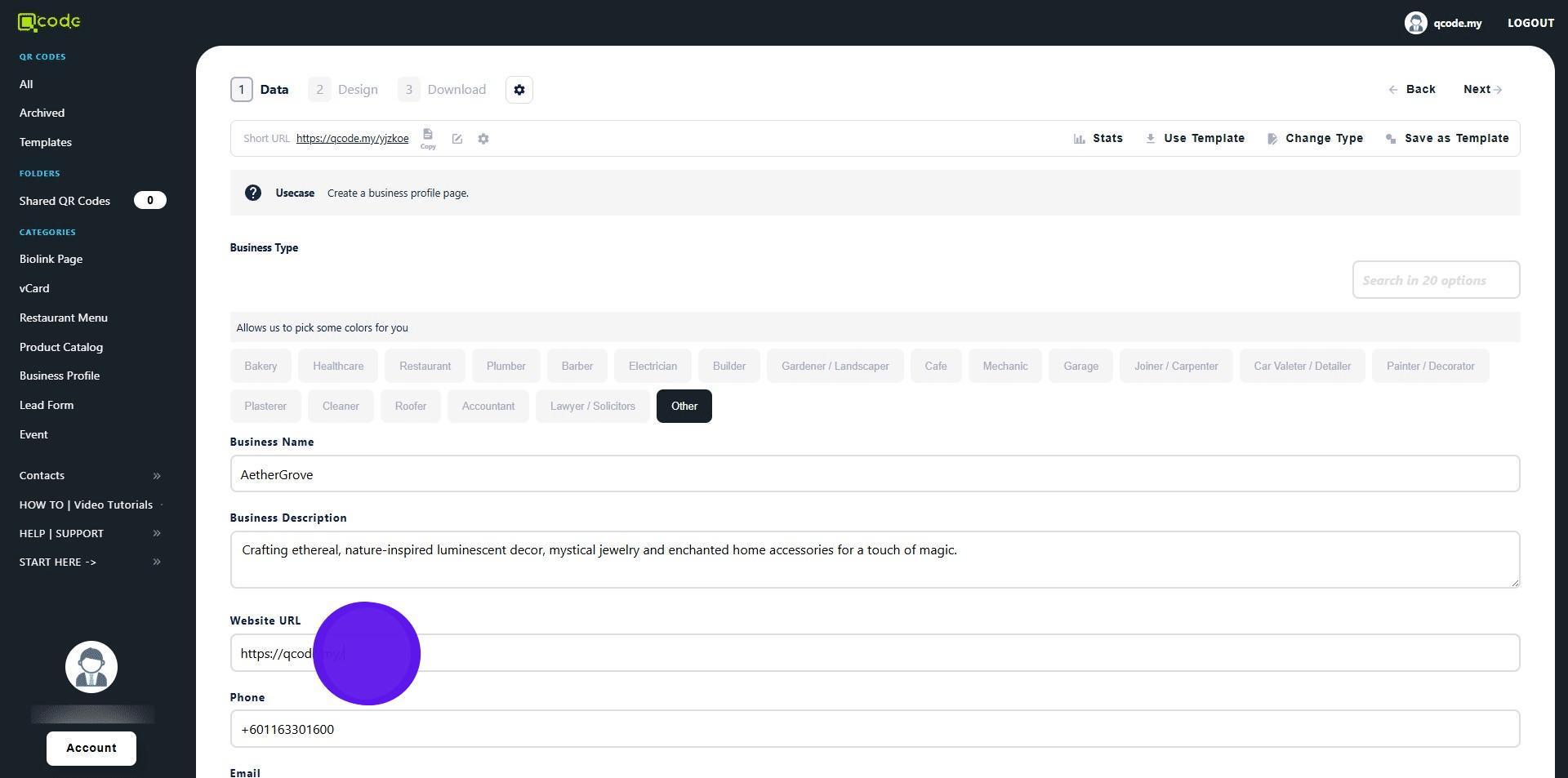
19. Paste in the Slug/Username in the Website URL
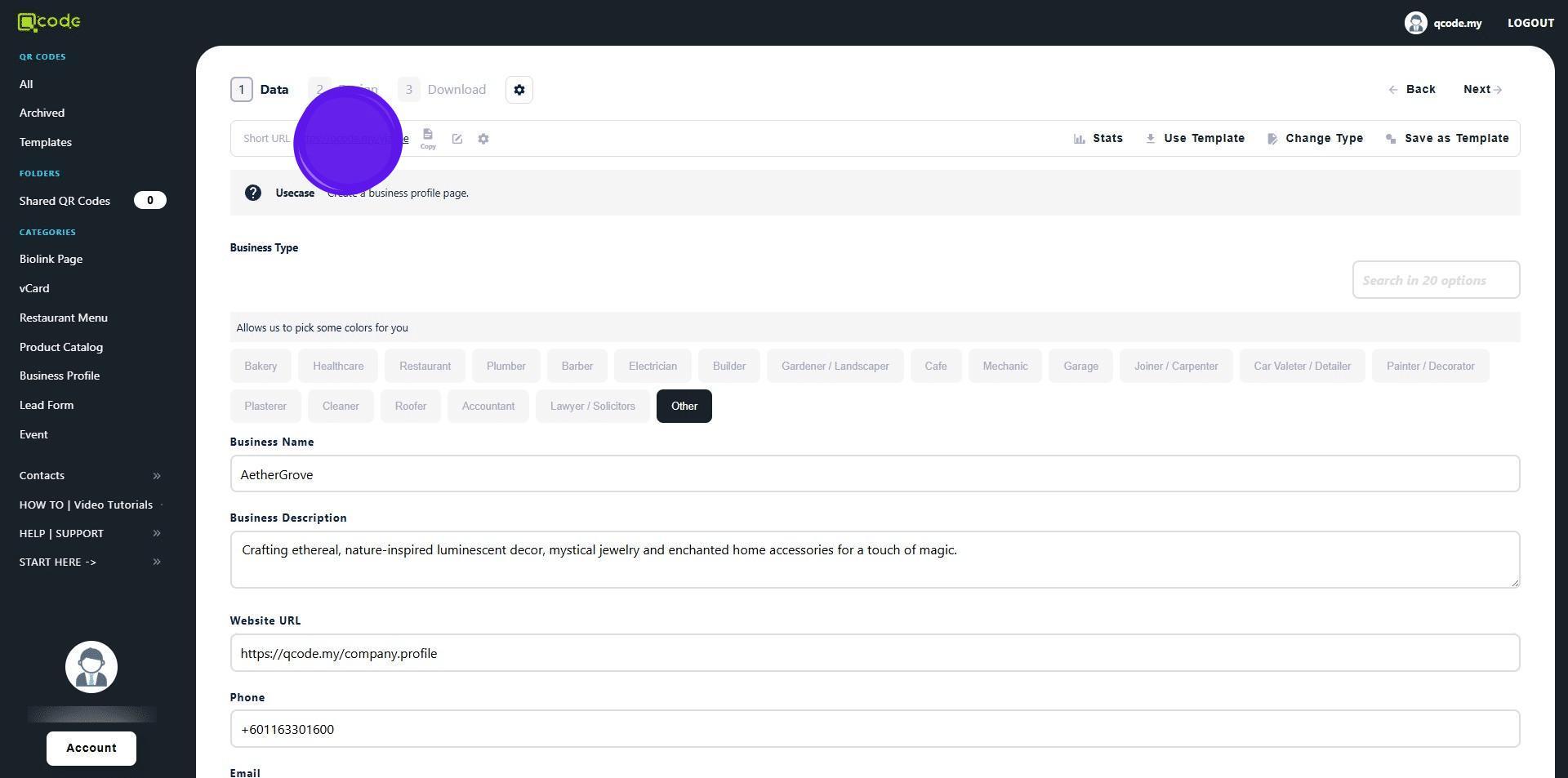
20. Click on the Short URL to view the changes
21. Click on Know more to view your uploaded PDF file
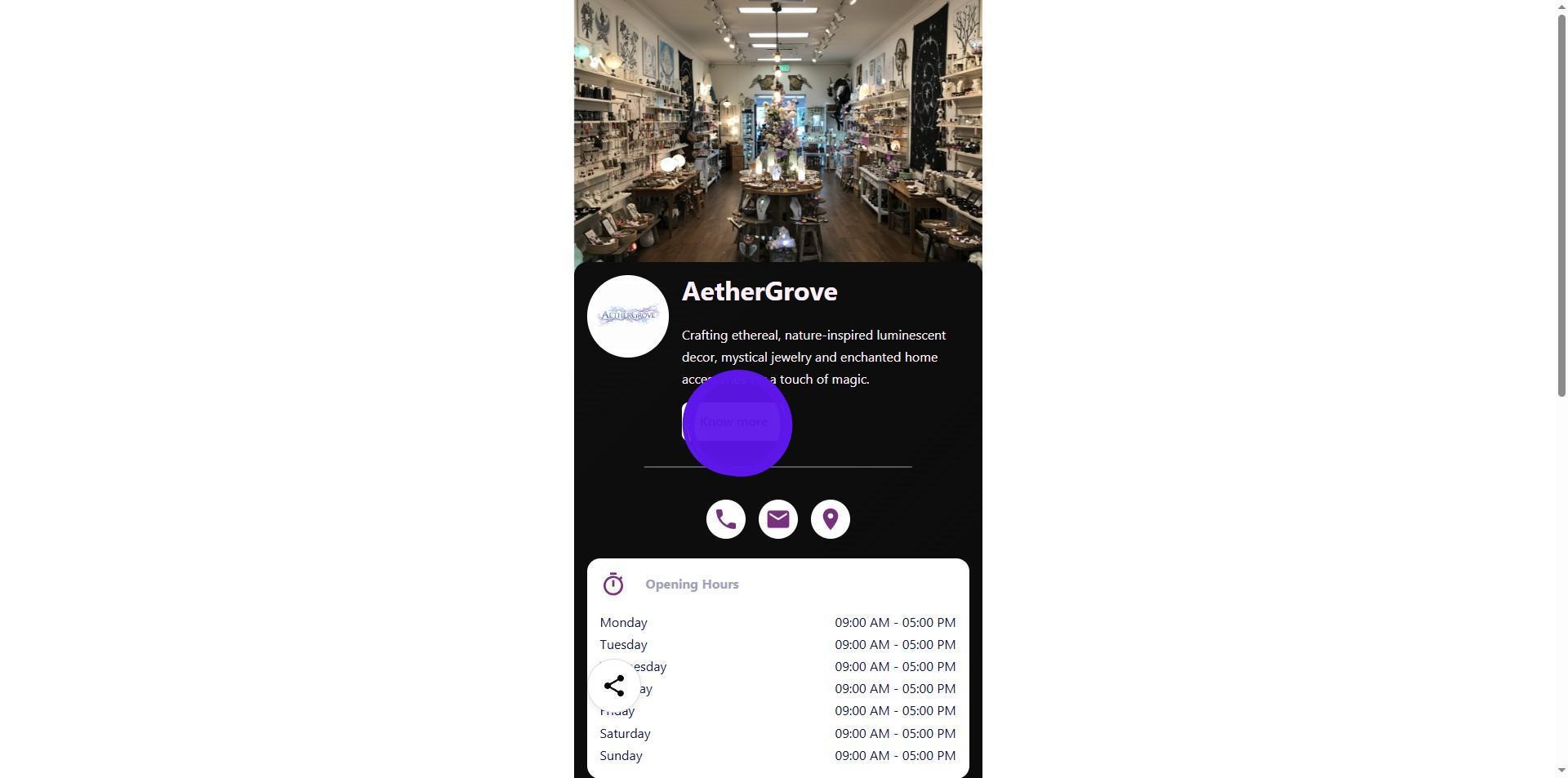
22. Congratulations you are done 🚀