How to add Google Maps
This guide explains how to integrate Google Maps with your QR code, allowing users to easily access a specific location on Google Maps by scanning the code. This enhances user experience and provides quick access to location information.
This tutorial covers the following QR types:
Dynamic URL Static URL / Text
Business Profile
VCard Plus
Restaurant Menu
Events Biolink
Product Catalog
Location (Static)
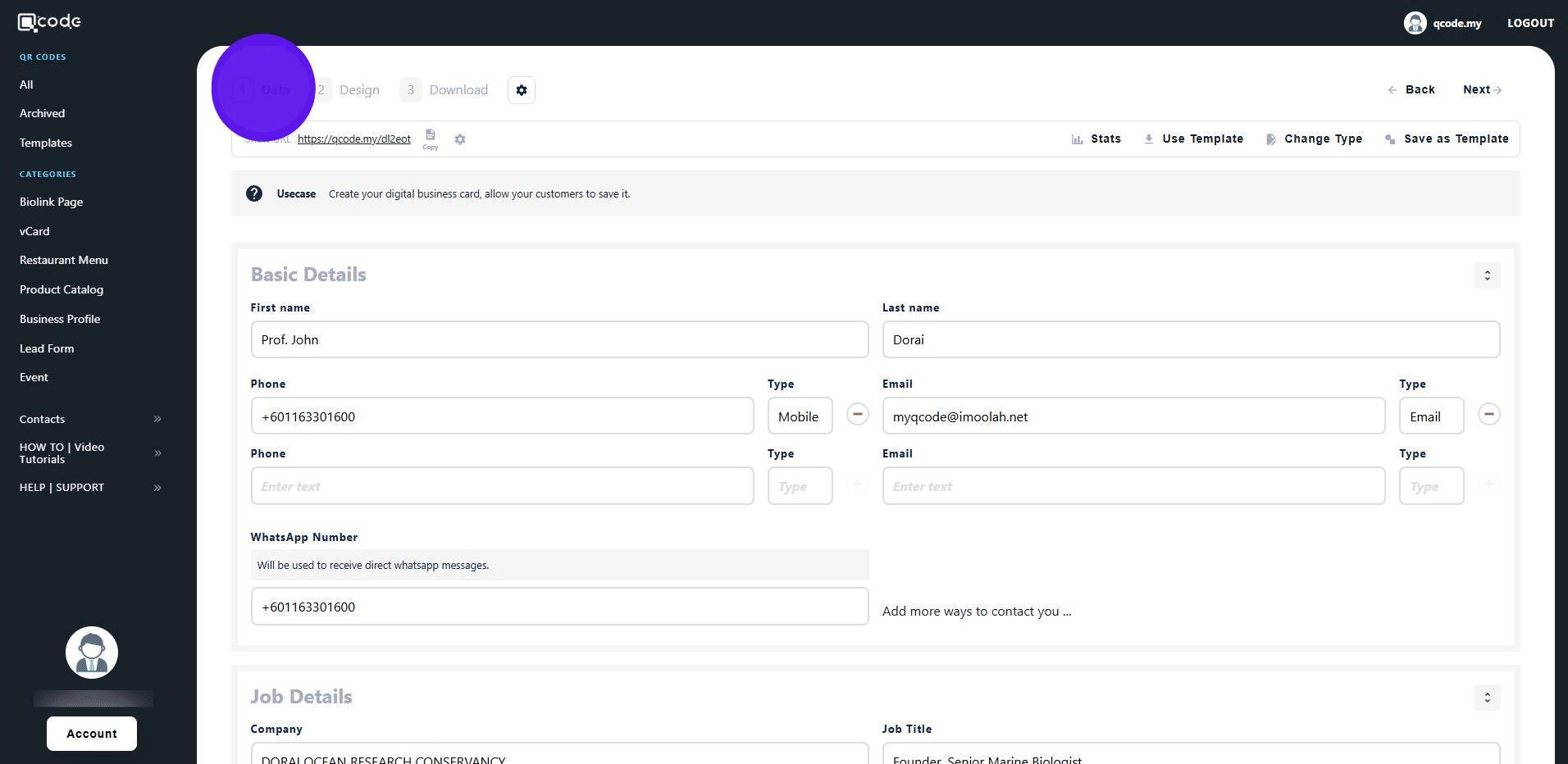
2. Click on Data
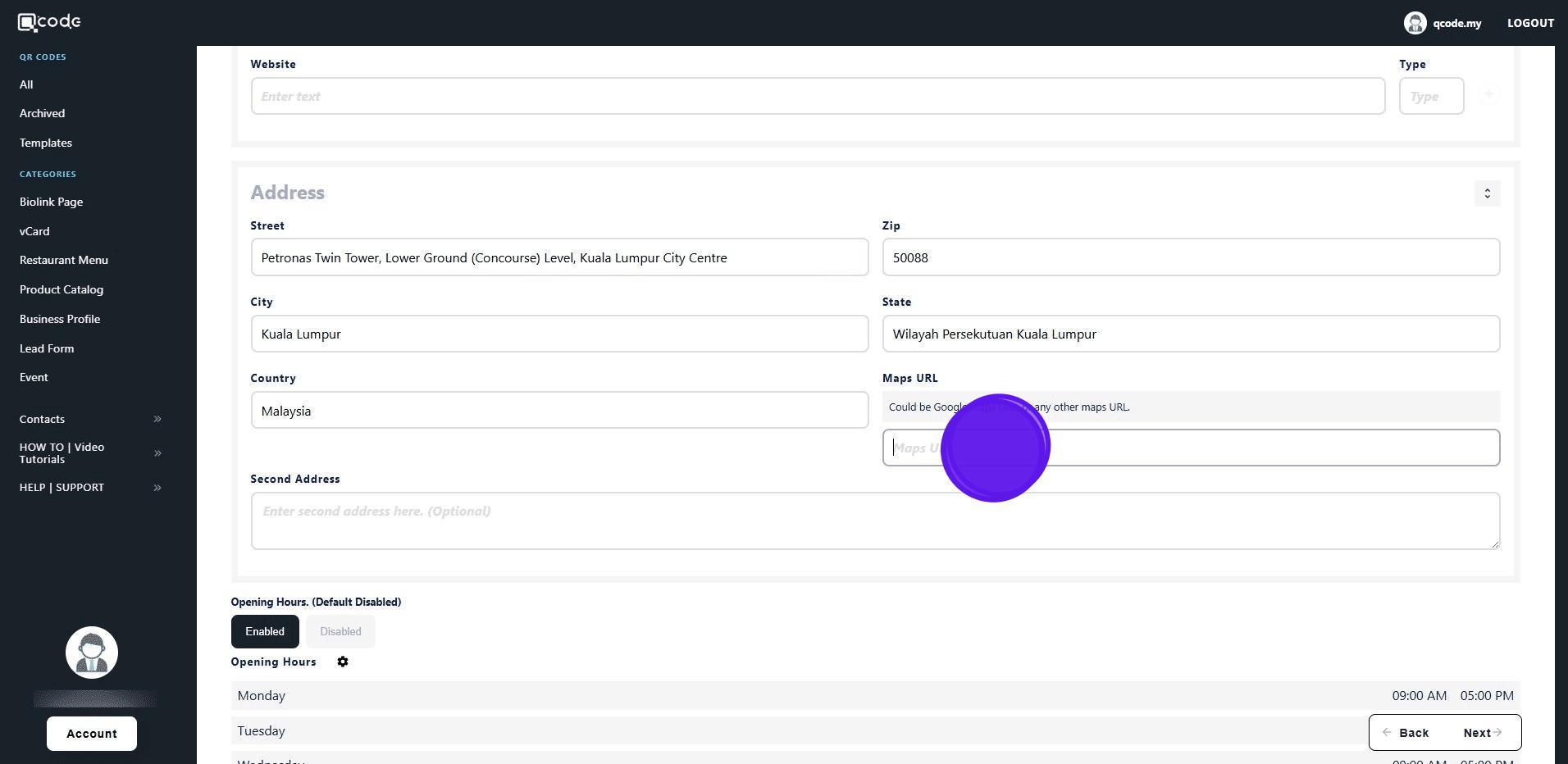
3. Scroll down to Address section
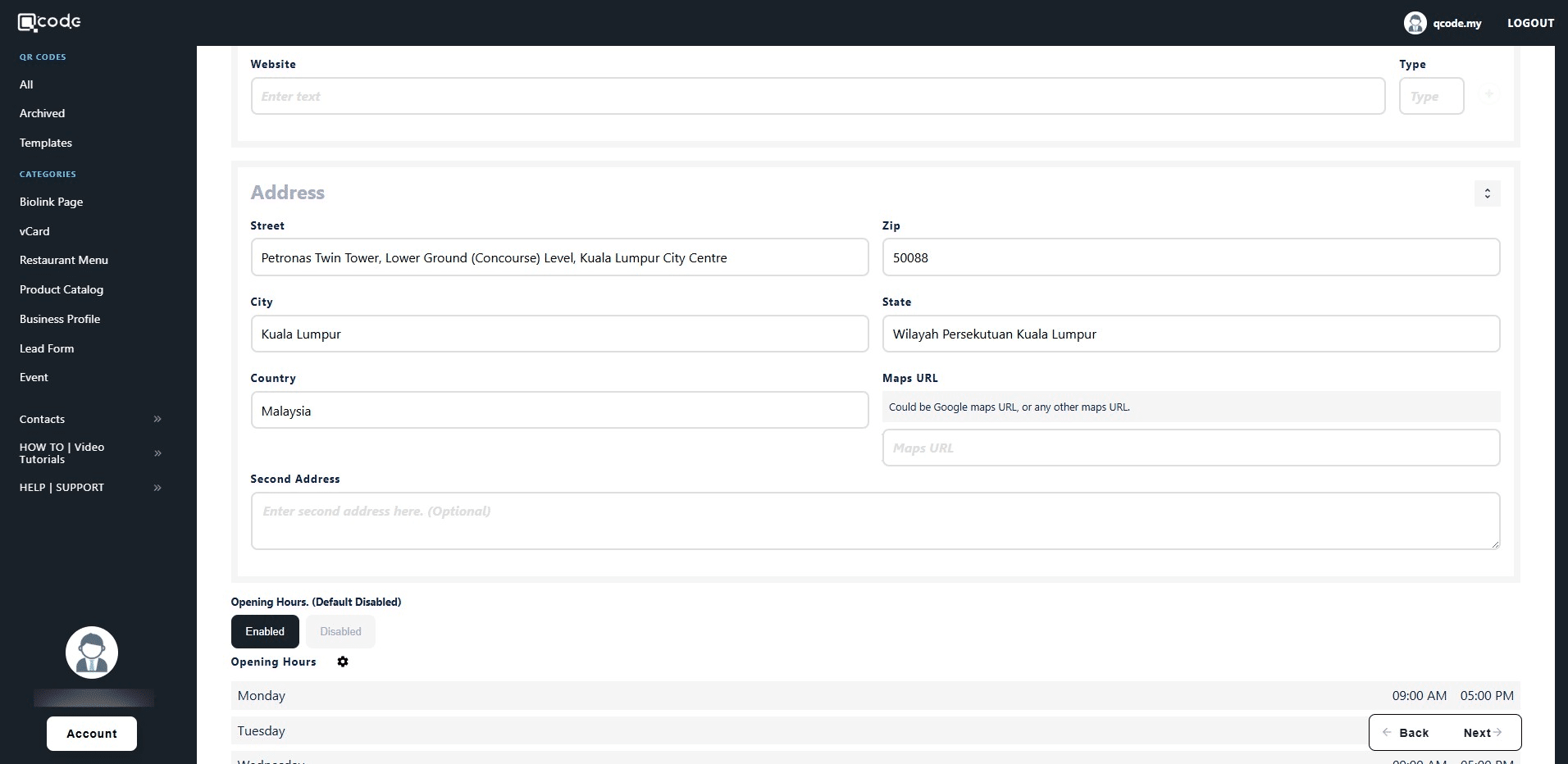
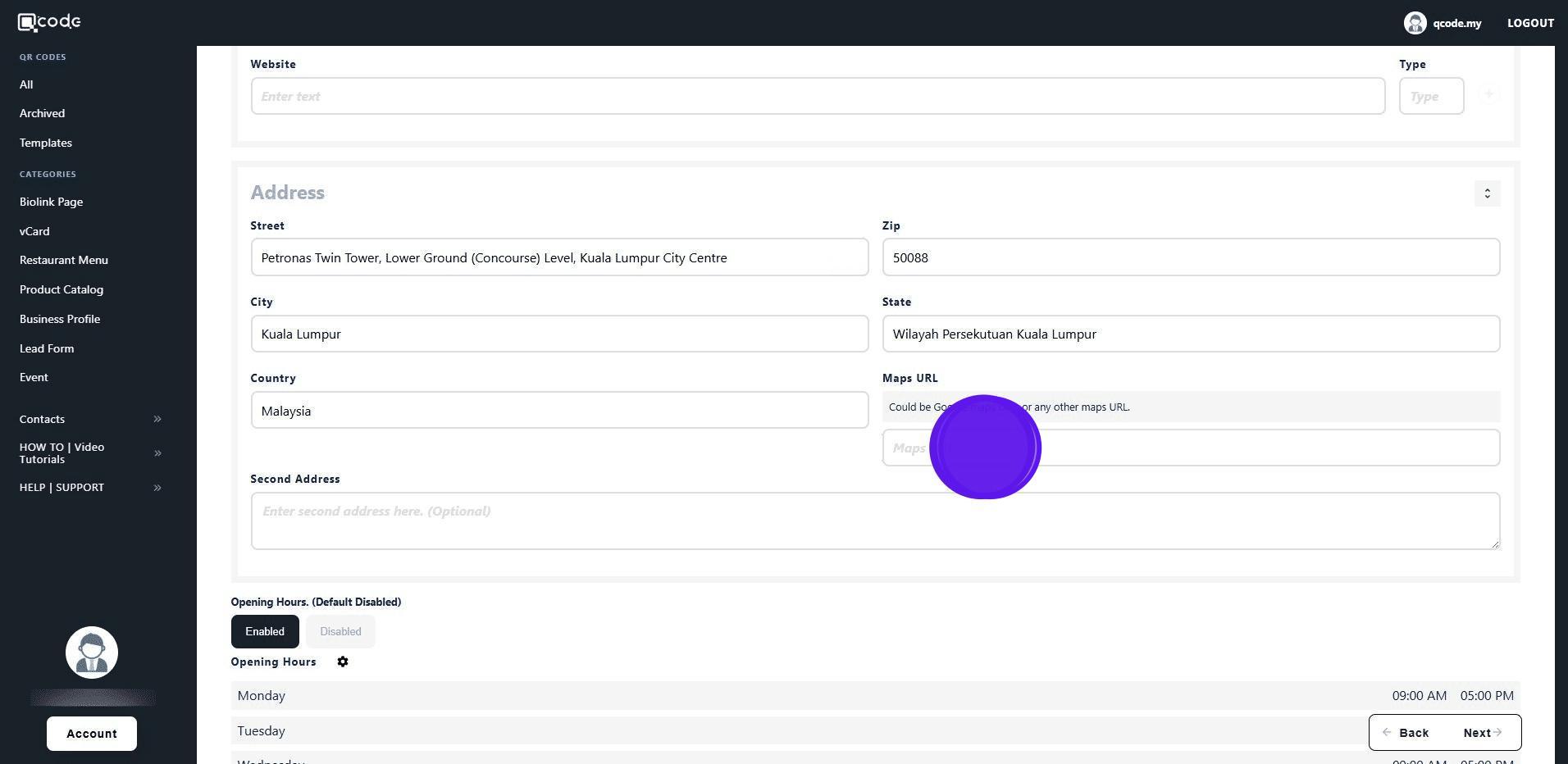
4. Find the Maps URL placeholder
5. Open Google Maps and enter your address in the search bar.
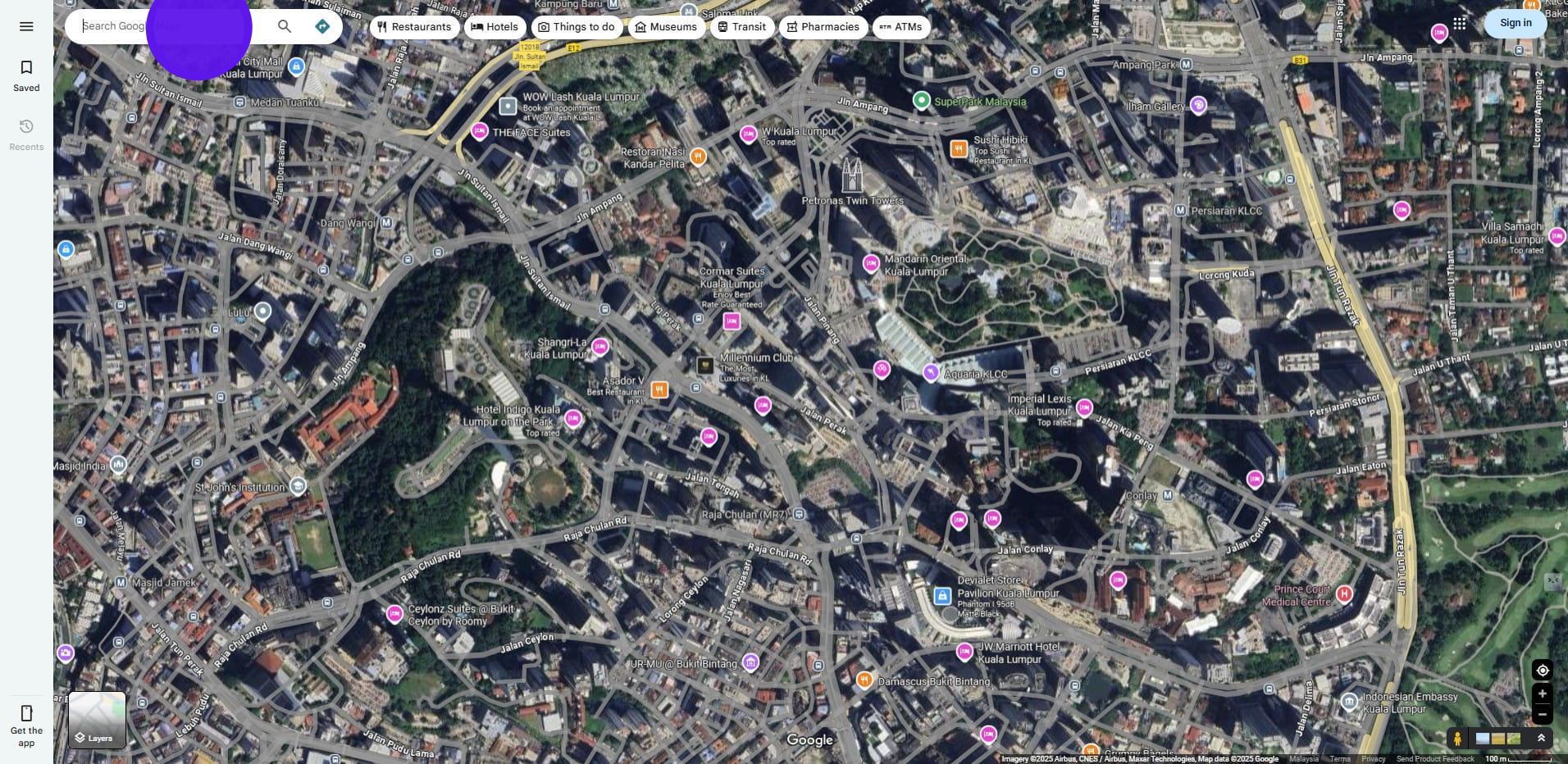
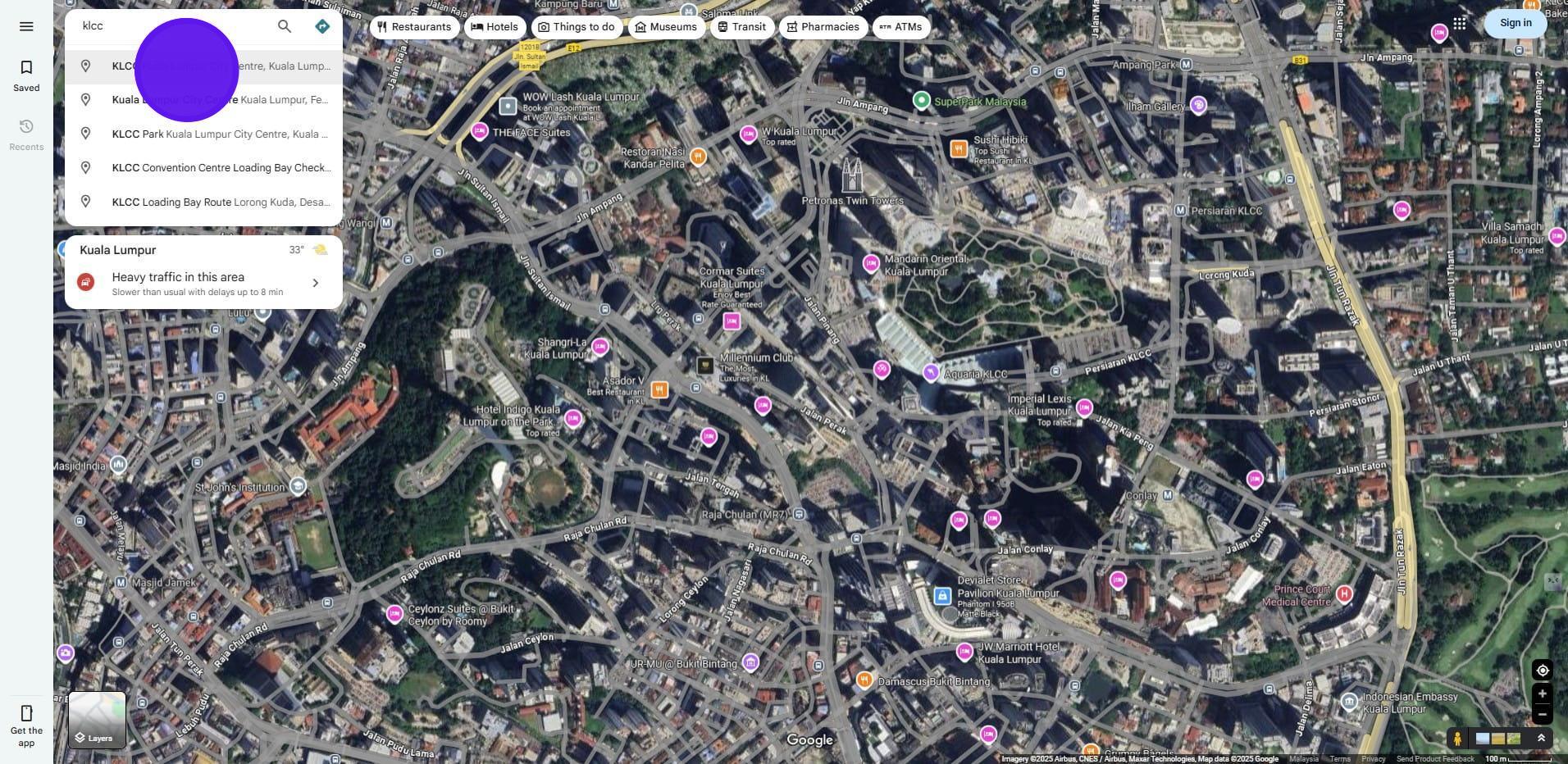
6. Click on the address
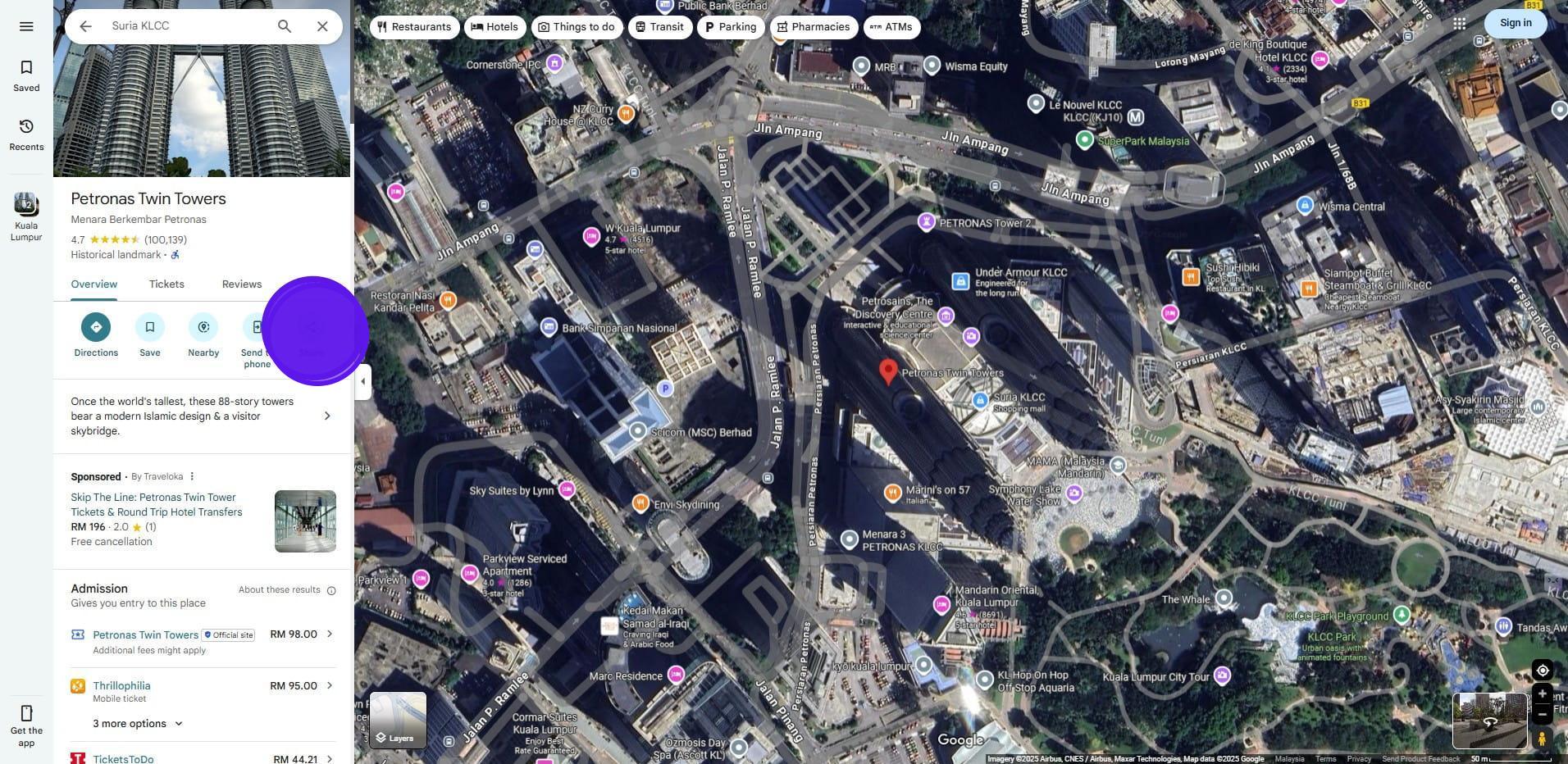
7. Click on Share
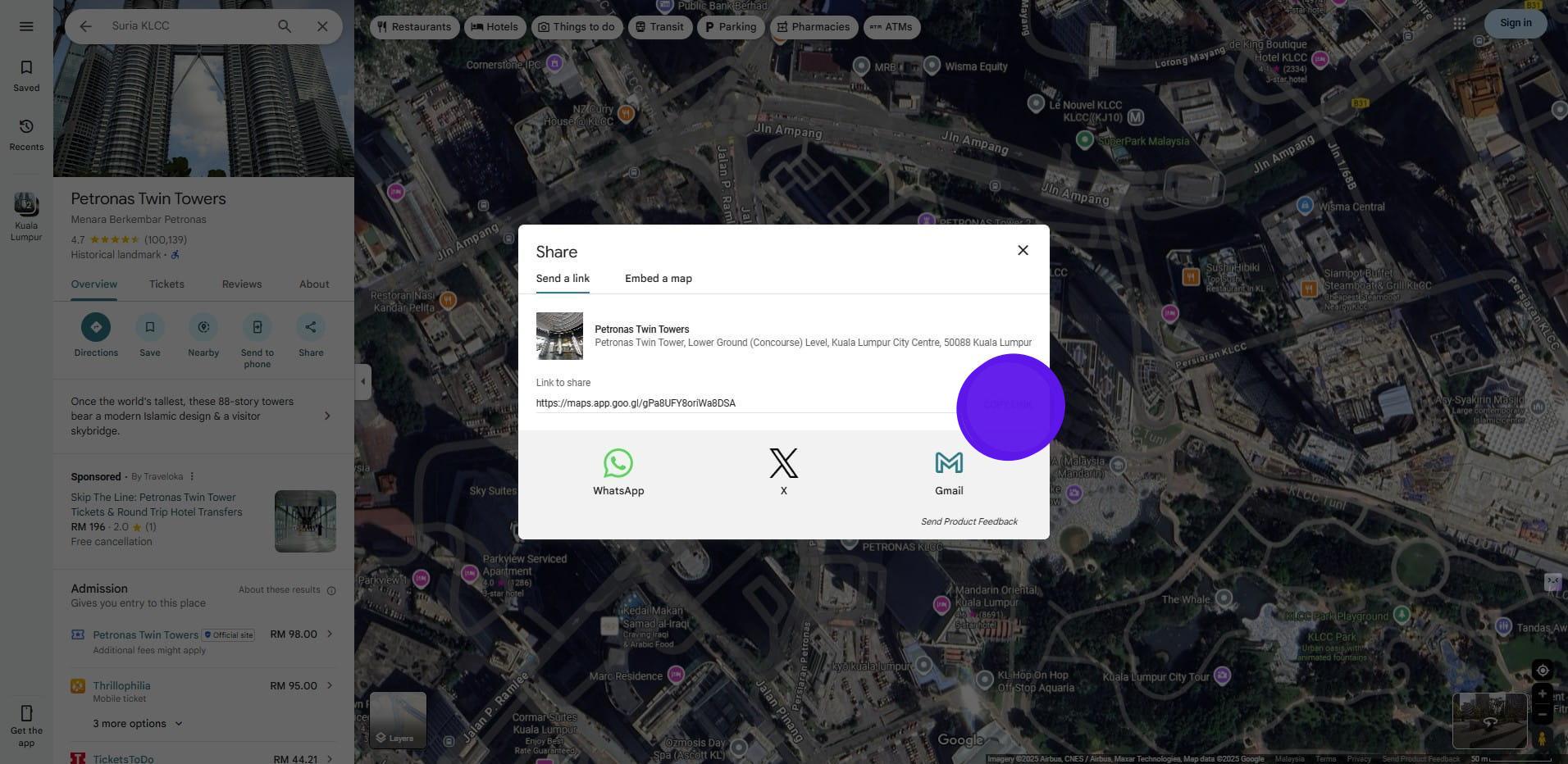
8. Click on Copy link to copy the link
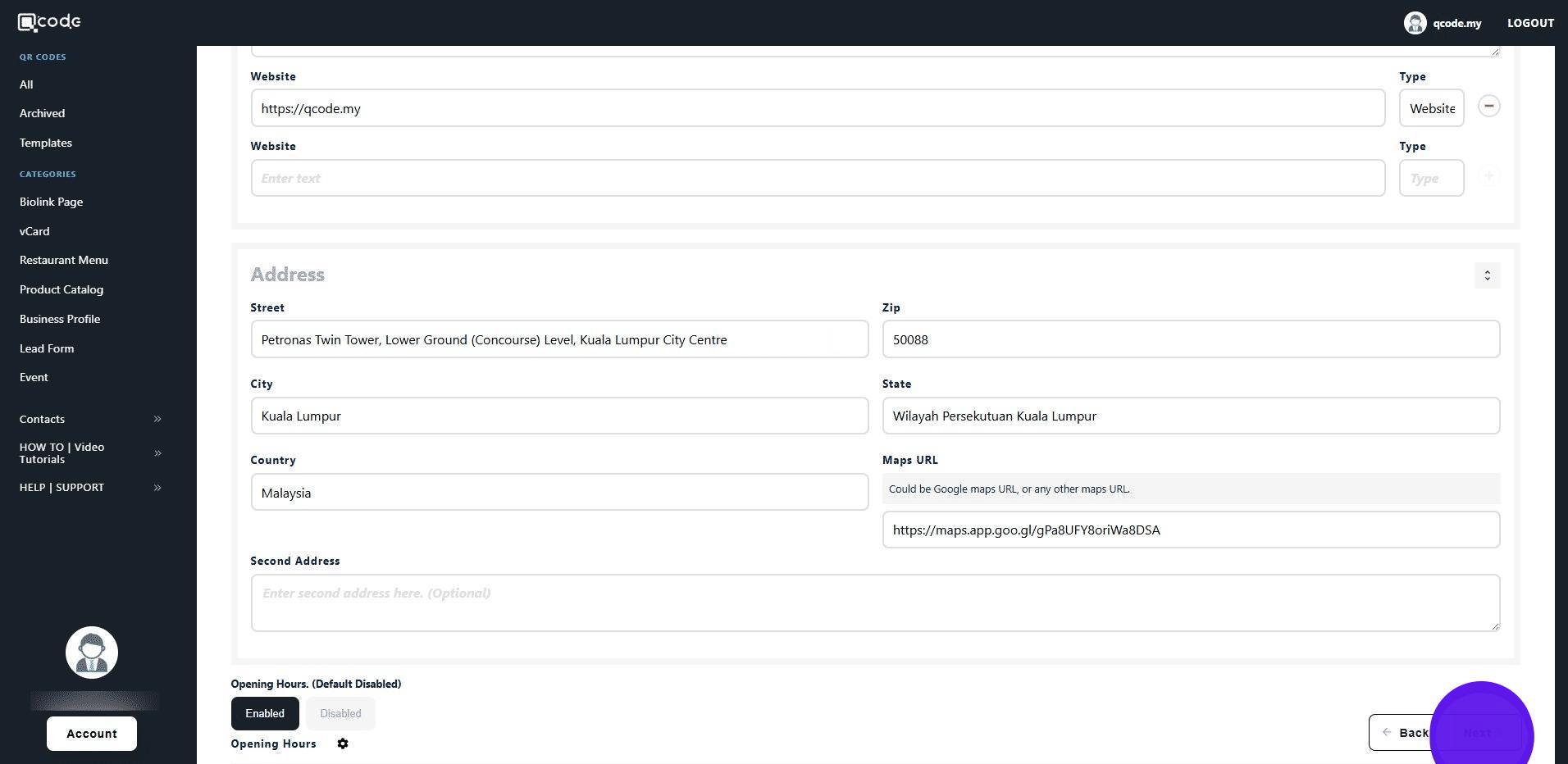
9. Then go back to your QR Code, paste the link that you've copied here
11. Then click on Next to apply the changes
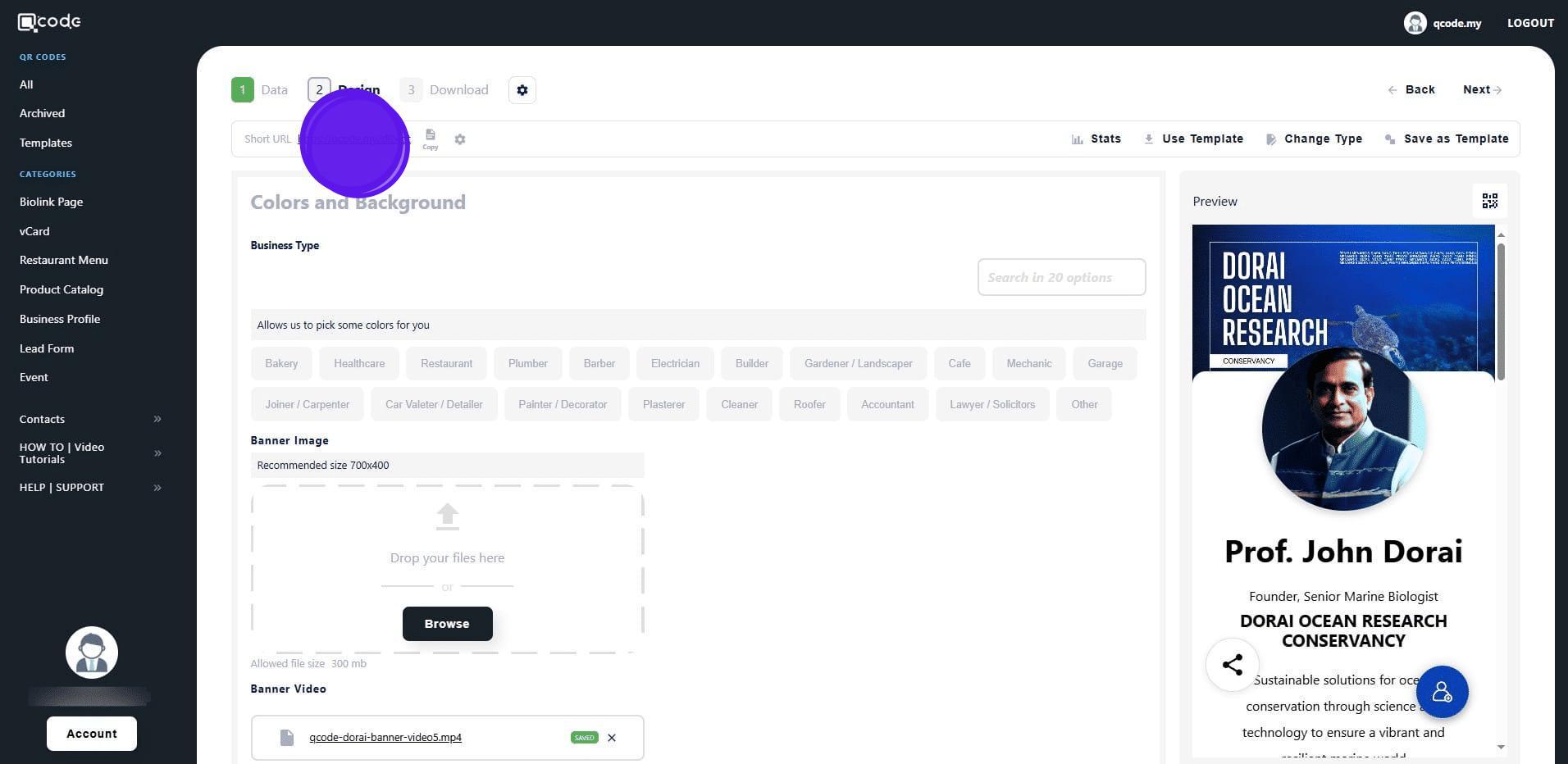
12. Click on the Short URL to view the changes
13. Scroll down
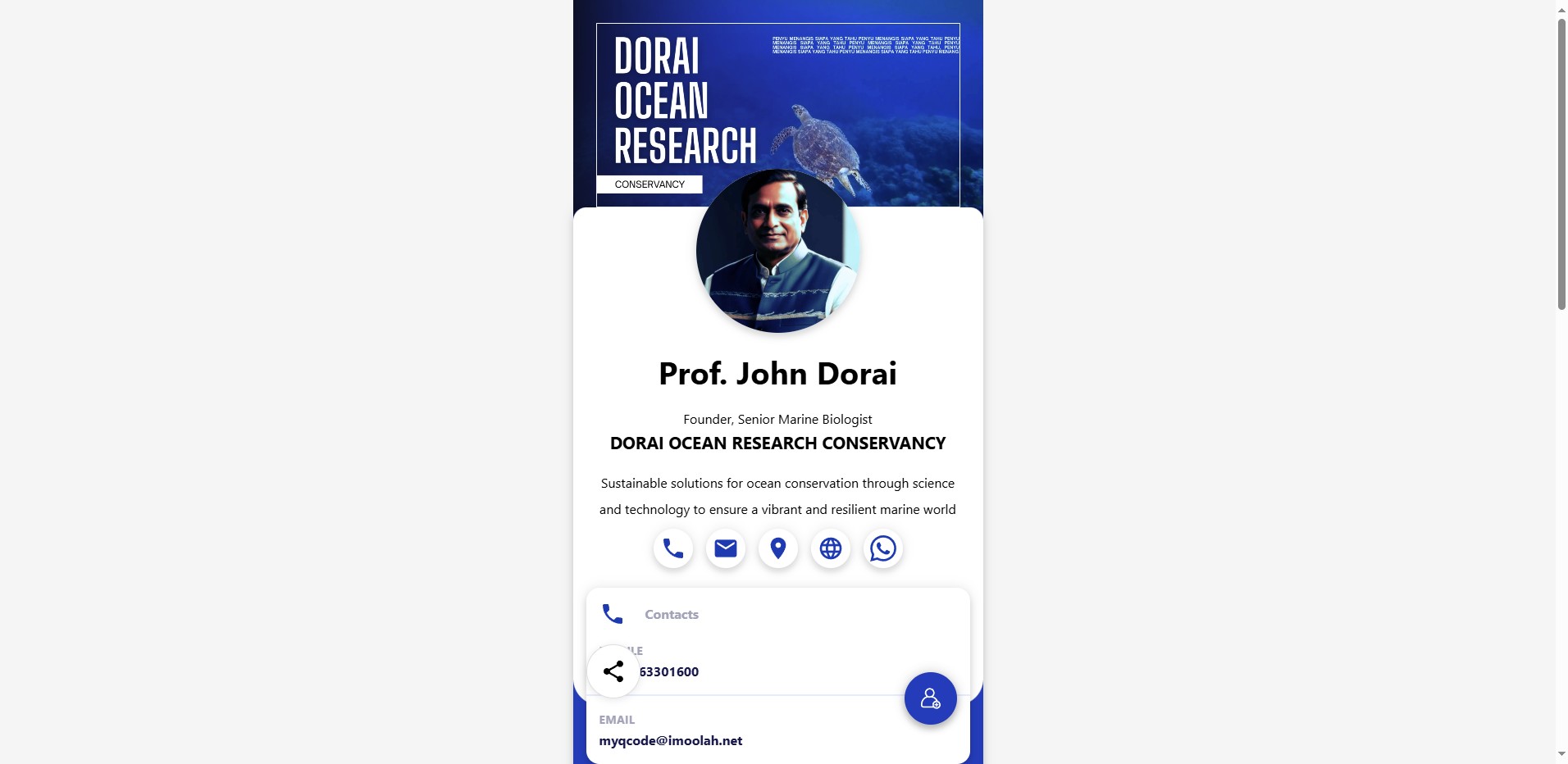
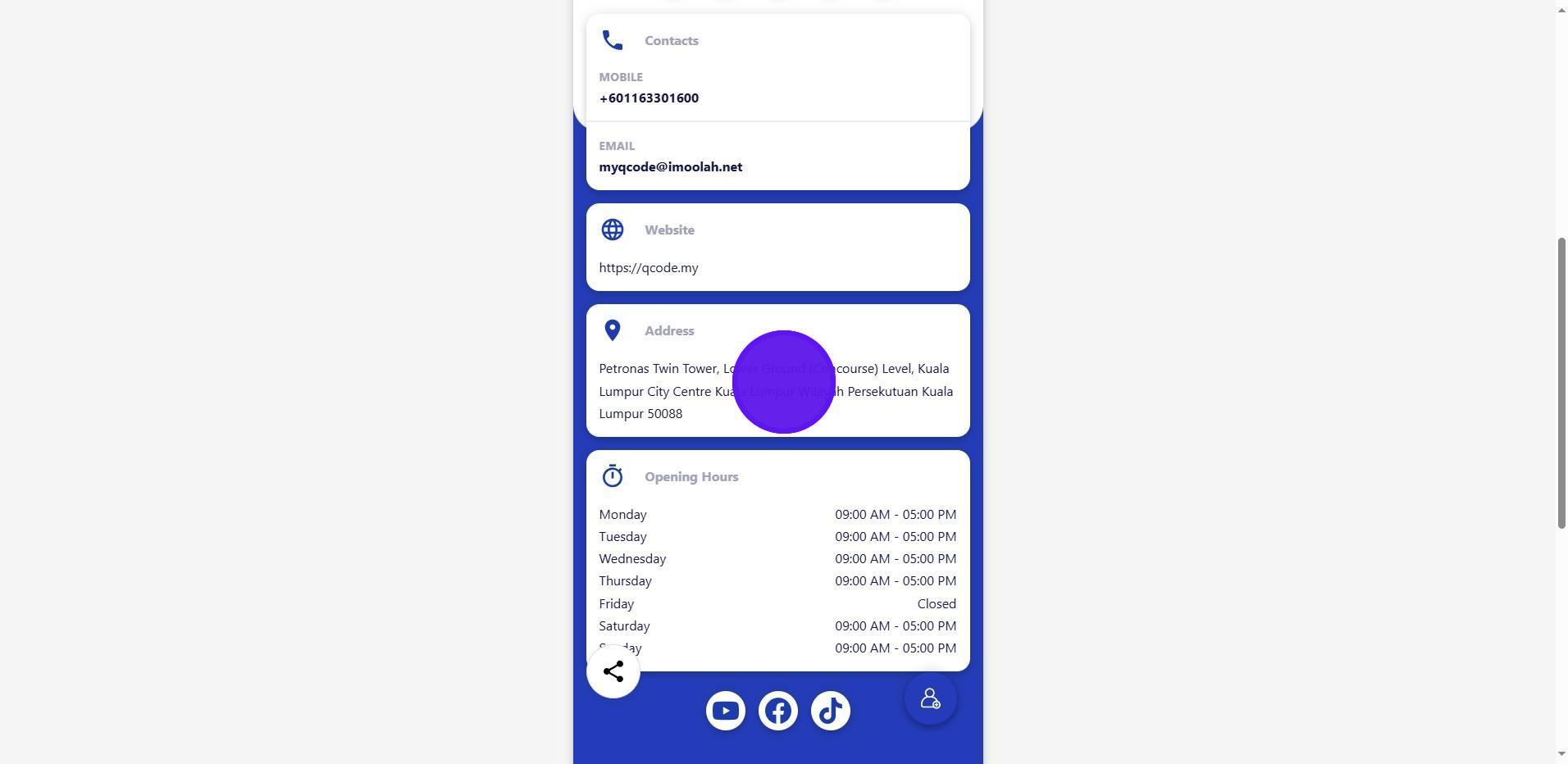
14. Here you will find the address as a clickable text that leads to the desired Maps URL