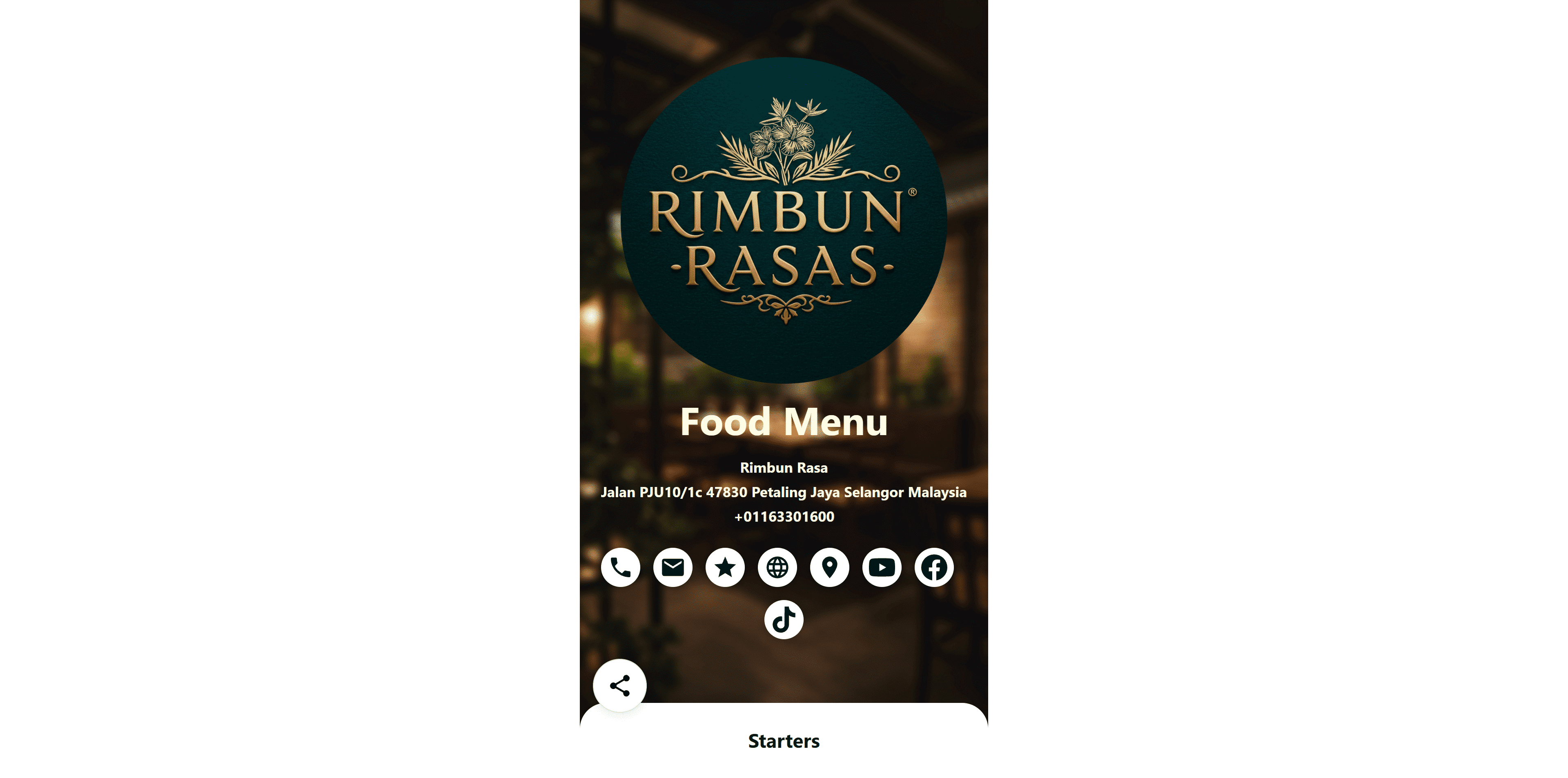
How to create Restaurant Menu
To create a digital restaurant menu with a QCODE.MY, follow these steps: Access the menu creation platform, enter your restaurant details, design the menu with categories and items (including names, prices, and images), customize the styling (colors, logo, background), and generate a QR code to download or share online. Finalize the slug before downloading to ensure functionality. Your menu is now ready for easy access via QCODE.MY.
1. Navigate to https://qcode.my/dashboard/qrcodes
2. Click on Create to start creating your Restaurant Menu
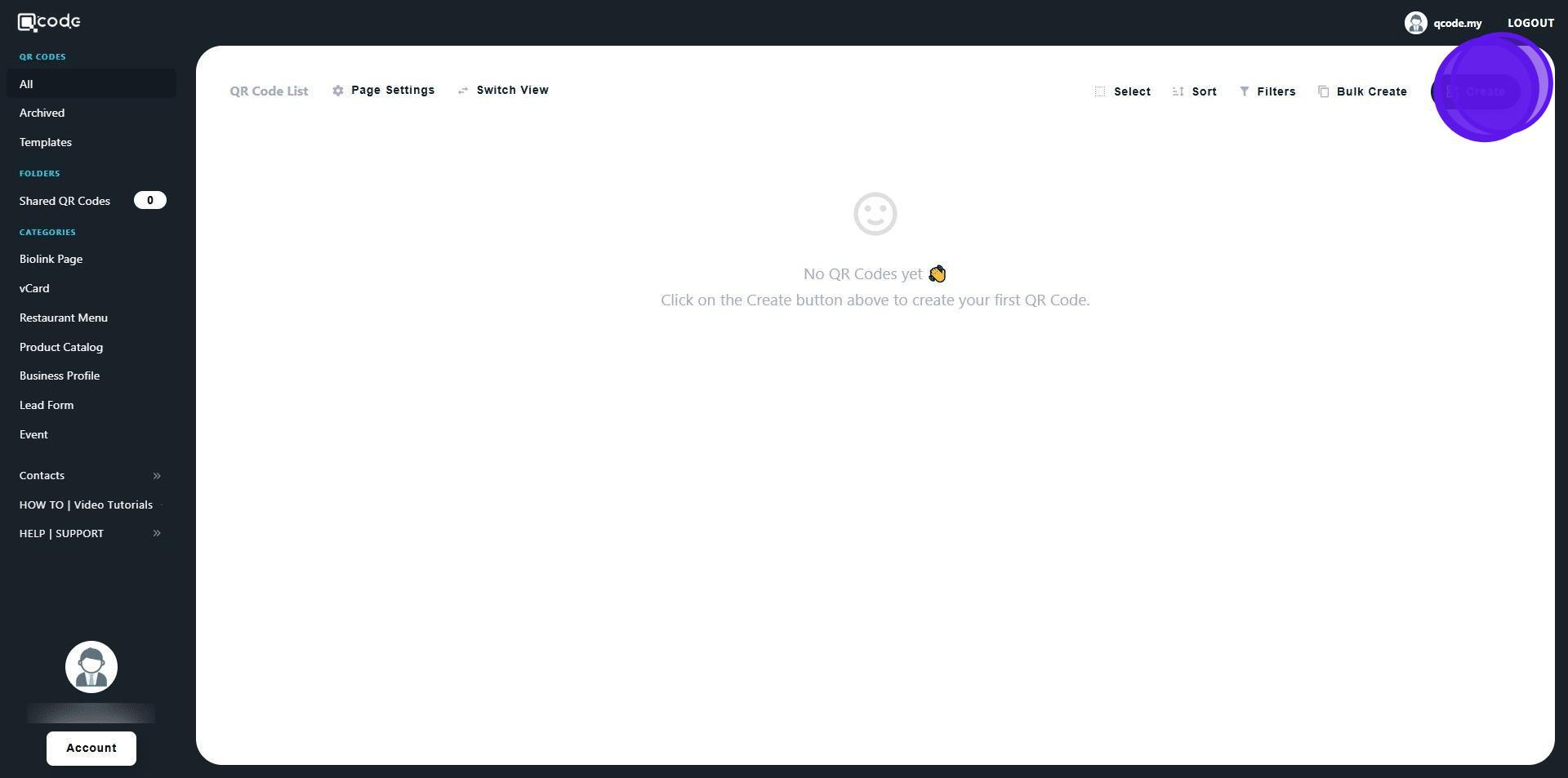
3. Click on the following button to choose from a selection of templates
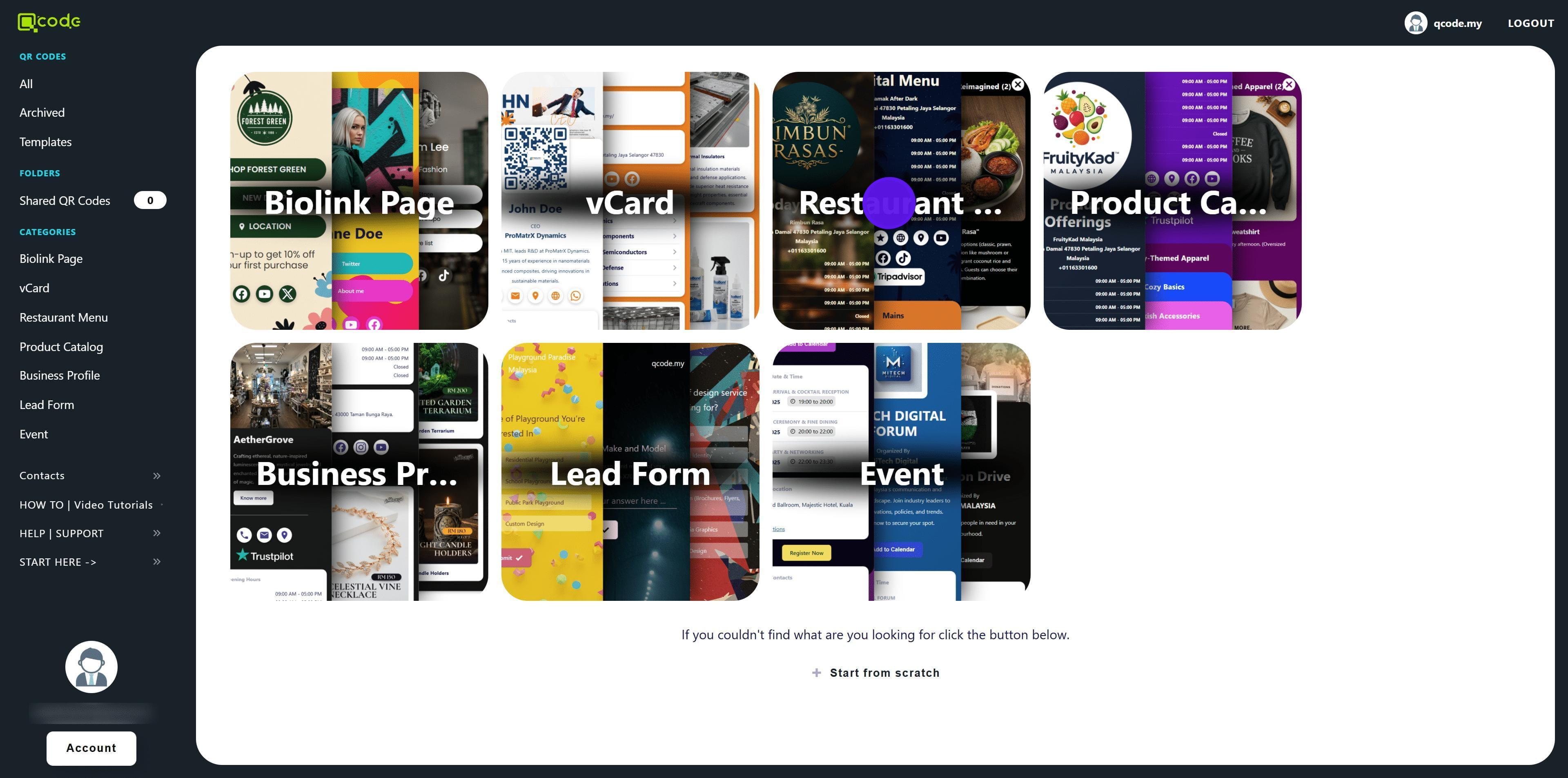
4. Click on Start from scratch
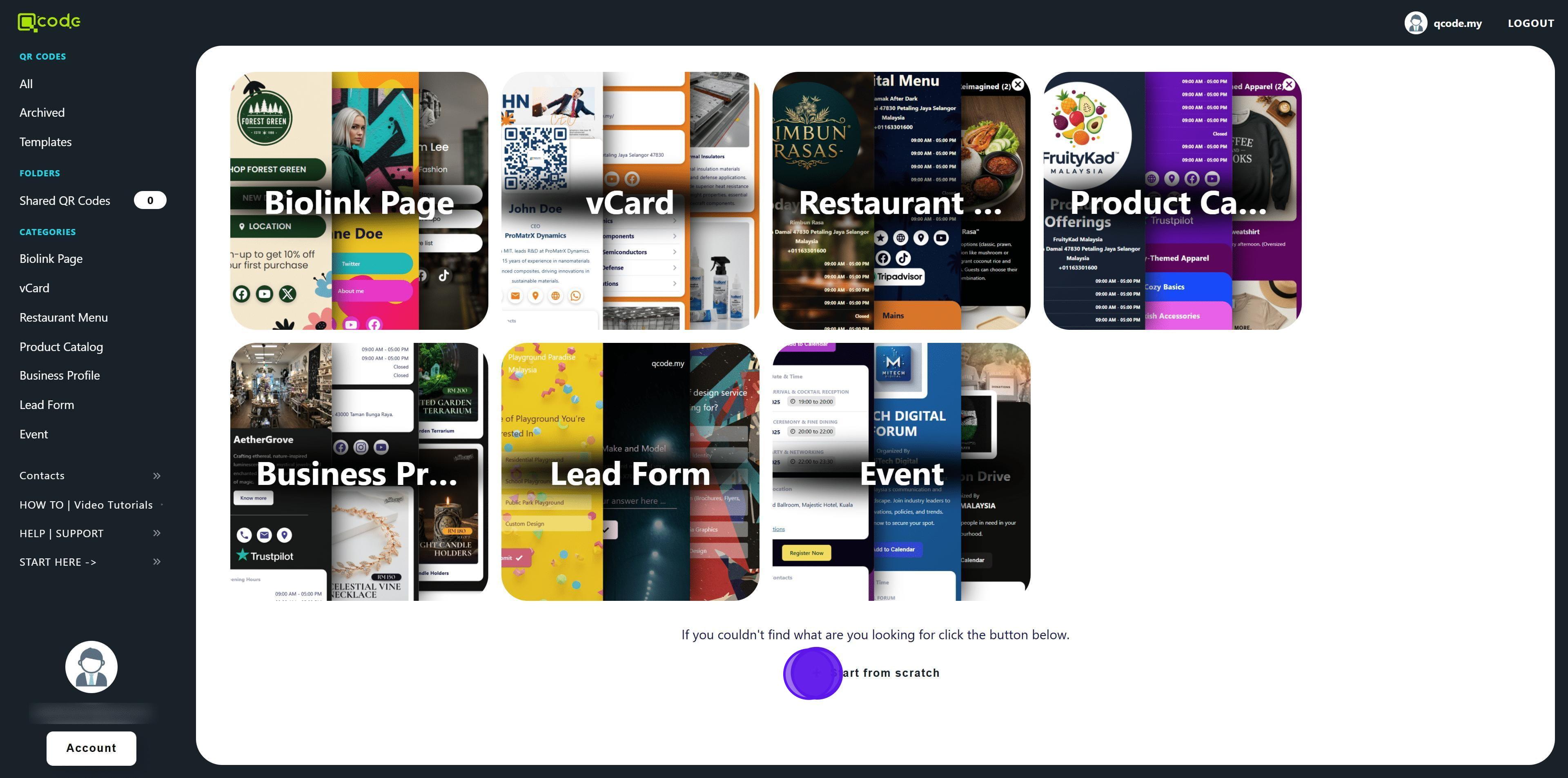
5. Select Restaurant Menu
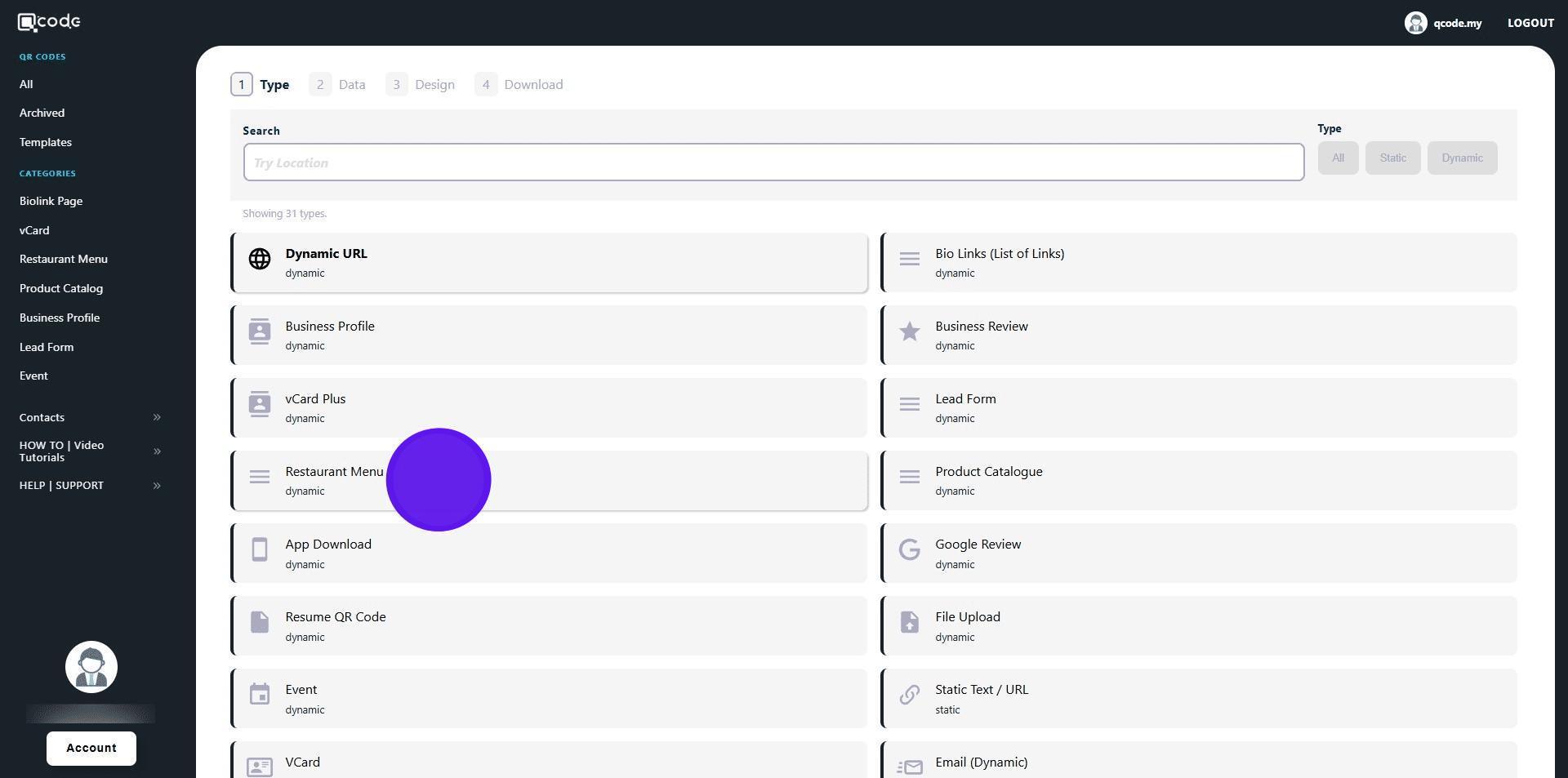
6. Type in the name of your Restaurant here
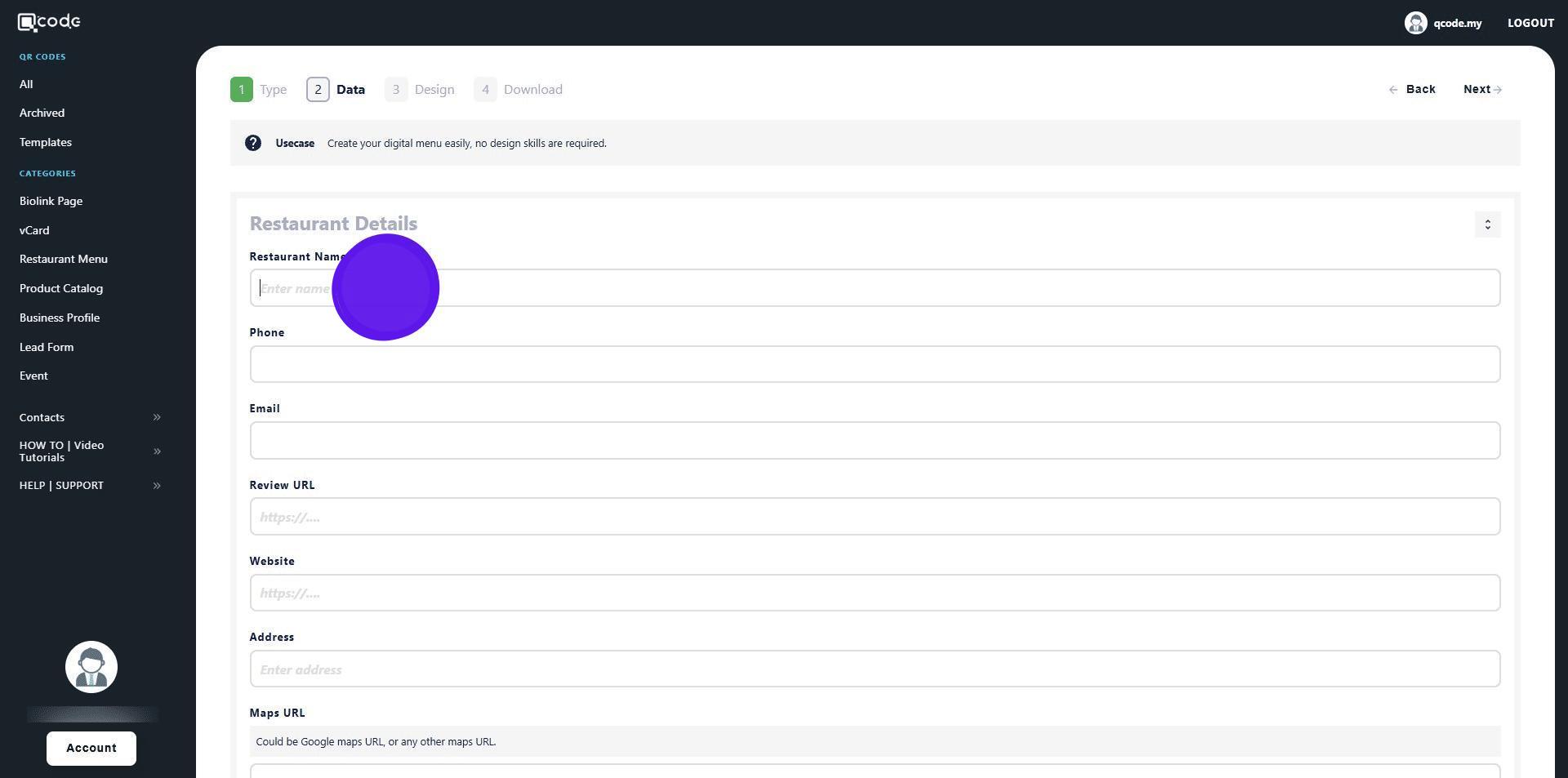
7. Type in your Phone number here
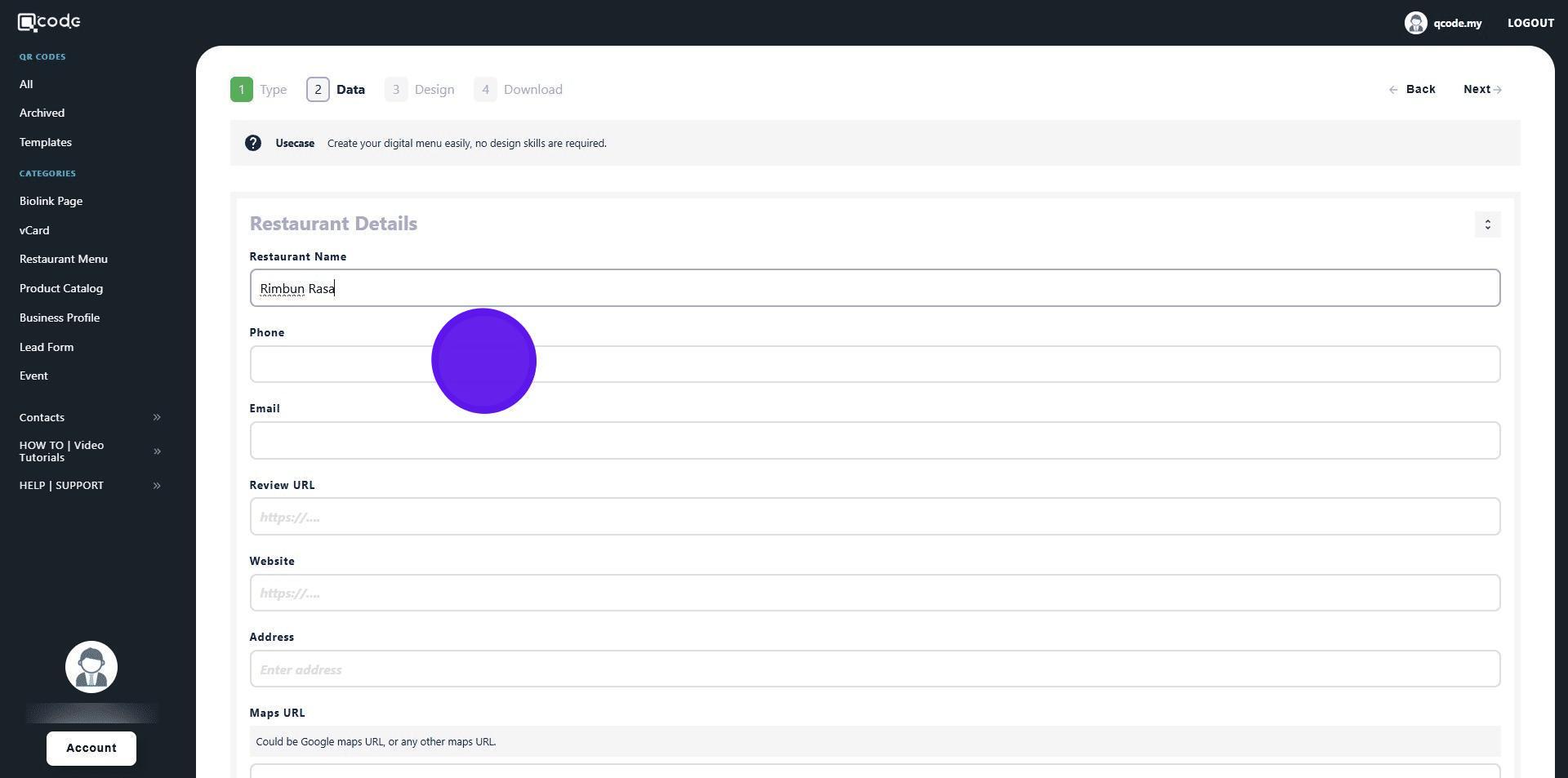
8. Type in your Email here
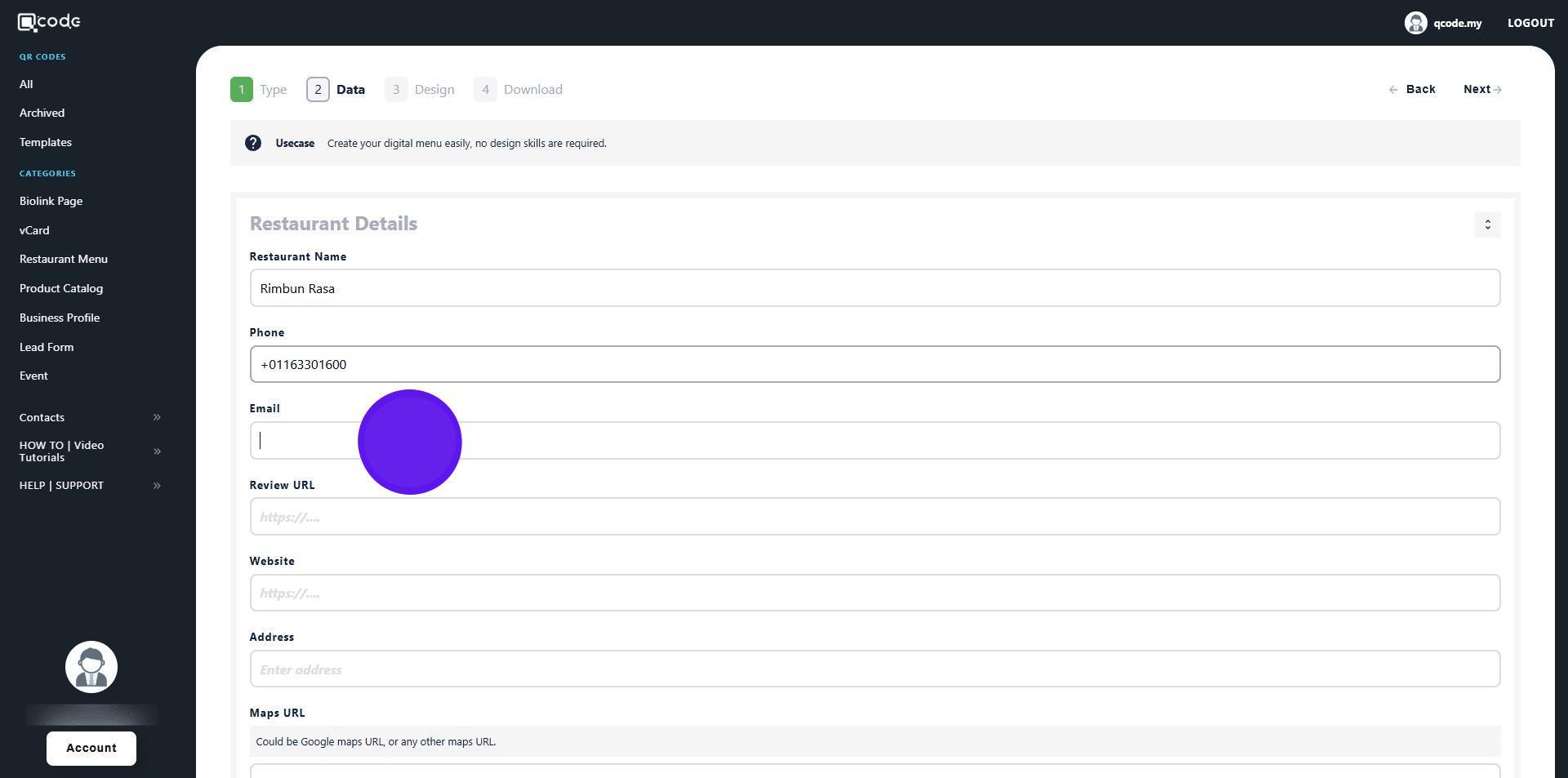
9. Insert a Review website URL here
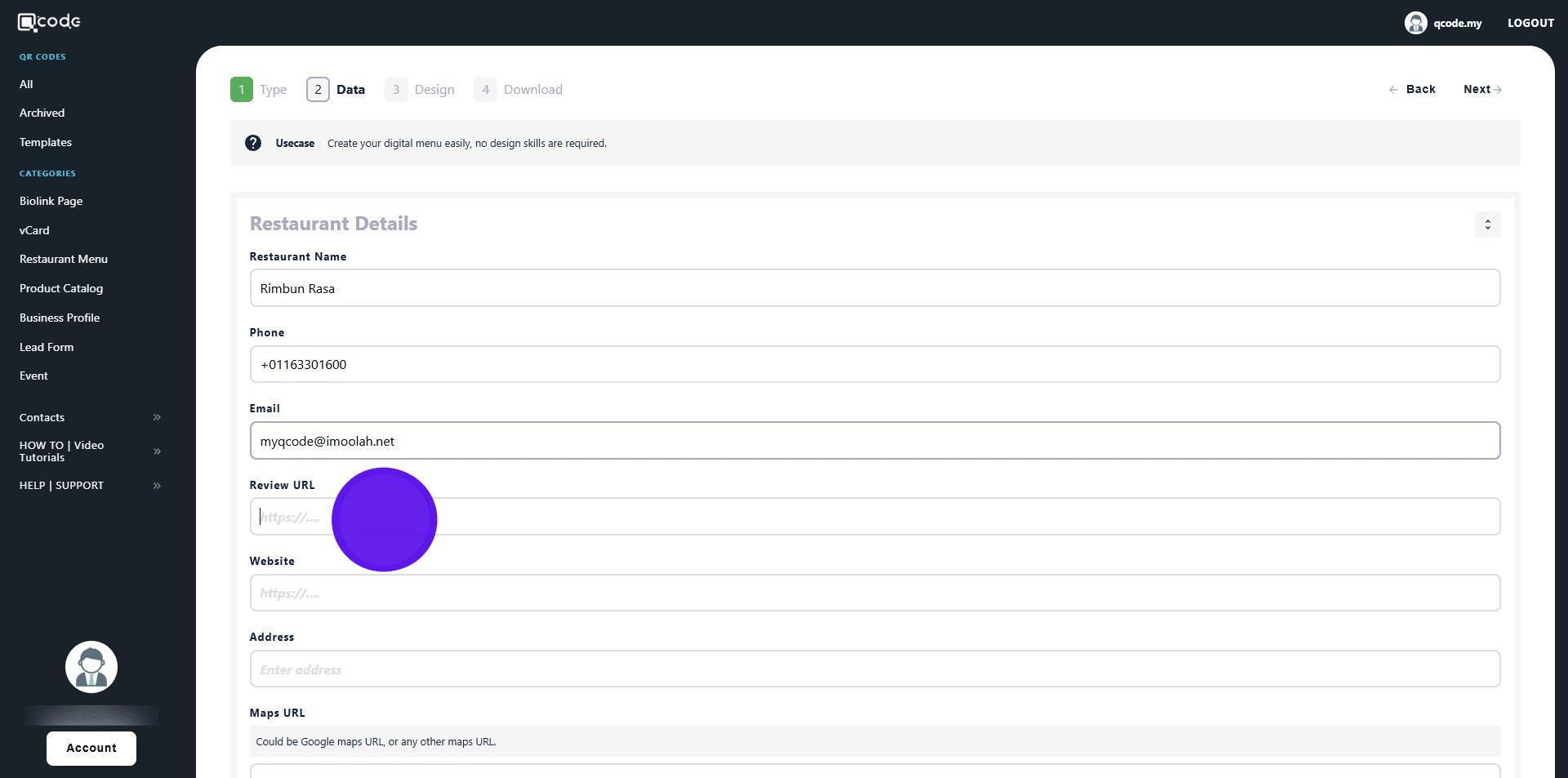
10. Insert the URL of your Website here (Include https://)
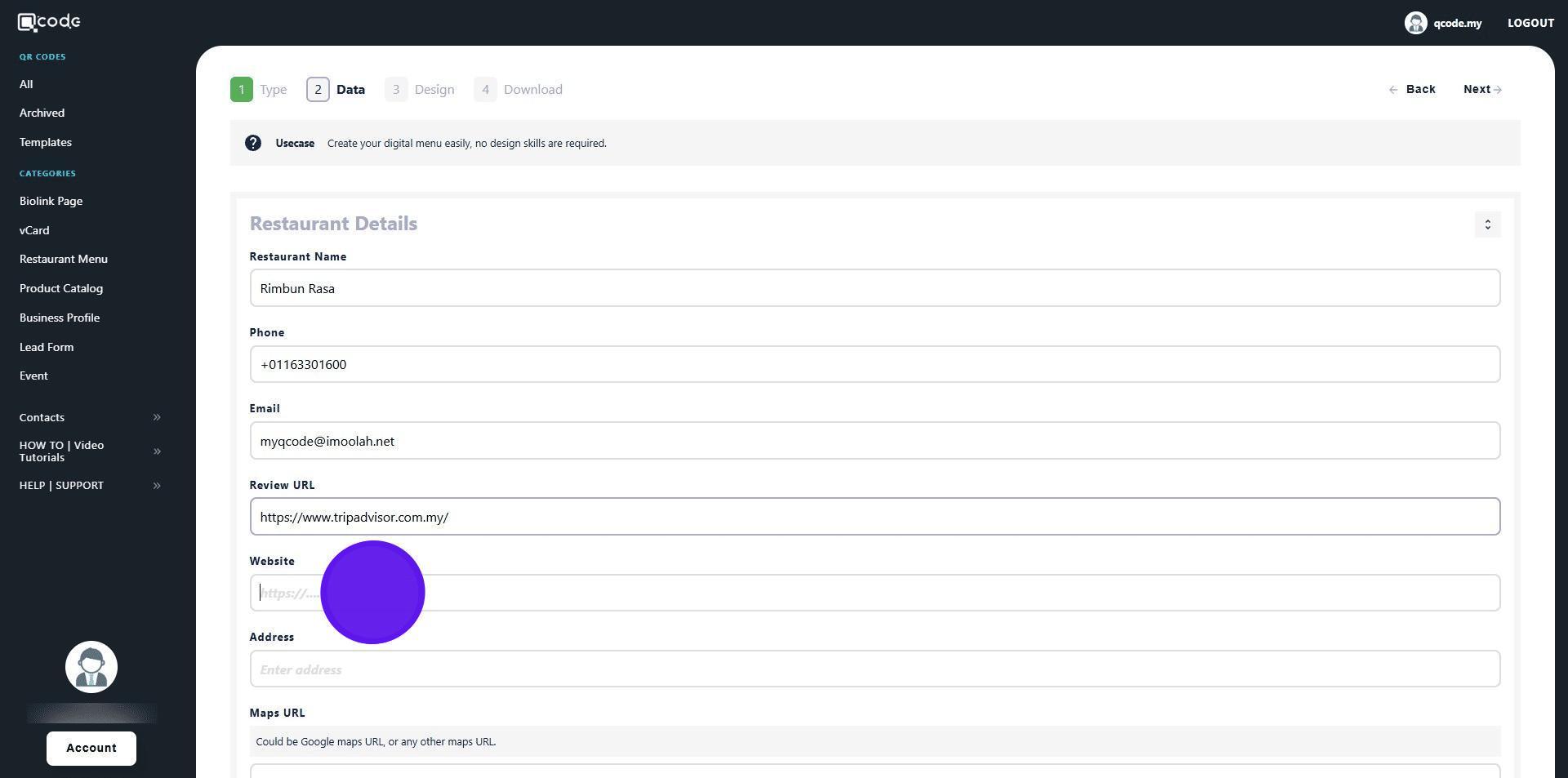
11. Type in your Address here
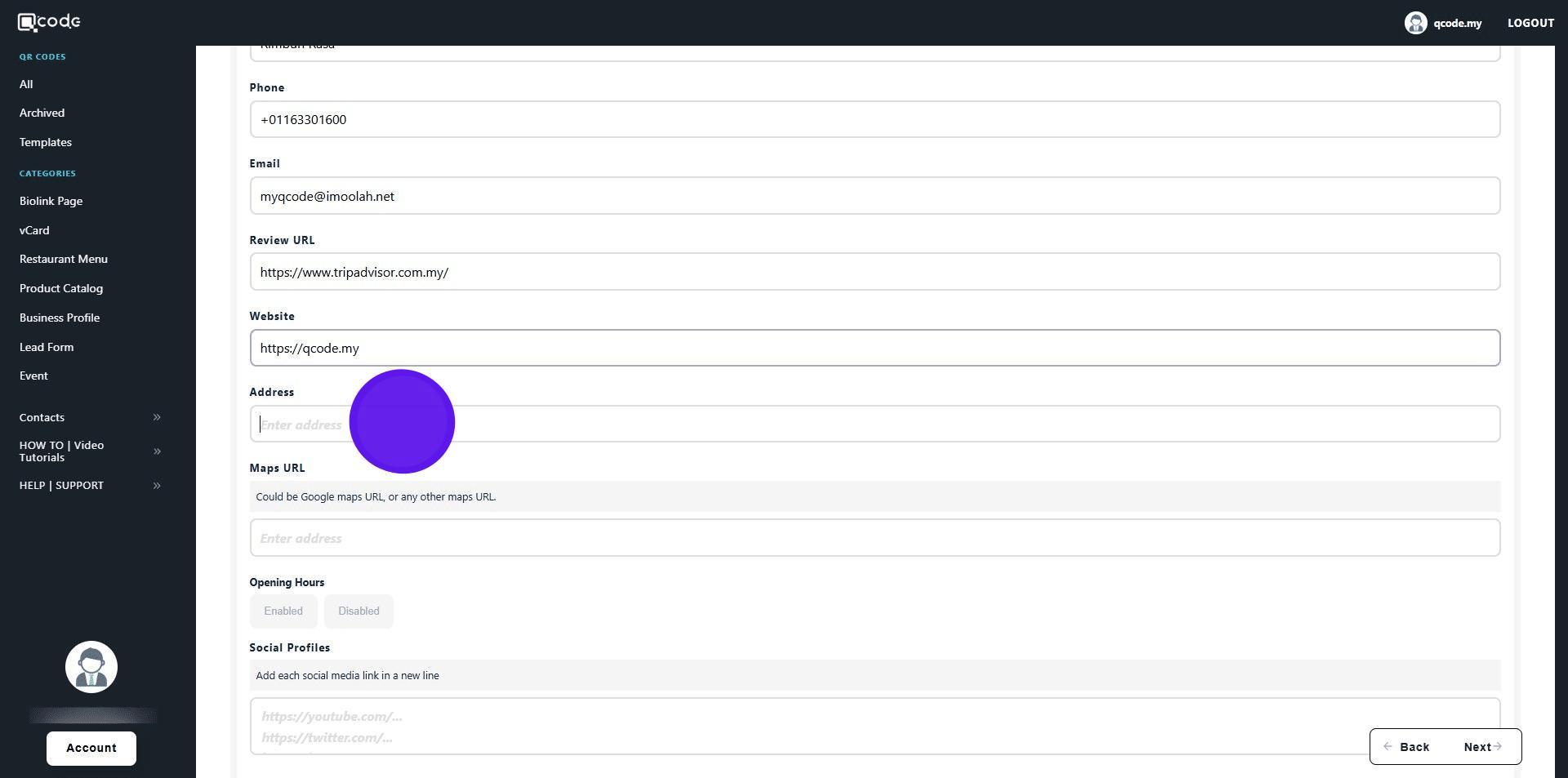
12. Insert the Maps URL here
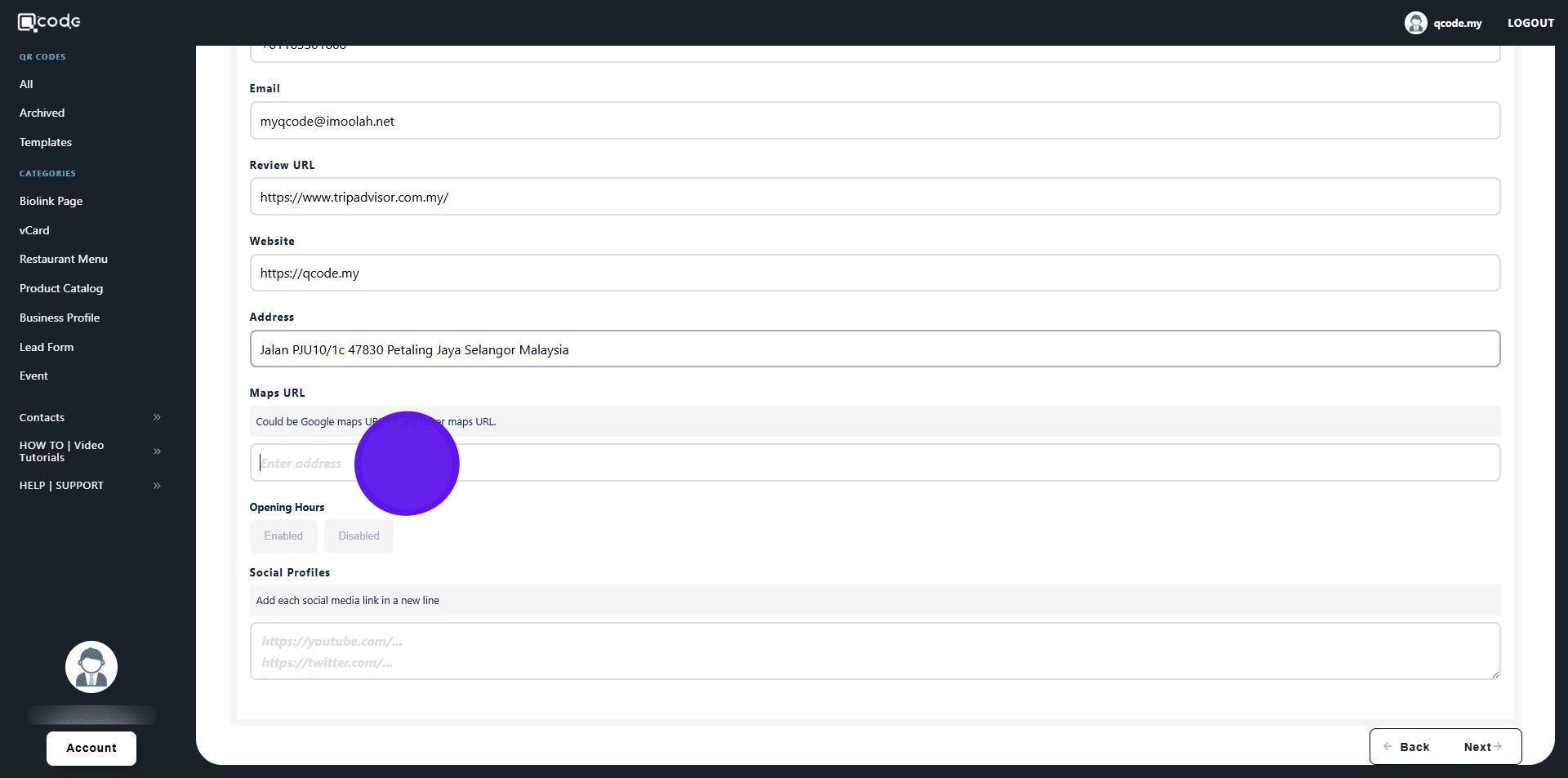
13. Add in your Social profile(s) here
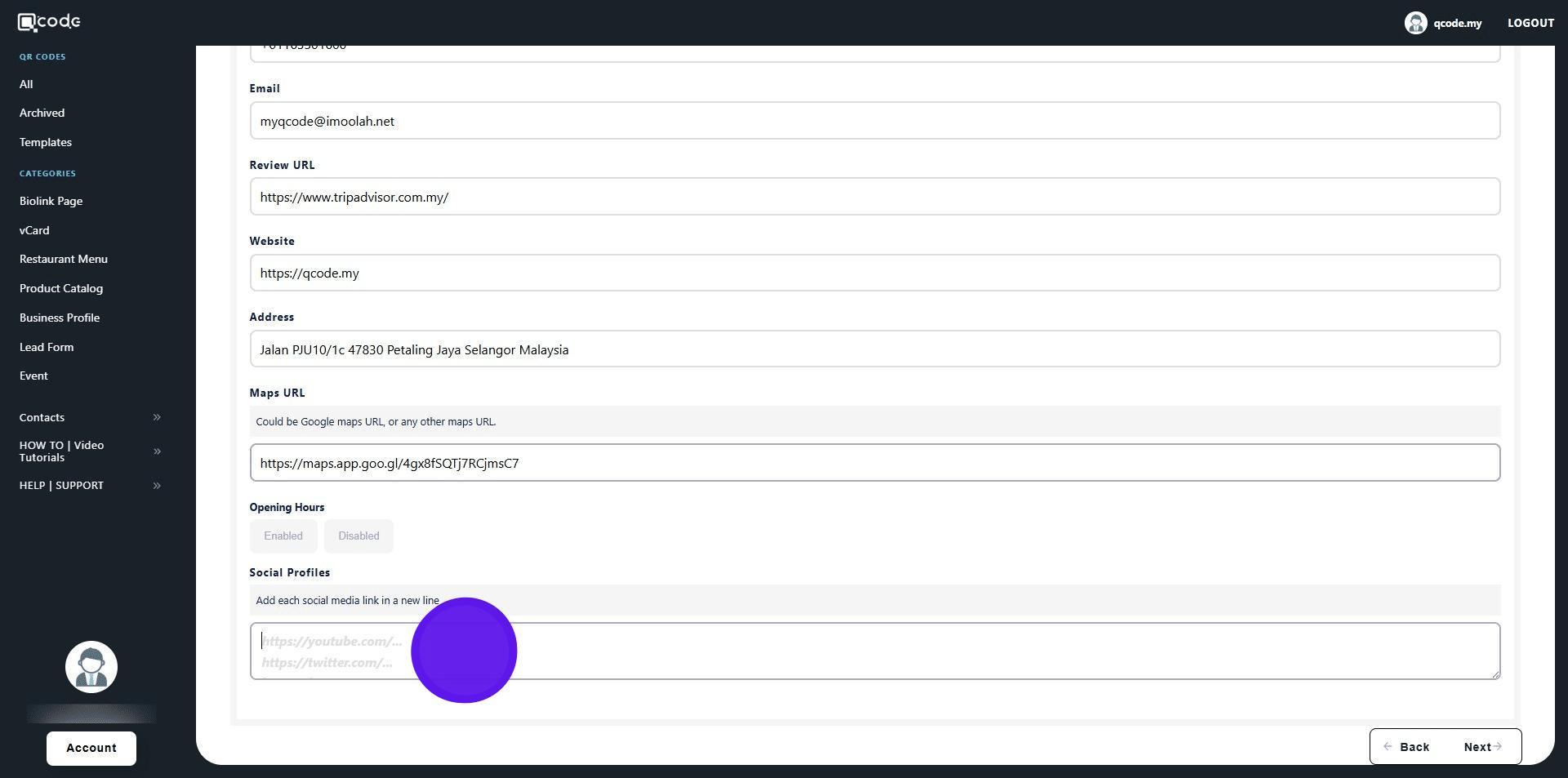
14. Click on Next to move to the next page
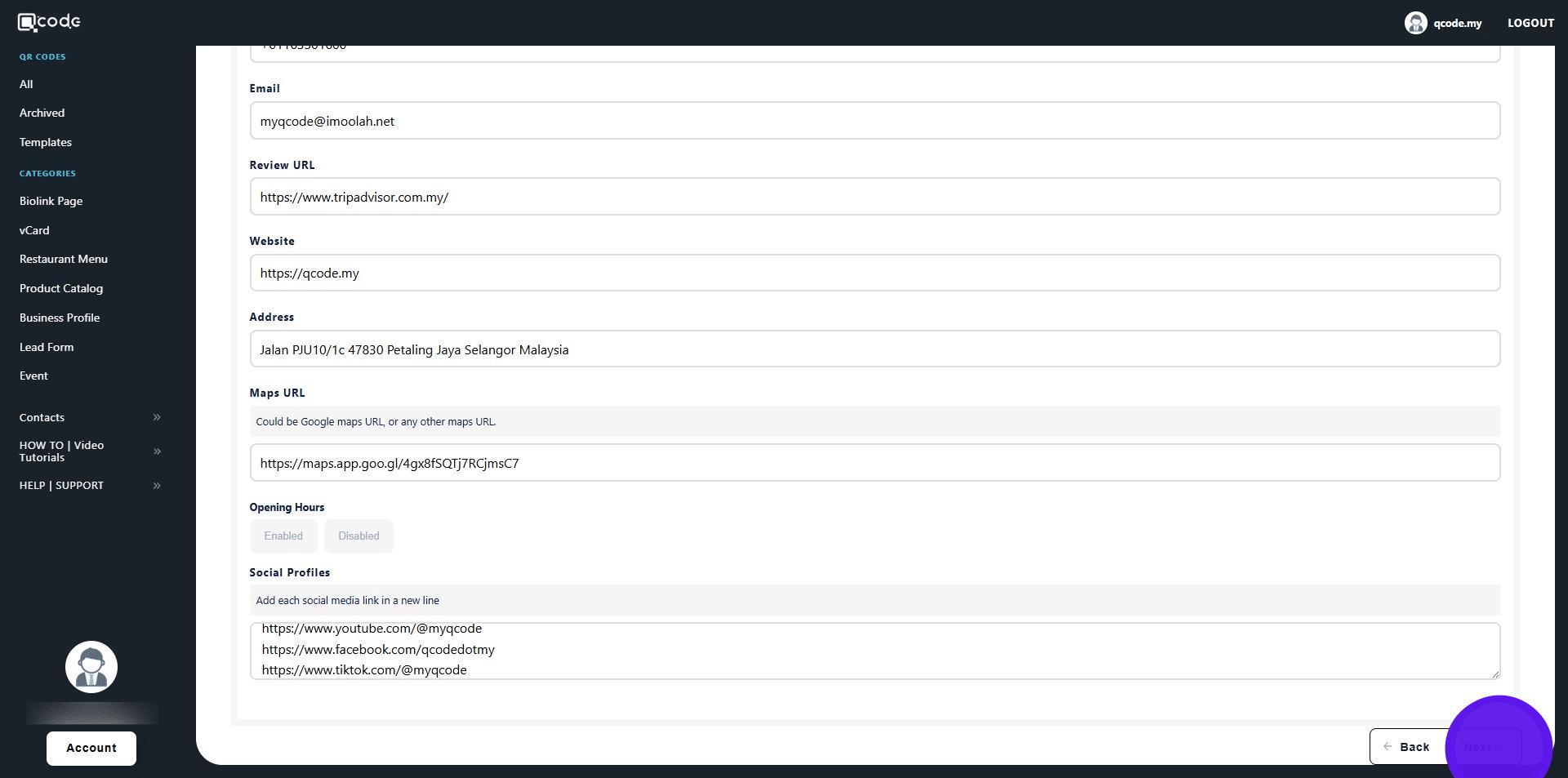
15. Click on Browse to upload your Logo
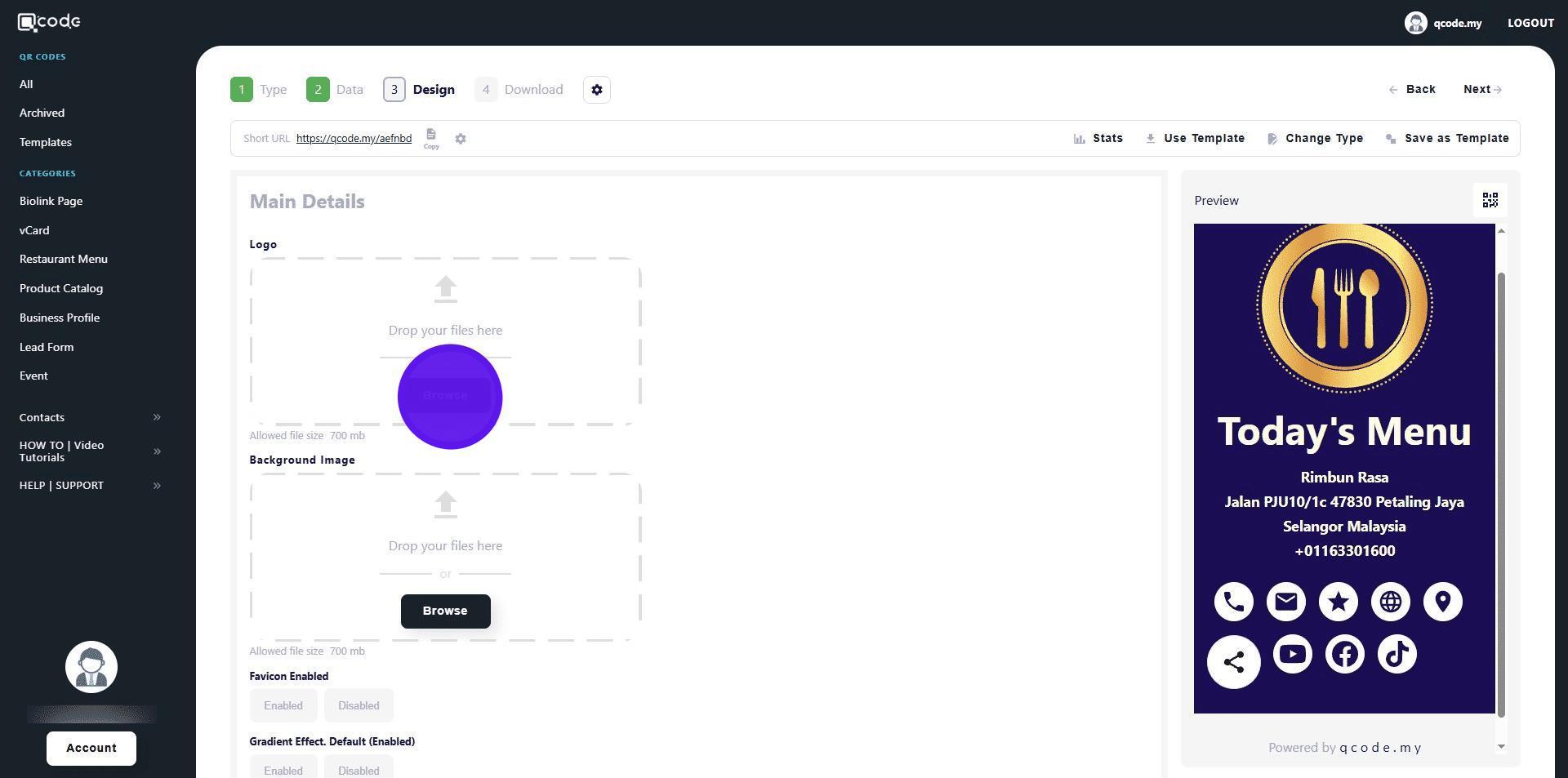
16. Click on Browse to upload your Background image
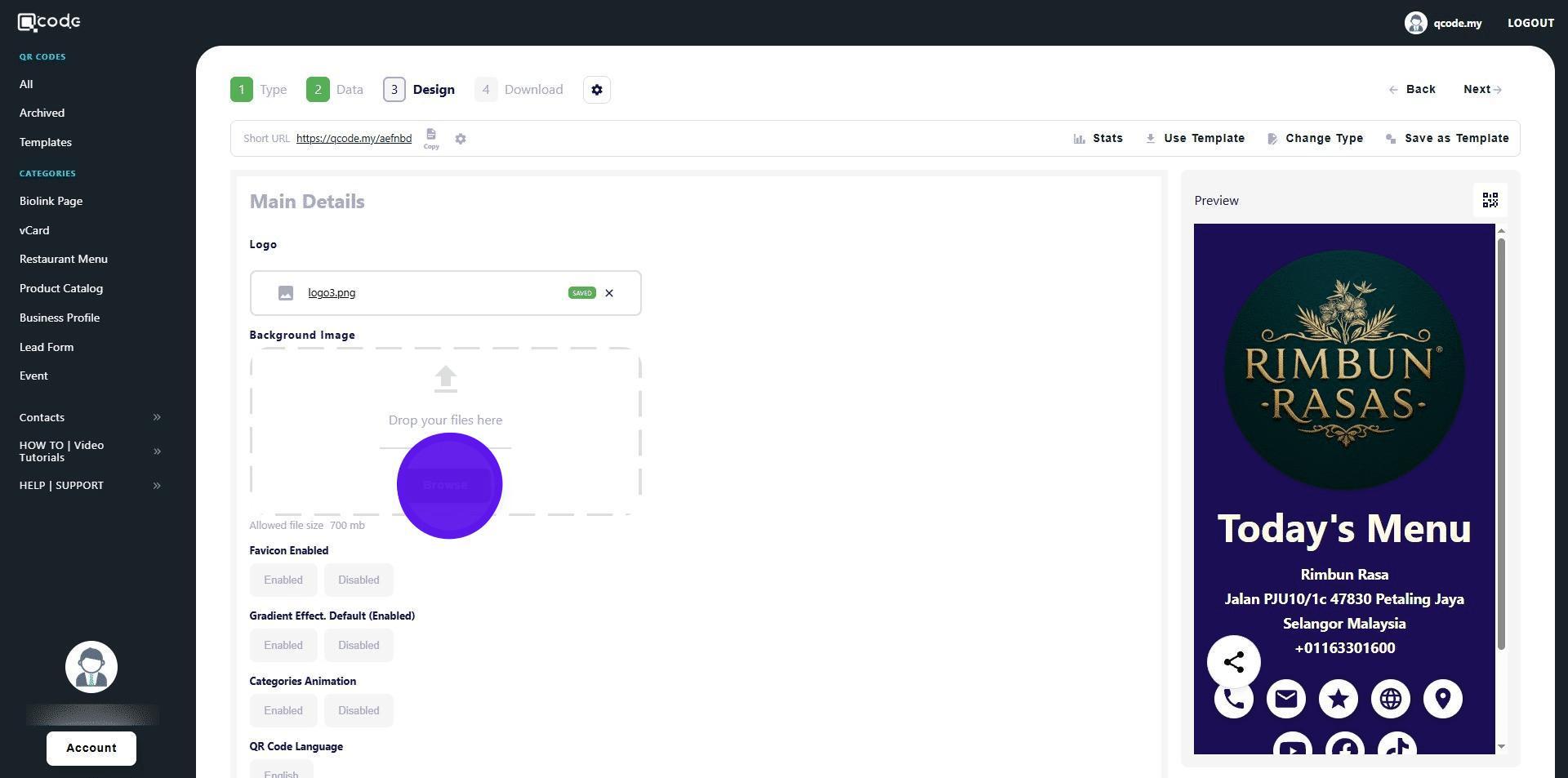
17. Click here to change the Background color of your Restaurant Menu
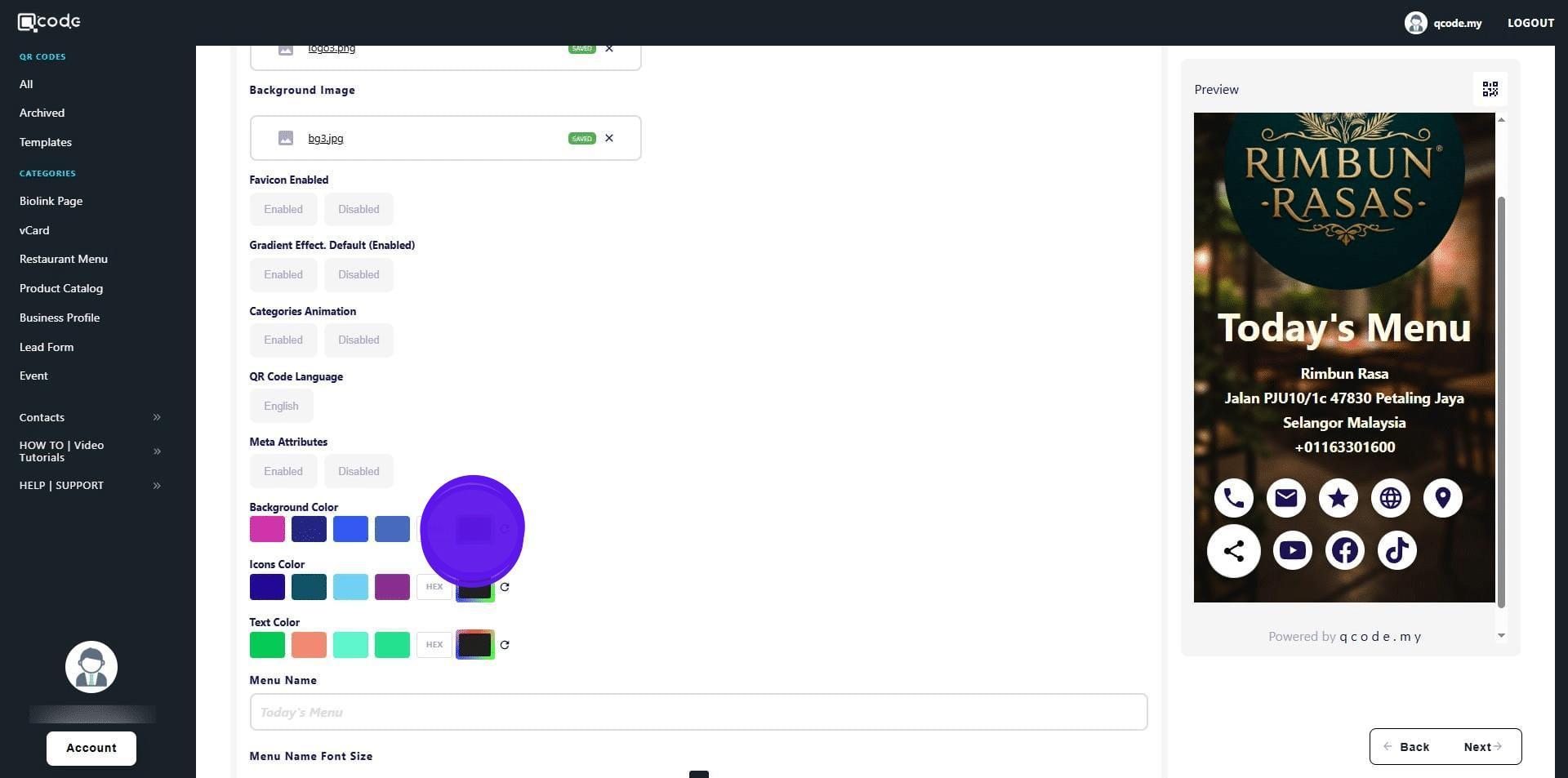
18. Click here to change the Icons color
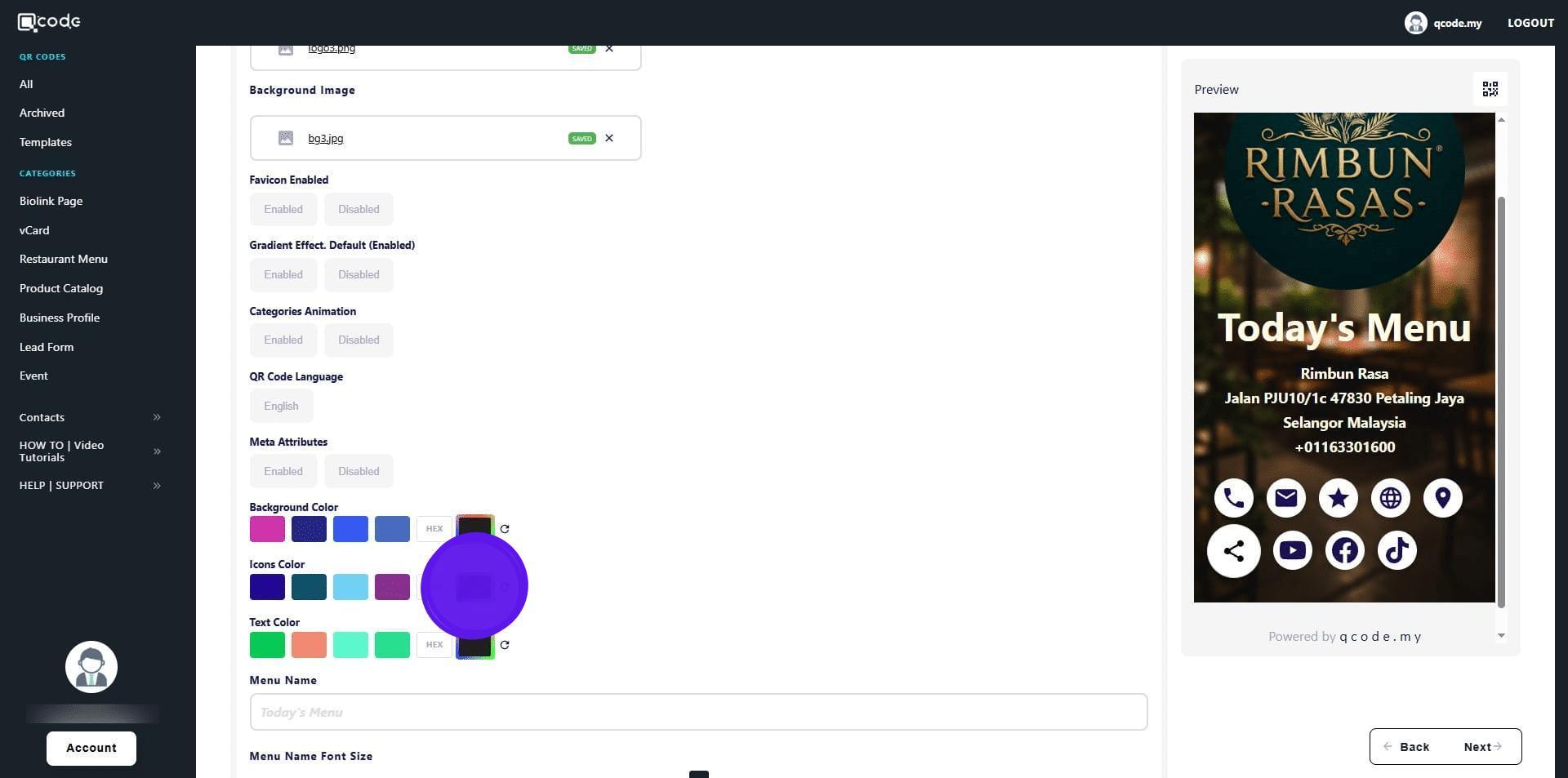
19. Click here to change the Text color
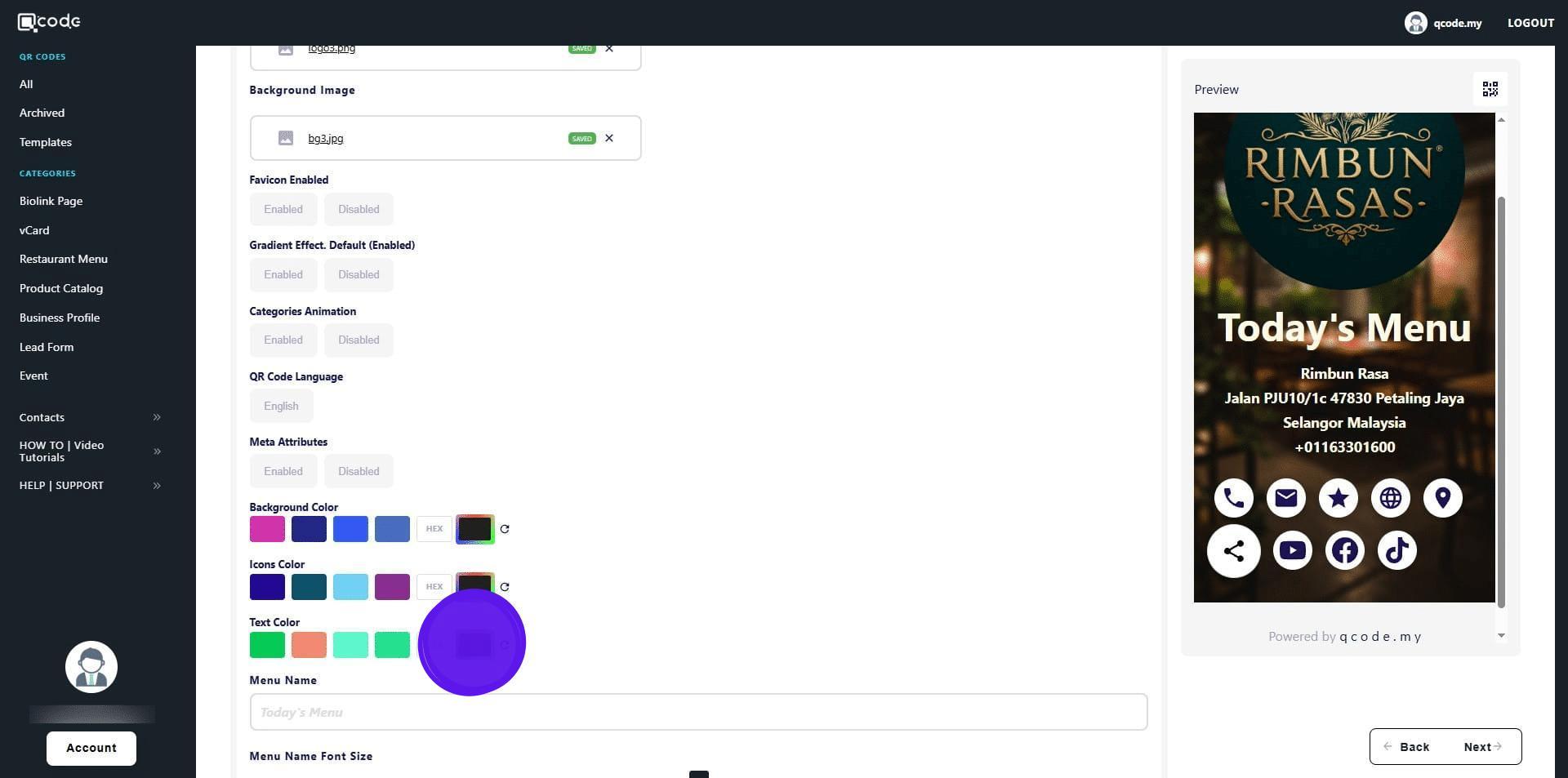
20. Type in the name of your Restaurant Menu
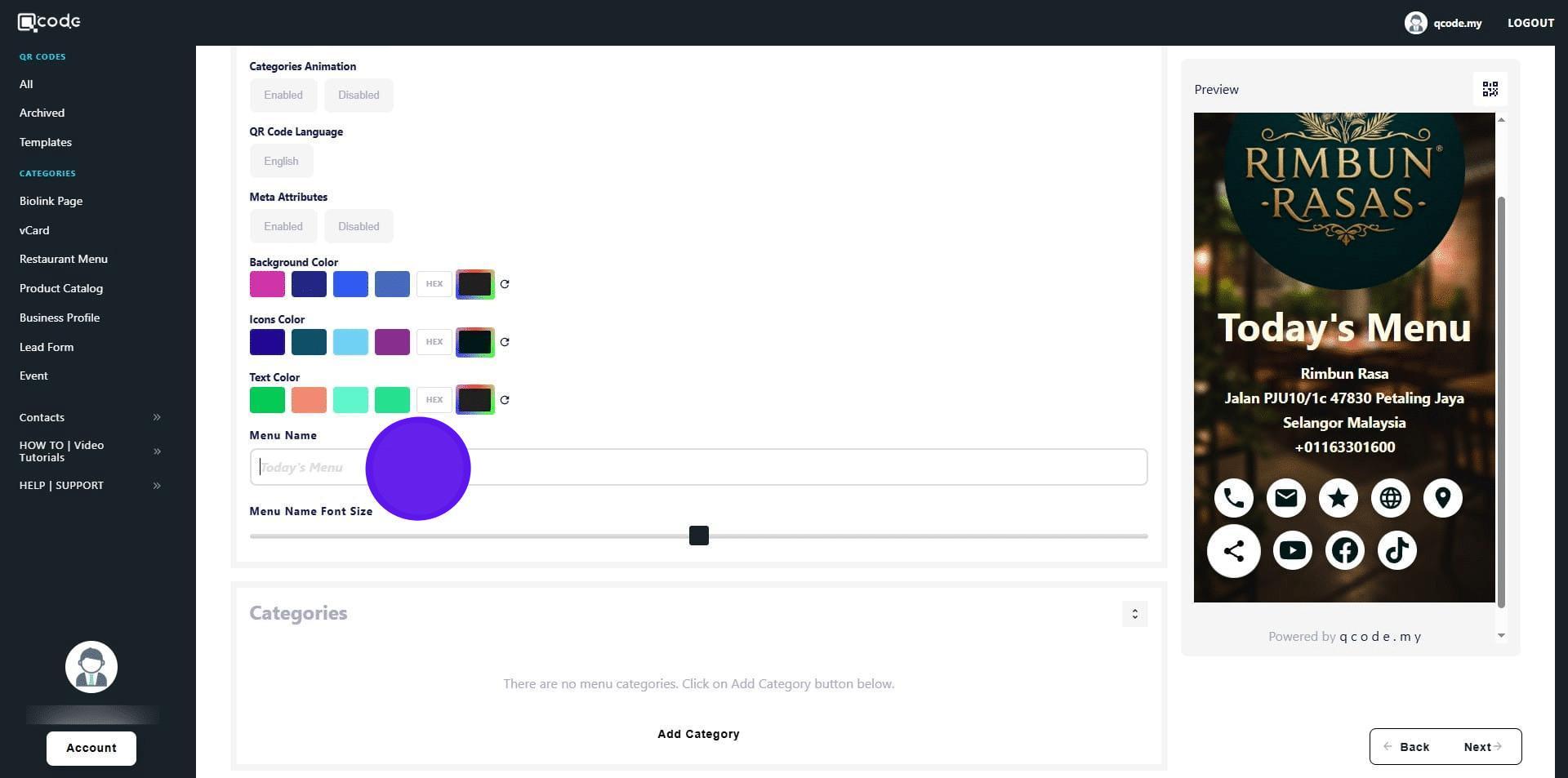
21. Click on Add Category to add a food category
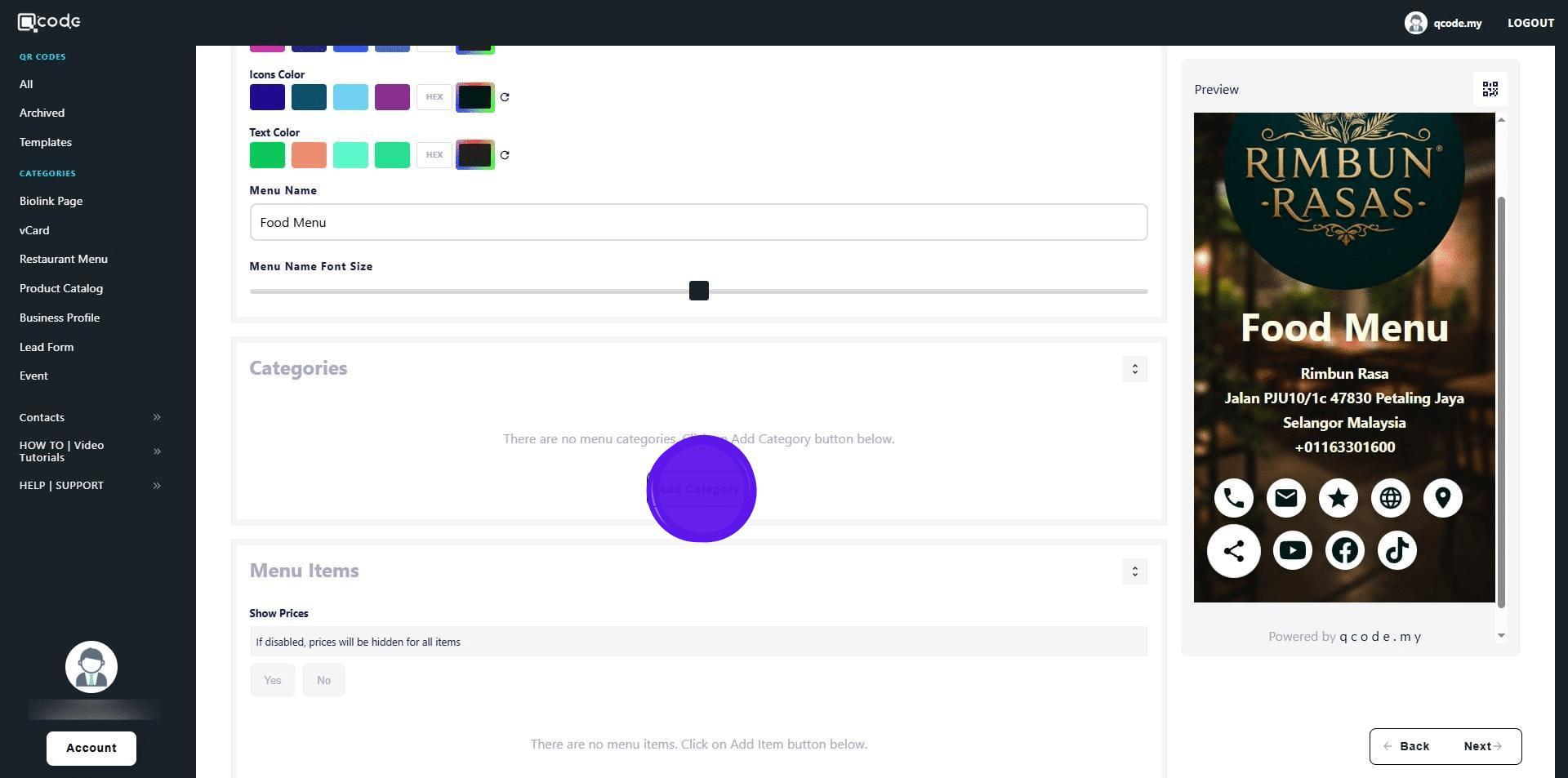
22. Type in the name of the category here
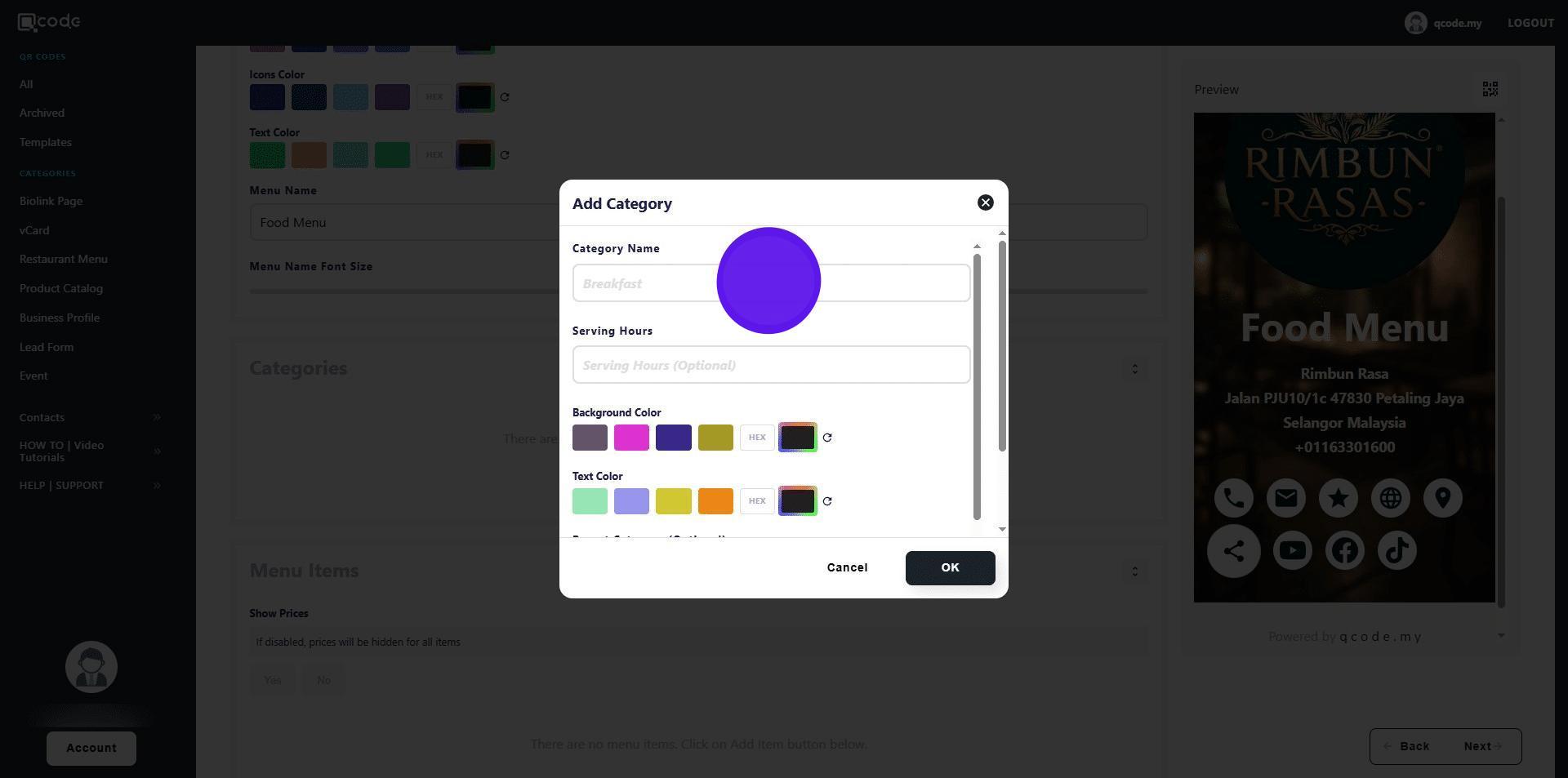
23. Click here to change the Background color of the category
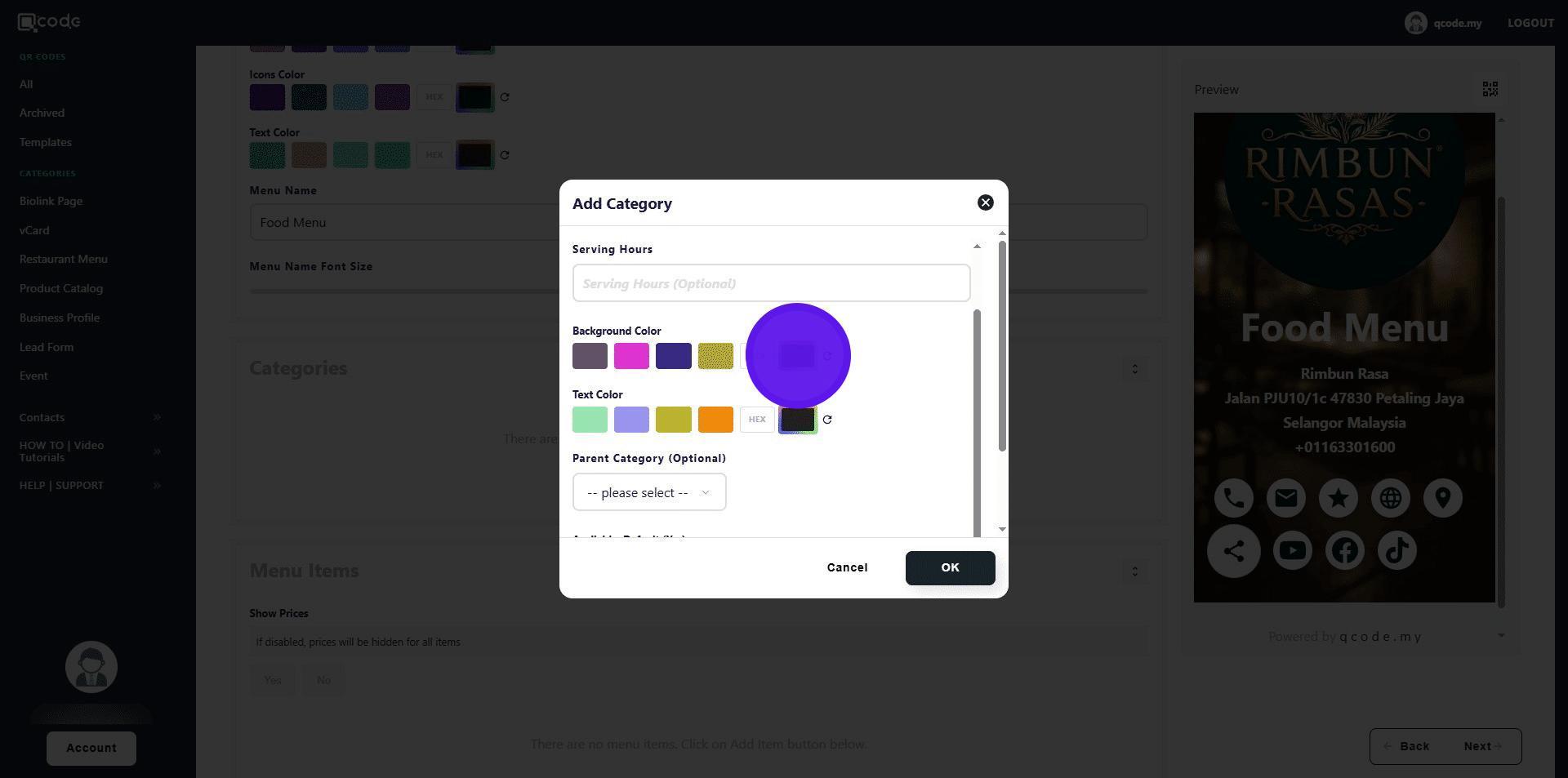
24. Click here to change the Text color of the category
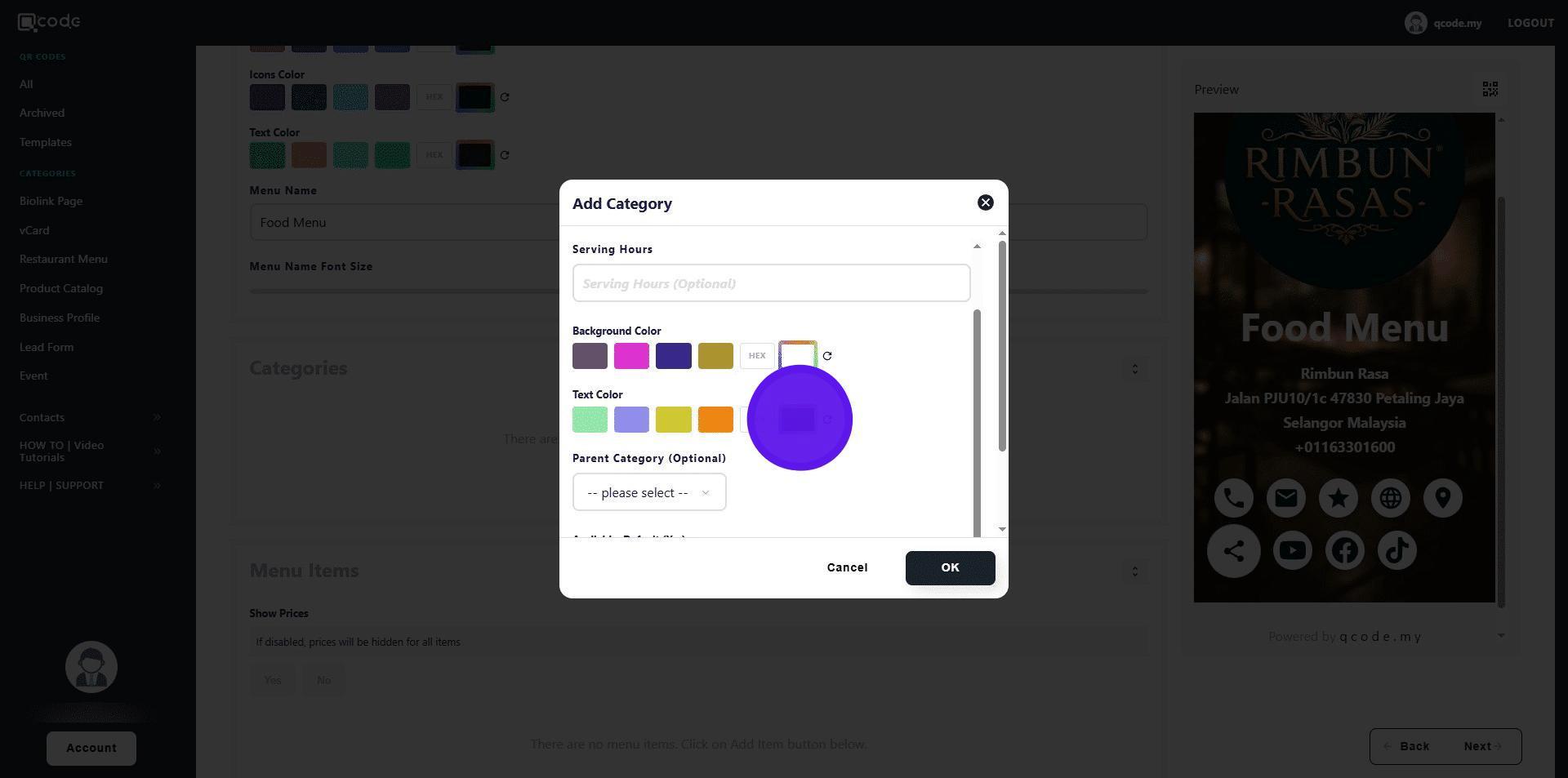
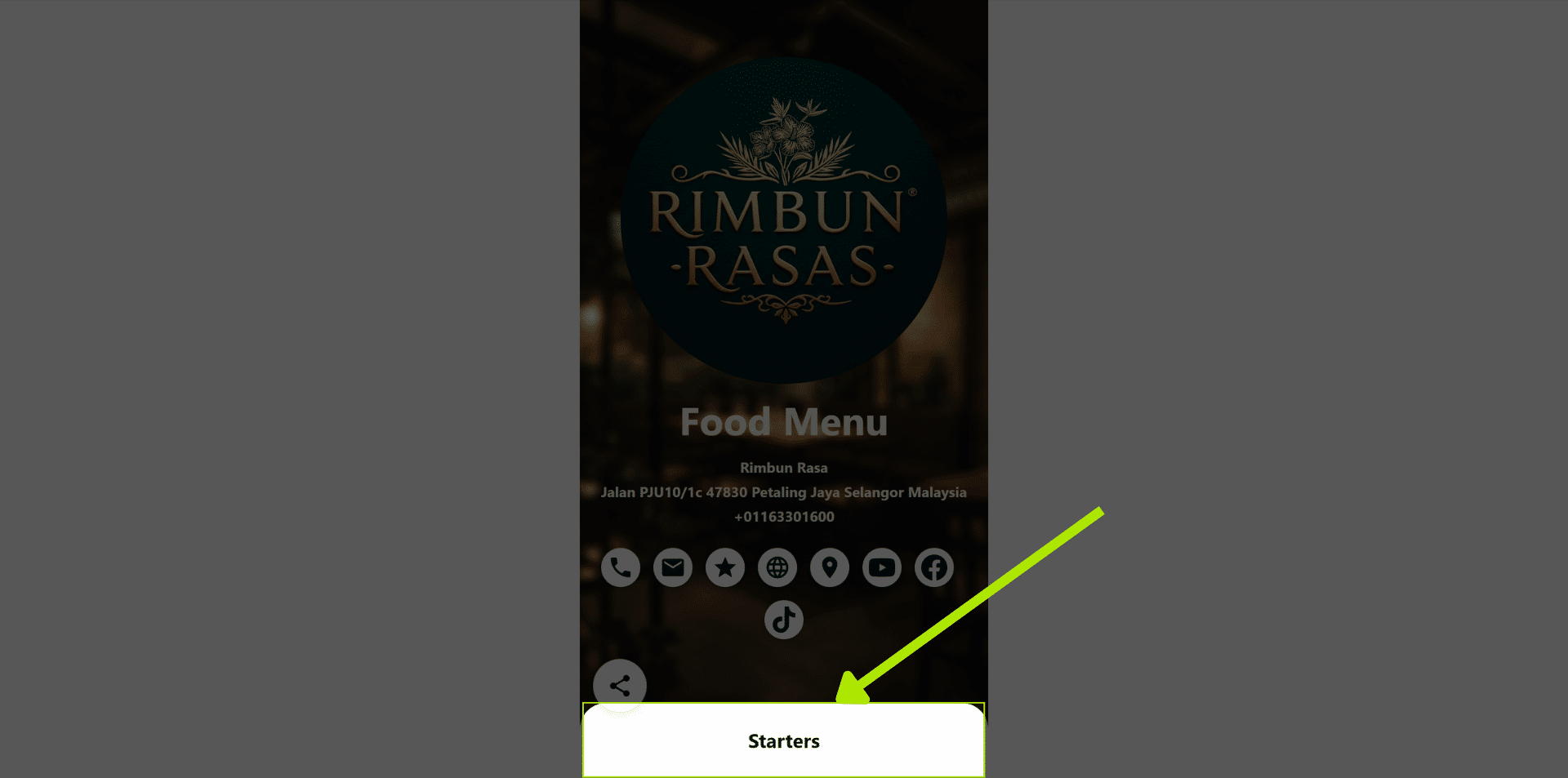
25. The colors will be applied here
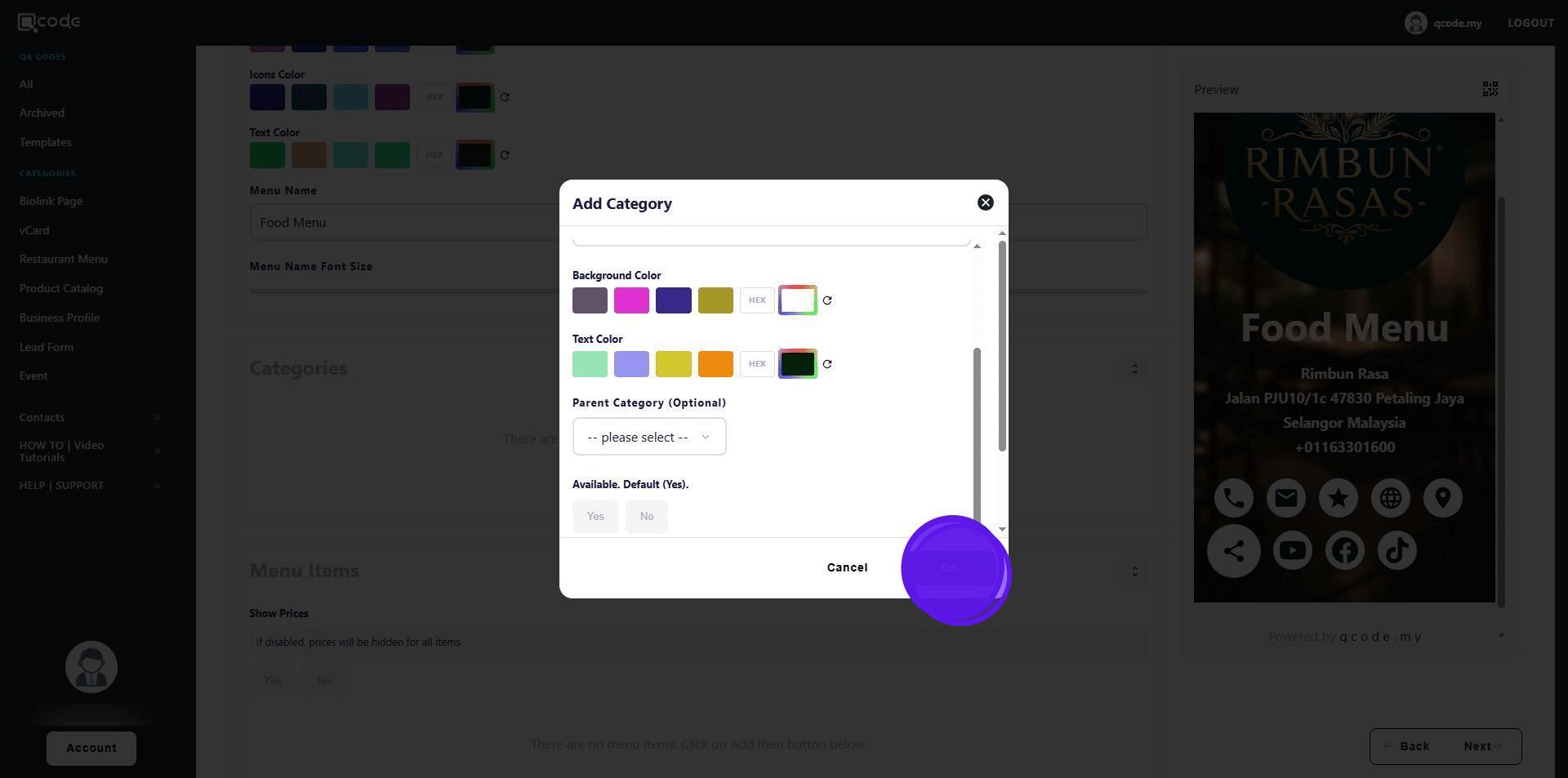
26. Click on OK to finish adding the category
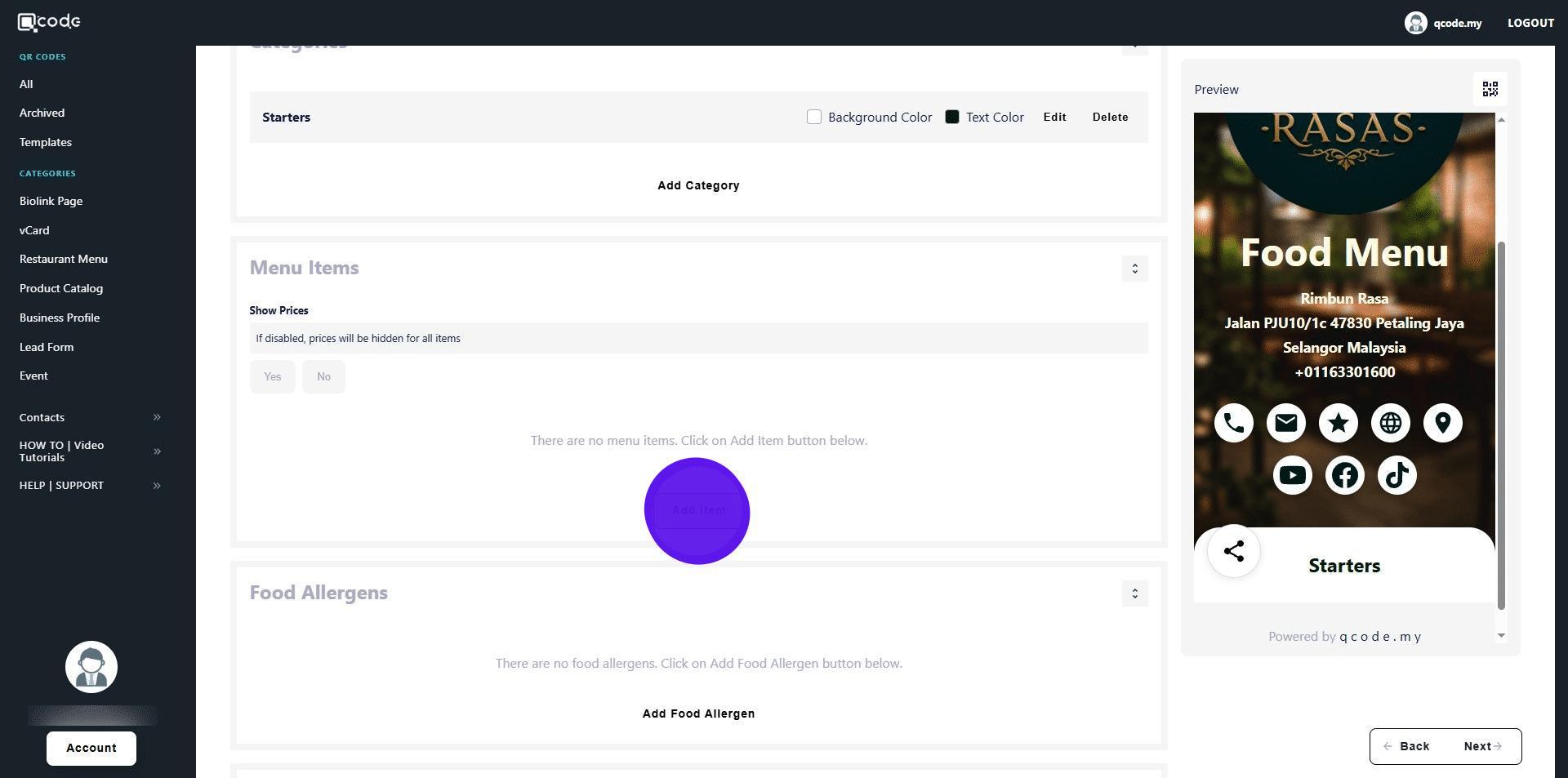
27. Click on Add Item to add your item
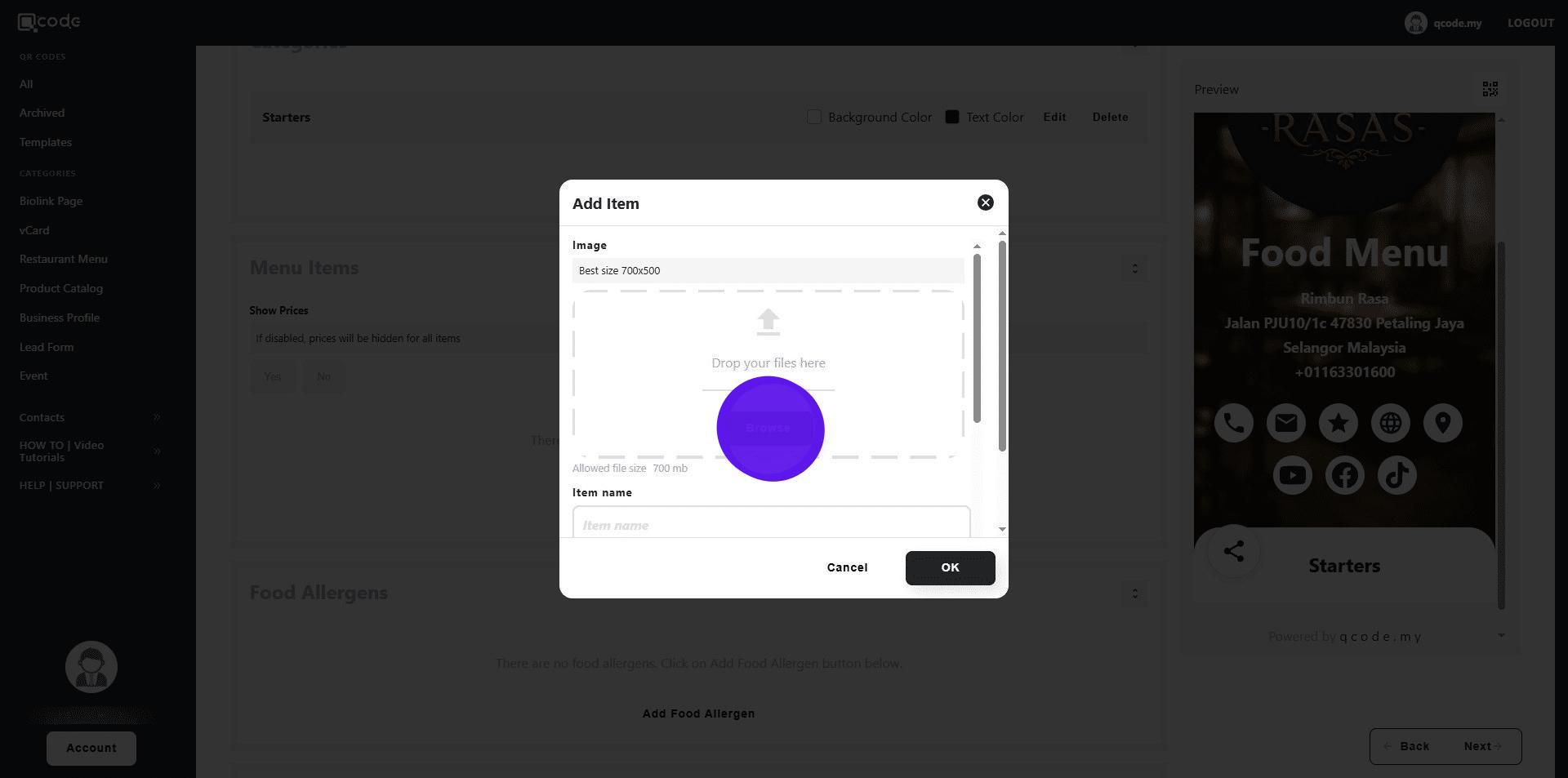
28. Click on Browse to upload the image of your Food item
29. Type in the name of your Food item here
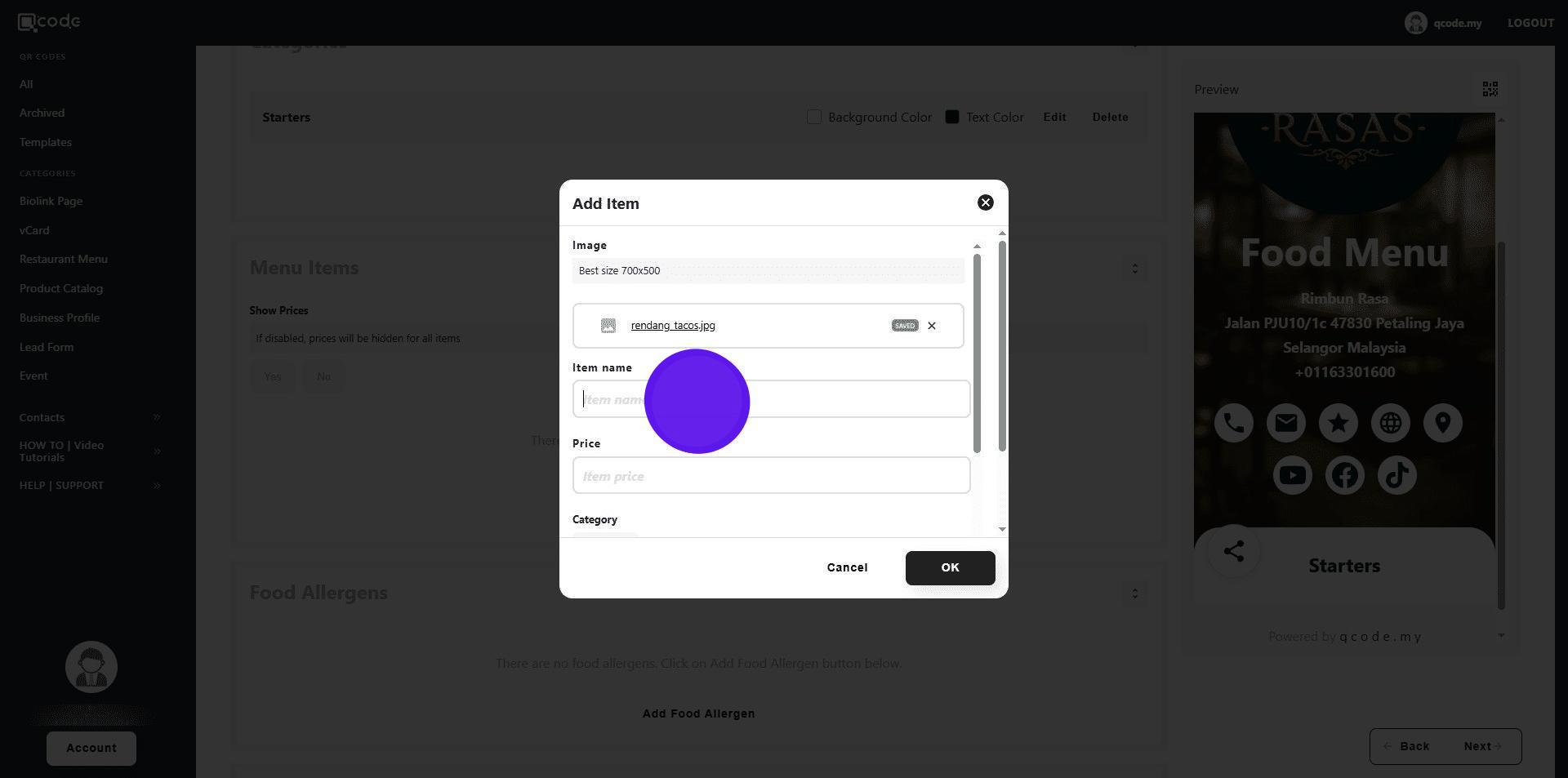
30. Type in the price here
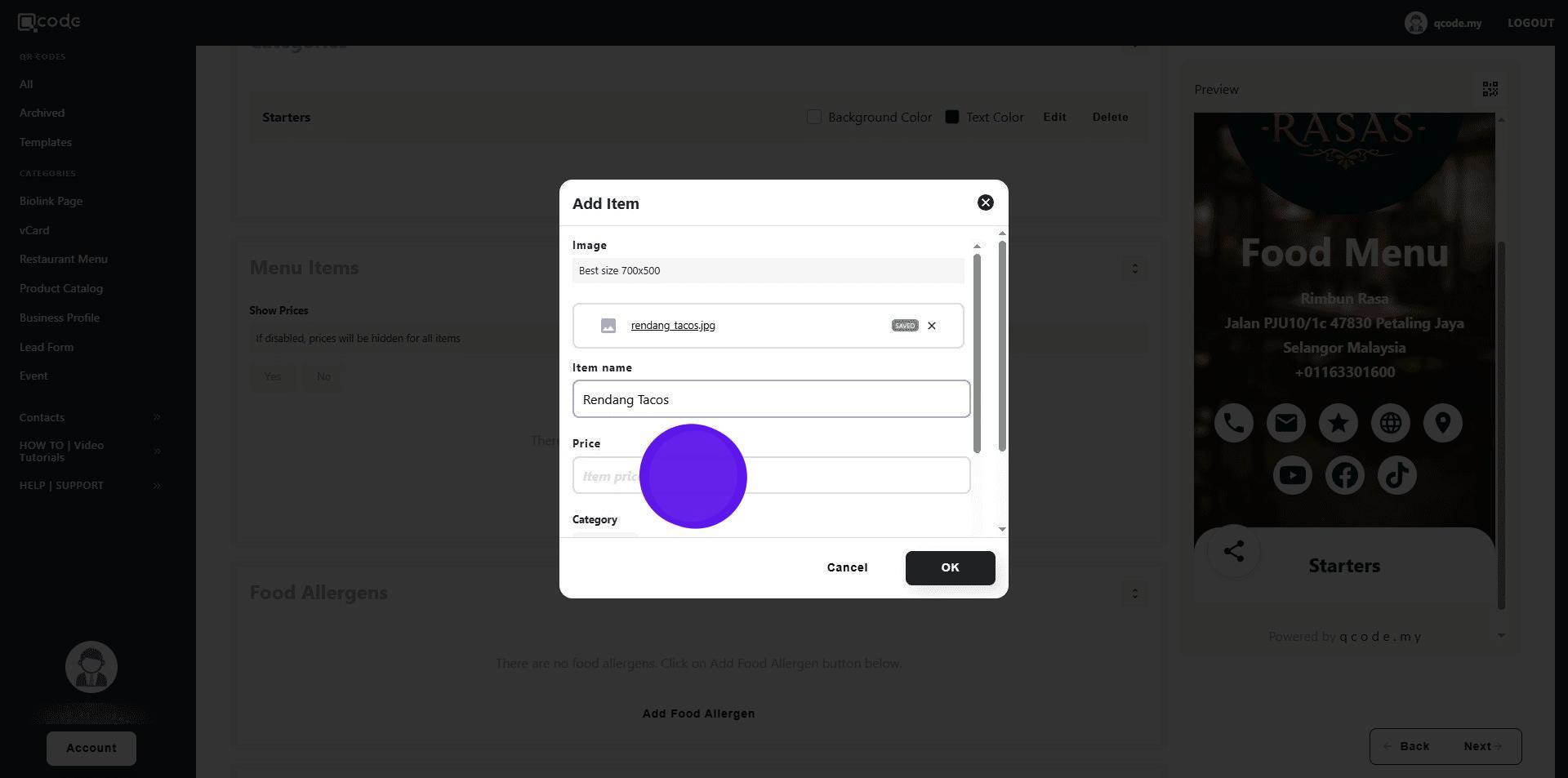
31. Select the category by clicking here
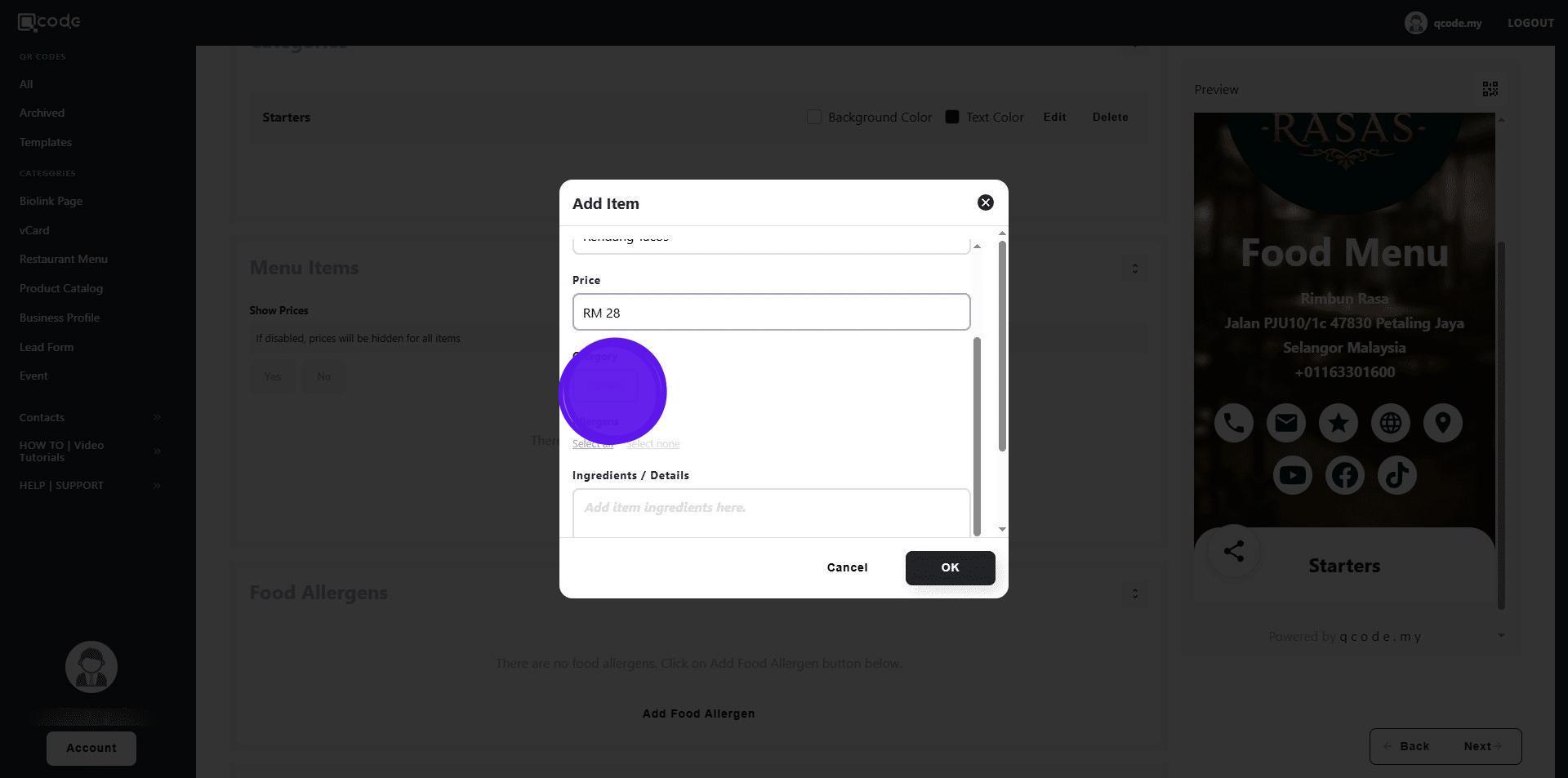
32. Add in the description of your Food item here
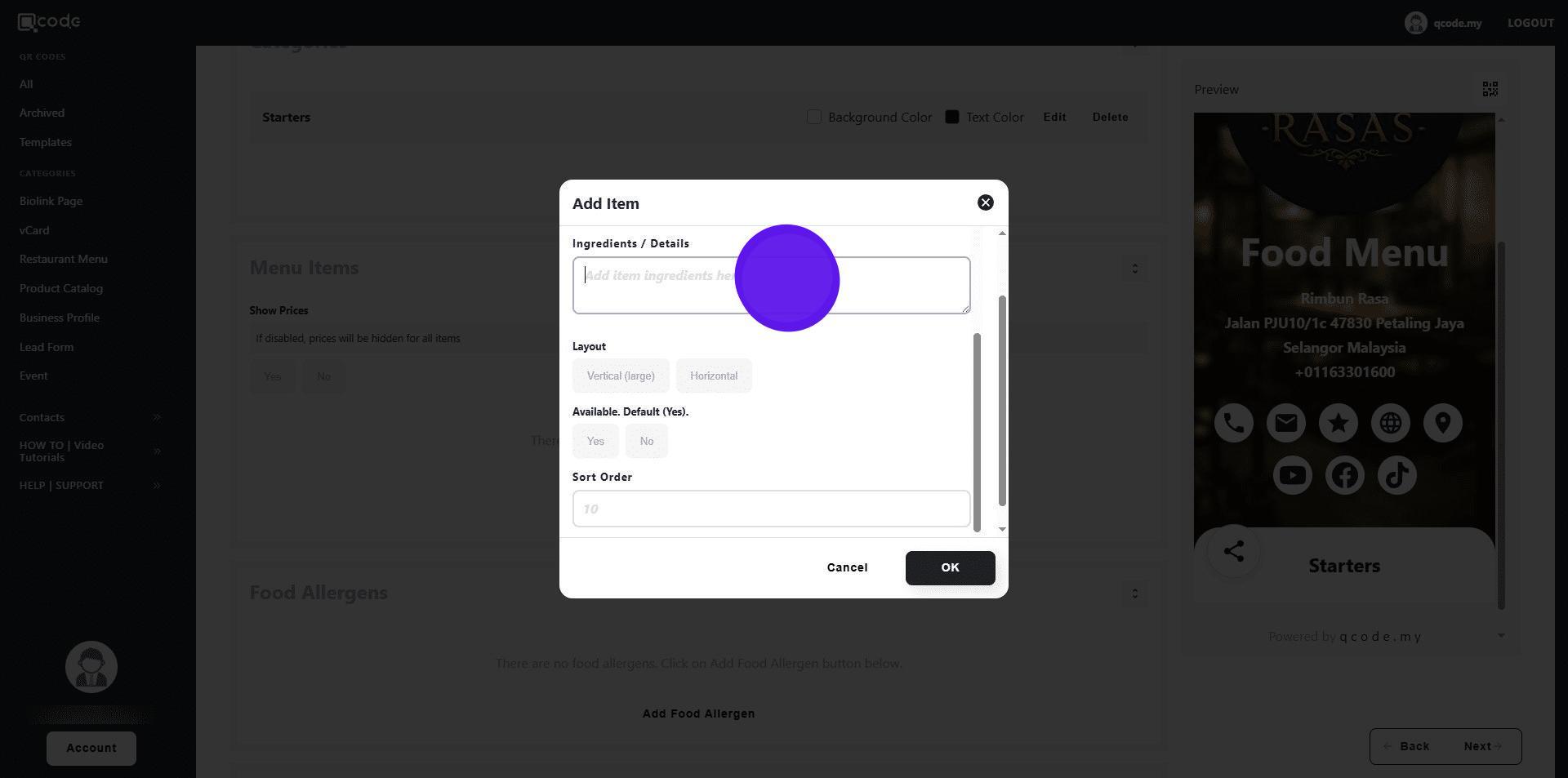
33. Click on Vertical (large) or Horizontal to choose the layout for the image of your Food item
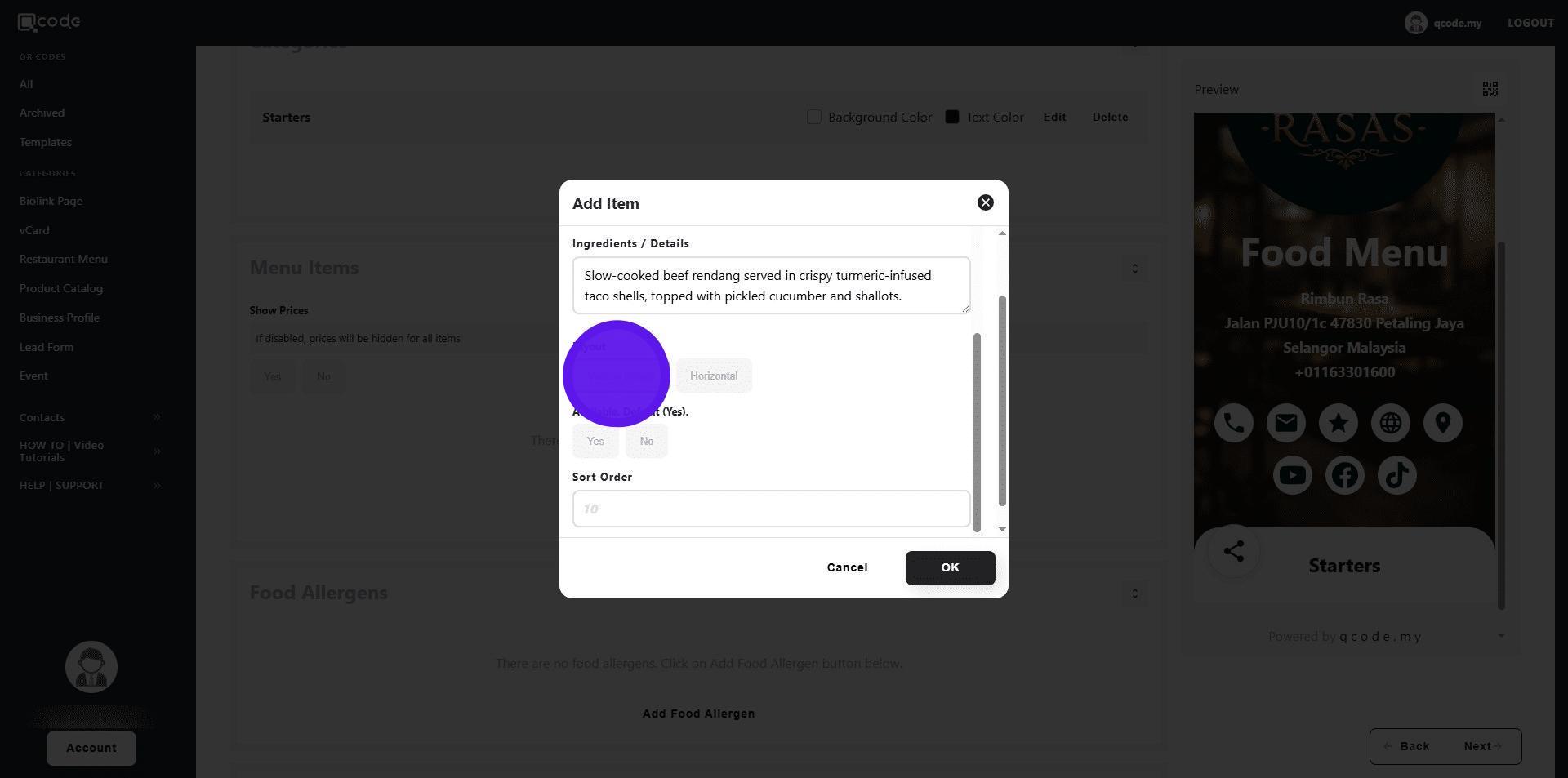
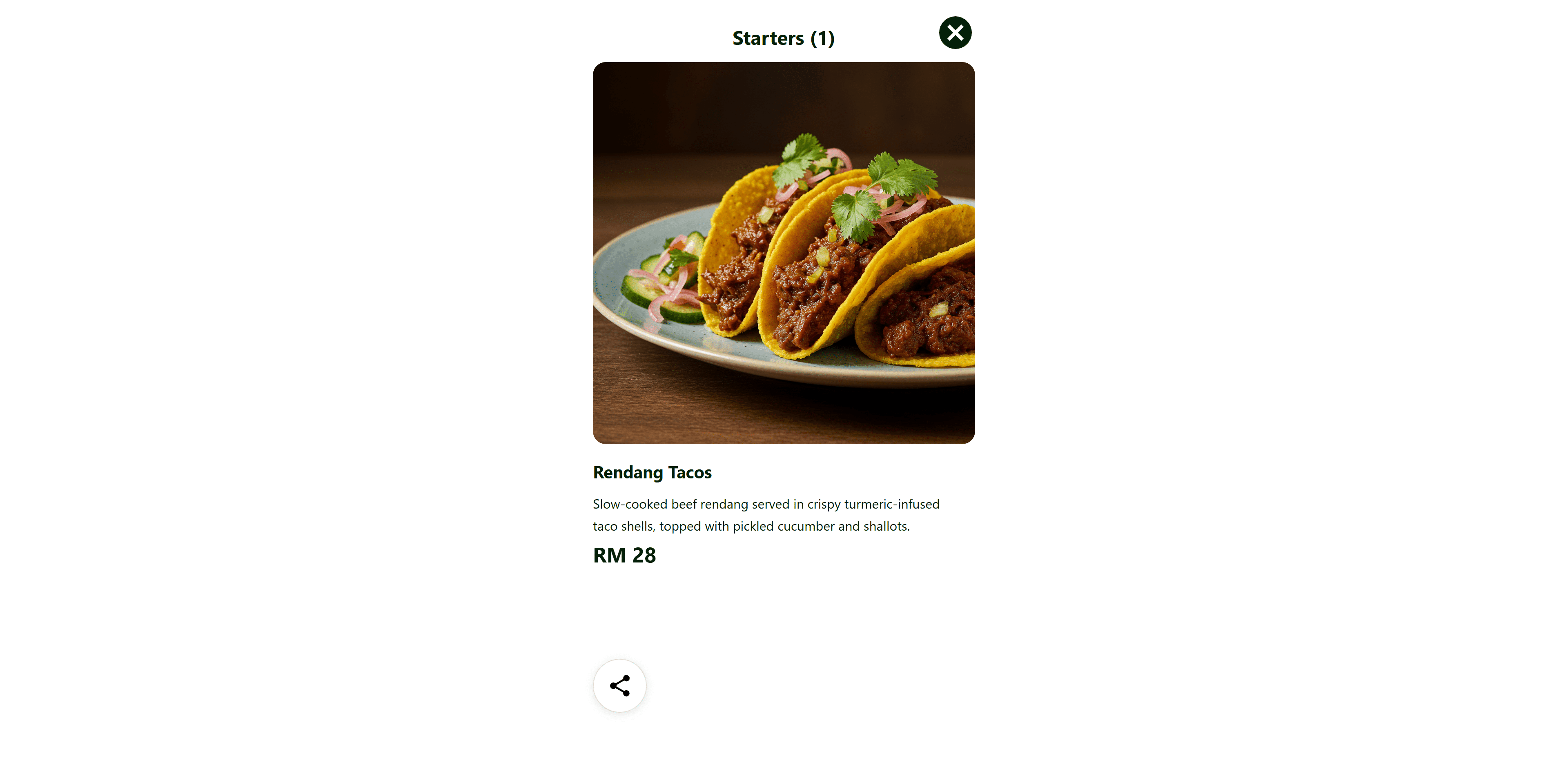
34. Vertical (large) option will appear like this
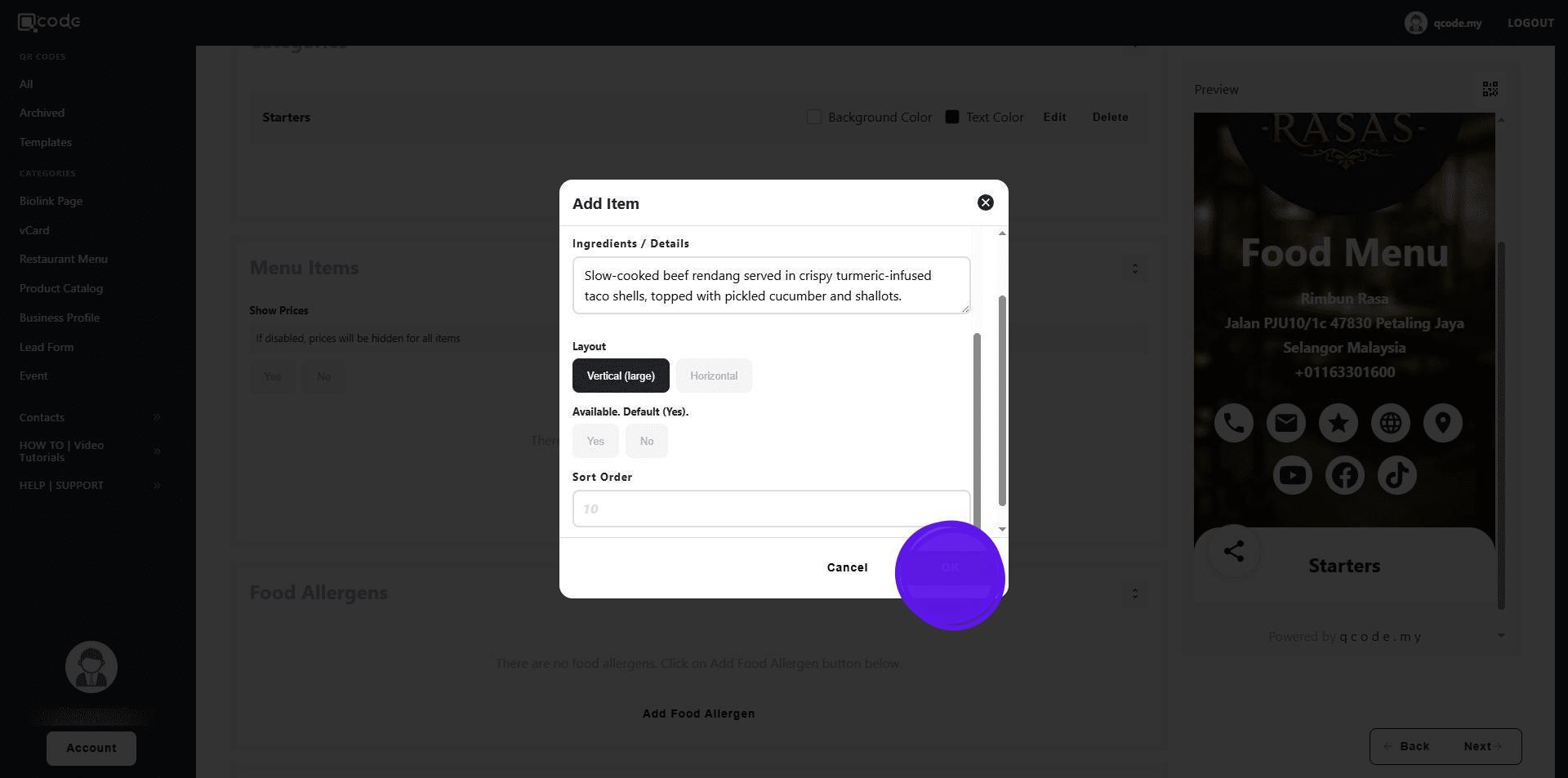
35. Click on OK to finish adding your Food item
36. Click on the QR Code icon customize your QR Code.
Click the link to learn more: https://kb.imoolah.network/guides/YUFgbQ5mkC4Zy2JfZH25
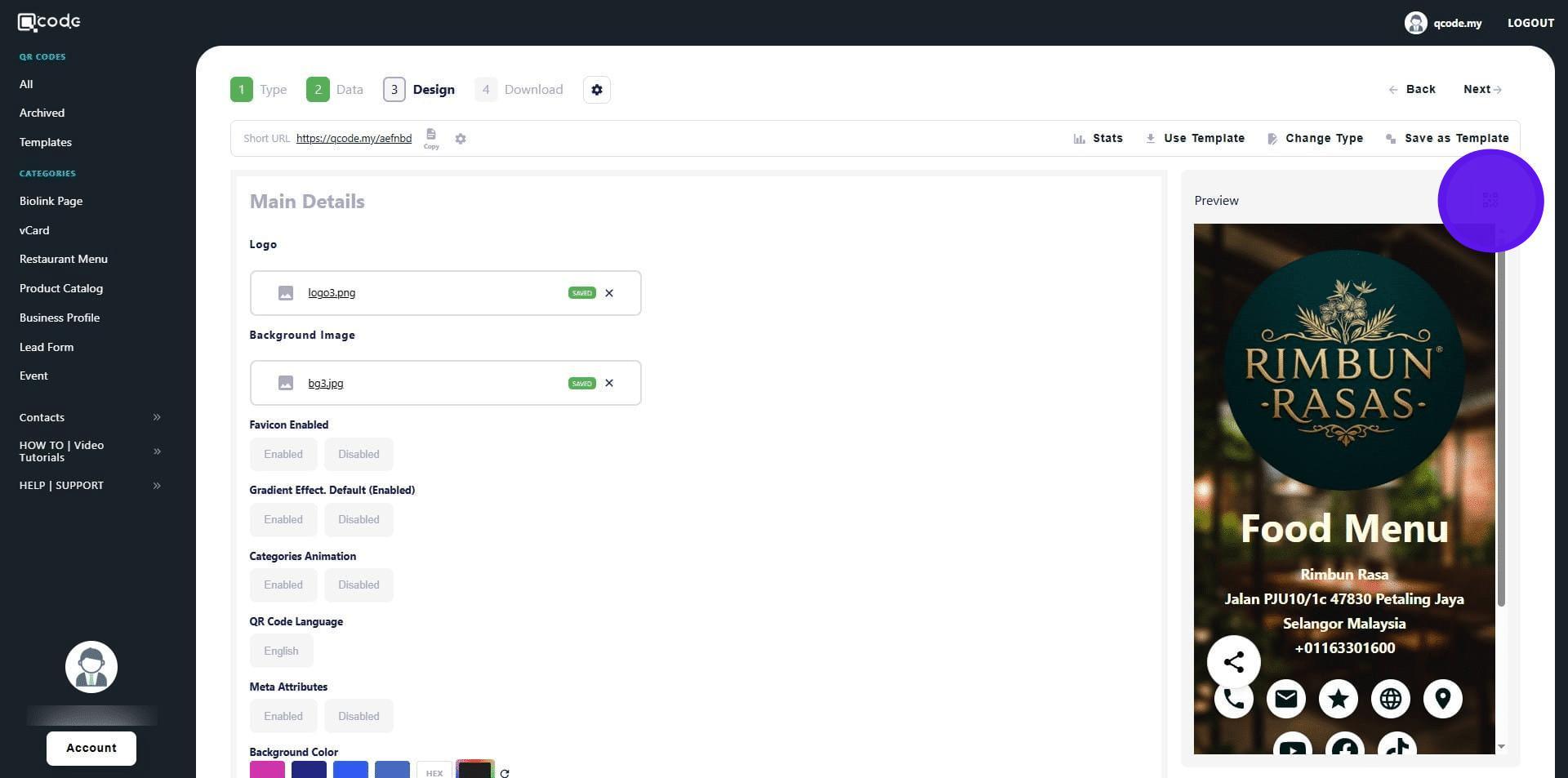
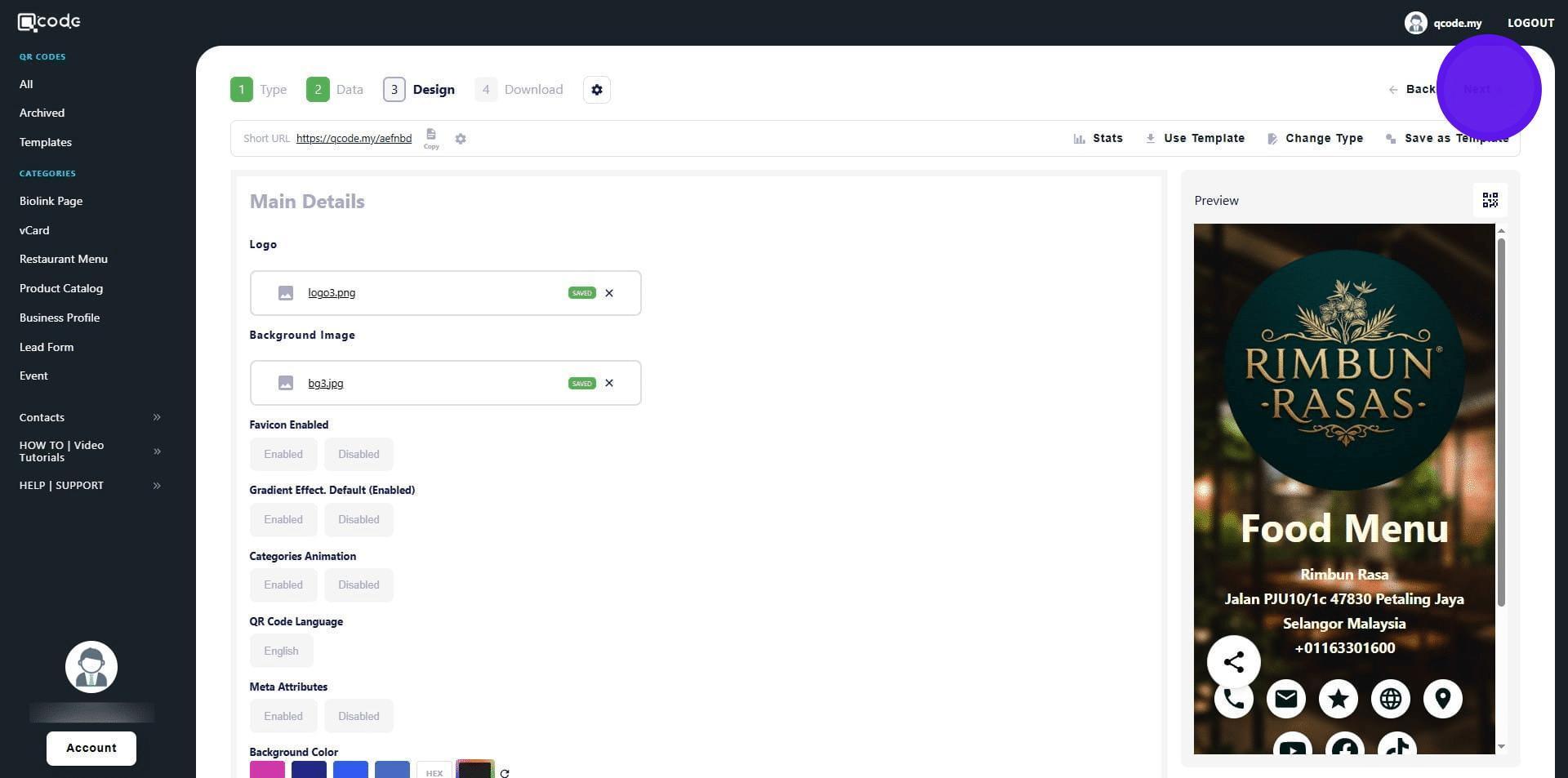
37. Click on Next to move to the final section
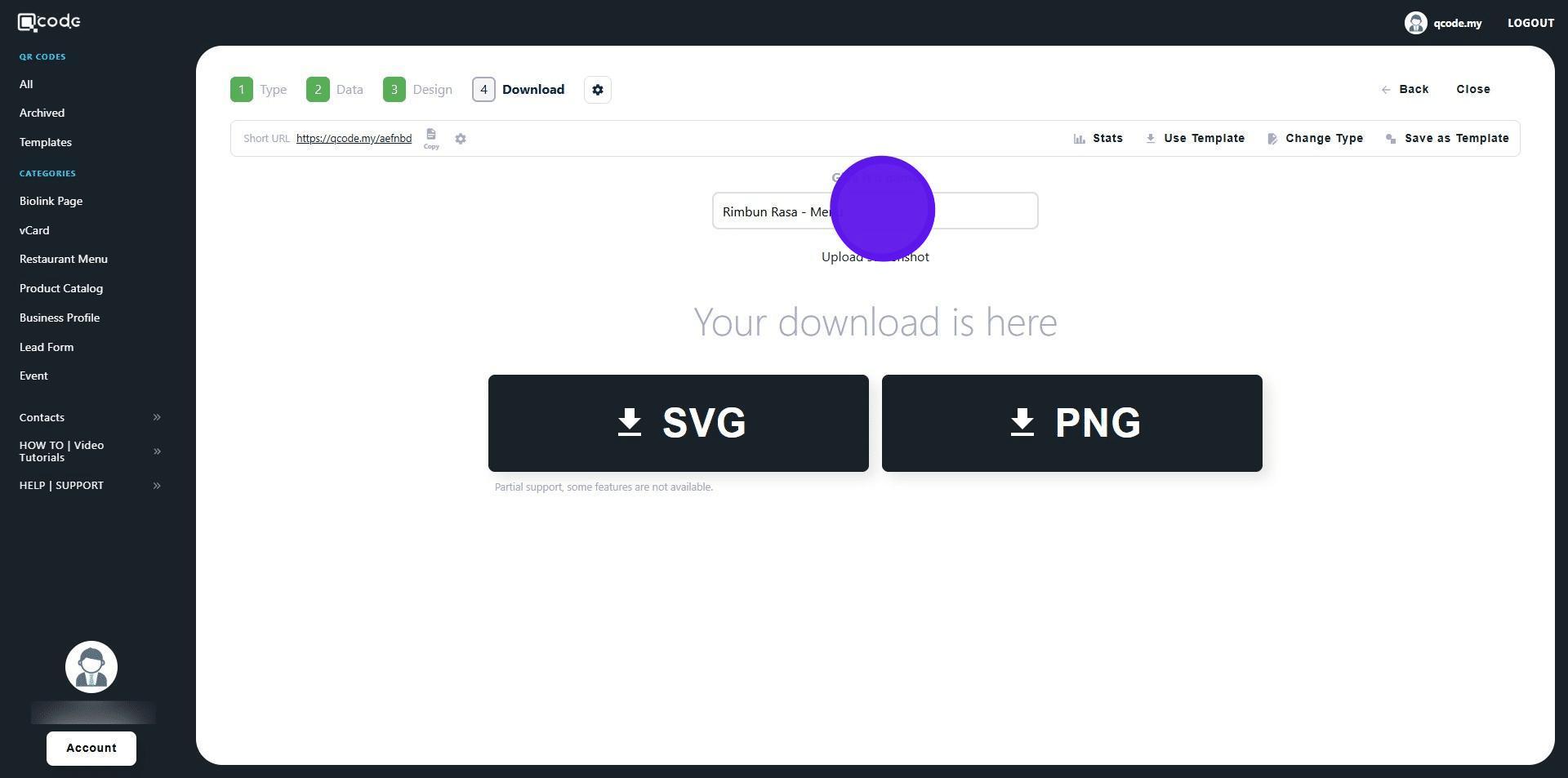
38. Click here to give your QR Code a name
39. Click on the cog icon to change the Slug/Username.
Click on the link to learn more: https://kb.imoolah.network/guides/WyWZY38vTRTbItuows4P
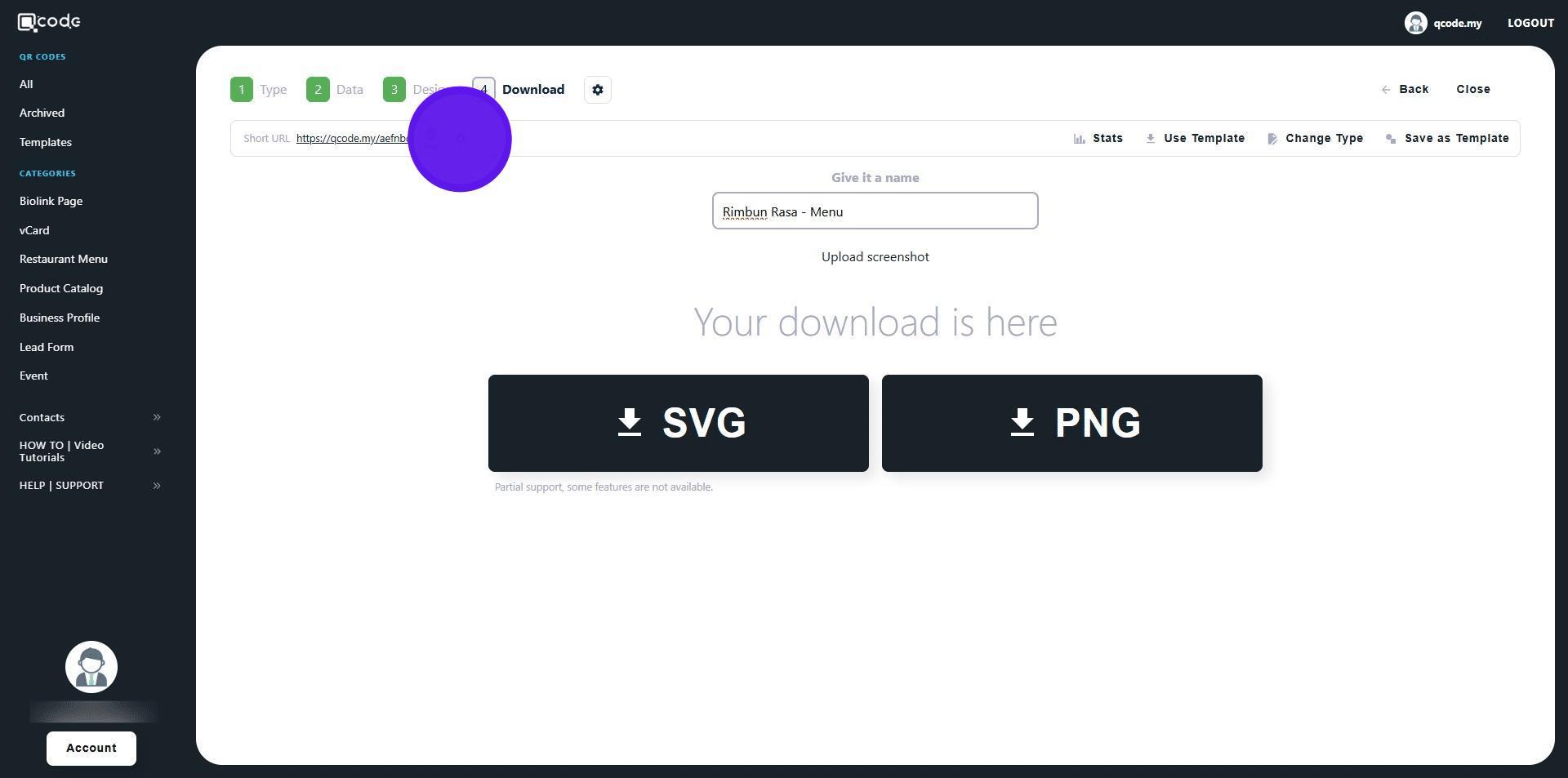
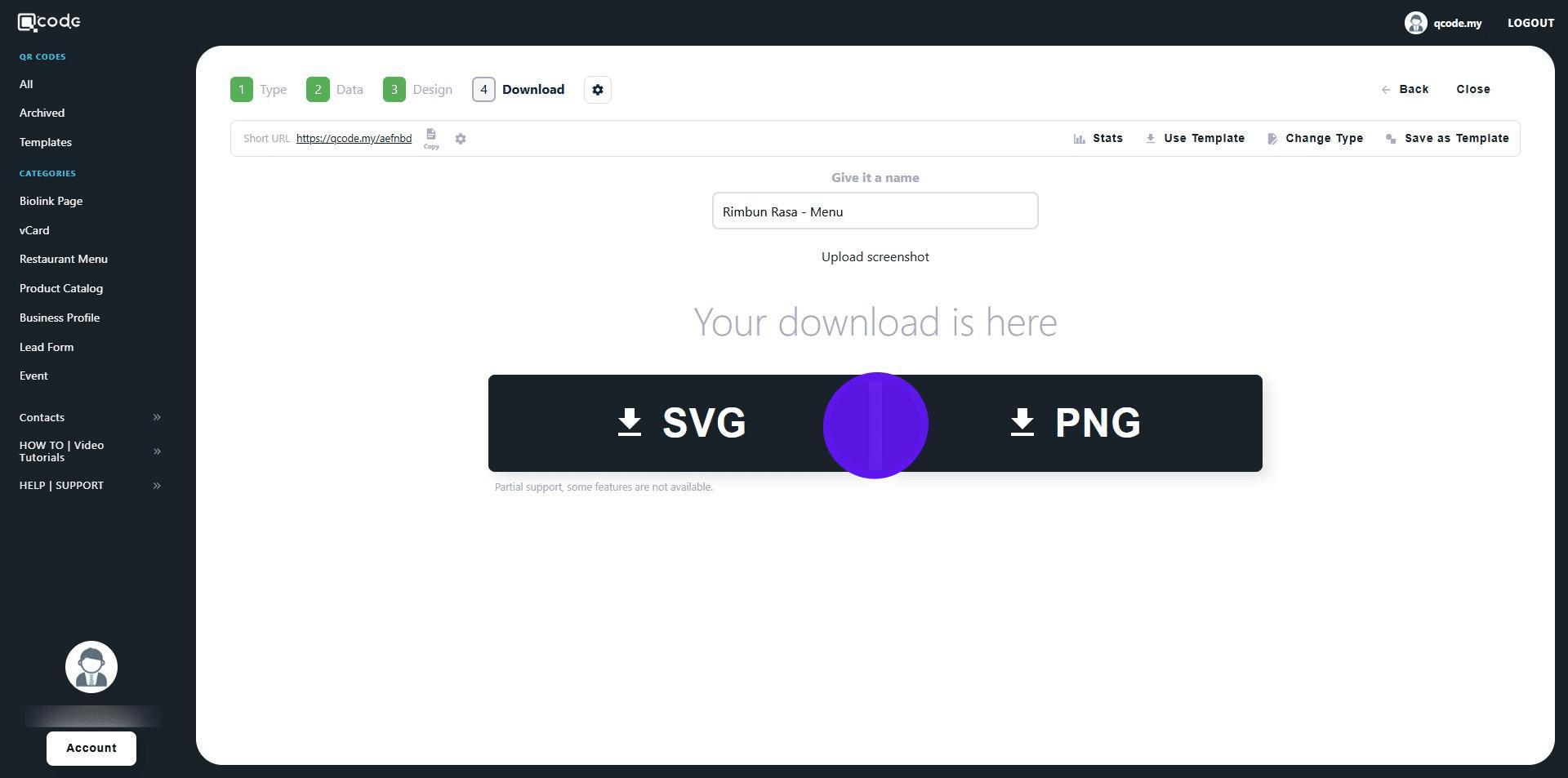
40. Changing the slug after downloading your generated QR codes will modify the codes. Be sure to finalize the slug before downloading your work
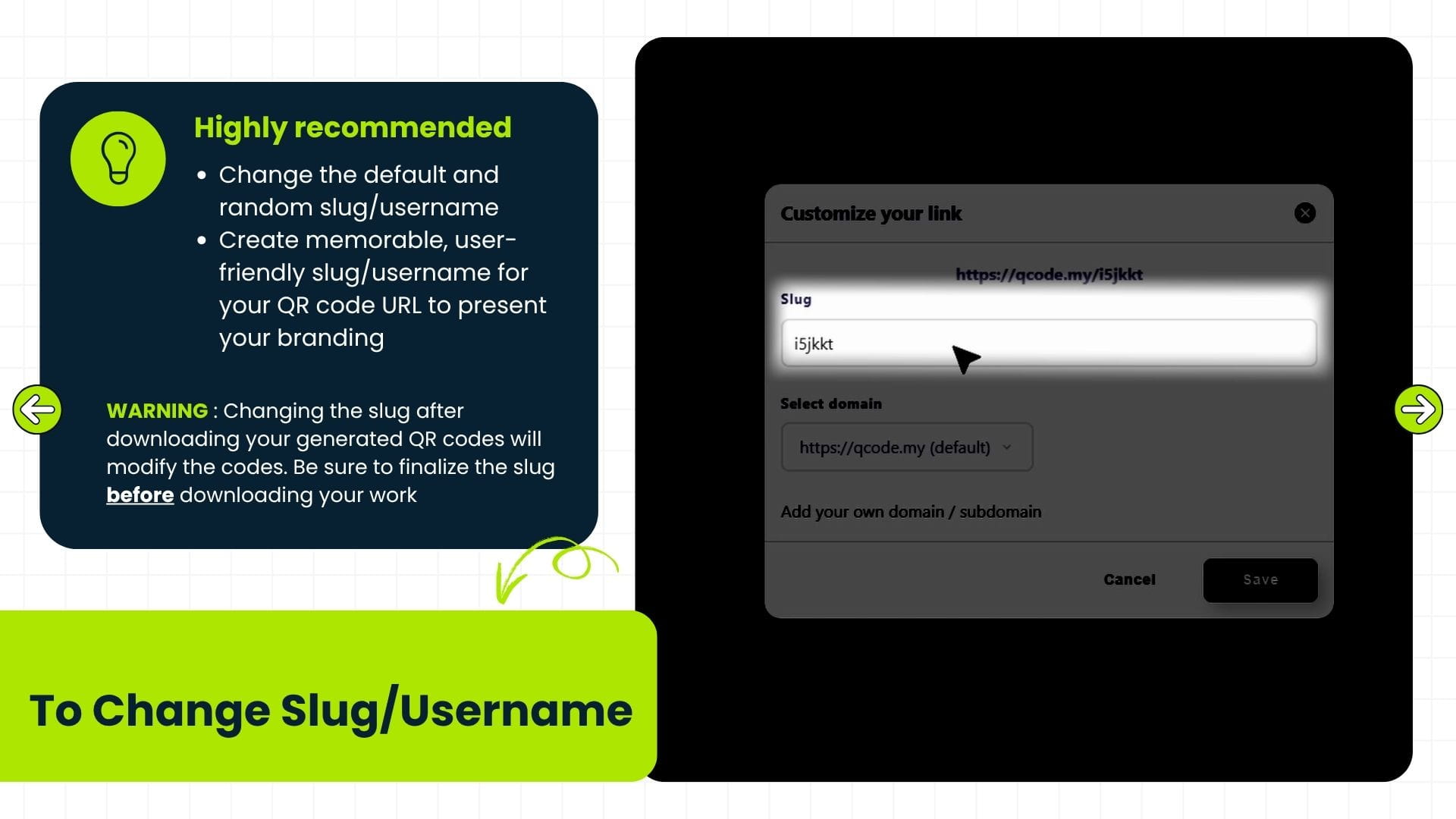
41. Click on SVG or PNG to download your QR Code in the desired formats
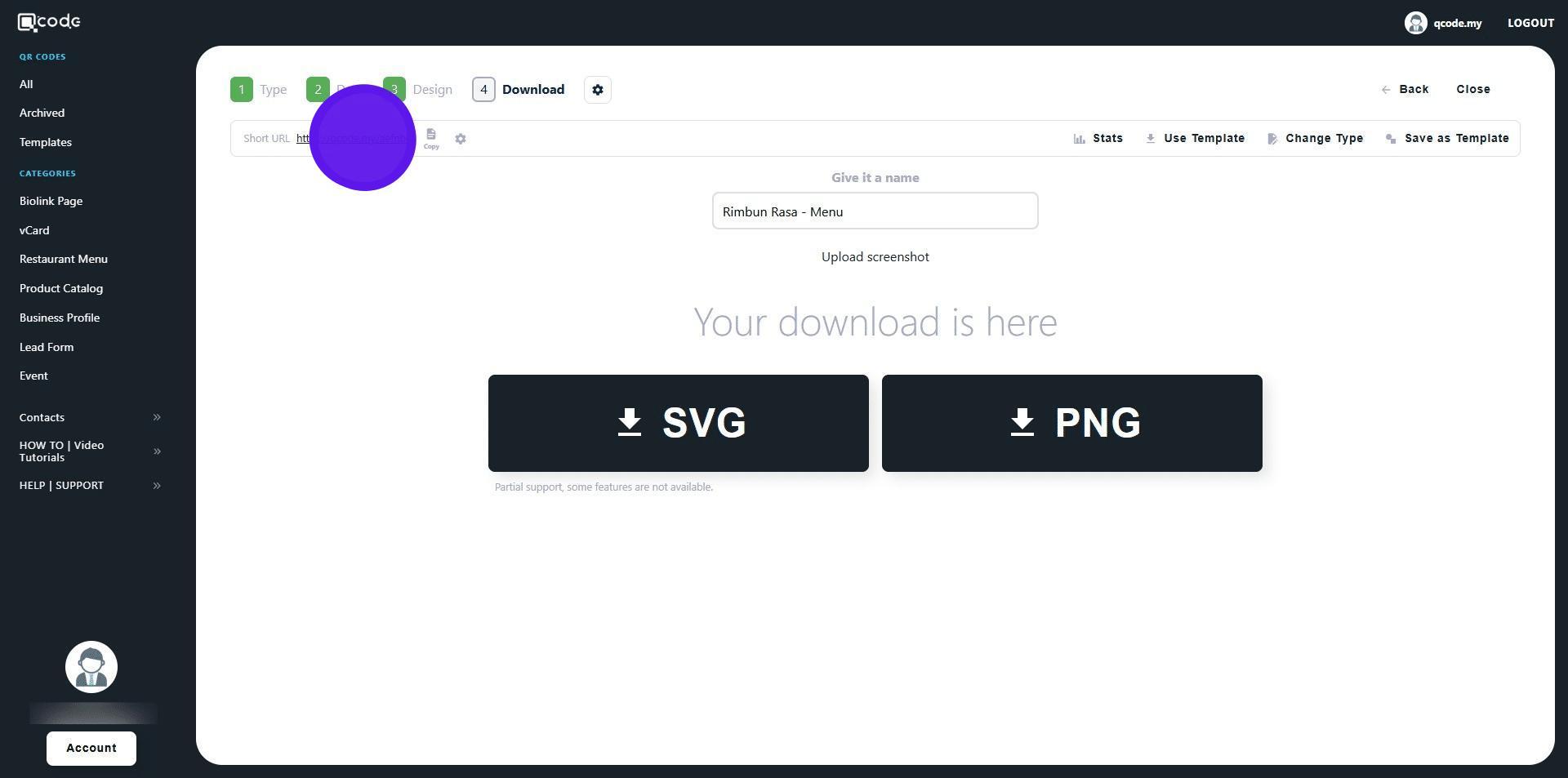
42. Click on the Short URL to view your Restaurant Menu
43. Congratulations on creating your Restaurant Menu! ✔