How to create a QR Code
This guide will walk you through the process of creating a customized QR code. It covers various customization options, including colors, shapes, logos and formats, allowing you to generate a unique QR code for your specific needs. You'll also learn how to manage the QR code's settings and download it in your preferred format.
1. Navigate to https://qcode.my/dashboard/qrcodes
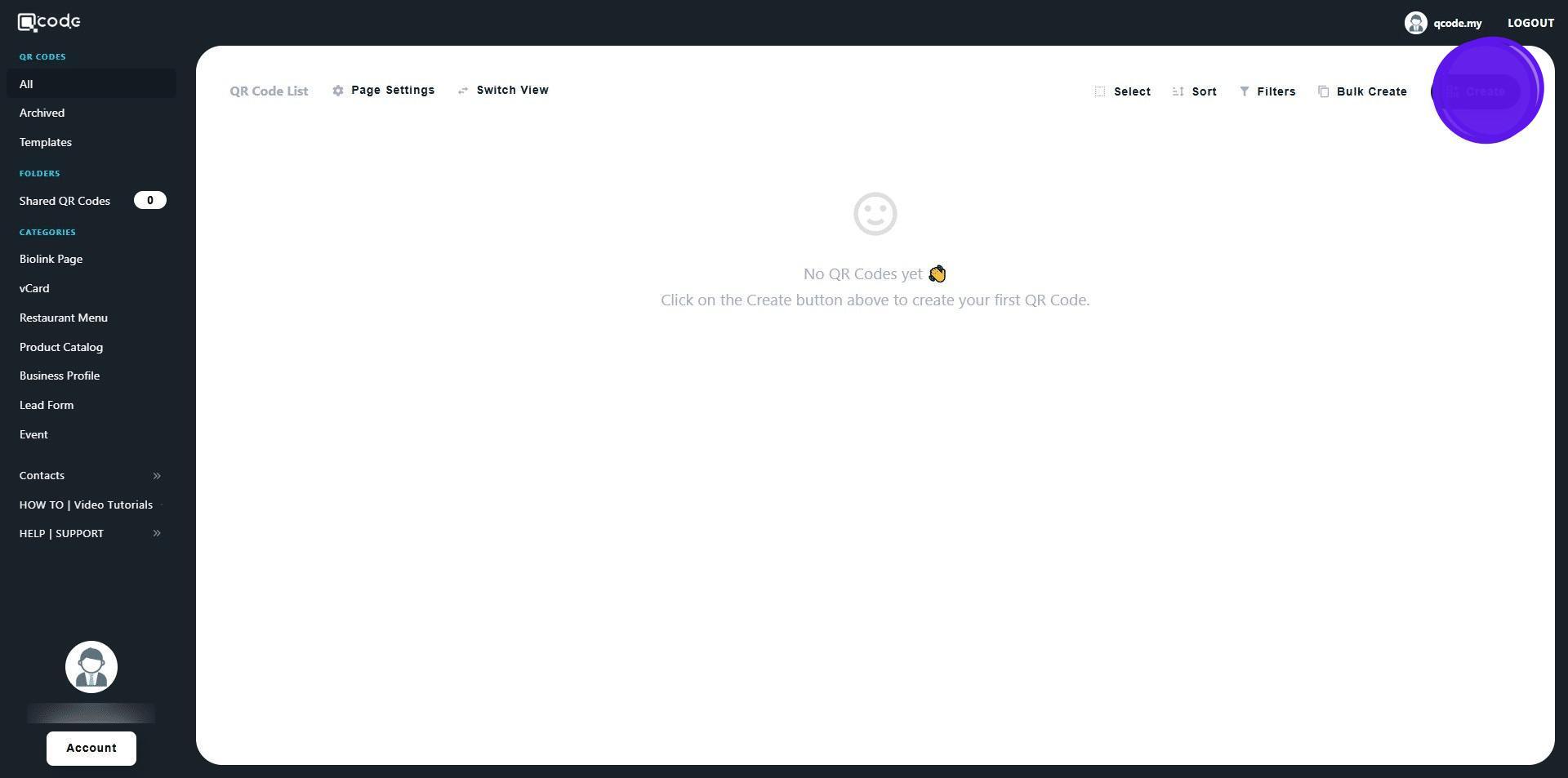
2. Click on Create to start creating your QR Code
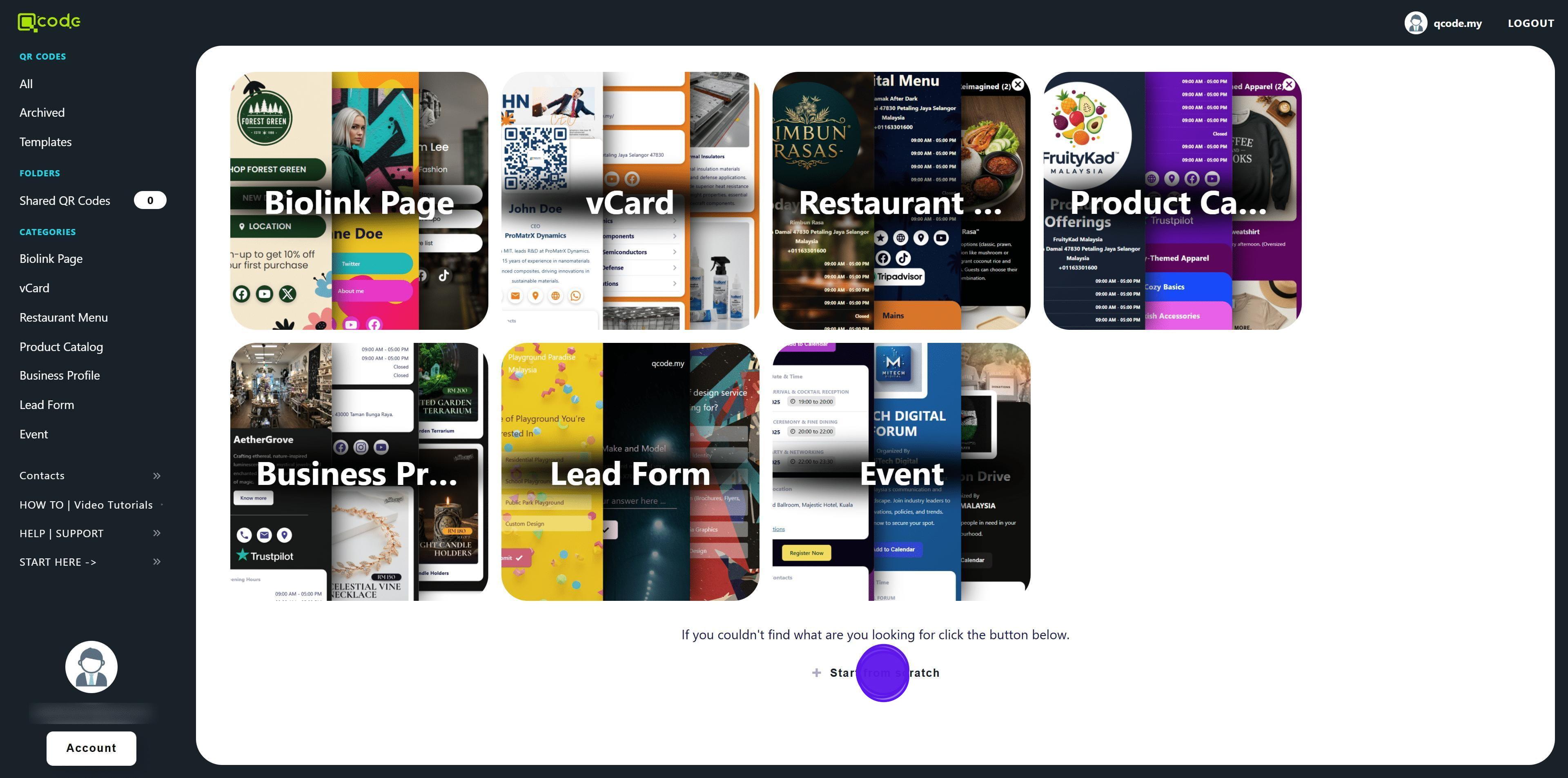
3. Click on Start from scratch
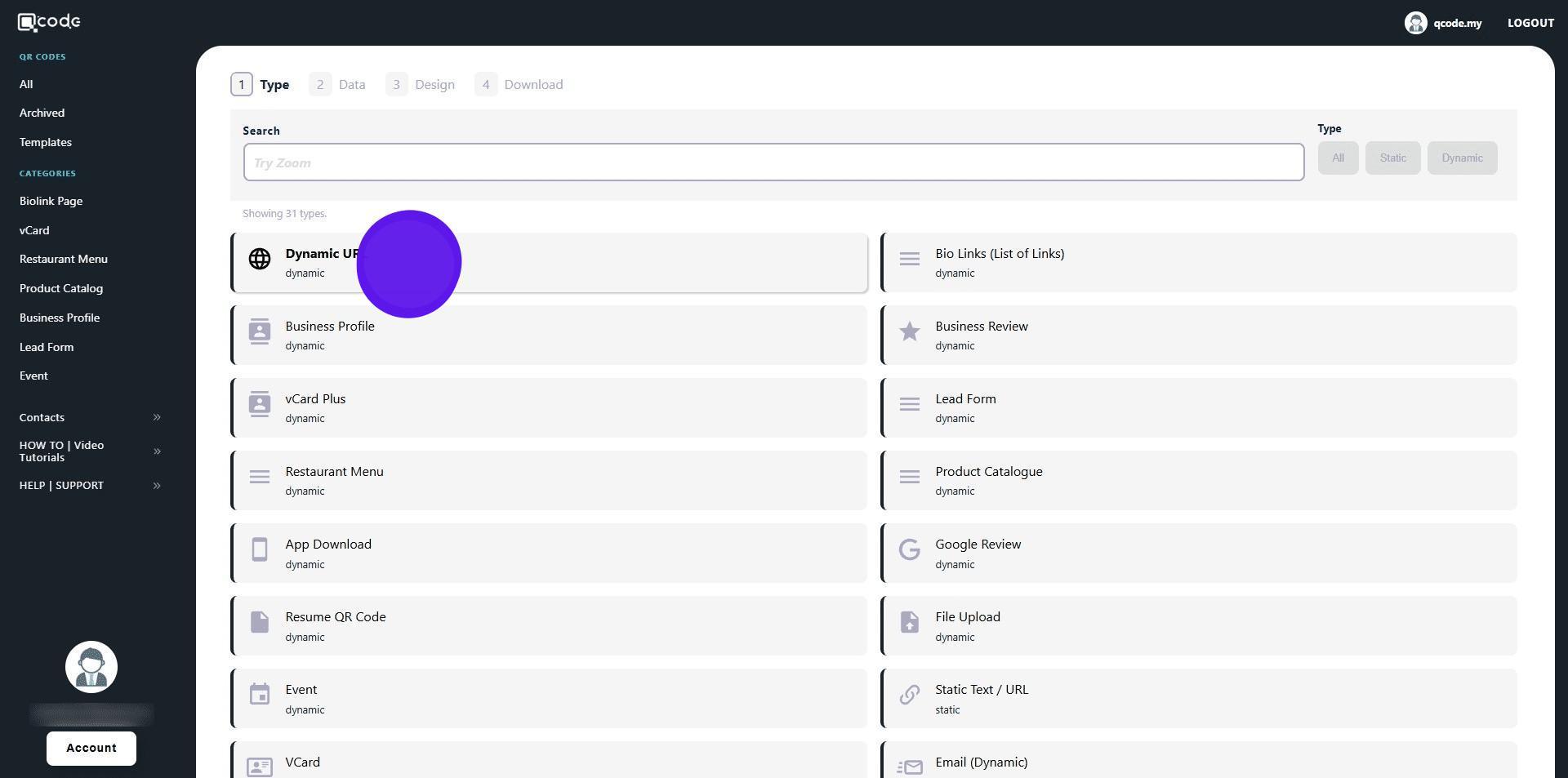
4. Click on Dynamic URL
5. Type in your URL here
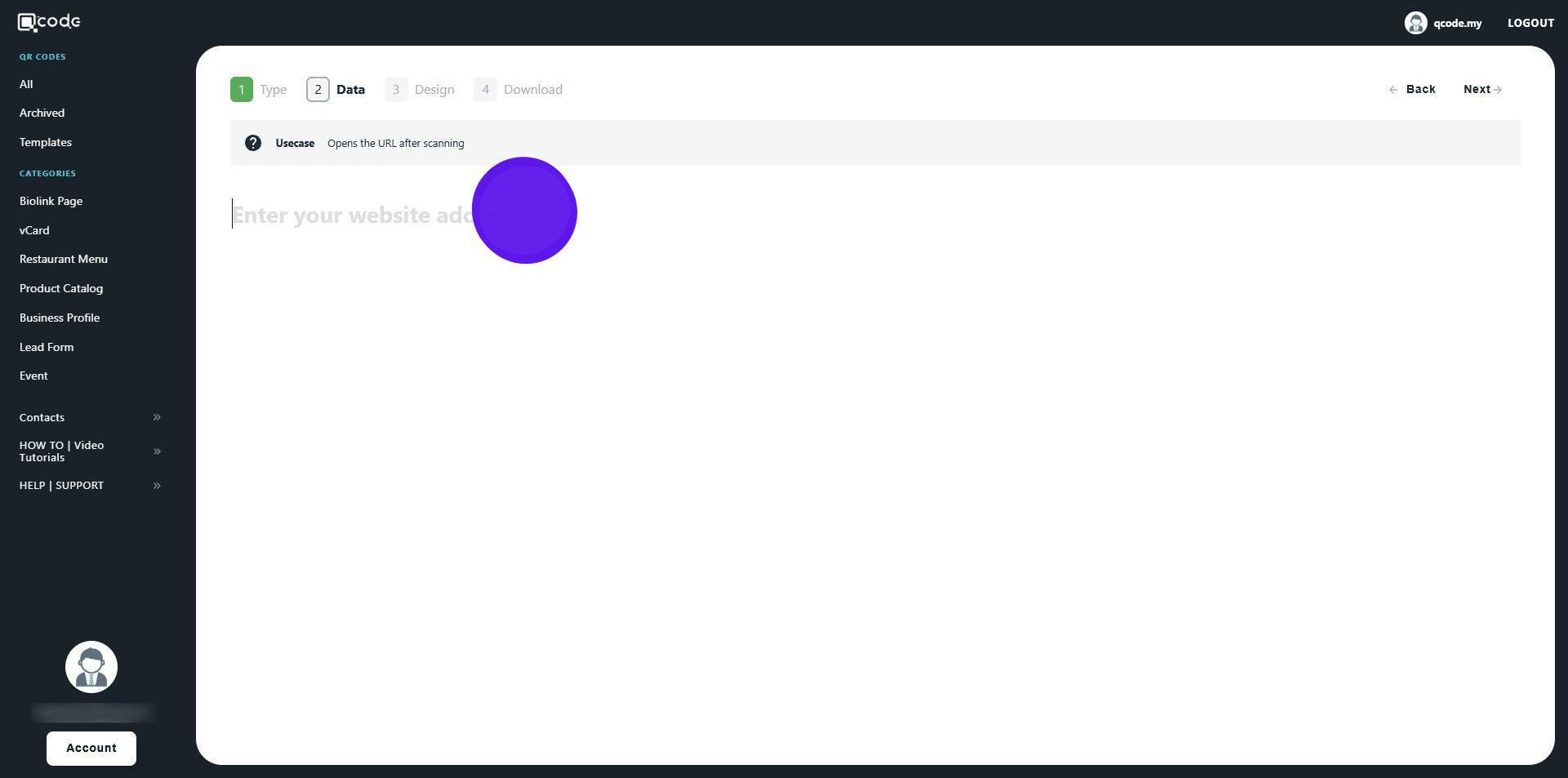
6. Click on Next to move to the next page
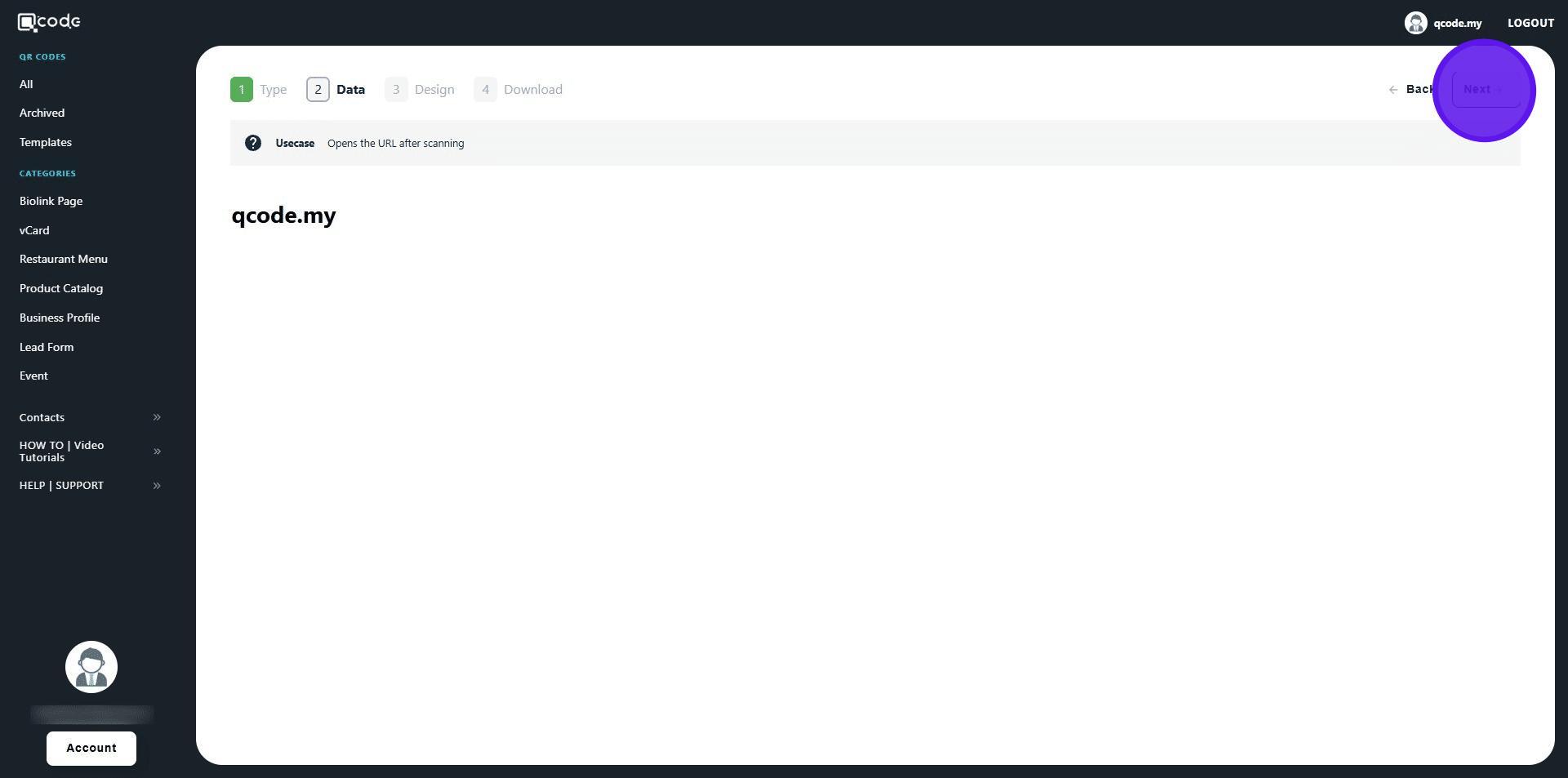
7. You can change the solid colors of your QR Code by clicking on the following button
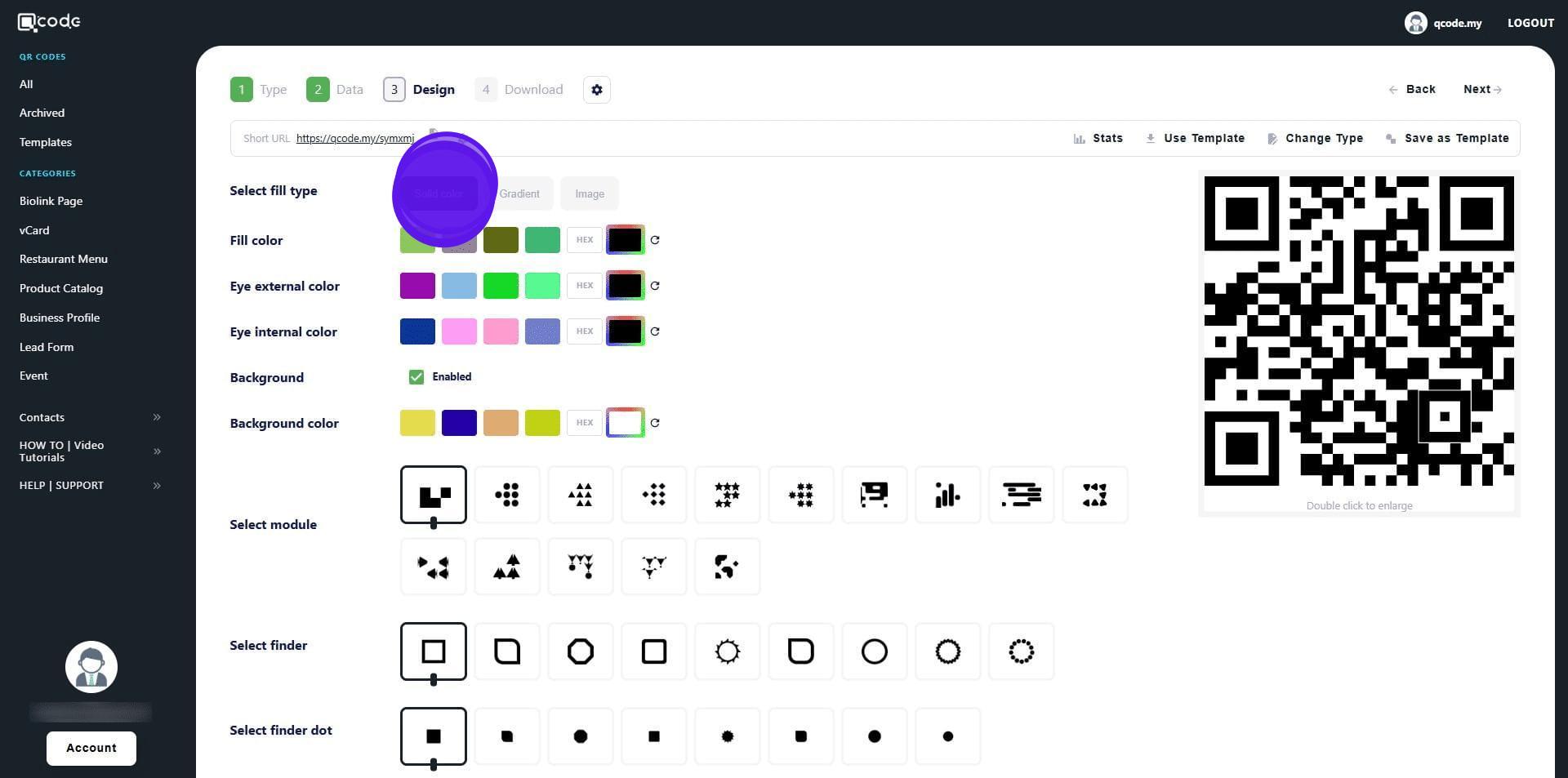
8. You can change the gradient colors of your QR Code by clicking on the following button
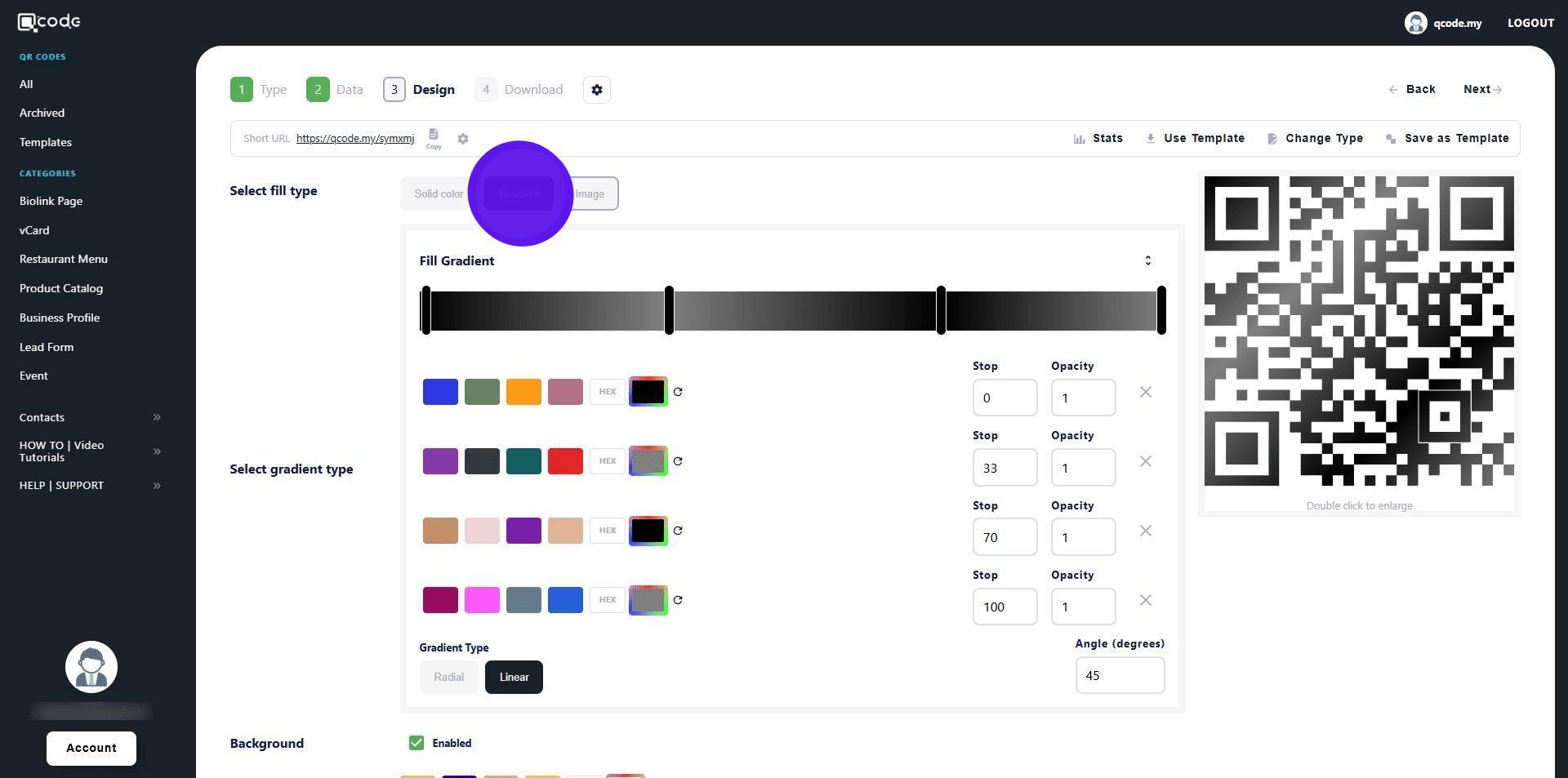
9. You can put an image of your choice as a QR Code by clicking on the following button
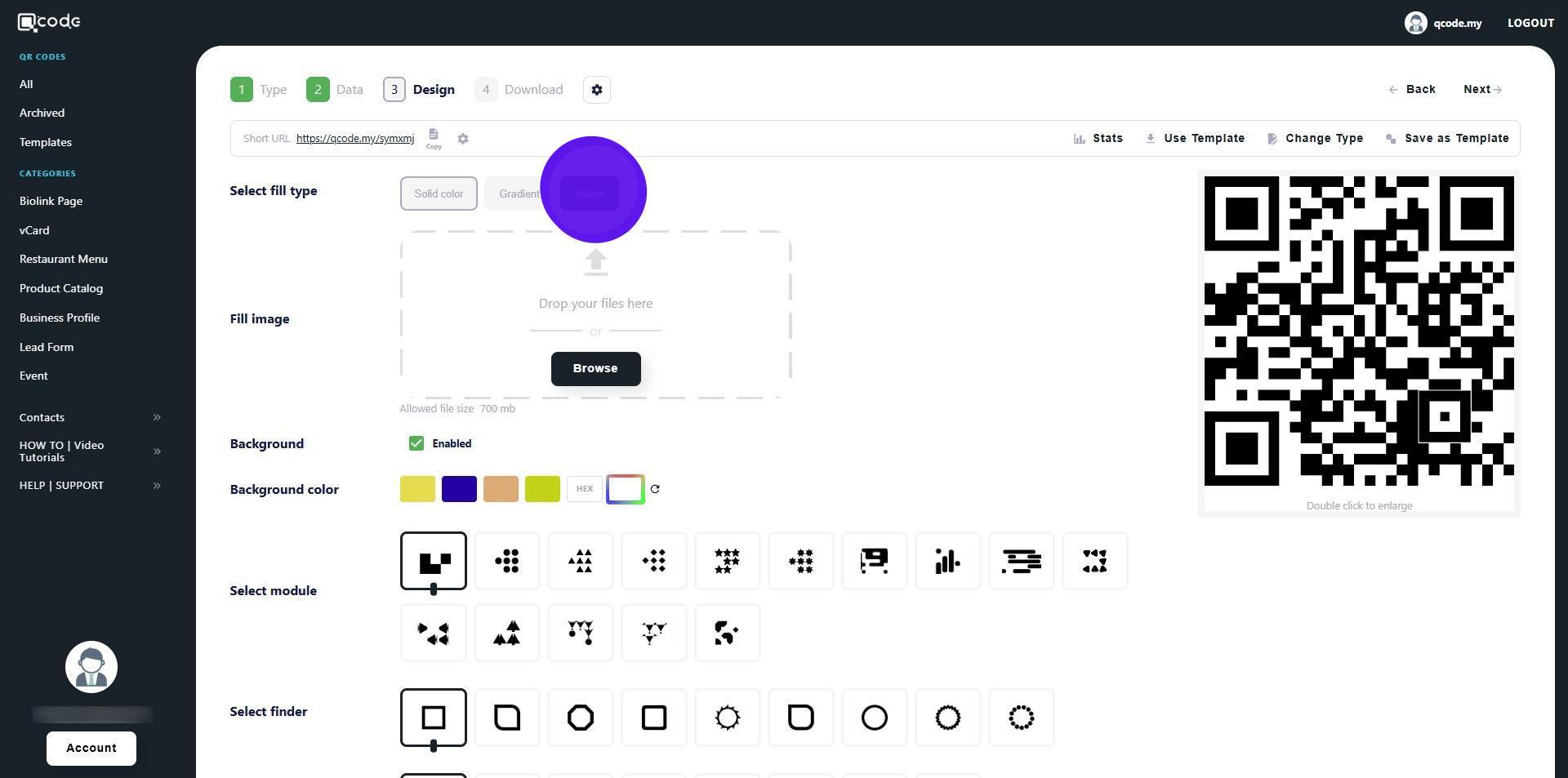
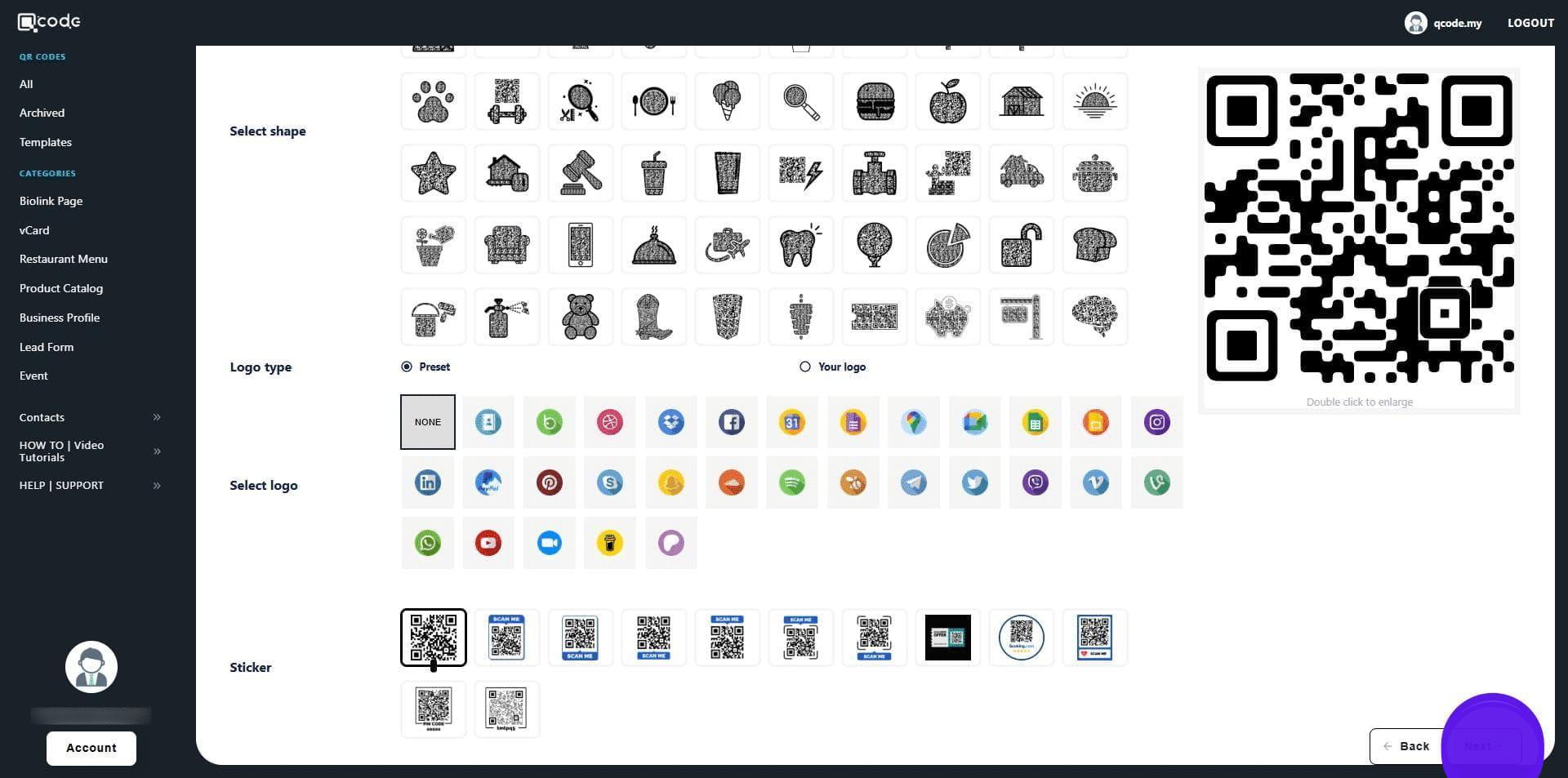
10. Change the shape of the module here
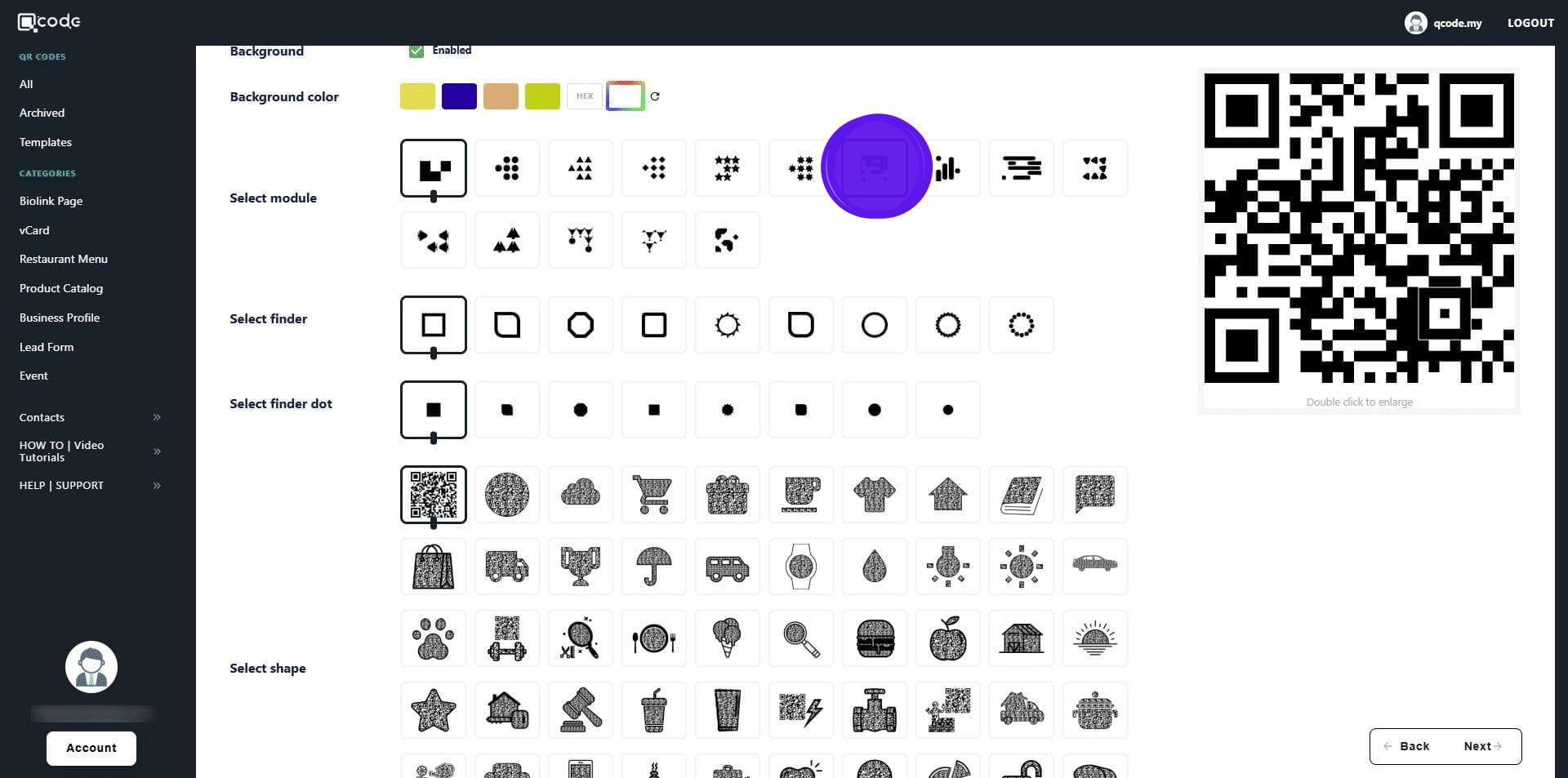
11. Change the shape of the finder here
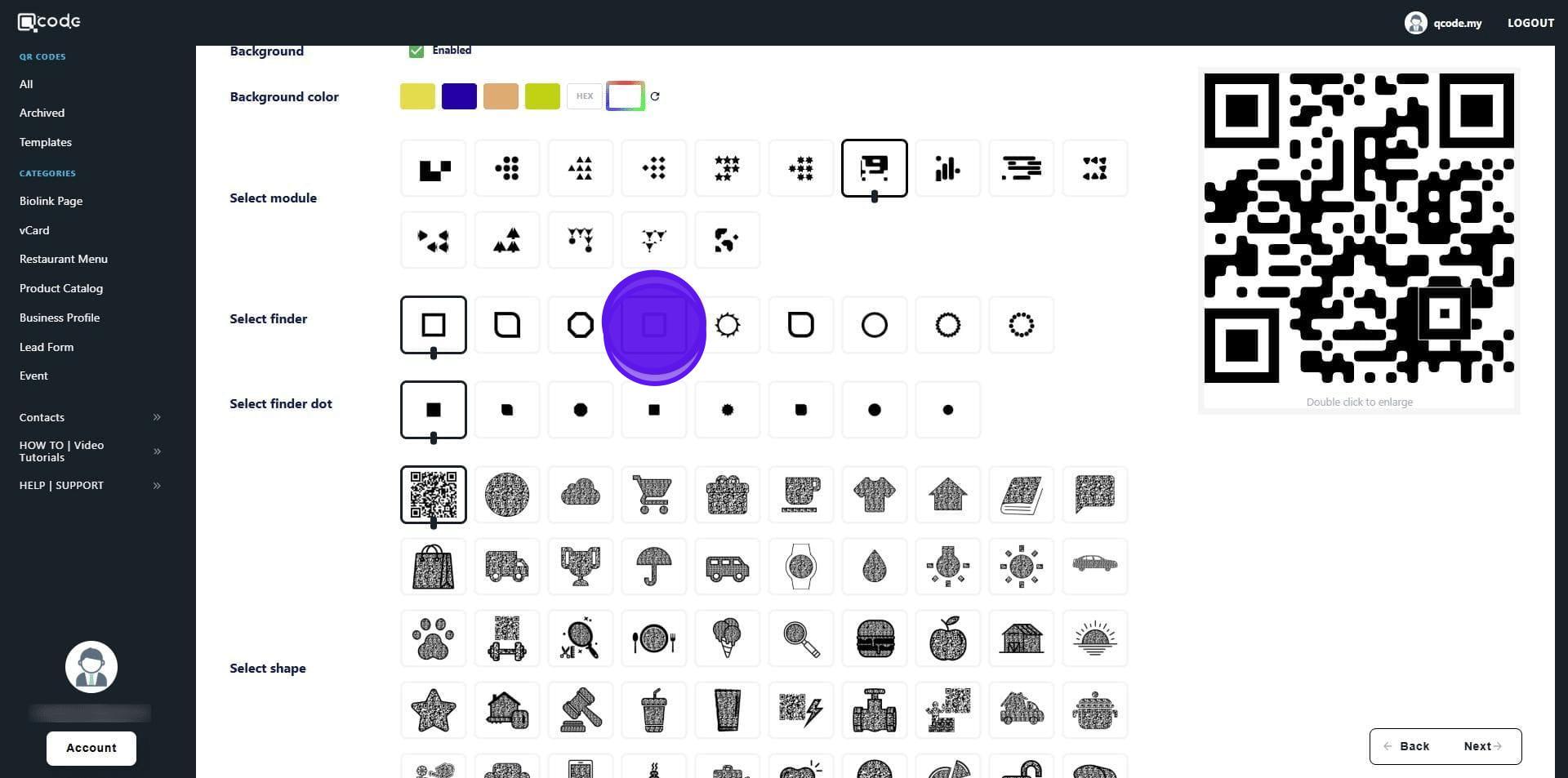
12. Change the shape of the finder dot here
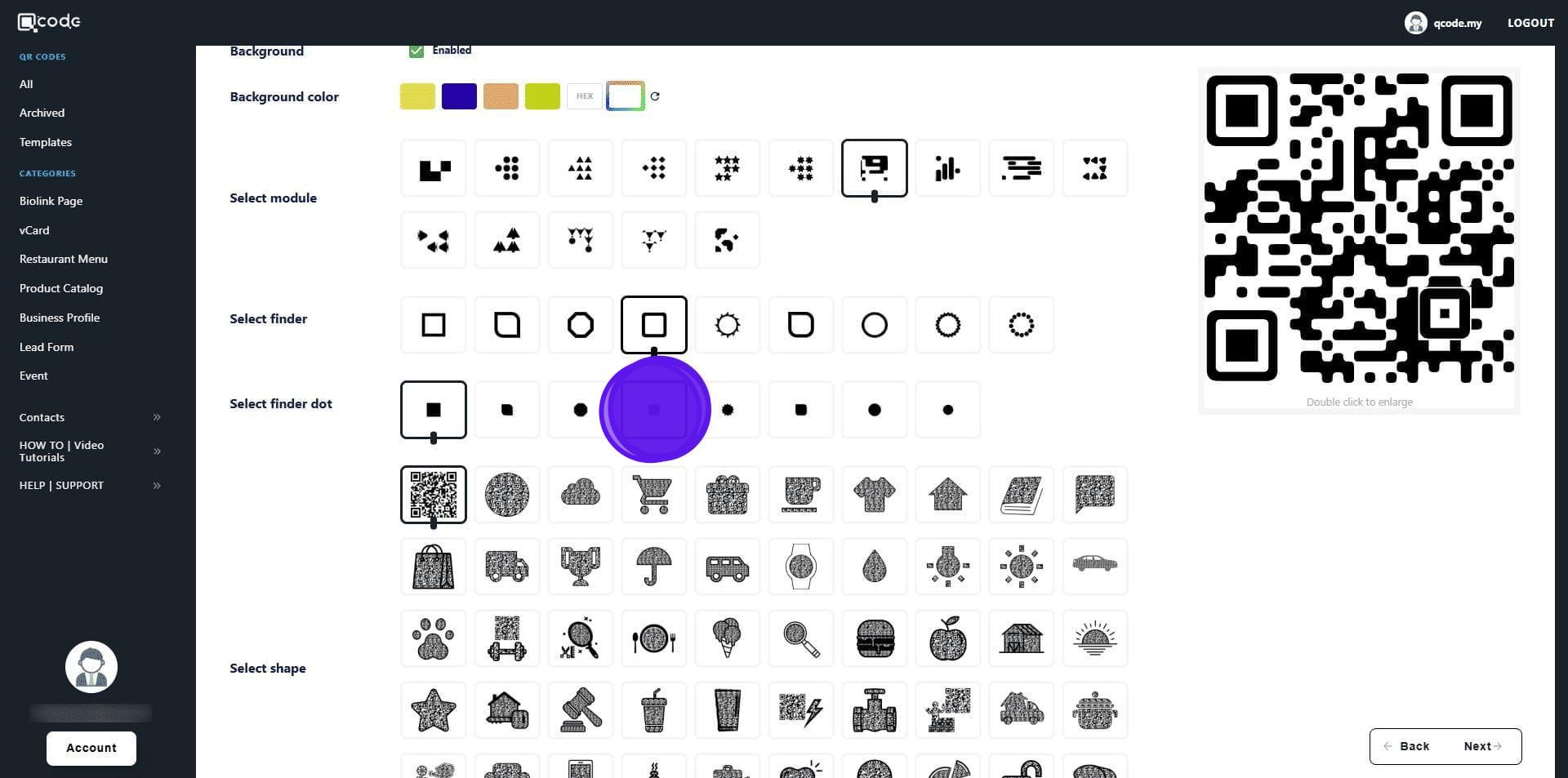
13. Change the shape of your QR Code here
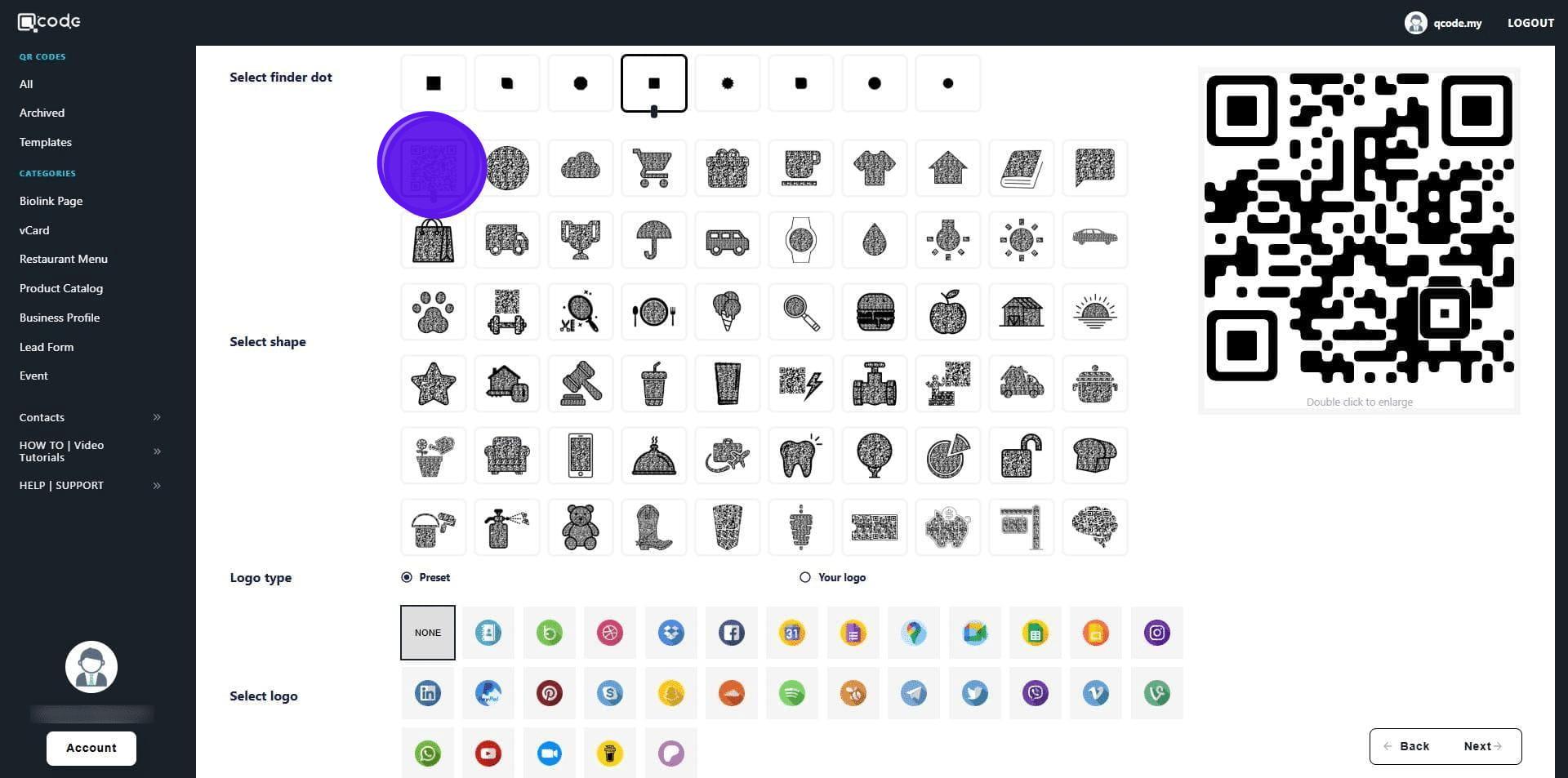
14. Click on Preset to select the pre-made logos to put on your QR Code
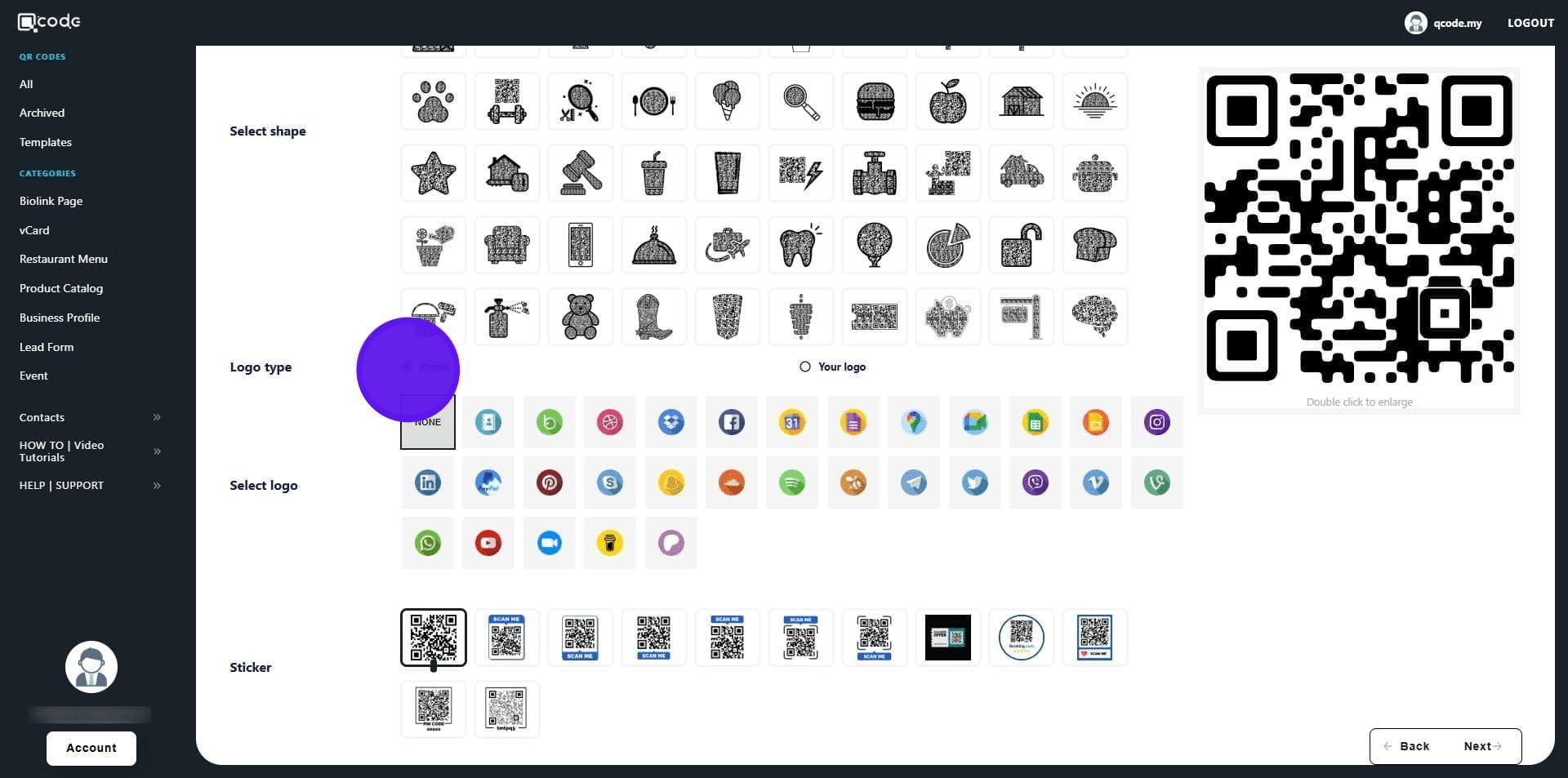
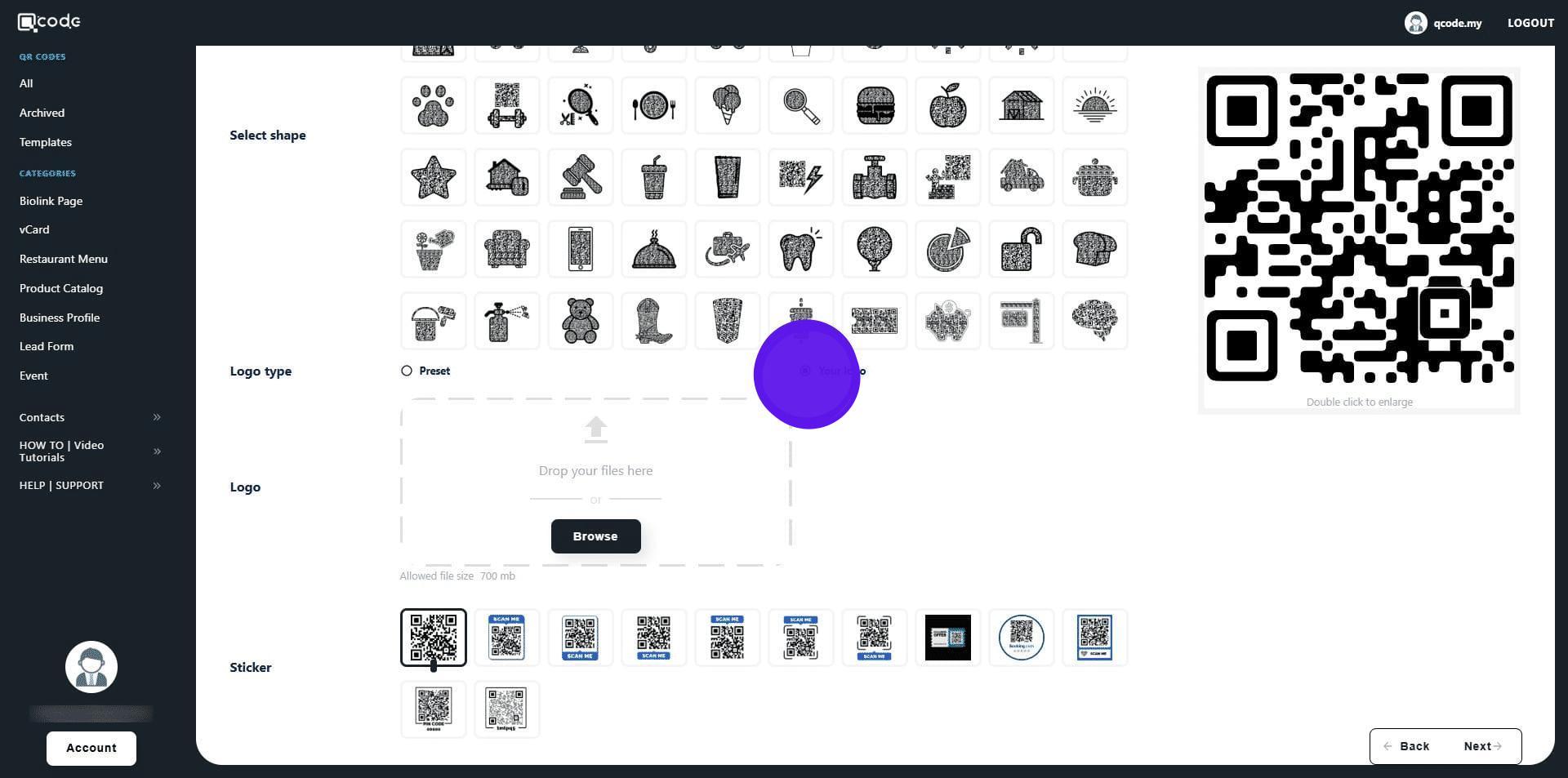
15. Click on Your Logo to upload your own logo for your QR Code
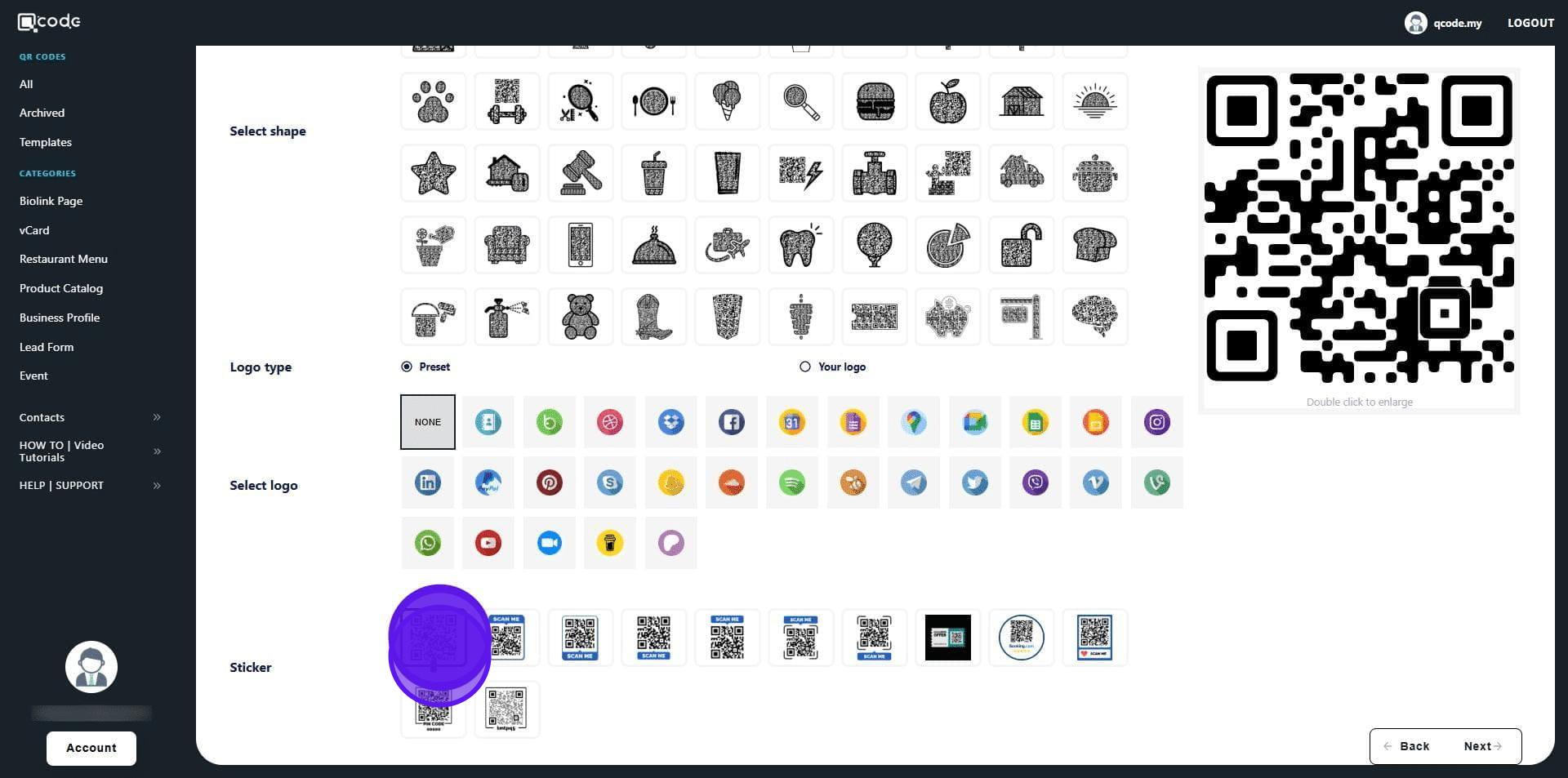
16. You can select additional stickers for your QR Code here
17. Click on Next to move to the next page
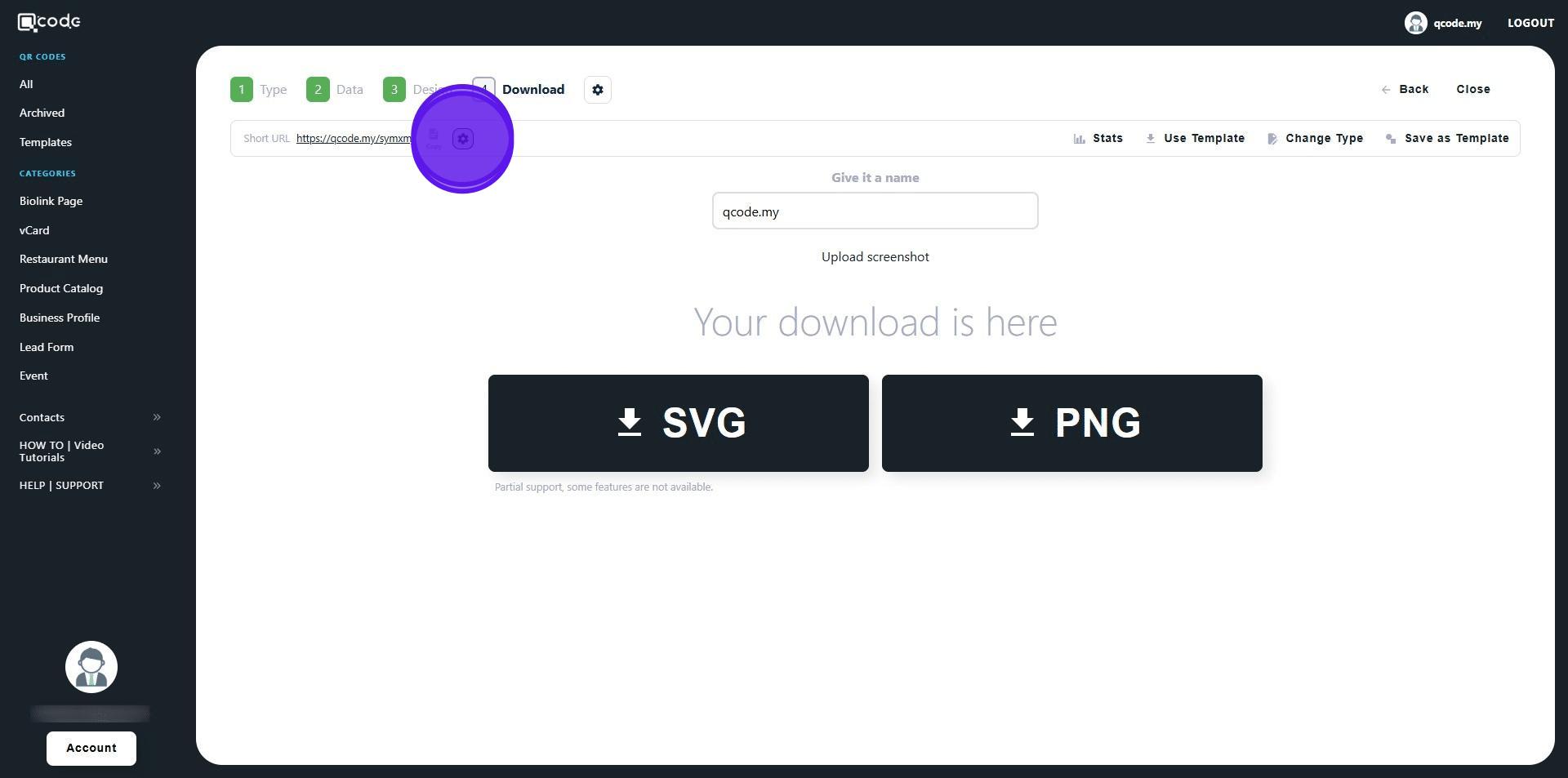
18. Click on the cog icon to change your Slug/Username. Click on the link to learn more: https://kb.imoolah.network/guides/WyWZY38vTRTbItuows4P
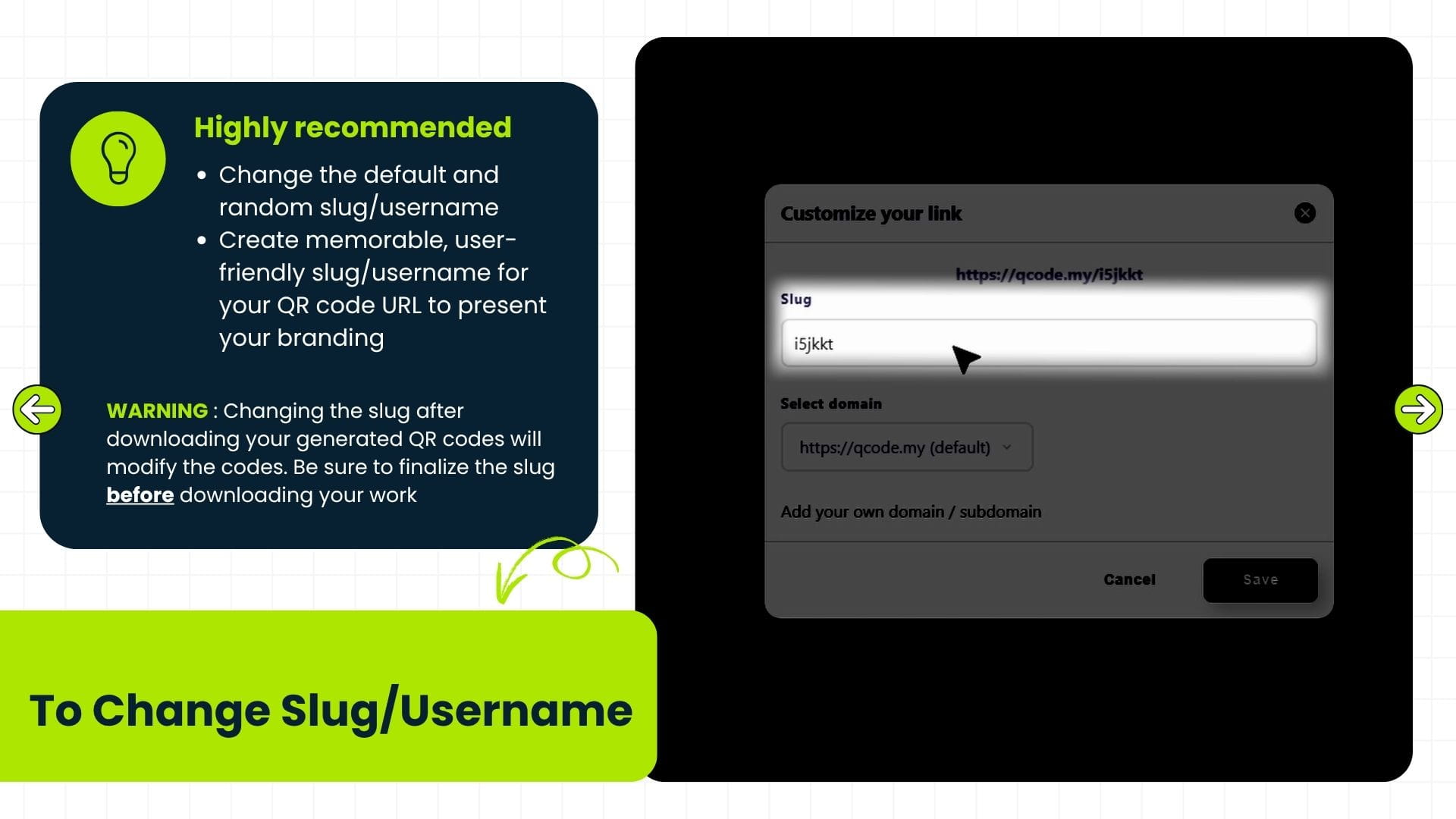
19. Changing the slug after downloading your generated QR codes will modify the codes. Be sure to finalize the slug before downloading your work
20. Click here to change the name of your QR Code
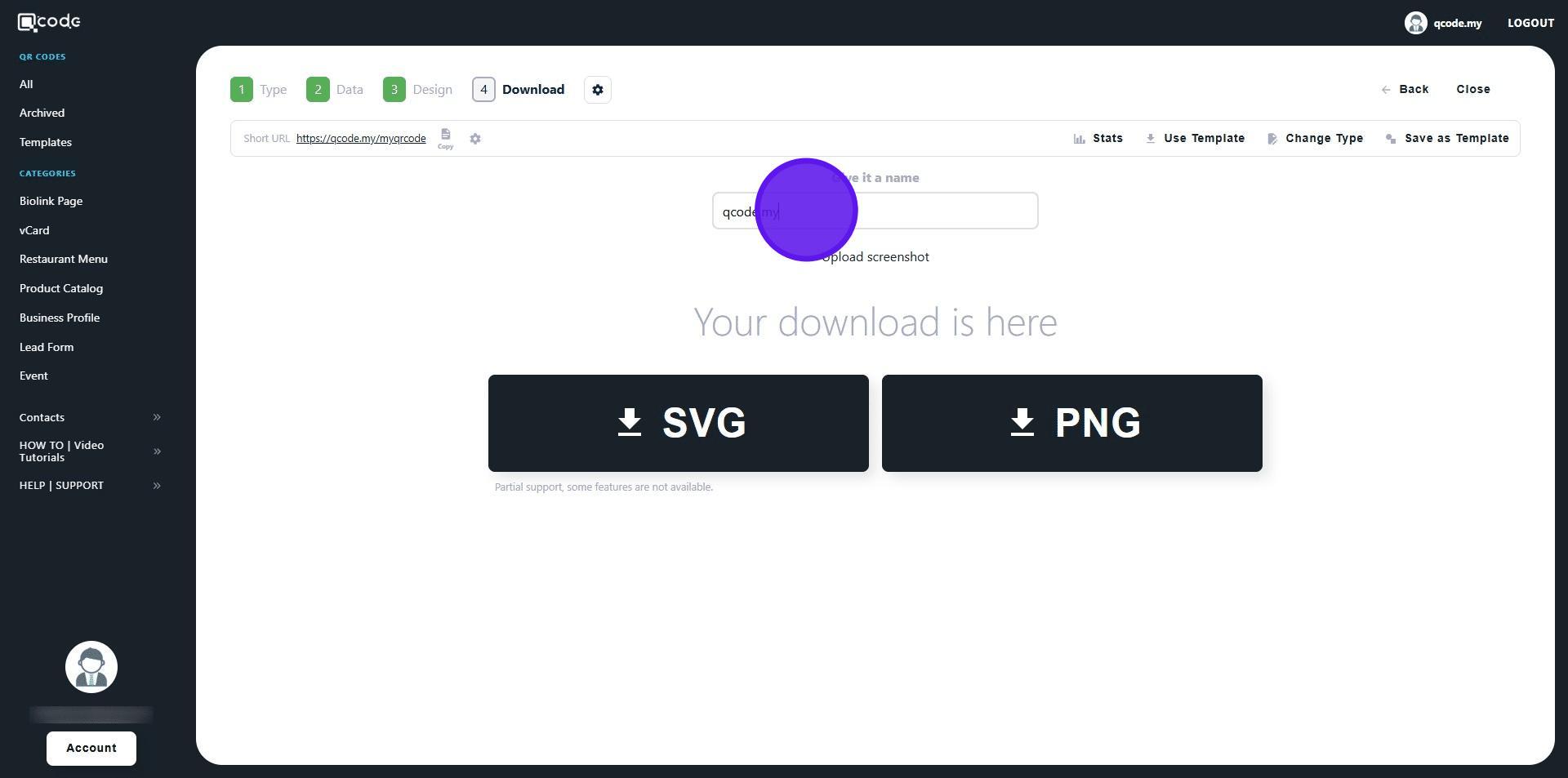
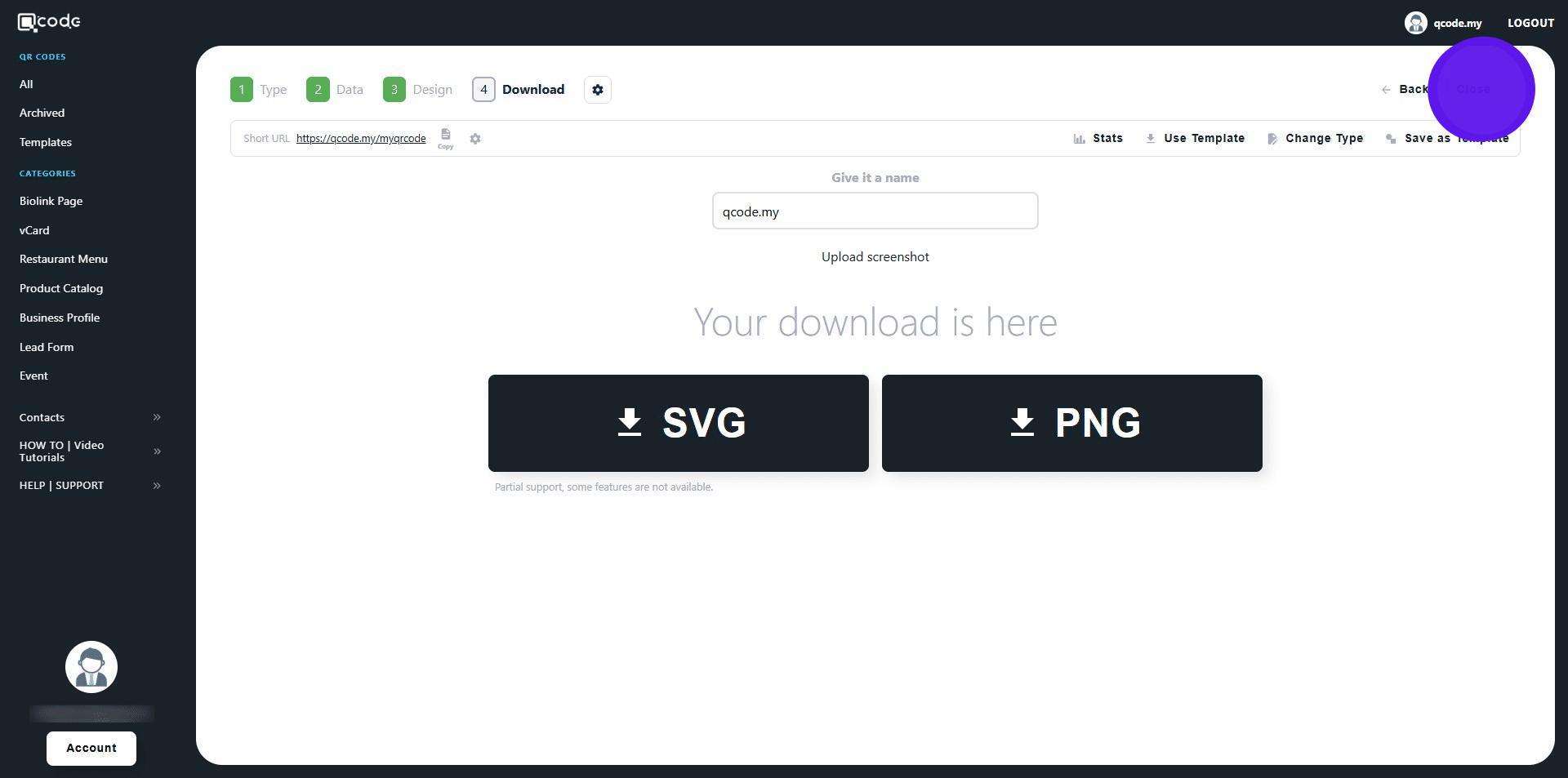
21. Click on the SVG or PNG buttons to download your QR Code in the desired formats
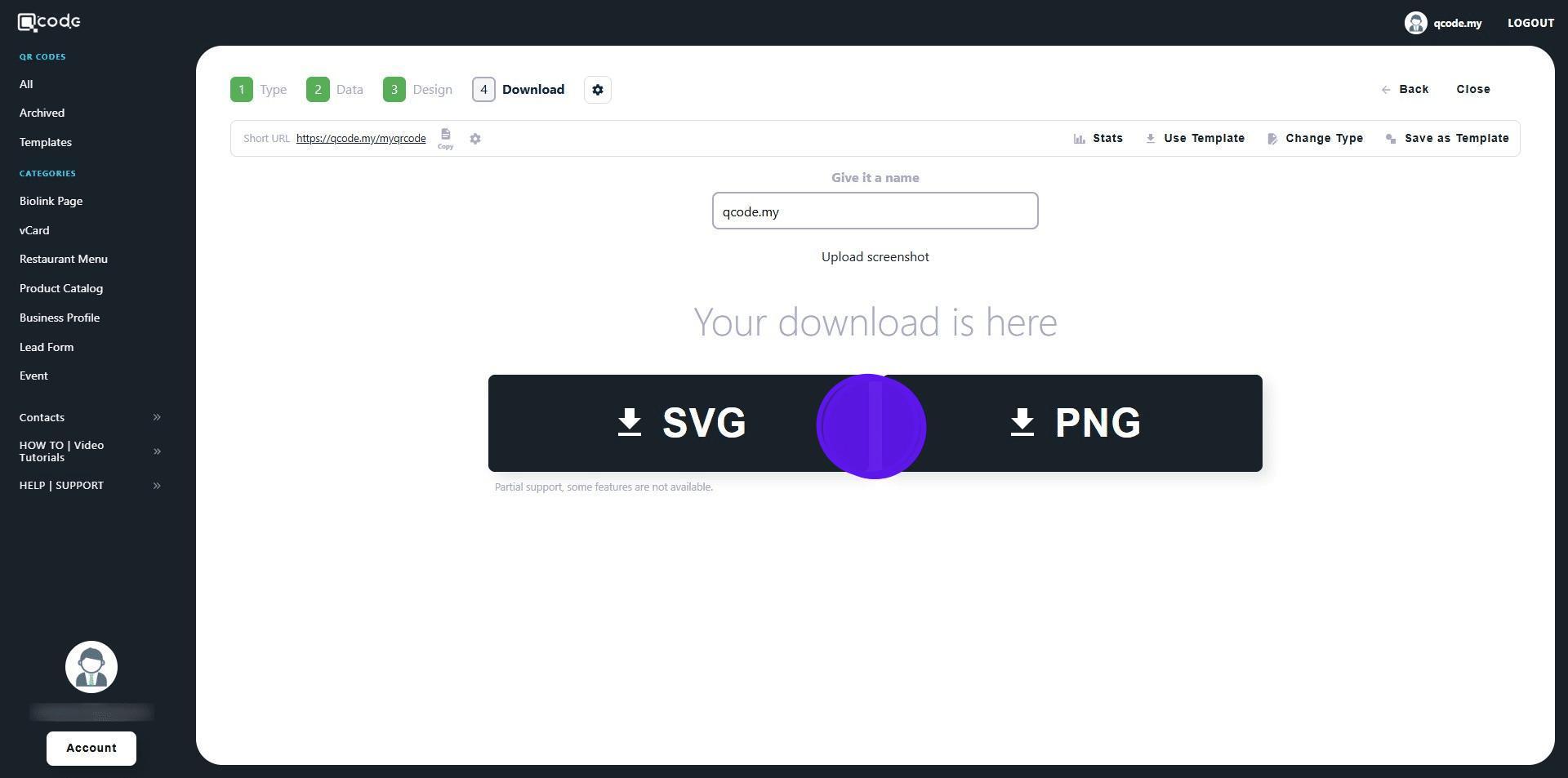
22. Click on Close to exit