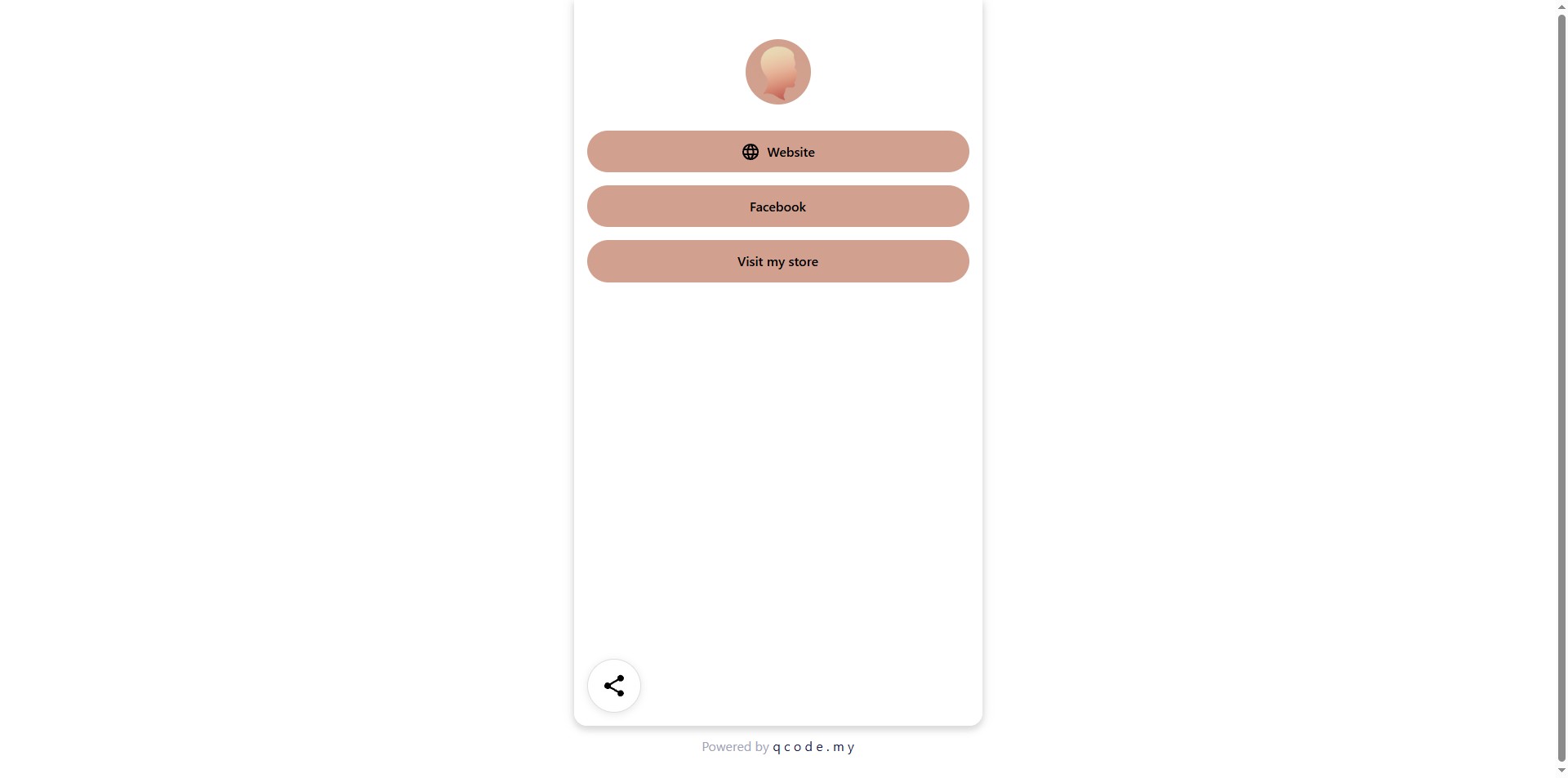
How to create Biolink page
This guide provides a comprehensive walkthrough on creating a Biolink page. It will walk you through the process of creating a personalized page with multiple links, customizing its appearance and generating a QR code for easy sharing.
1. Navigate to https://qcode.my/dashboard/qrcodes
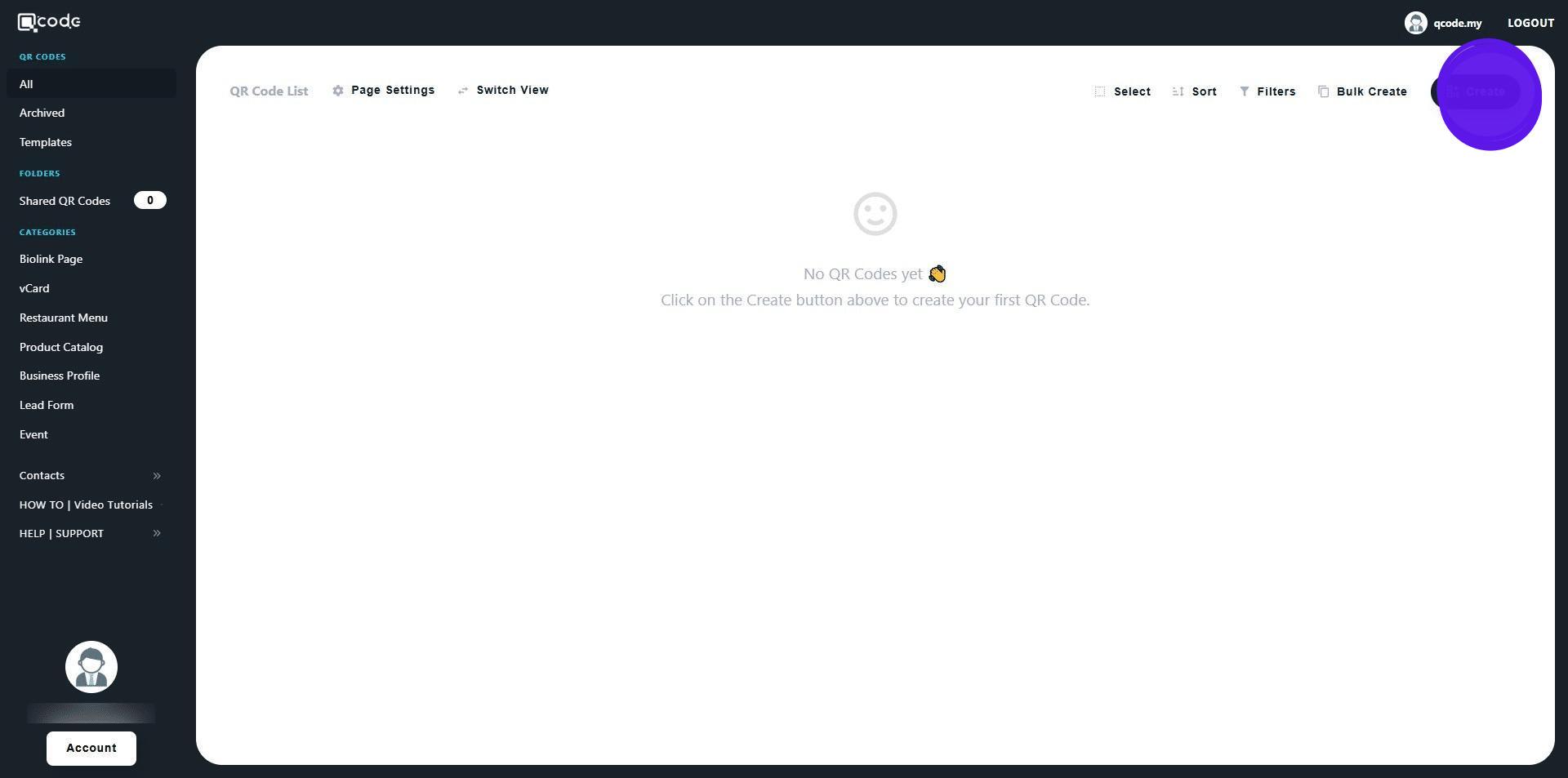
2. Click on Create button to start creating your Biolink
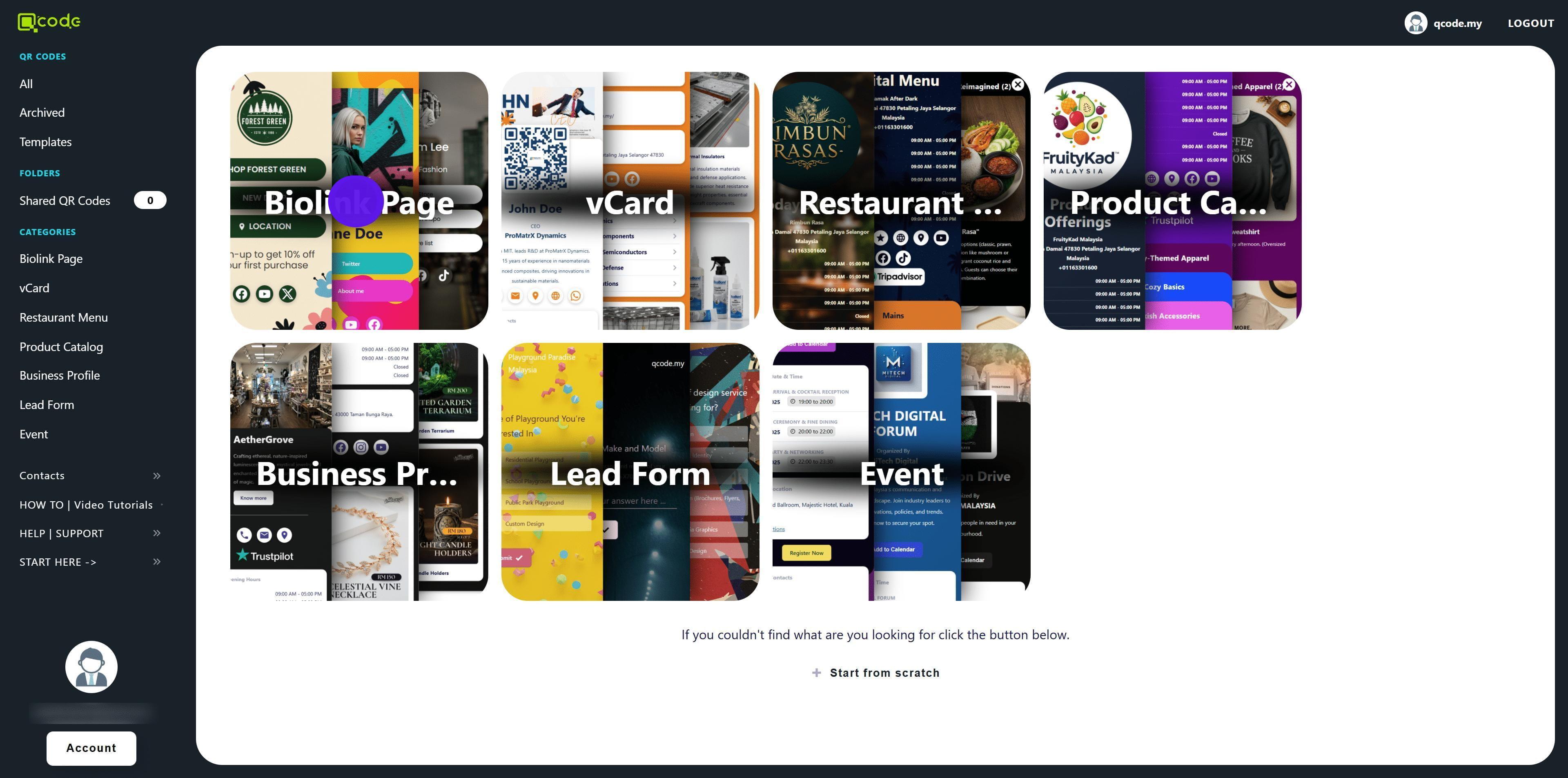
3. Click on Biolink Page to choose from a selection of pre-made templates
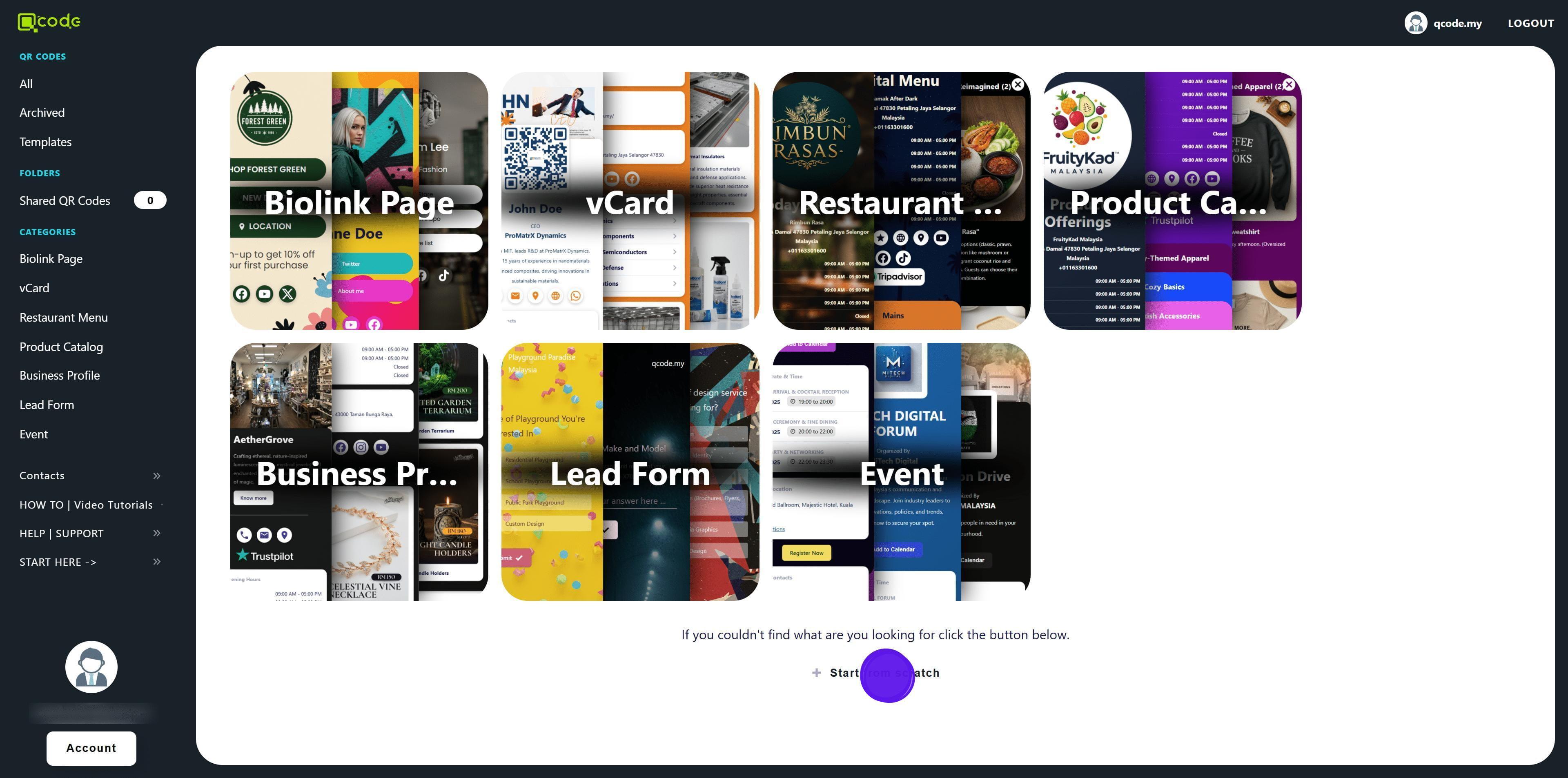
4. Click on Start from scratch
5. Select Bio Links (List Of Links)
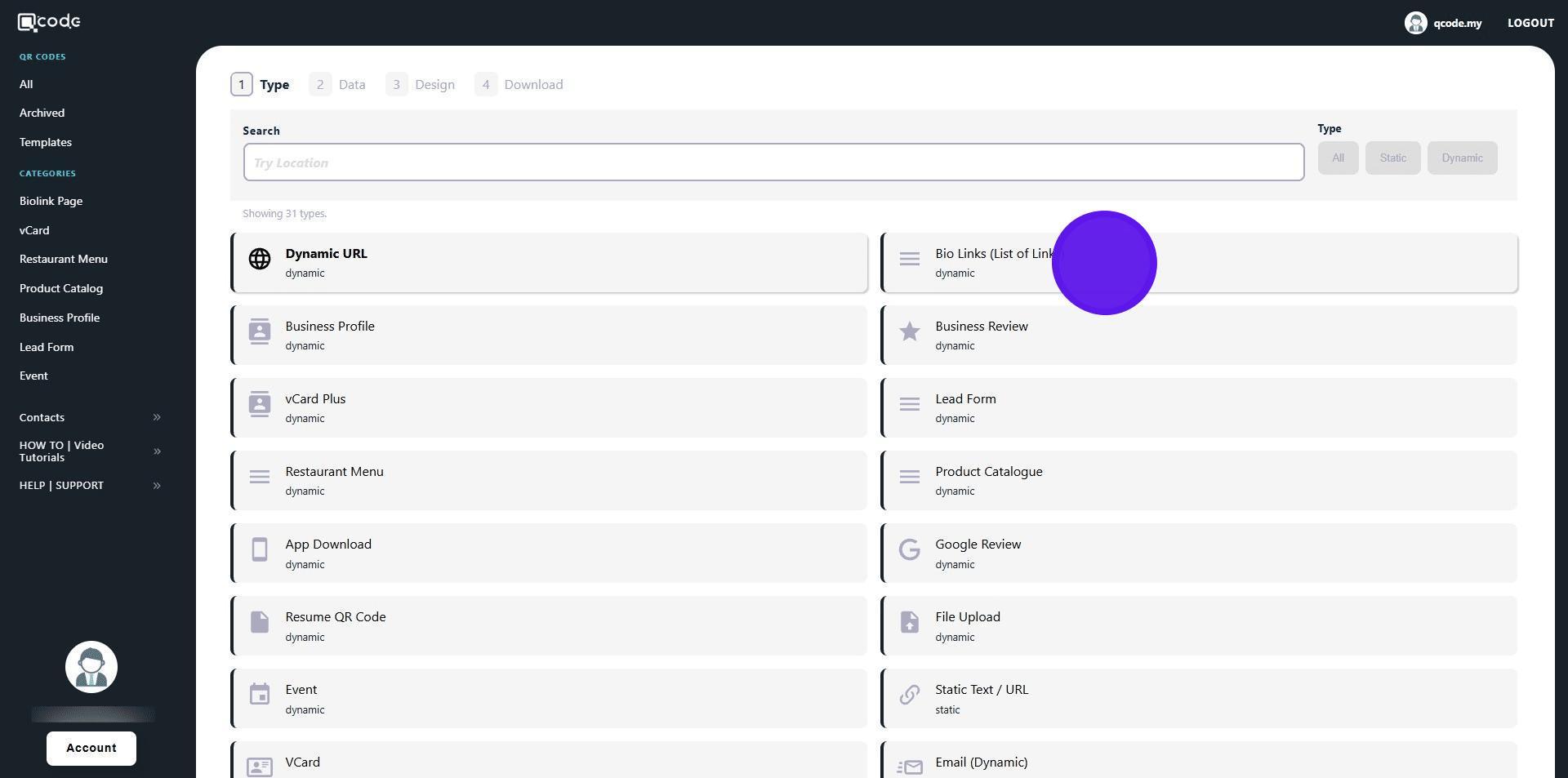
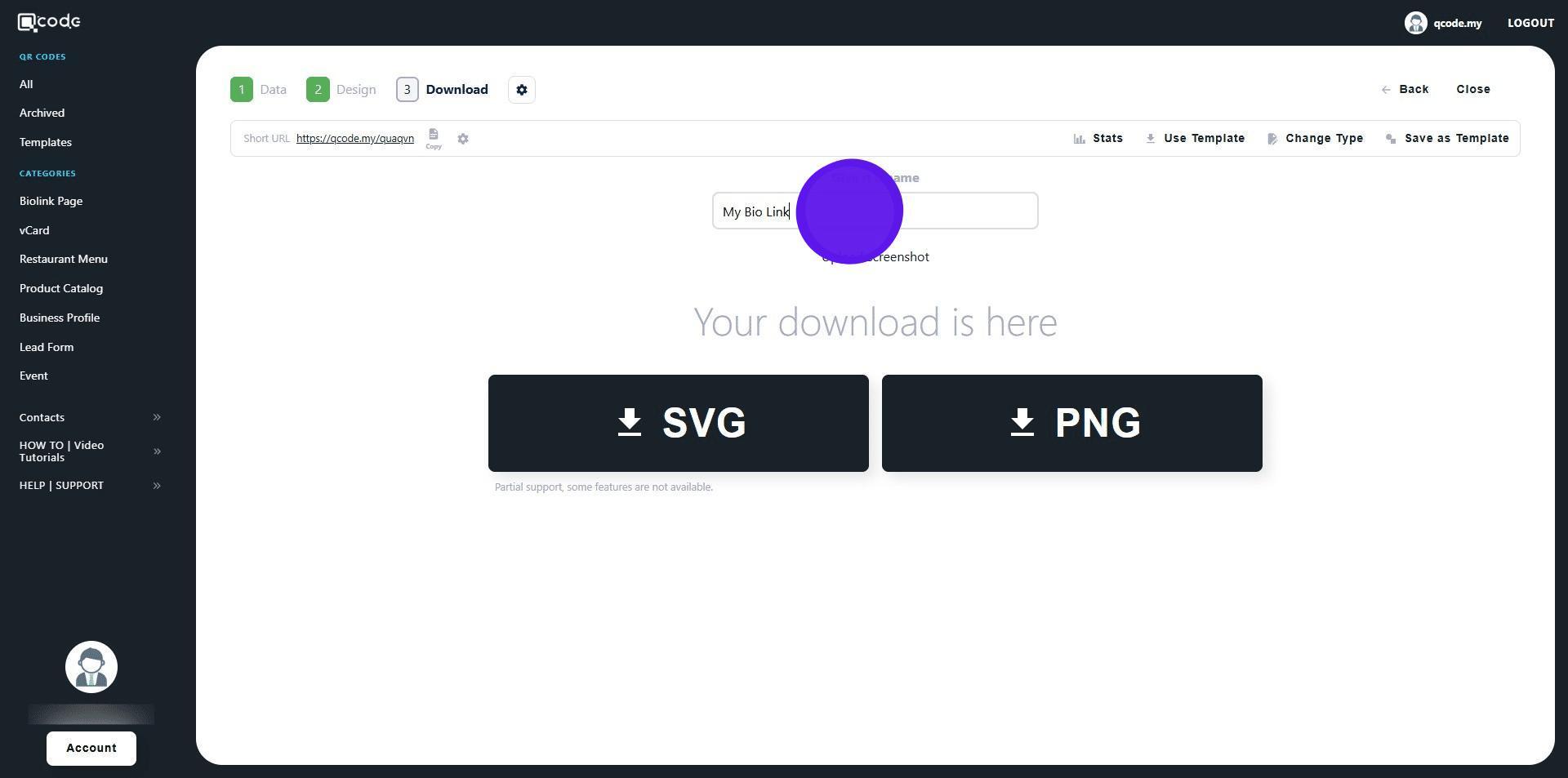
6. Type here to give your Biolink a name
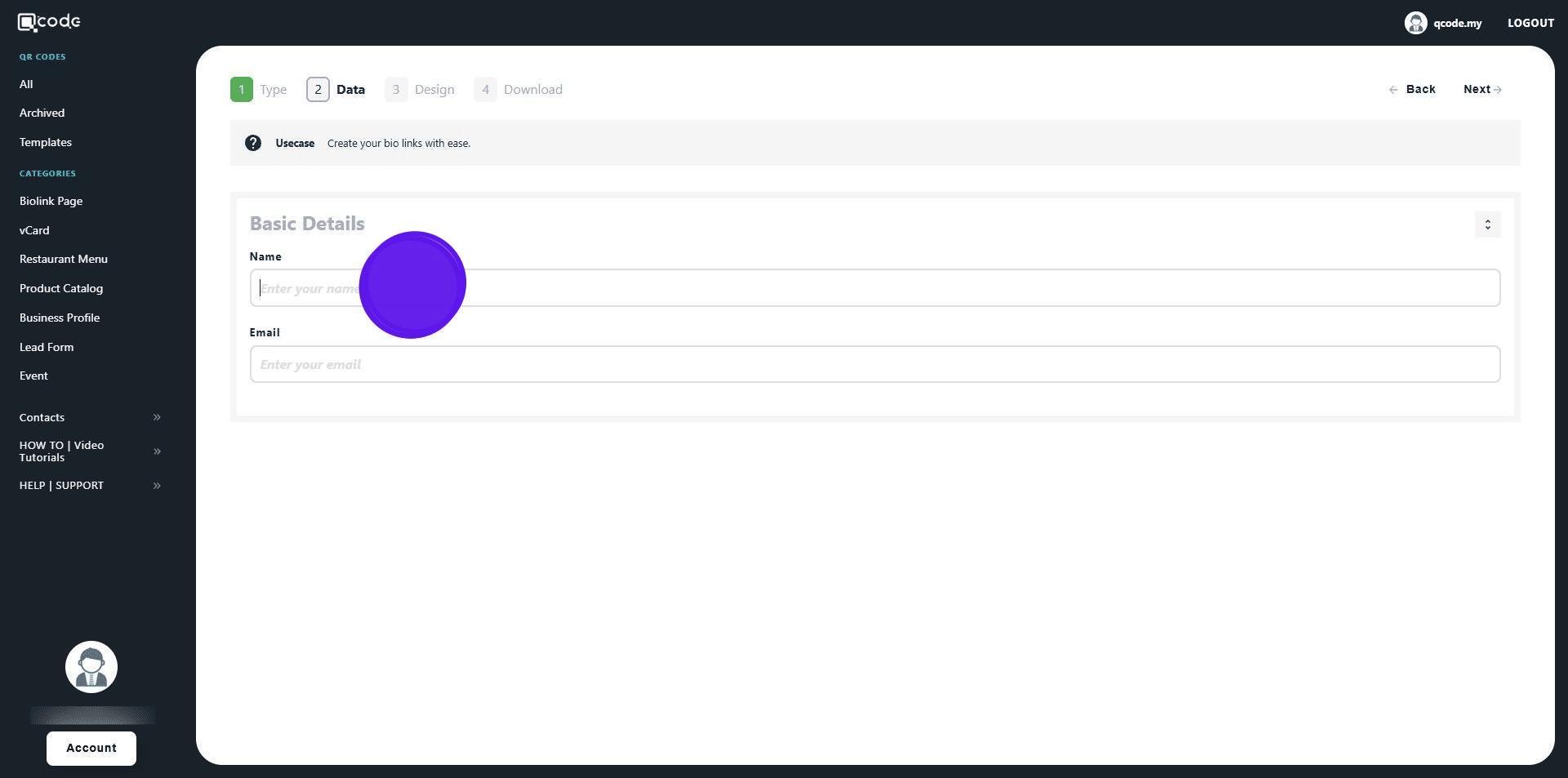
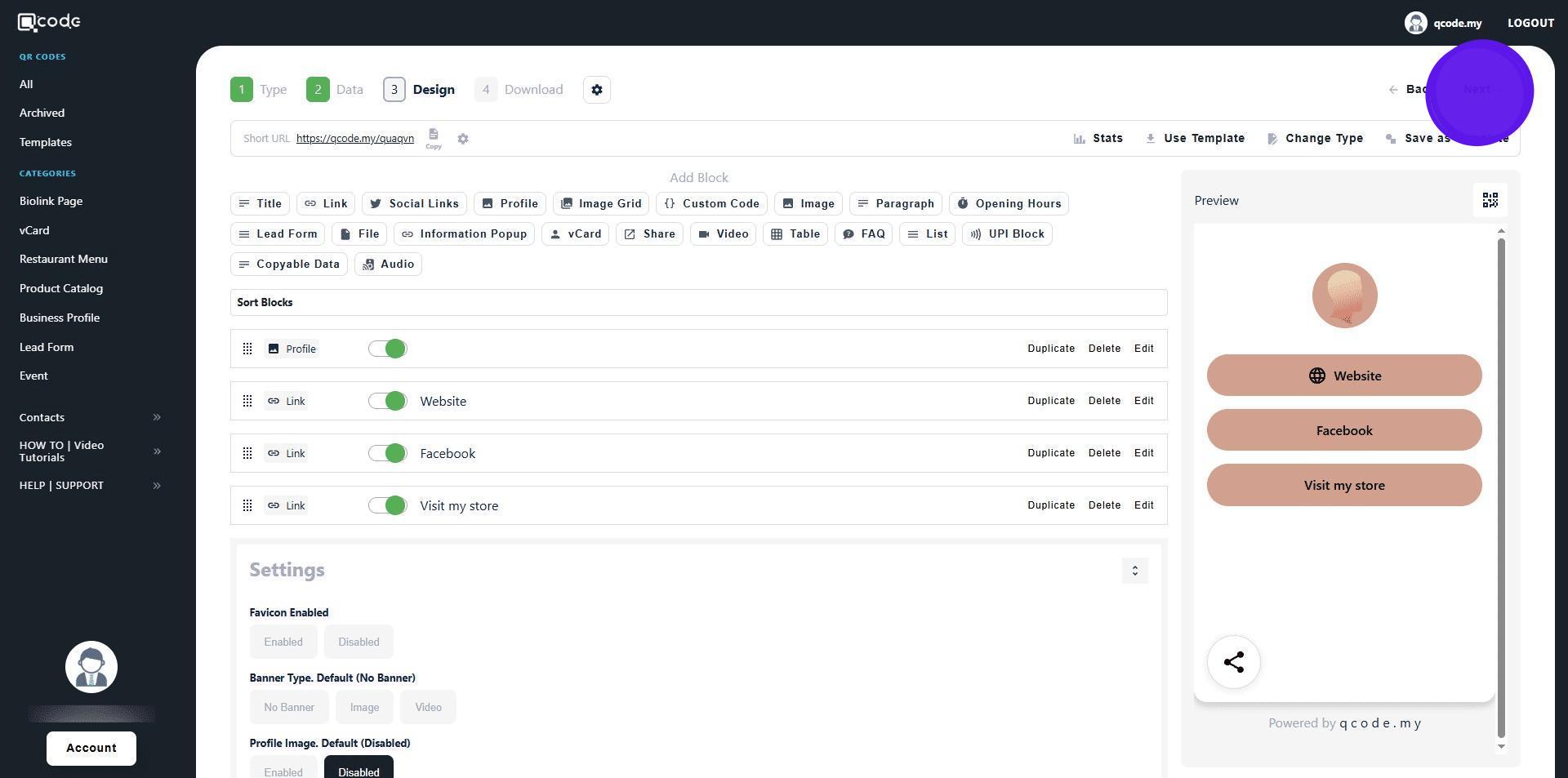
7. Click on Next to move to the next page
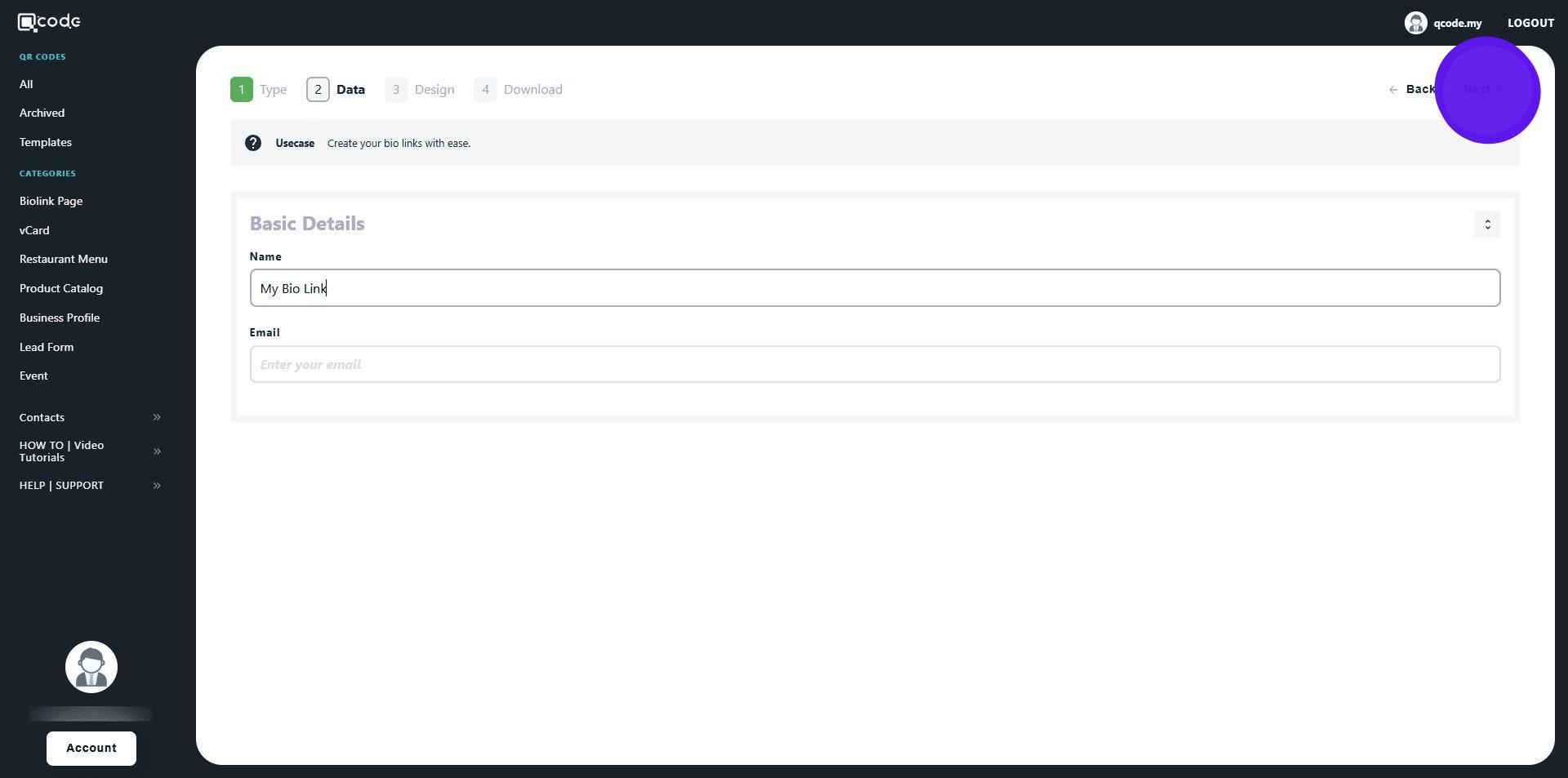
8. Click on Profile to add a profile image
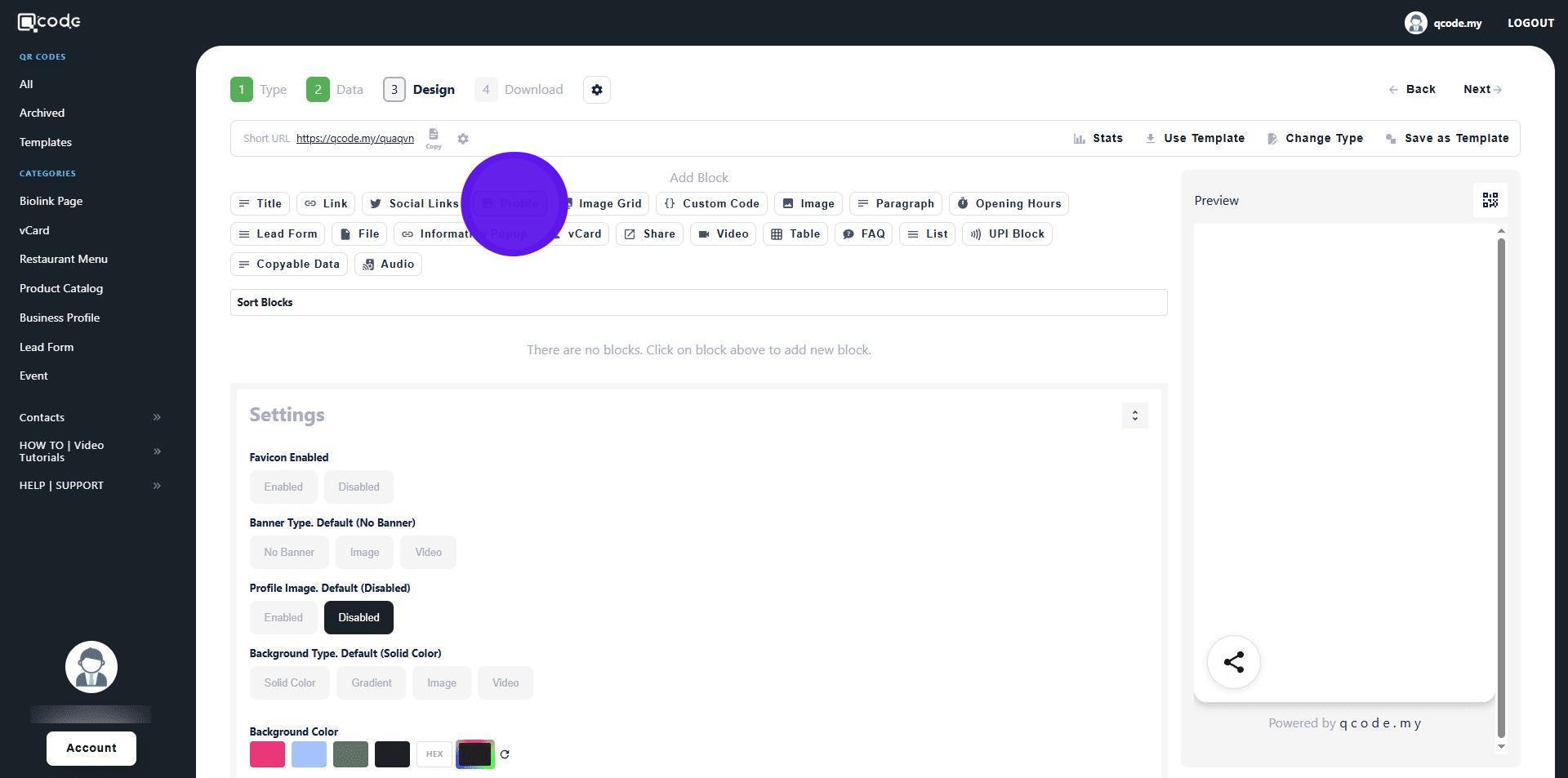
9. Click on Browse to upload your profile picture
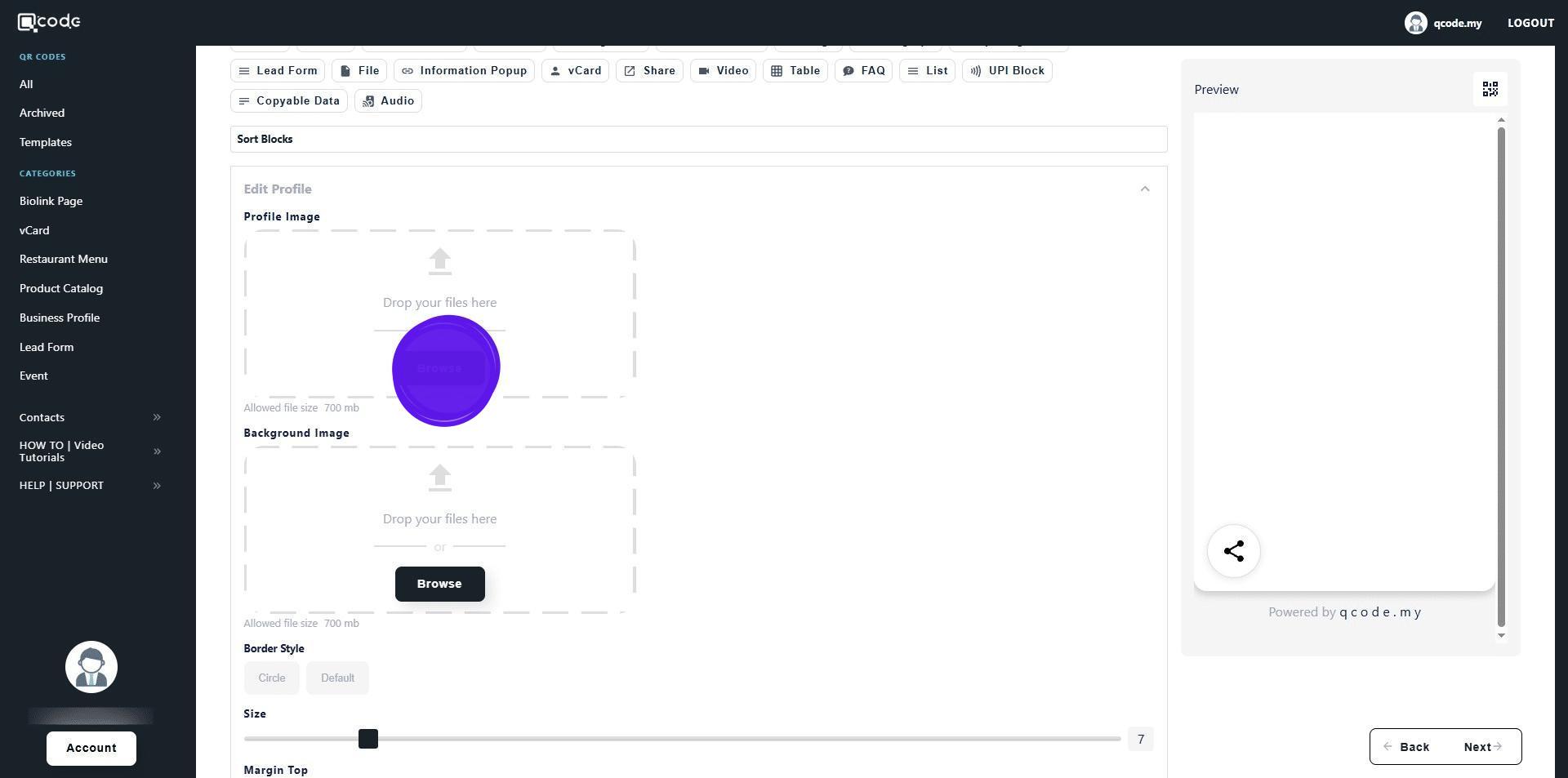
10. Click on Circle to make your profile picture circular
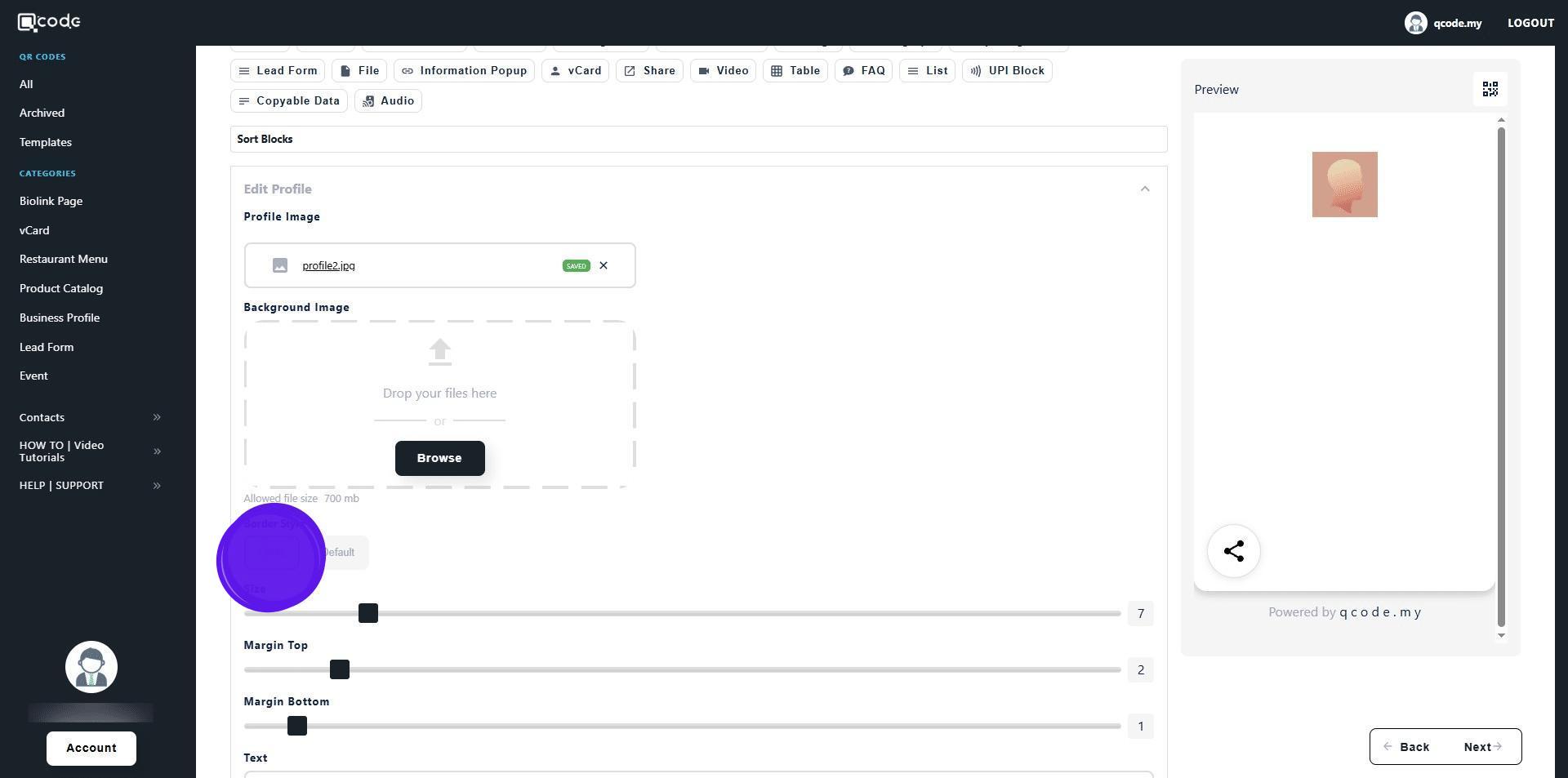
11. Click on Link to add a link block
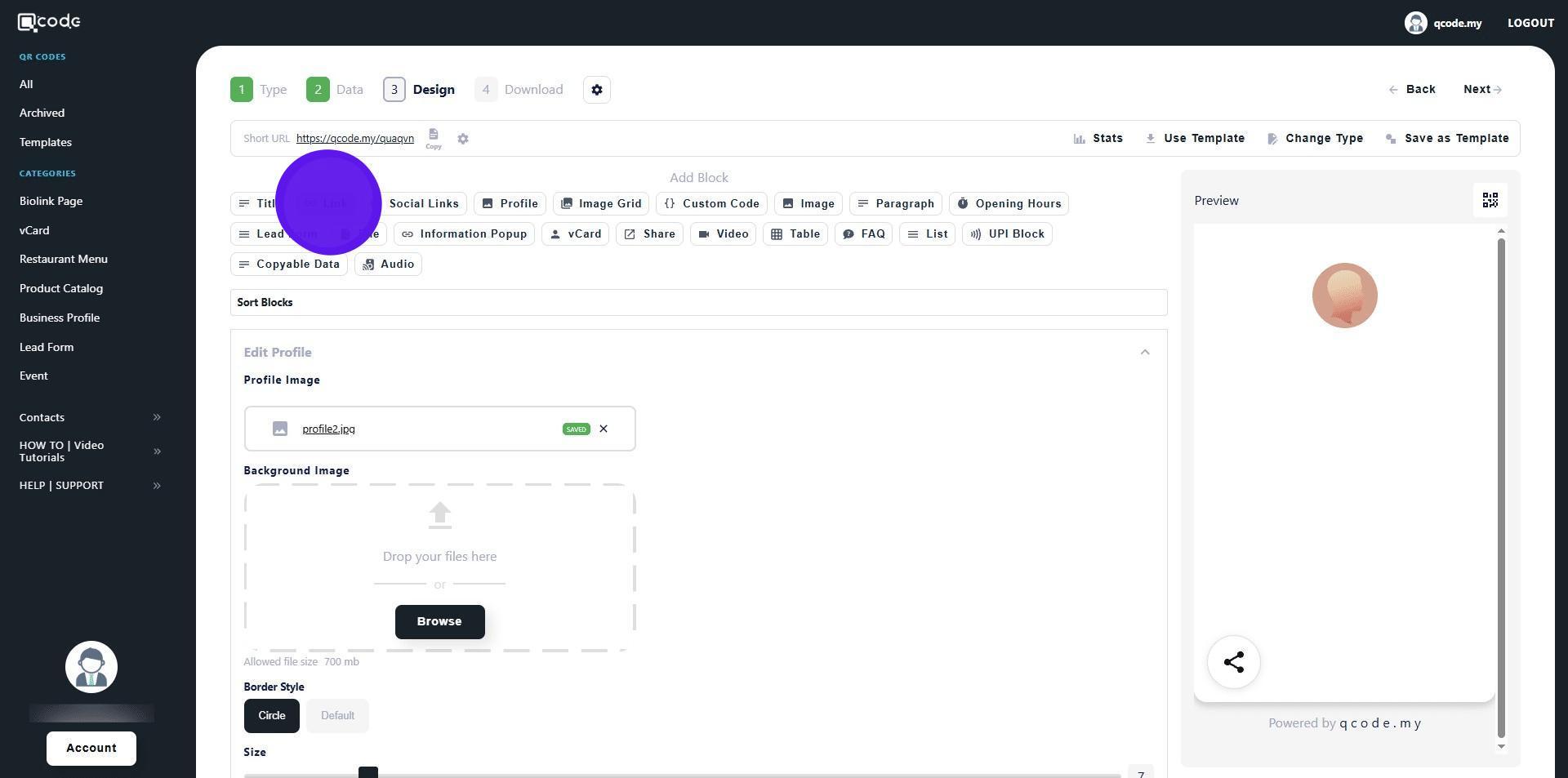
12. Click here to add a title for your link block
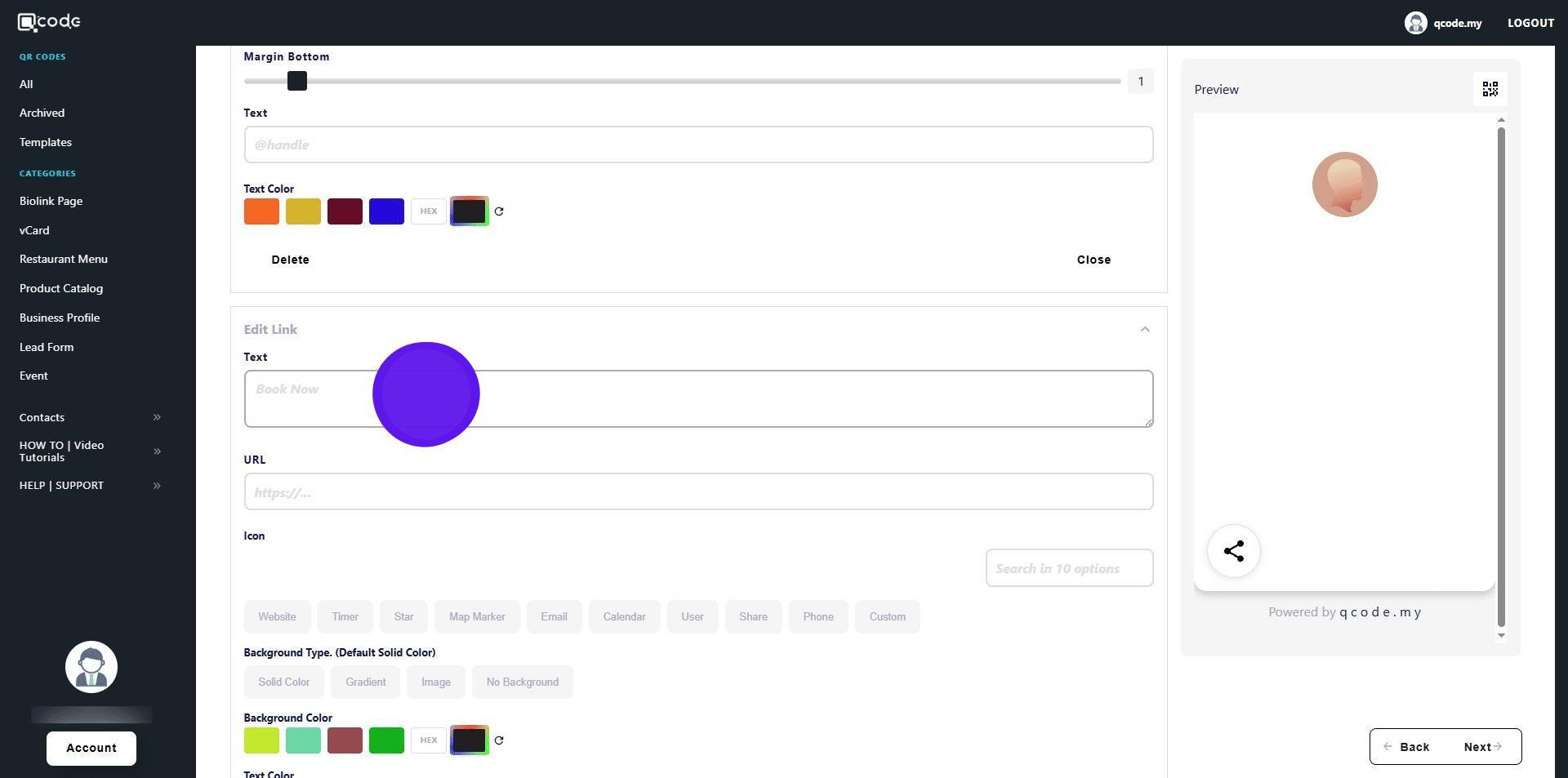
13. Click here to add your desired URL for your link block
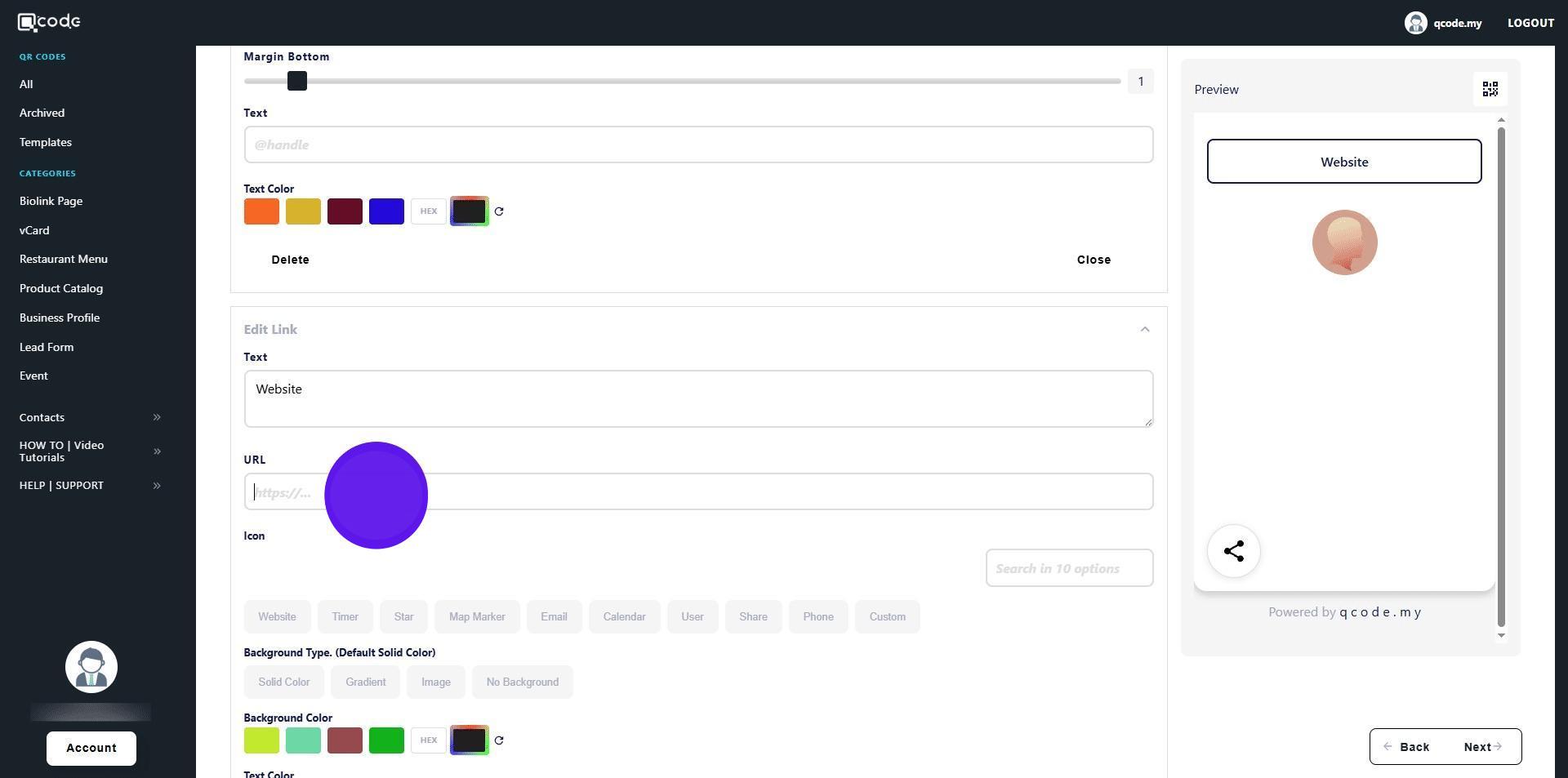
14. Click on Website to add a website icon to your link block
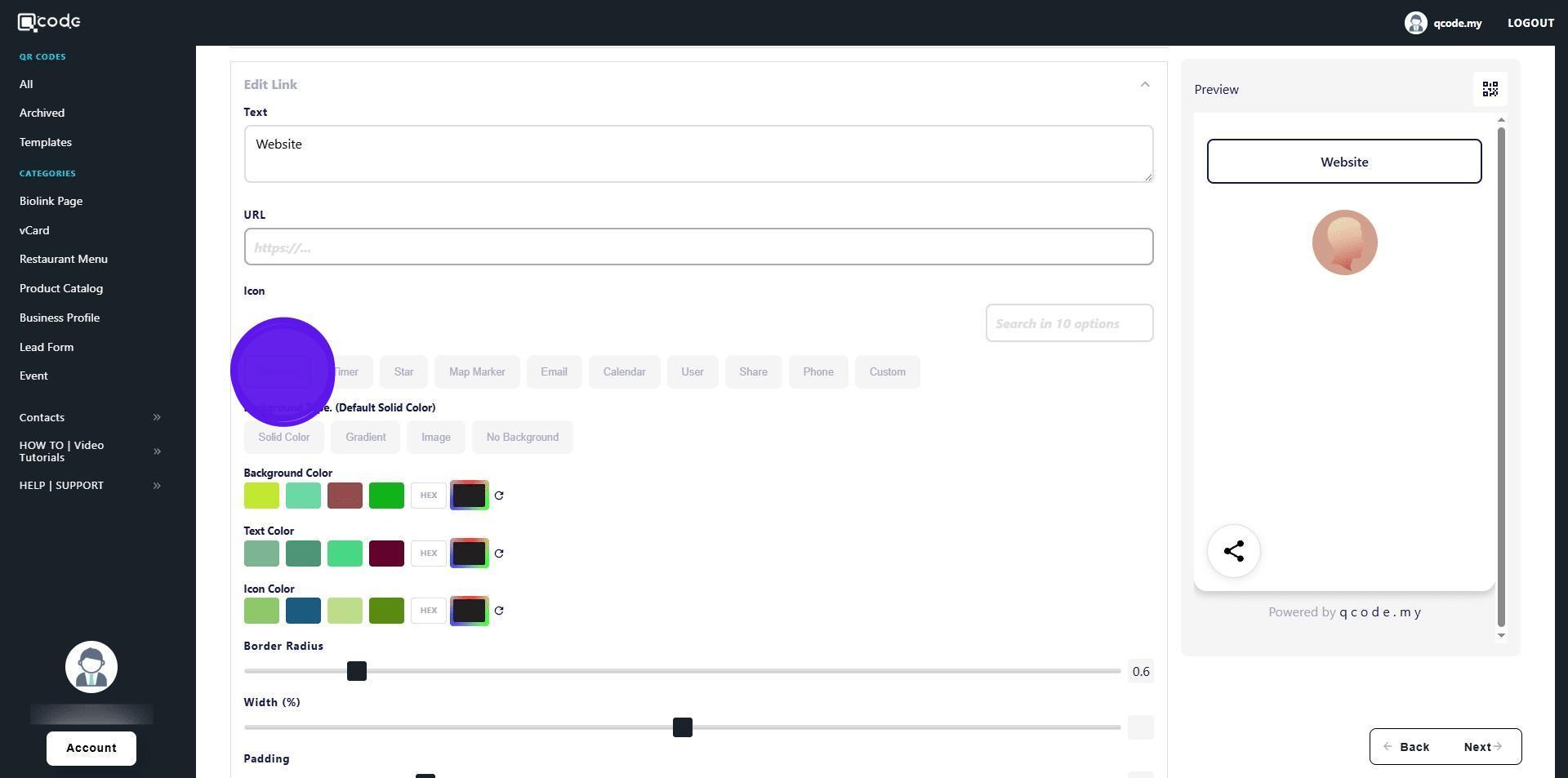
15. Click on Solid Color to use solid colors as a background for your link block
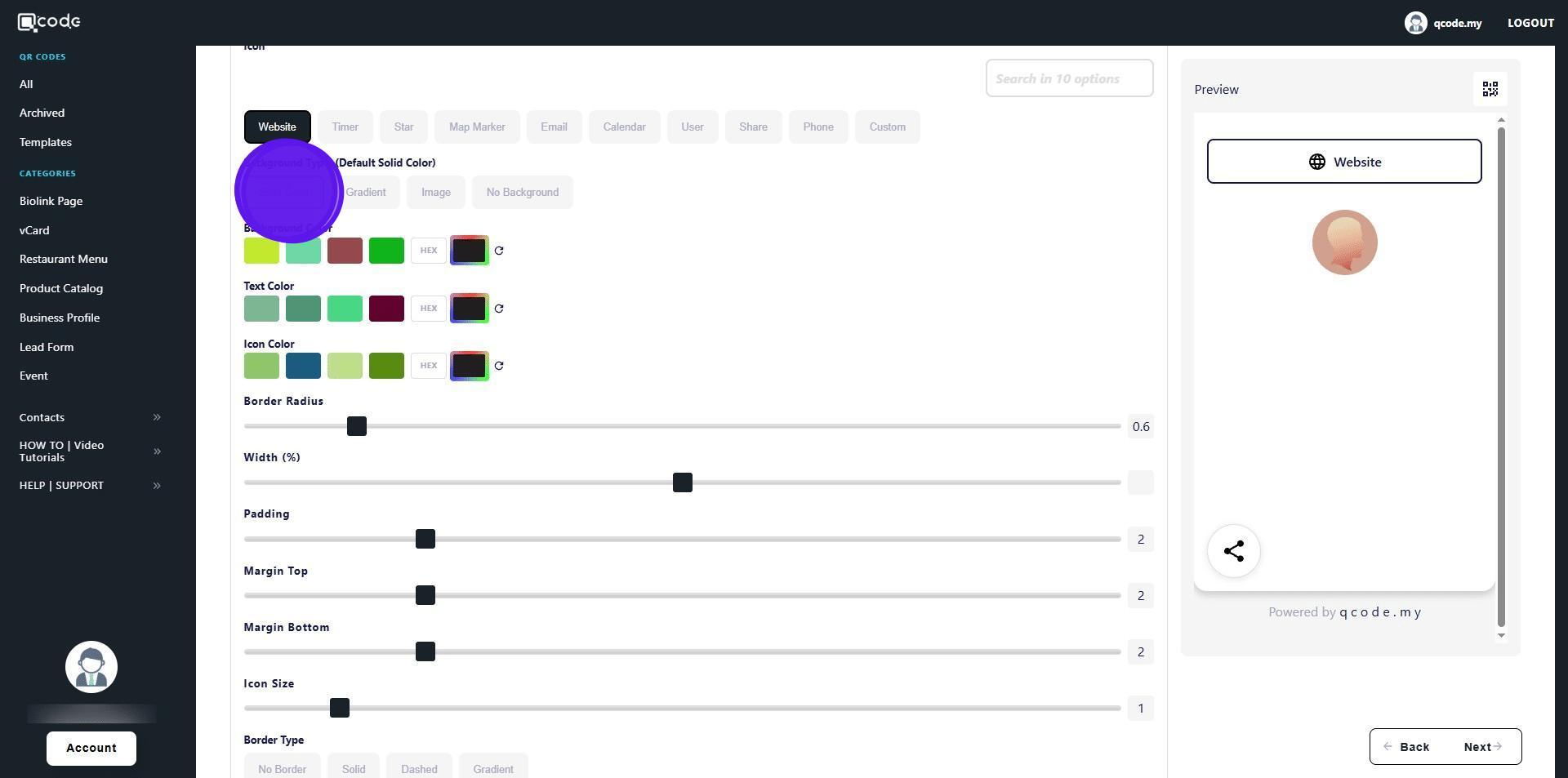
16. Click here to set your background color for your link block
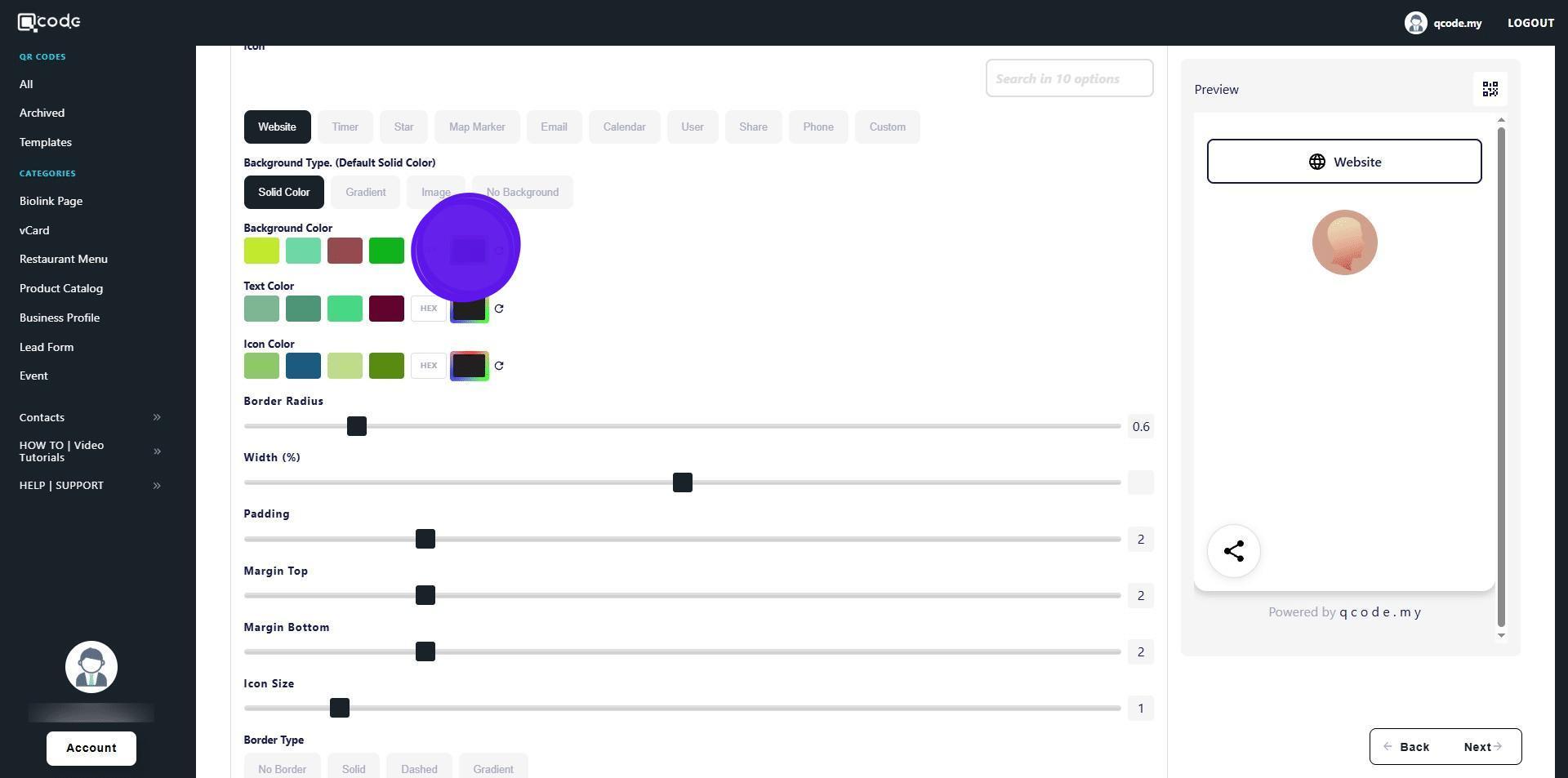
17. Click here to set the text color
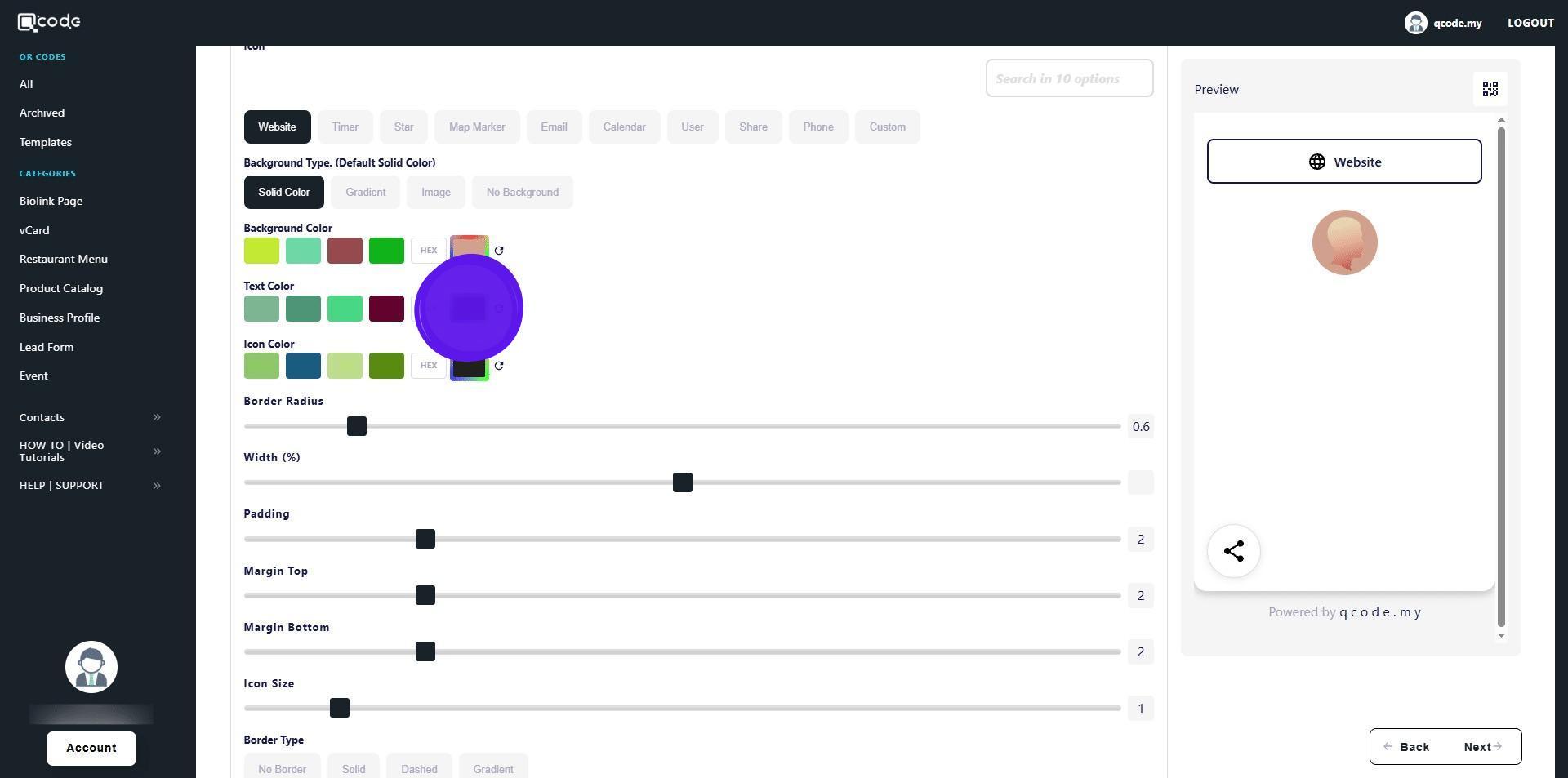
18. Click here to set the icon color
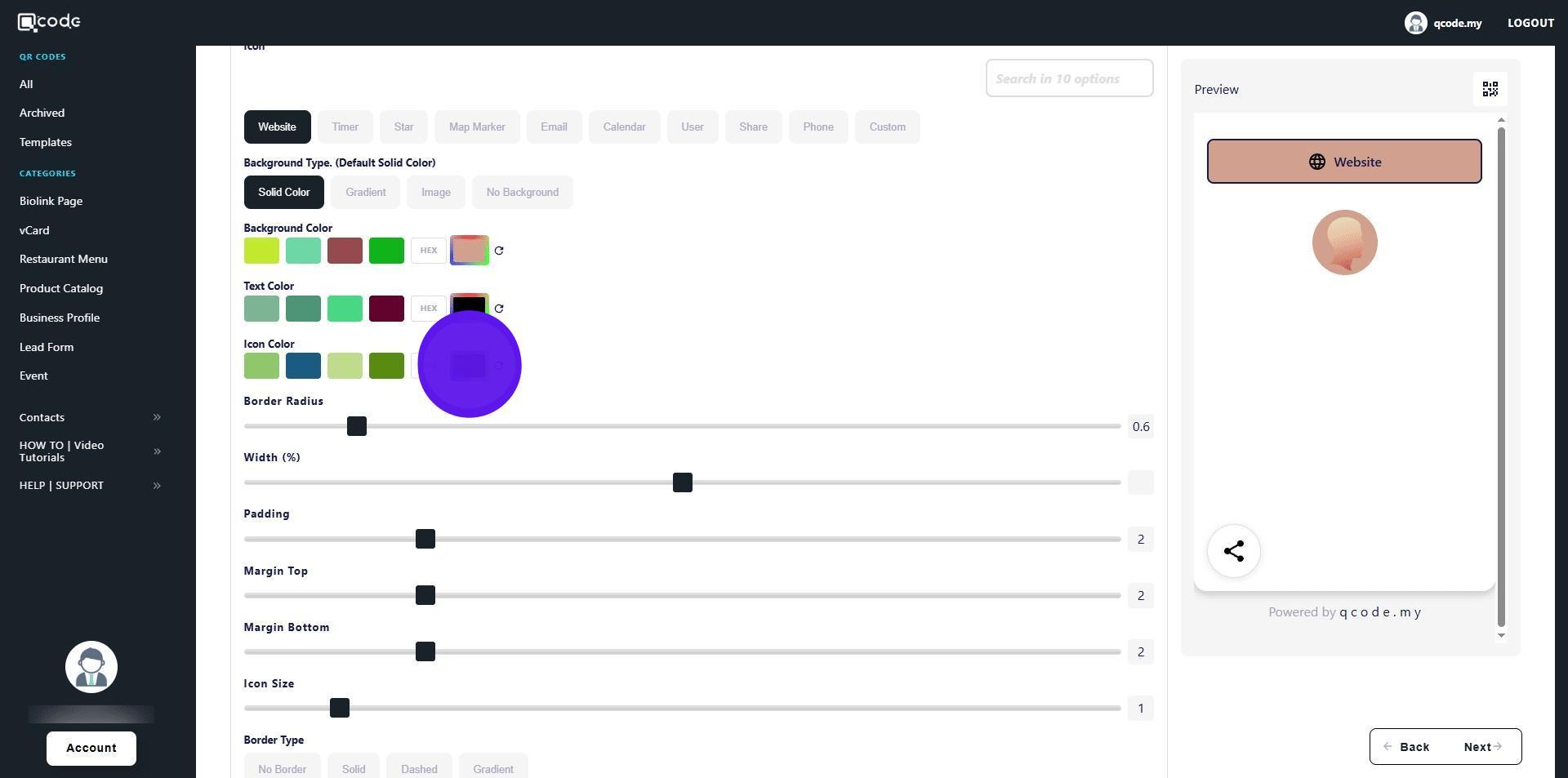
19. Slide the slider to adjust the border radius of your link block
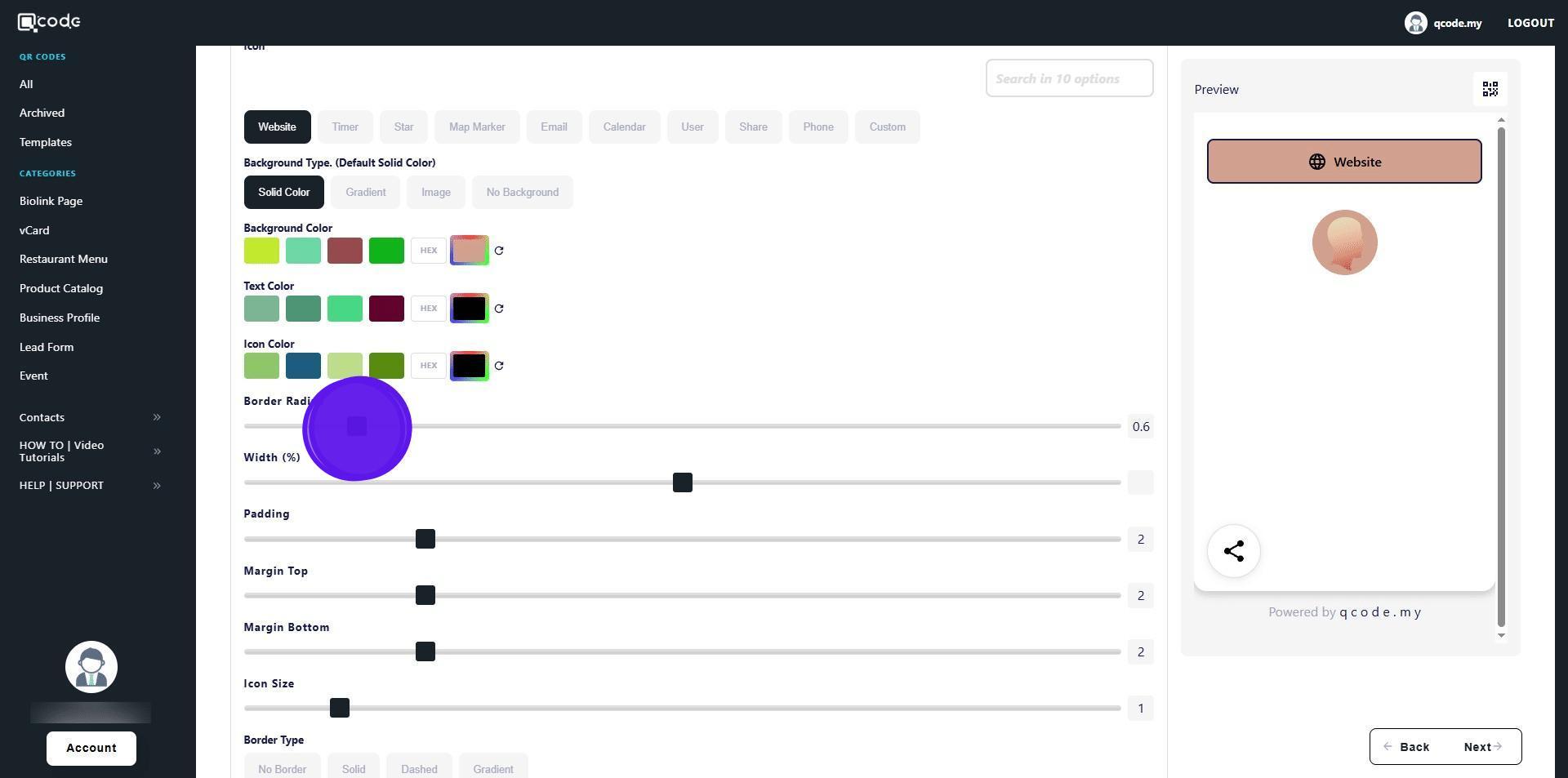
20. Click on No Border to remove the borders for the link block
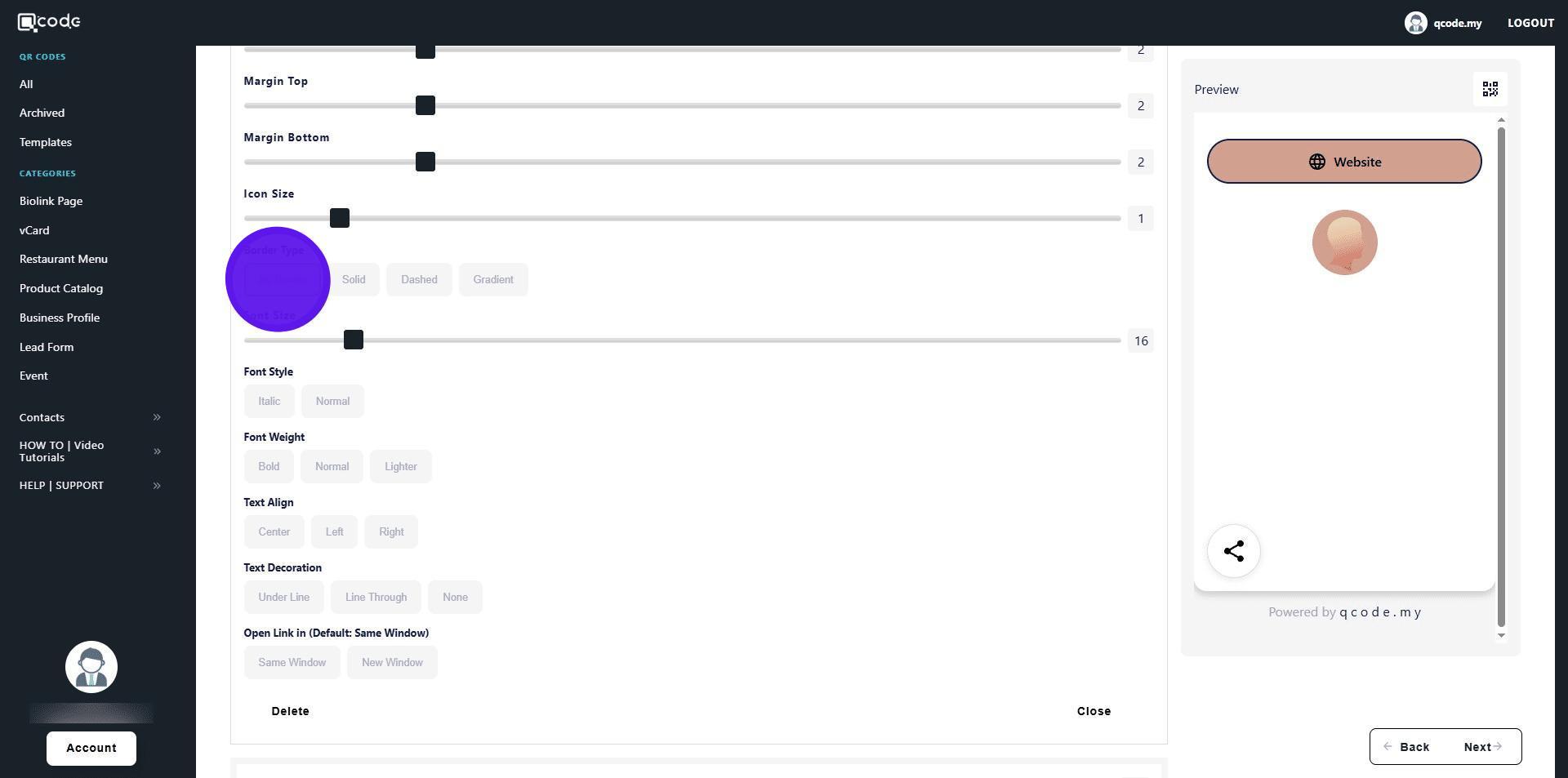
21. Click on New Window to have the link open as a new window upon clicking
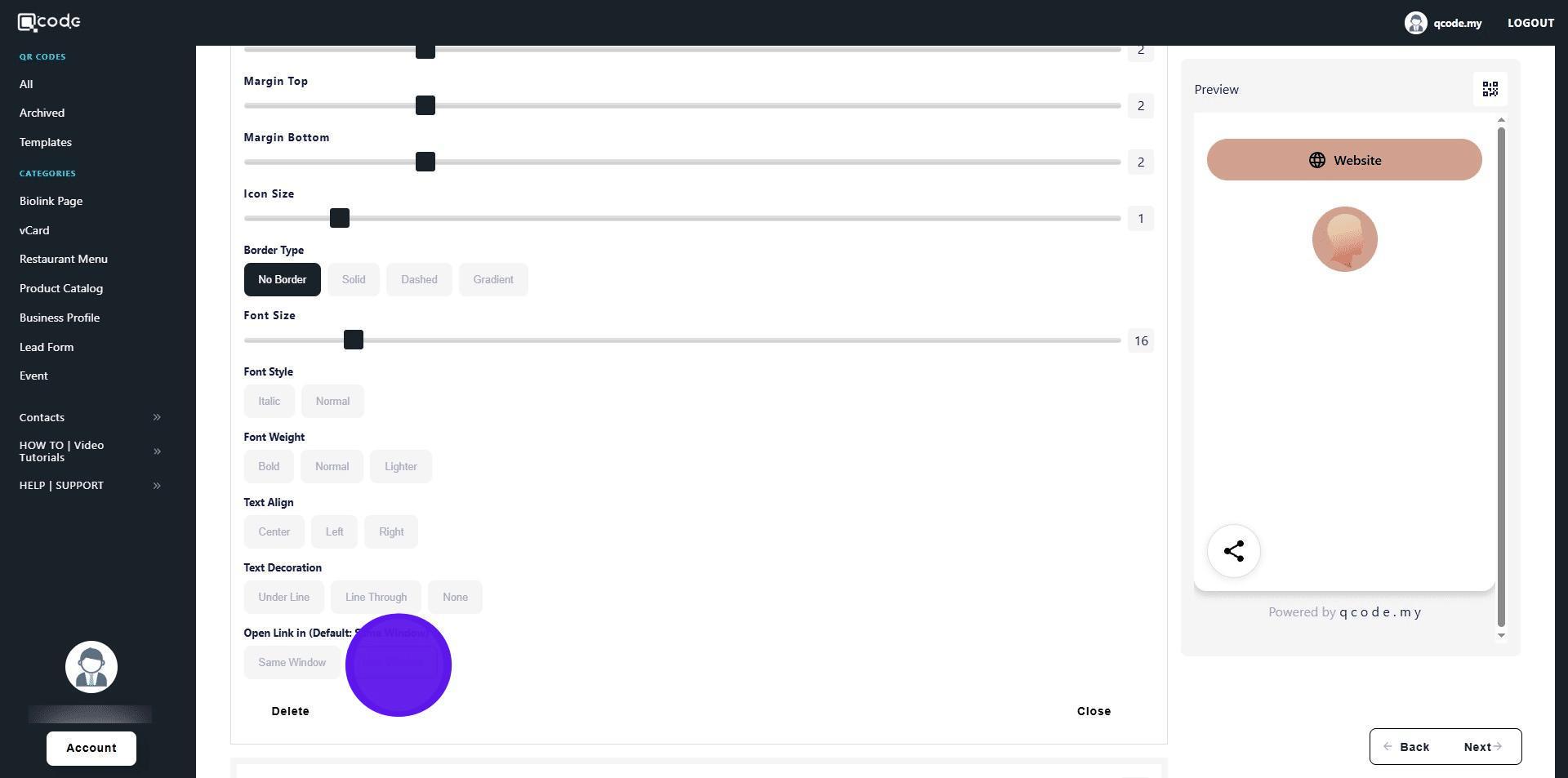
22. Click on Close to finish adding the link block
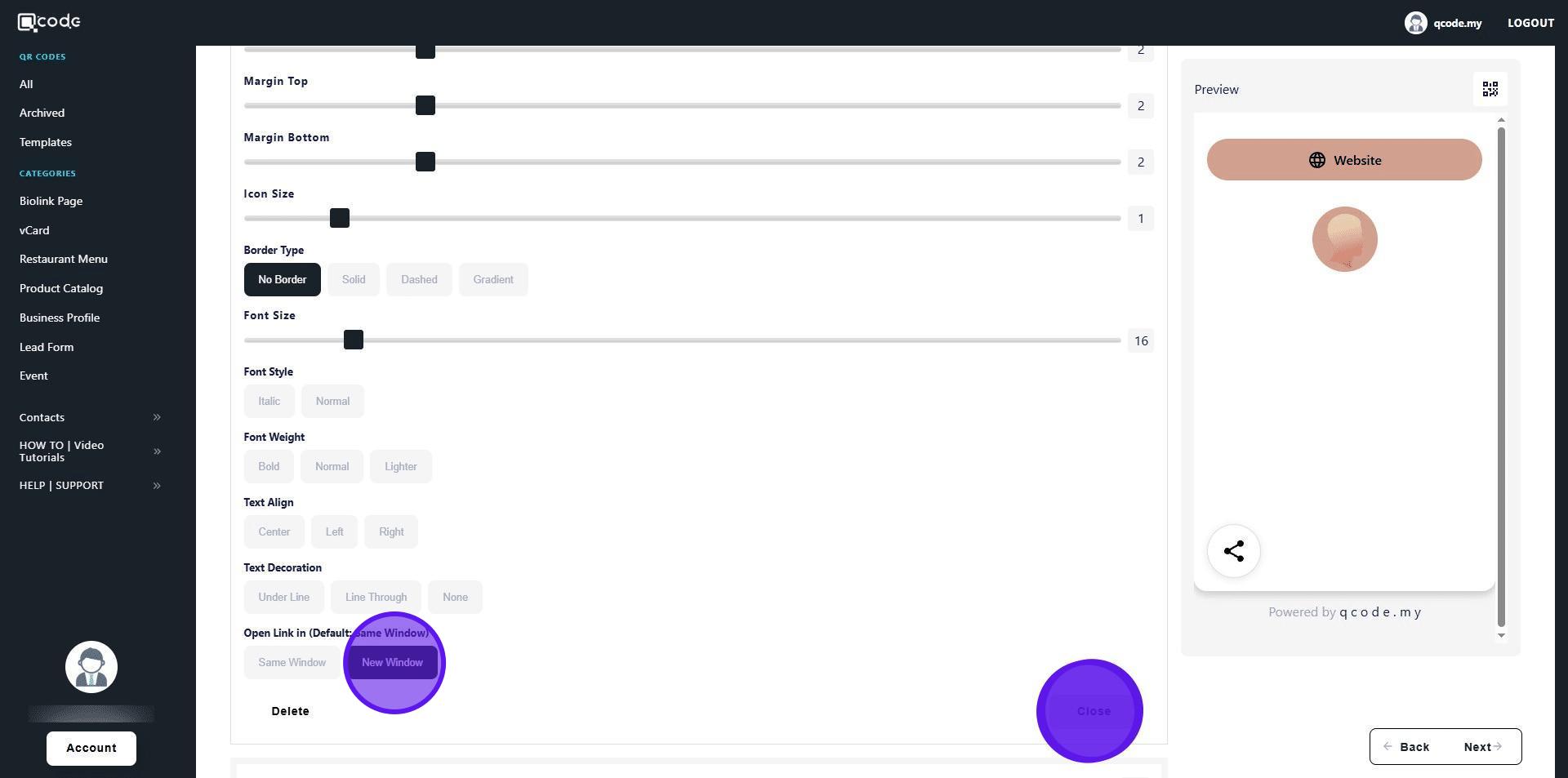
23. Click on Close to close the other block
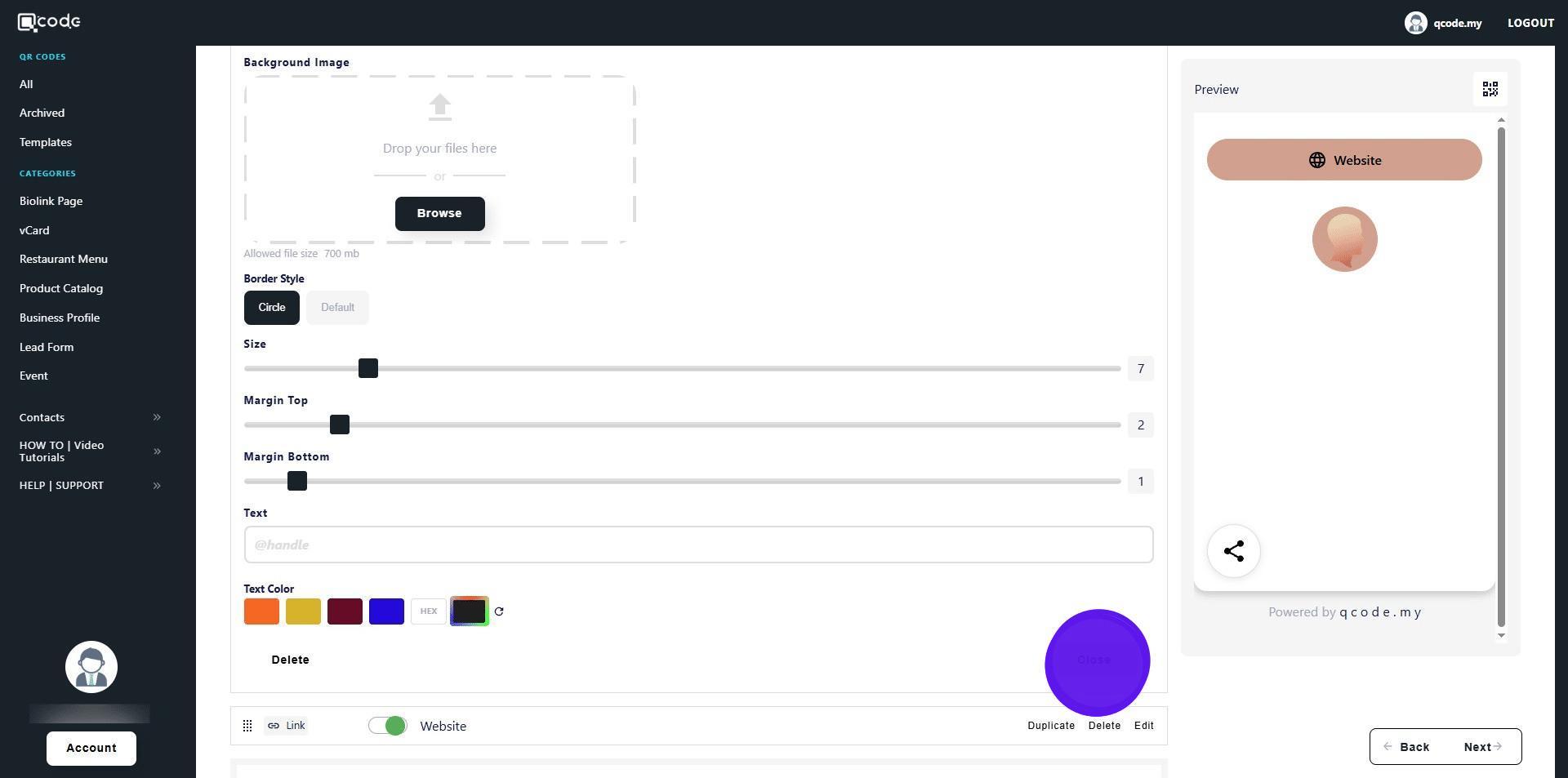
24. Drag the slider to reorder blocks
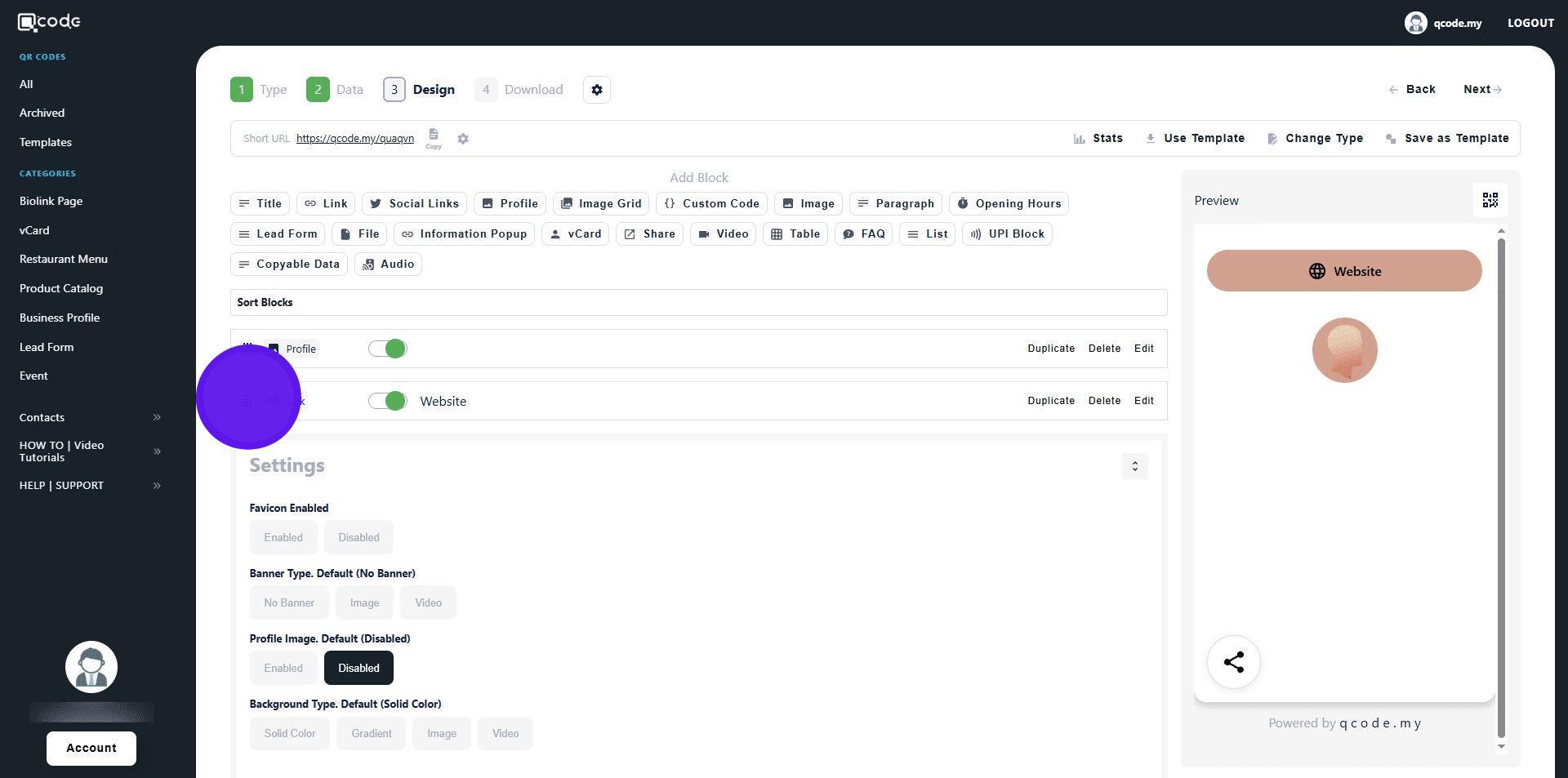
25. Click on Duplicate to duplicate an existing block
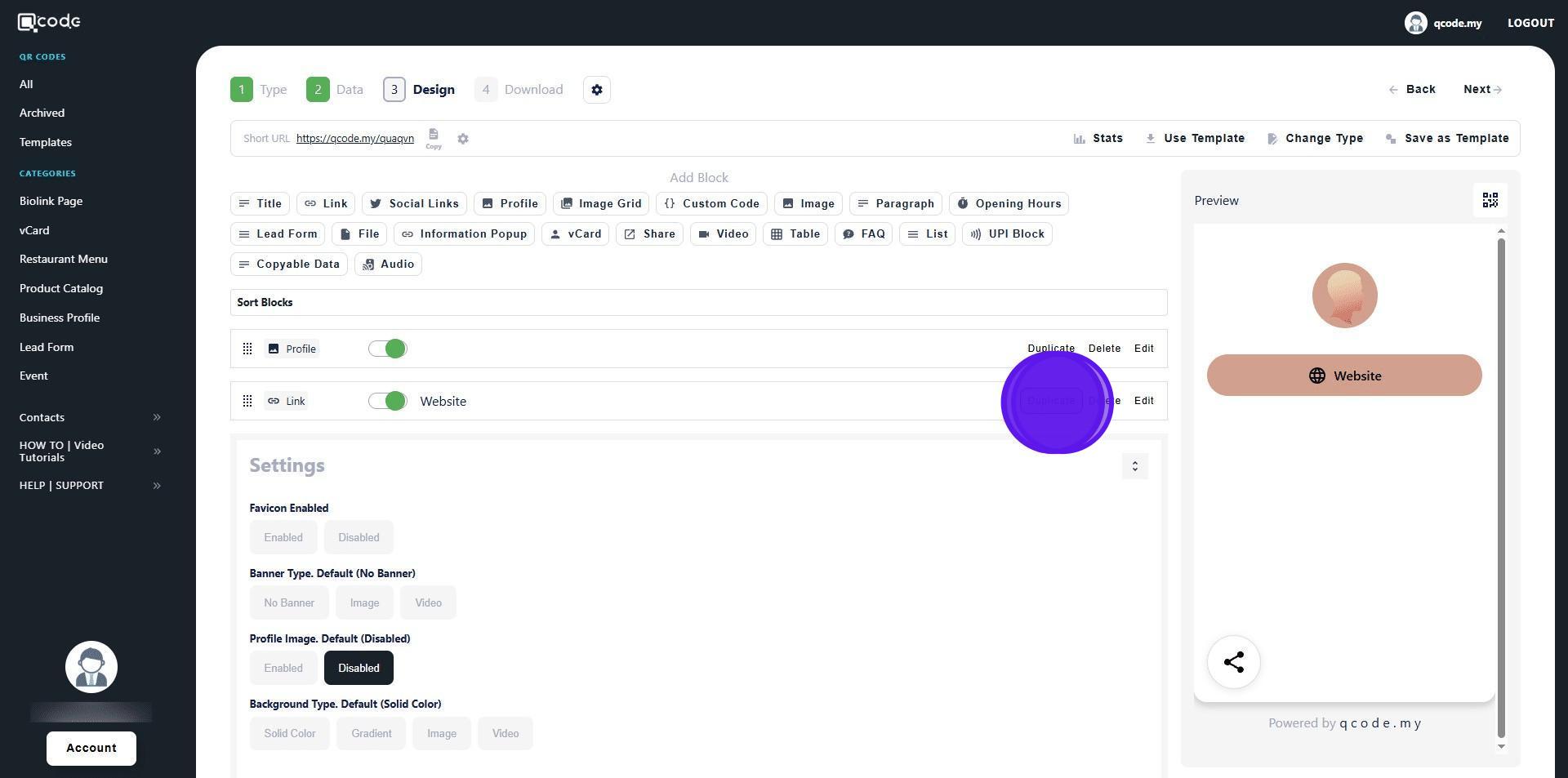
26. Click on Edit to edit a block
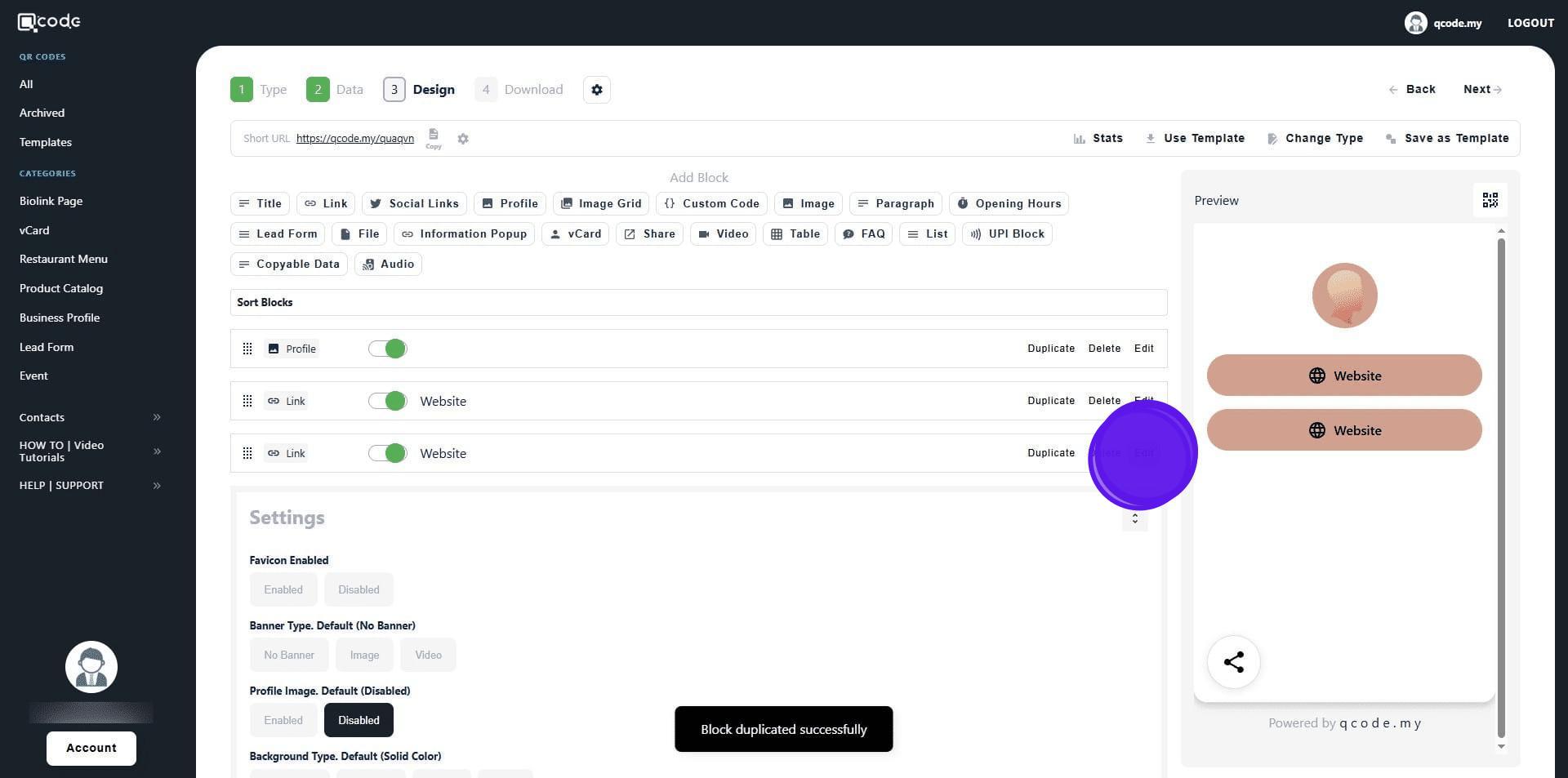
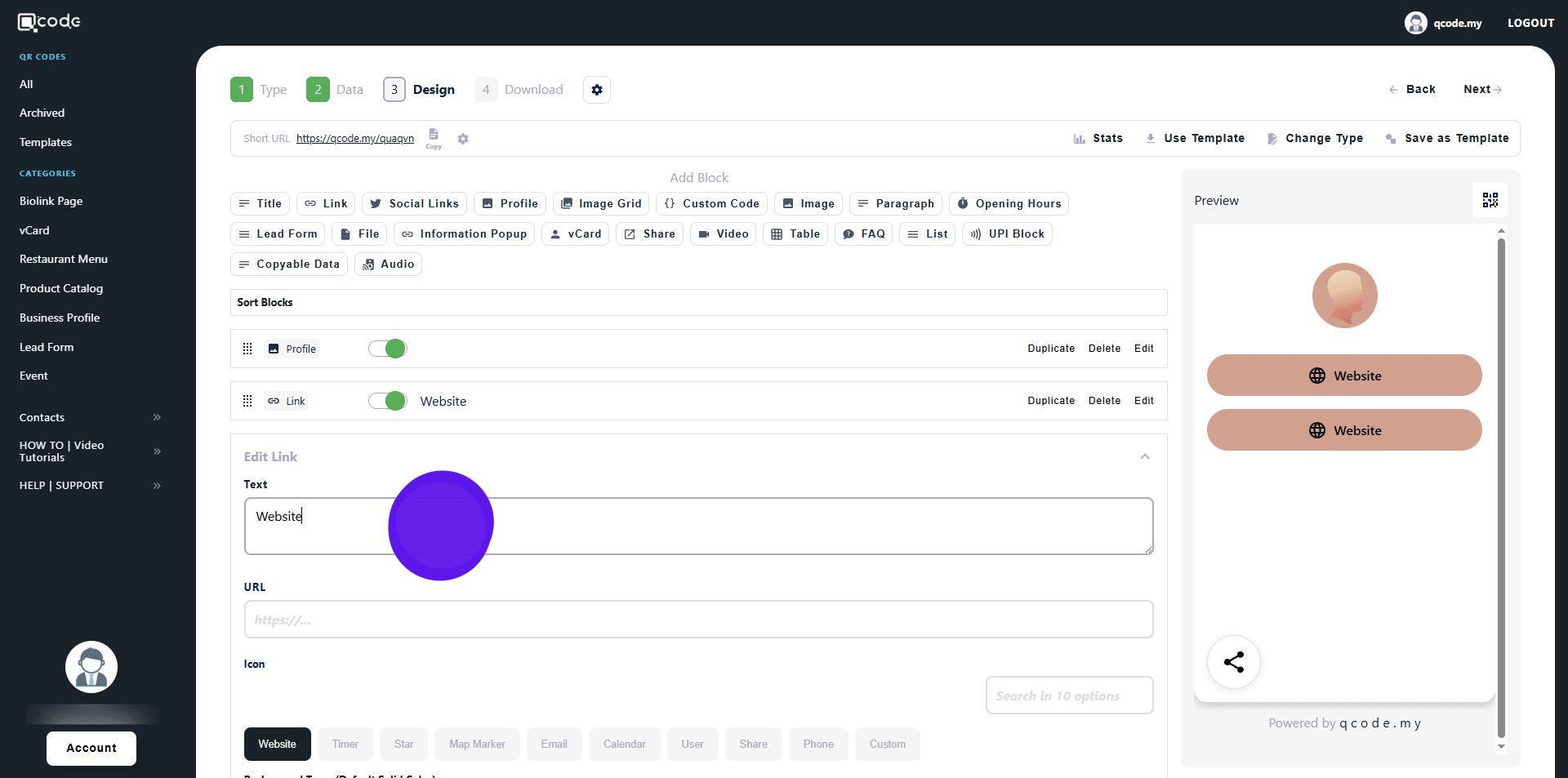
27. Click here to edit the title of your block
28. Click on Custom to remove or upload your own icon
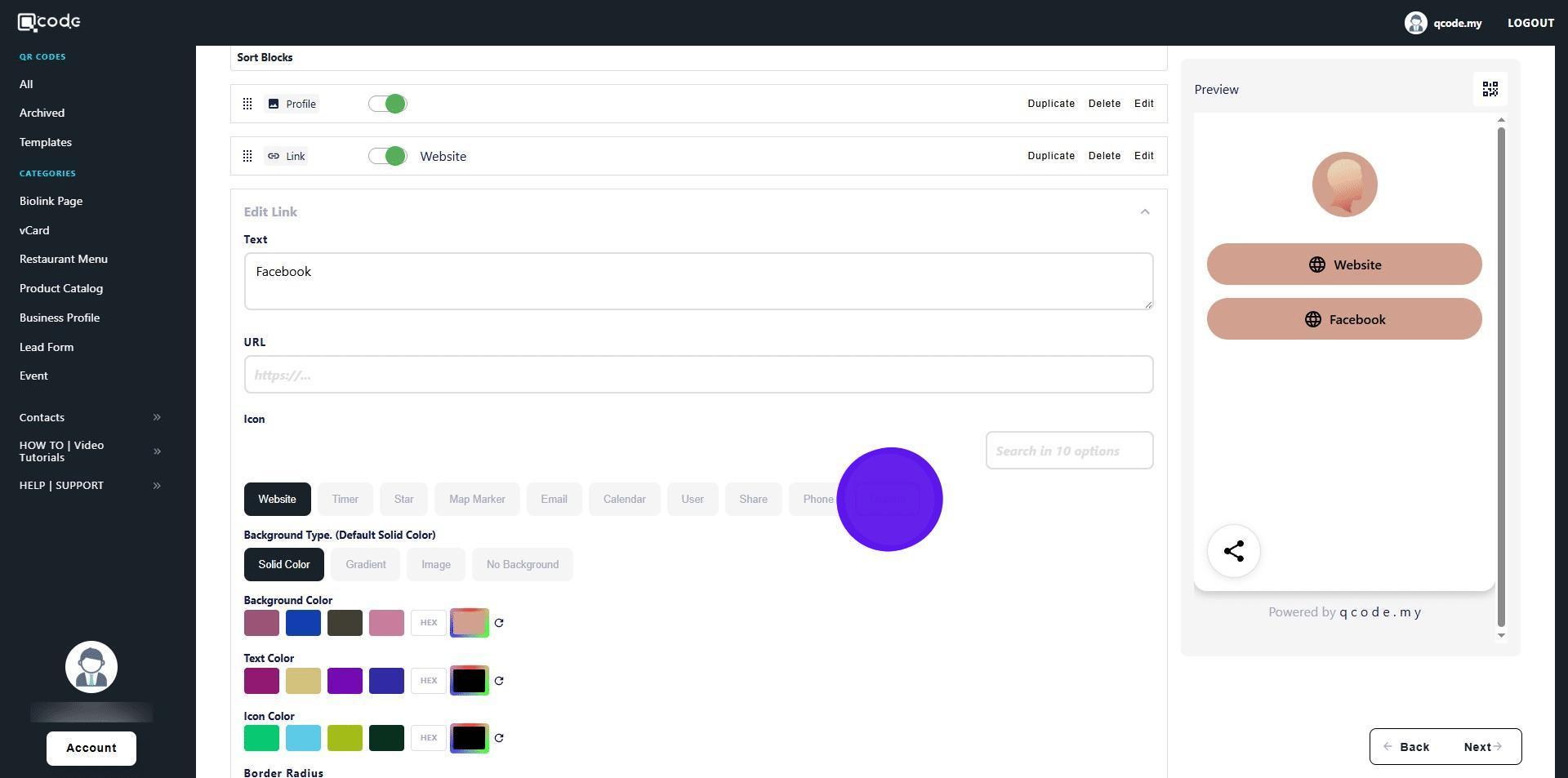
29. Type in your URL here
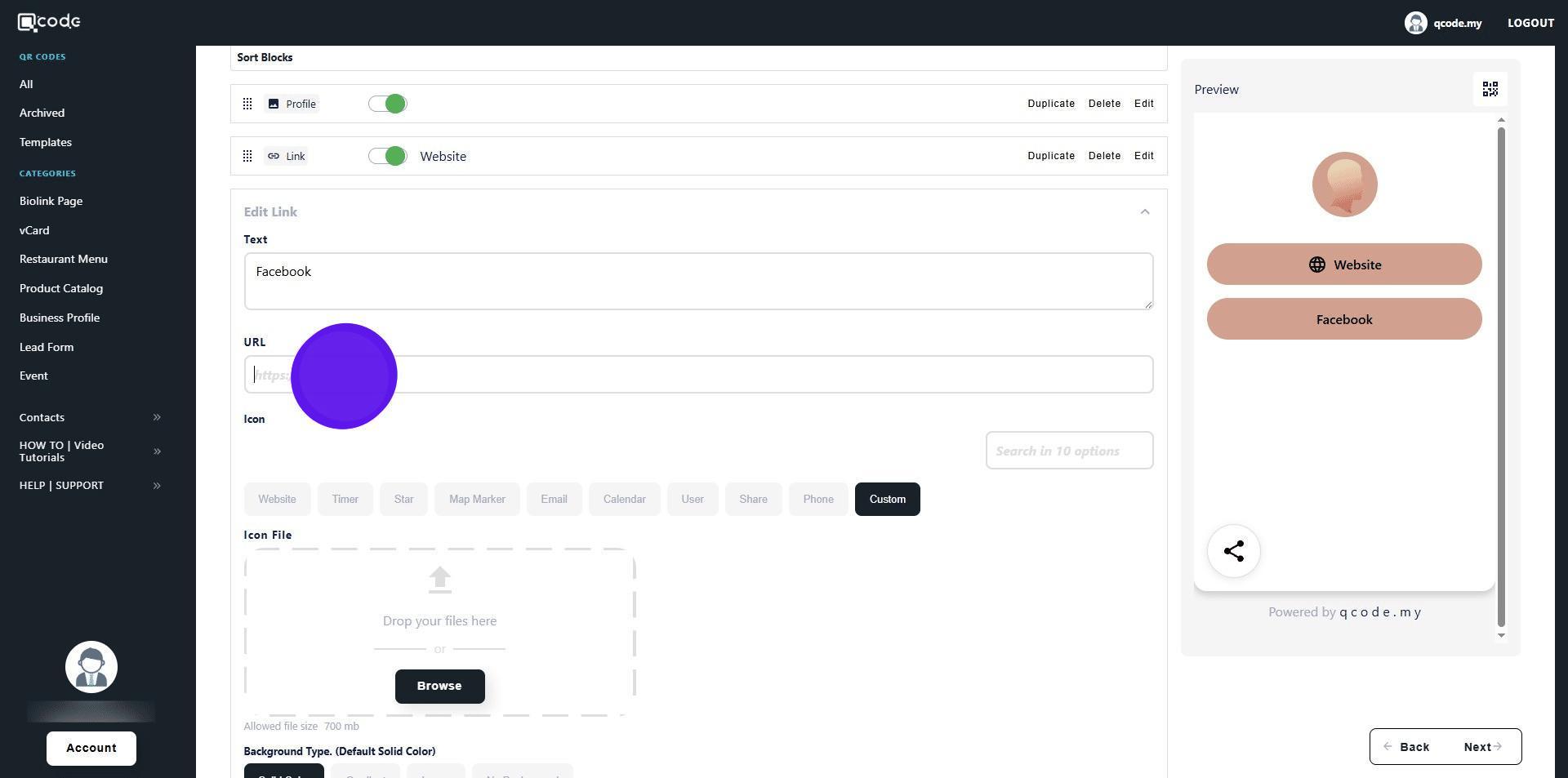
30. Click the up-arrow button to close
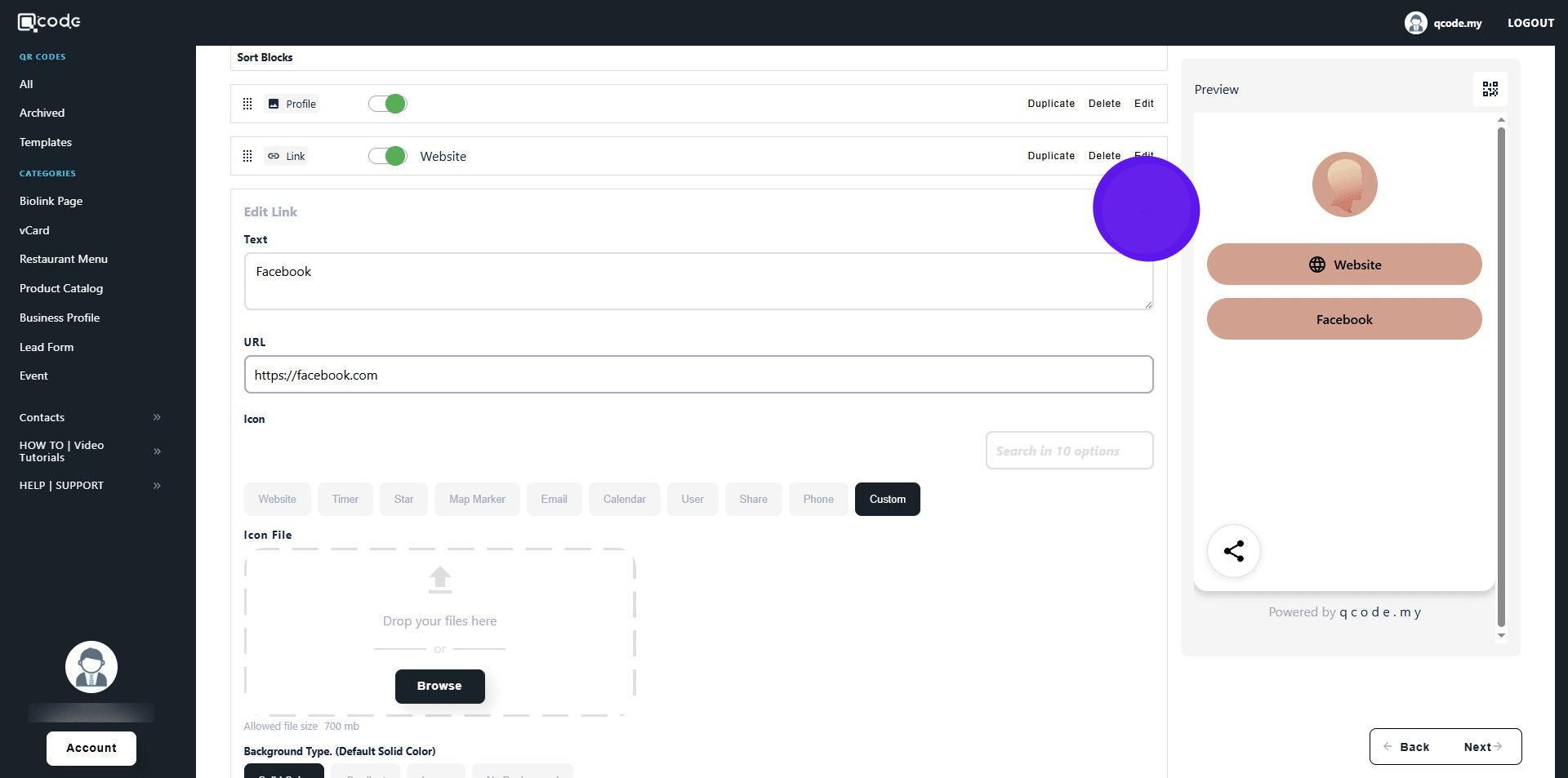
31. Click on Duplicate to duplicate another one
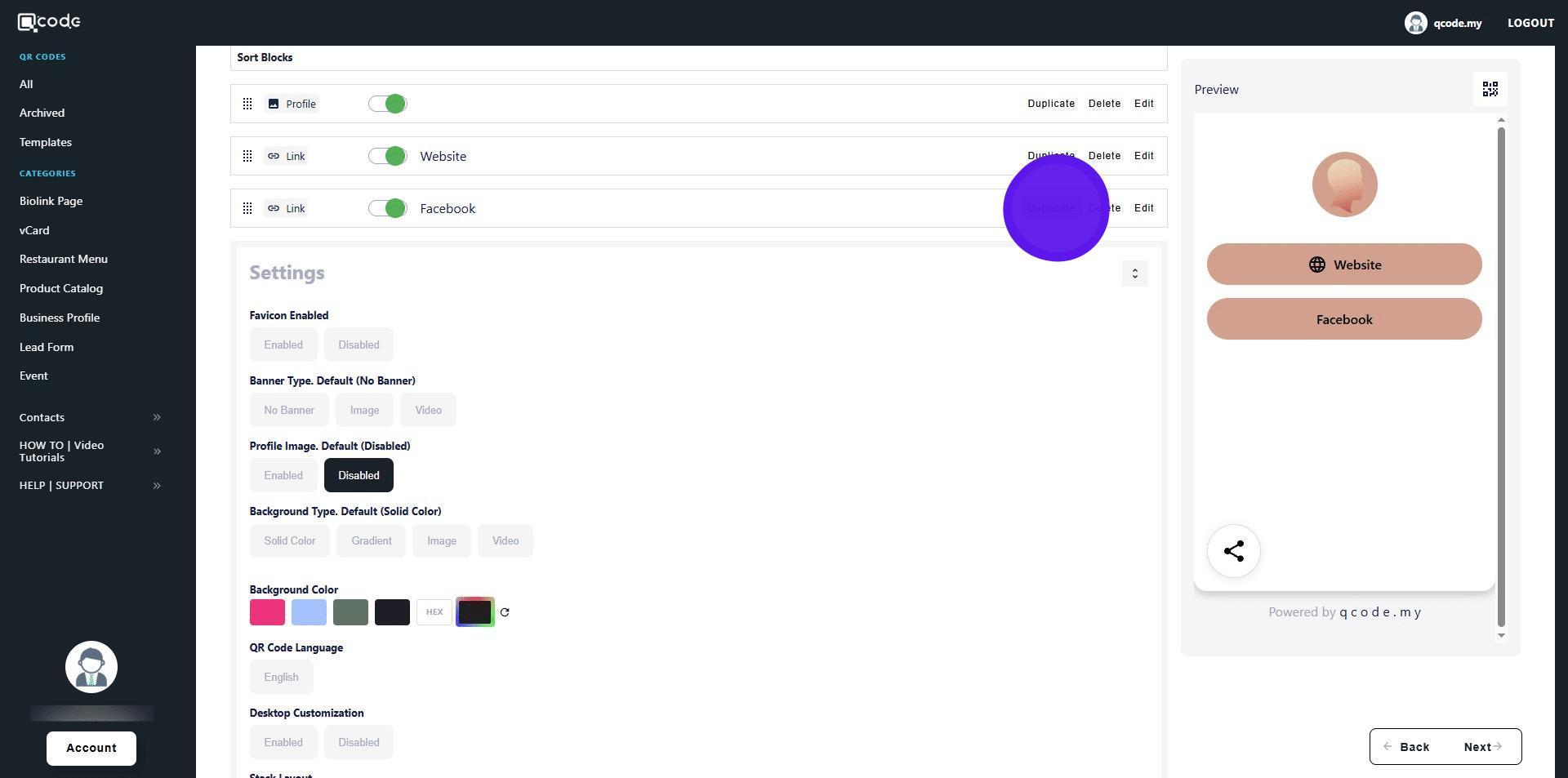
32. Click on Edit
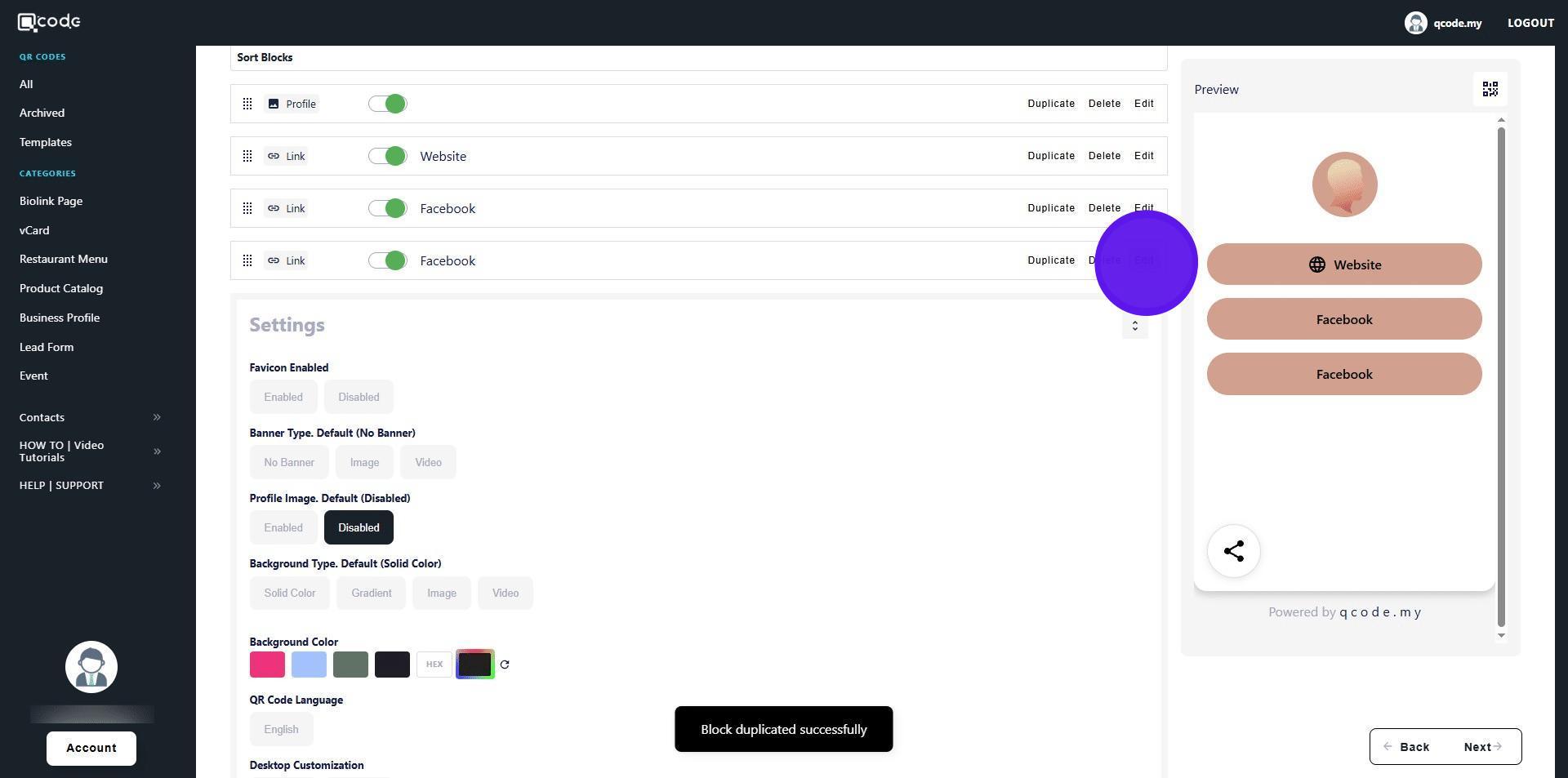
33. Click here to edit the title
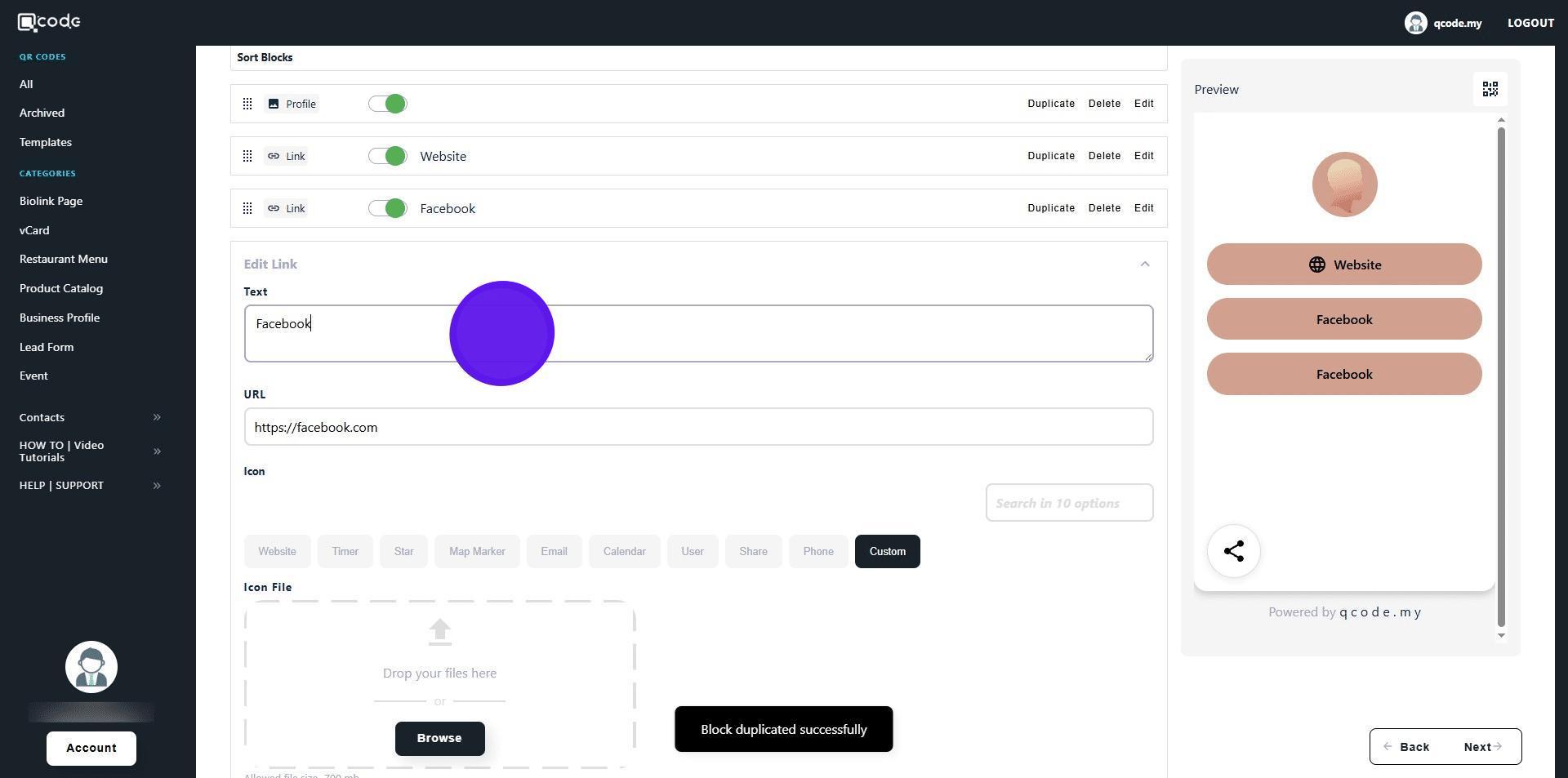
34. Click here to edit the URL
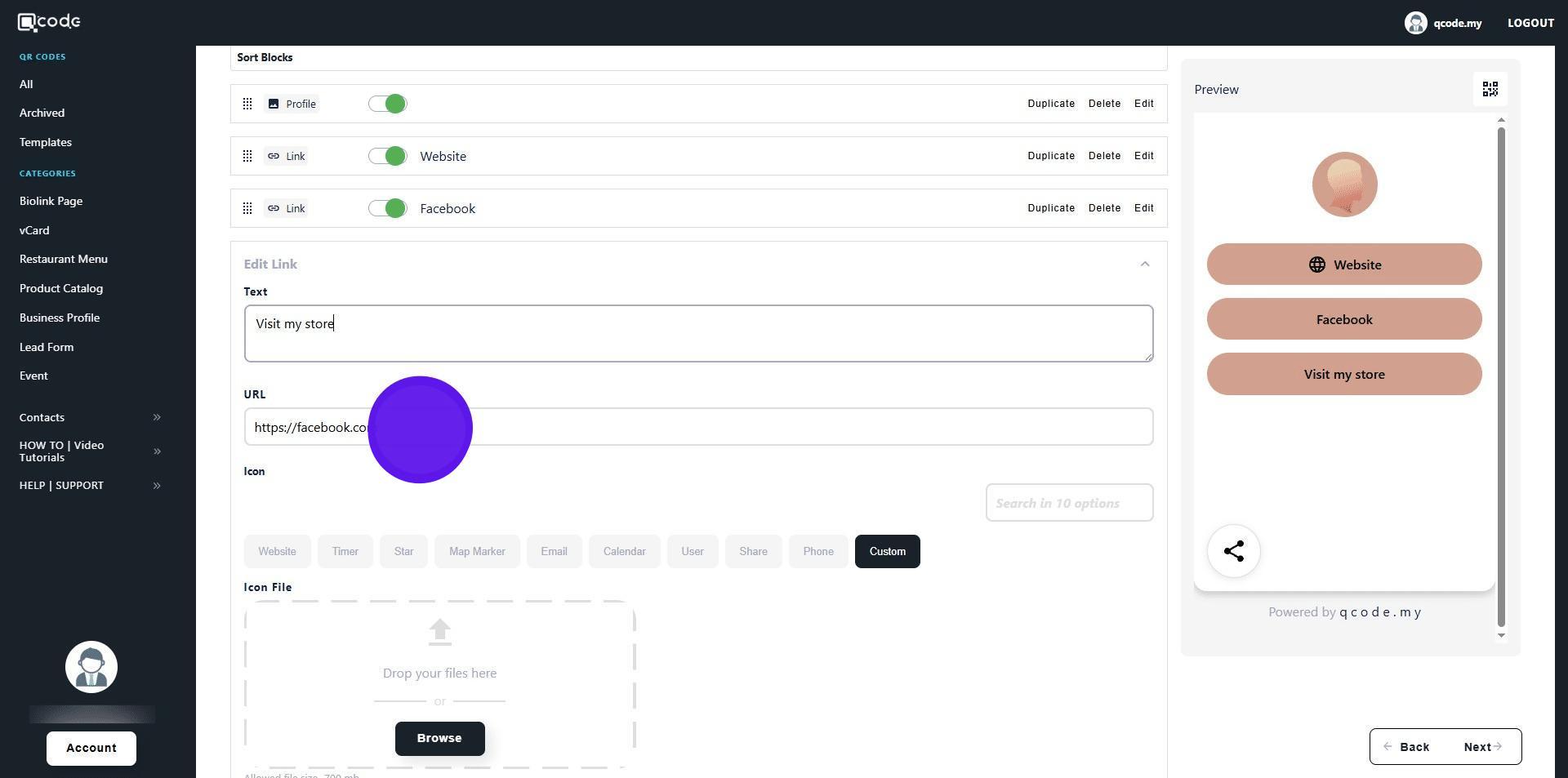
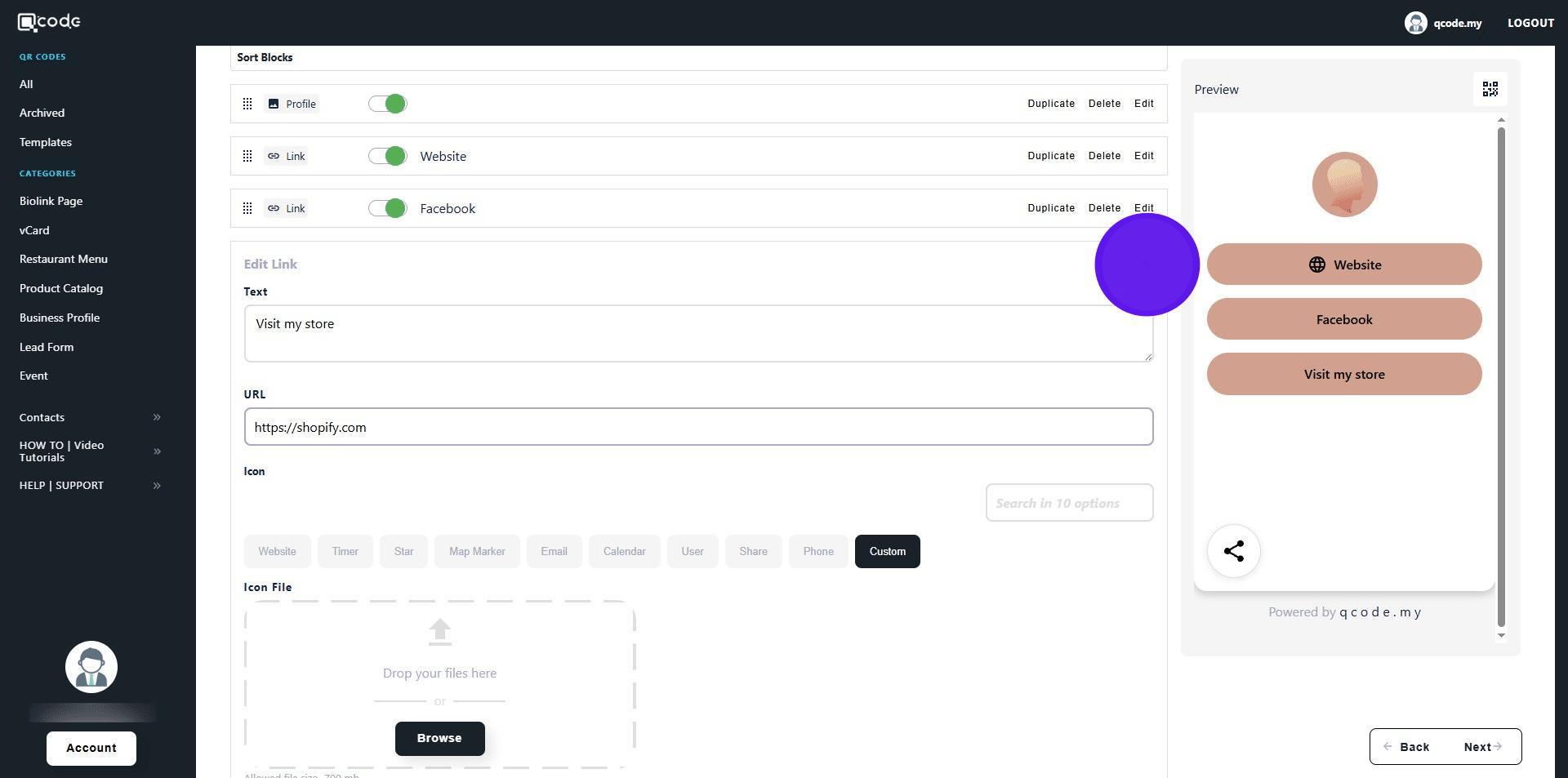
35. Click the up-arrow button to close
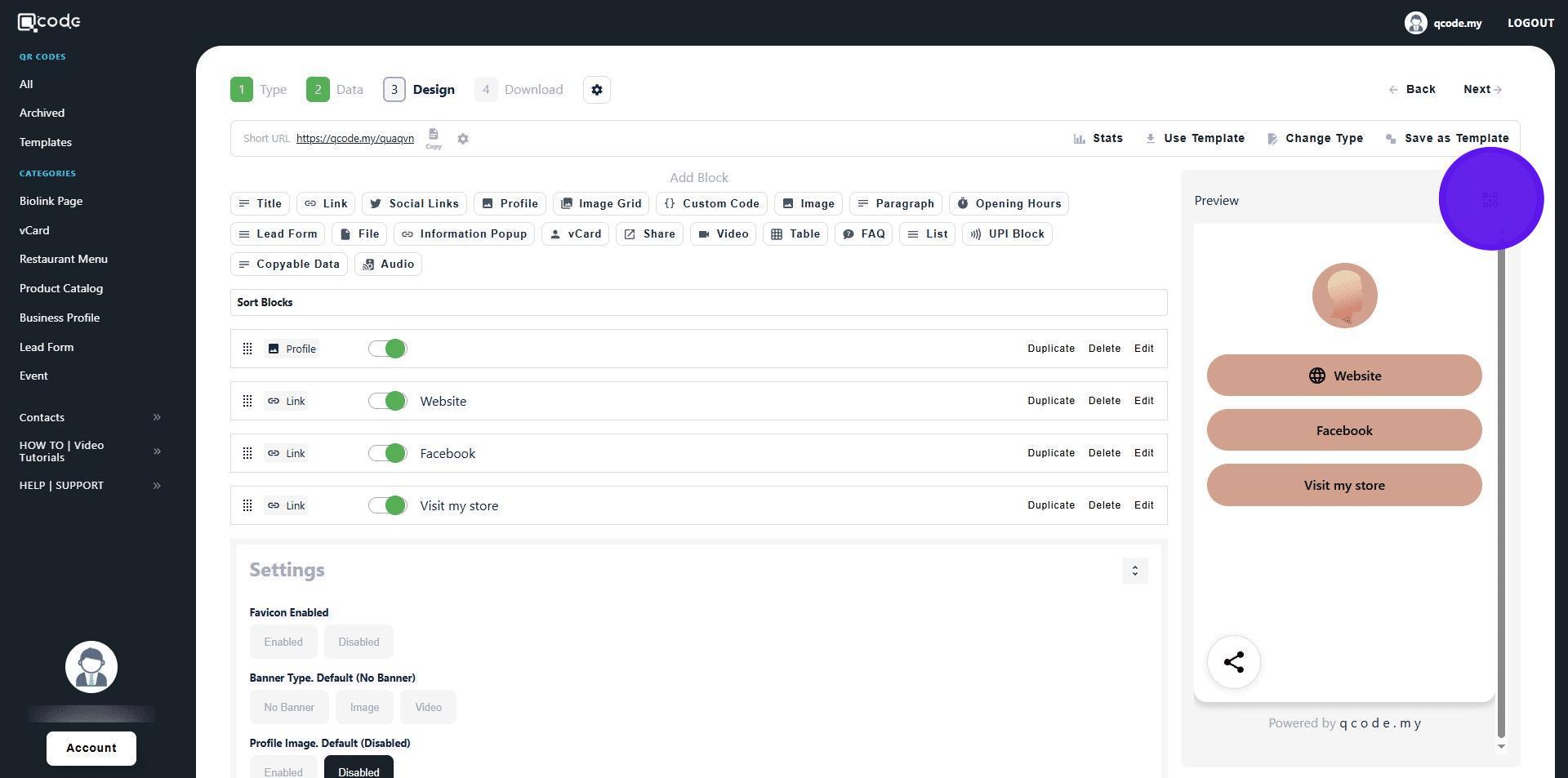
36. Click on the QR Code icon to customize your QR Code Click the link here to learn more: https://kb.imoolah.network/guides/YUFgbQ5mkC4Zy2JfZH25
37. Click on Next to move to the final section
38. Click here to give your QR Code a name
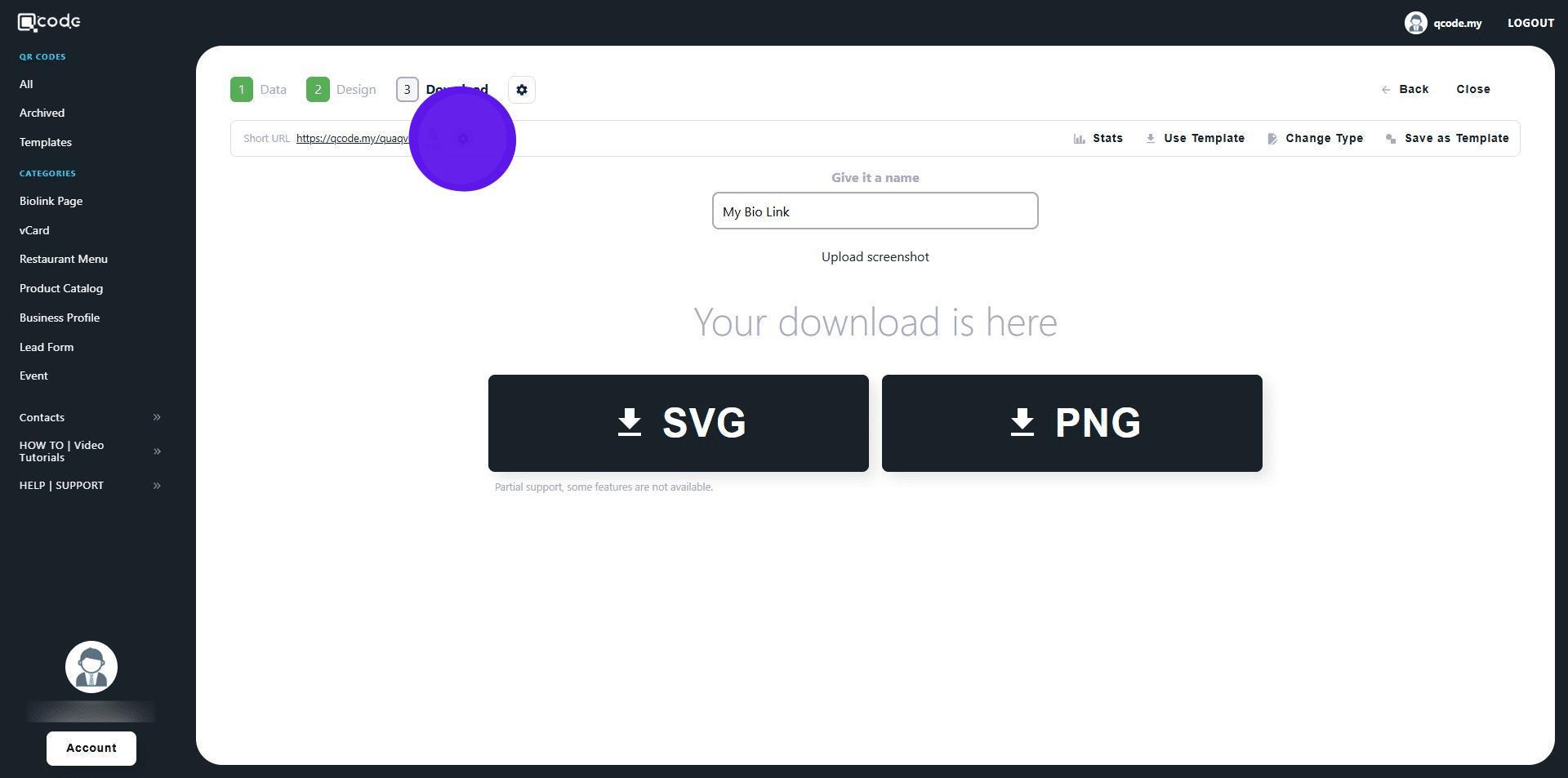
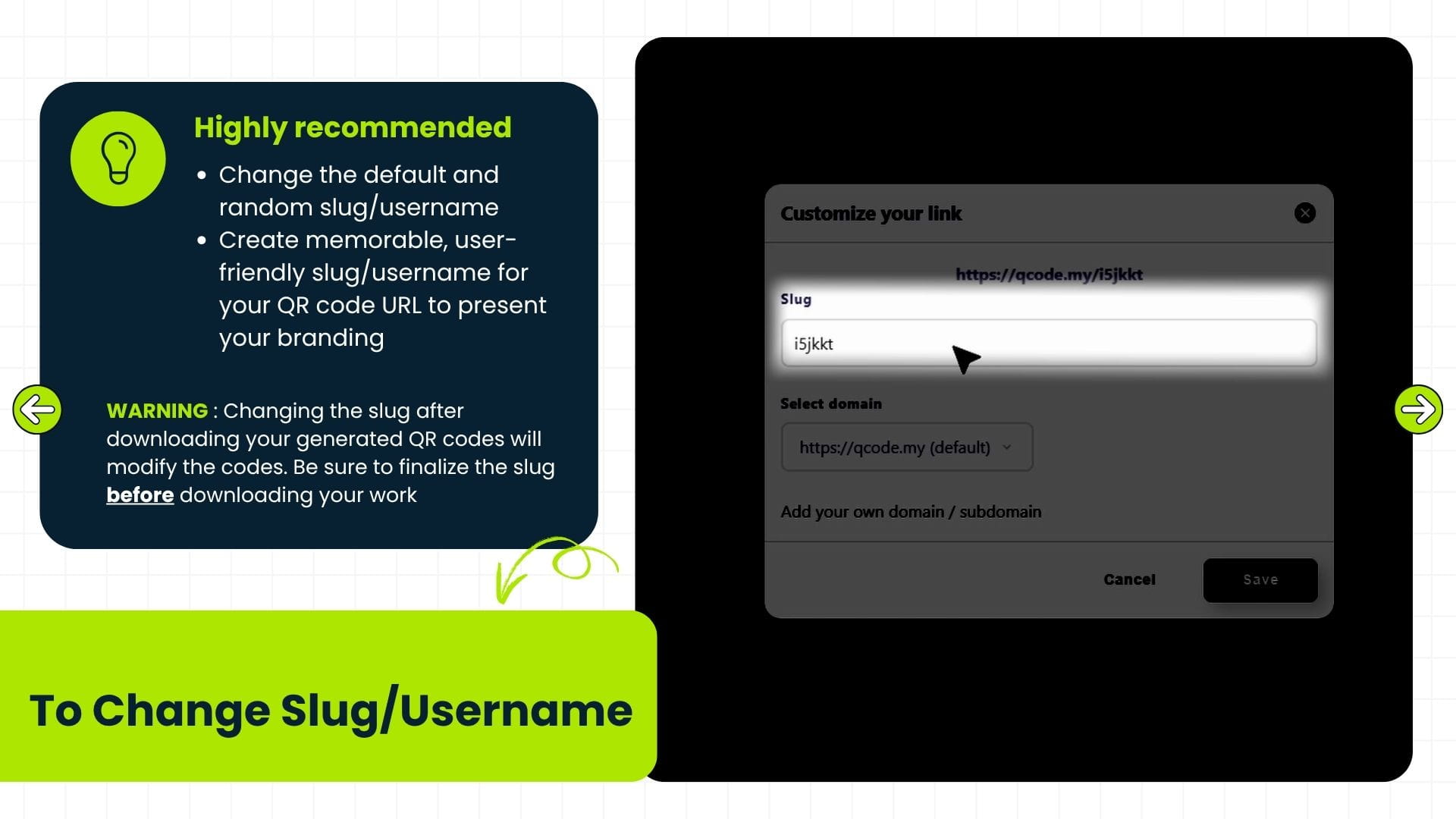
39. Click the cog icon to change the Slug/Username. Click the link to learn more: https://kb.imoolah.network/guides/WyWZY38vTRTbItuows4P
40. Changing the slug after downloading your generated QR codes will modify the codes. Be sure to finalize the slug before downloading your work
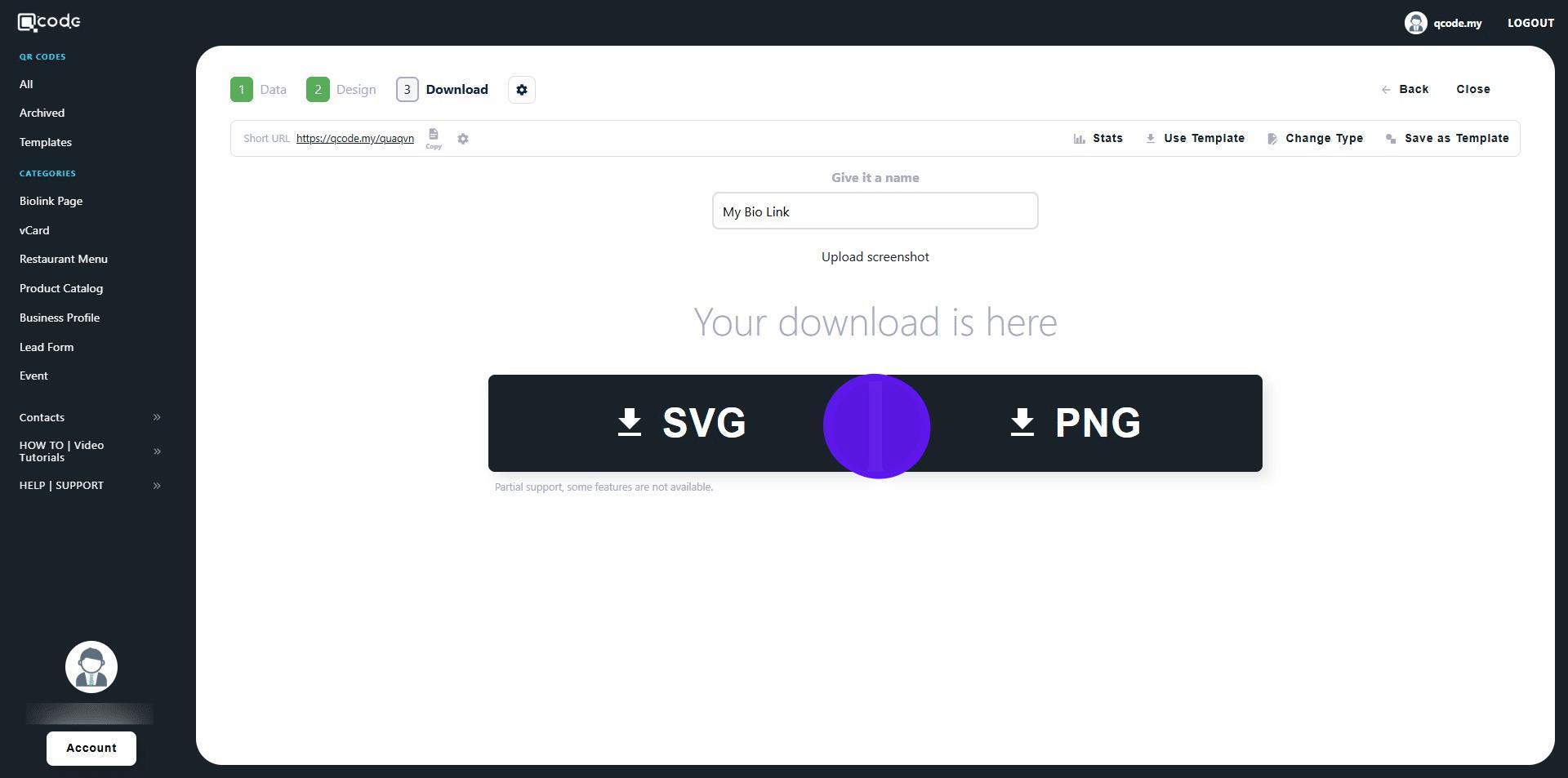
41. Click on SVG or PNG to download your QR Code in the following formats
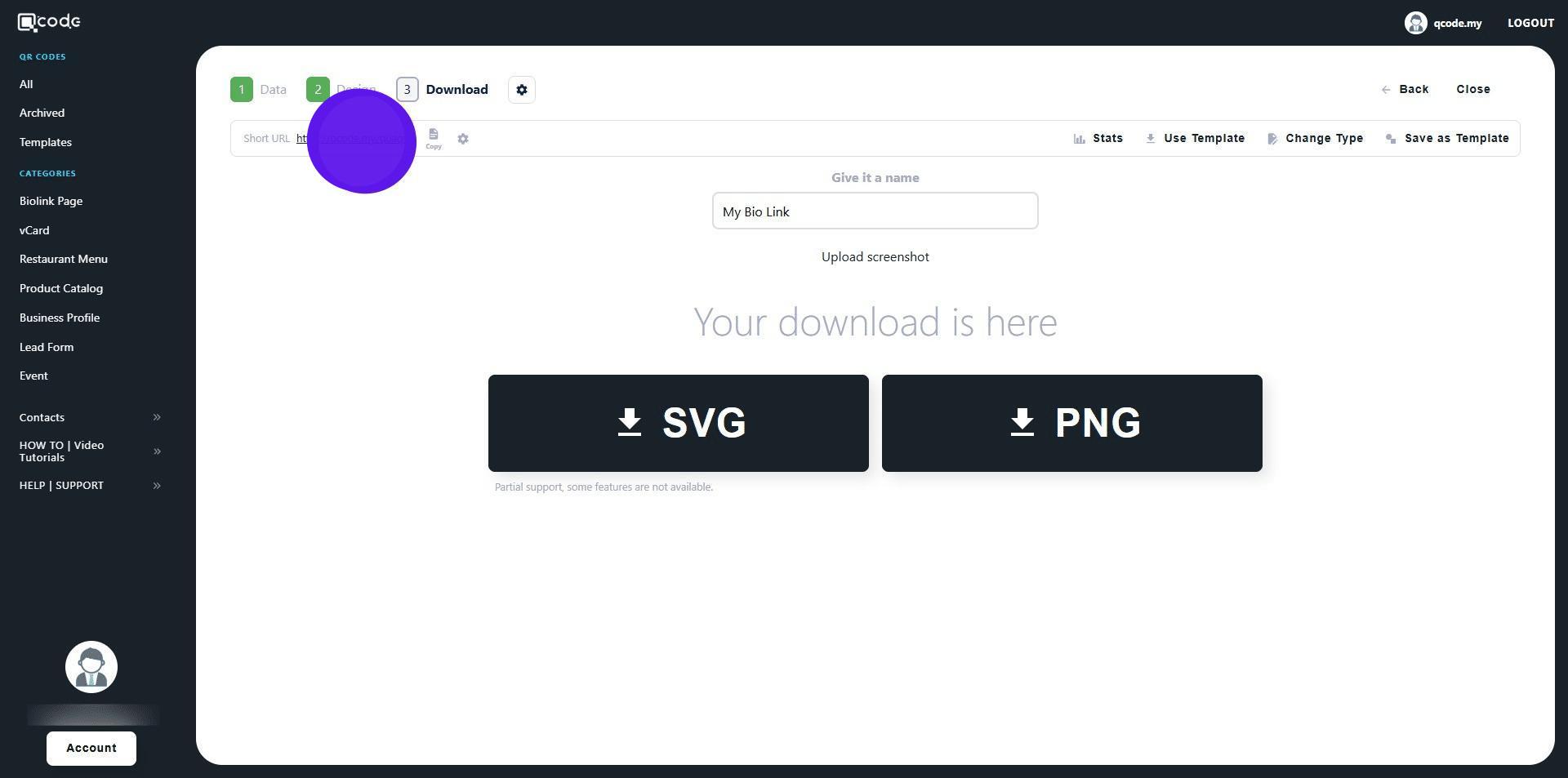
42. Click on the Short URL to view your Biolink
43. Congratulations on creating your Biolink!