How to create a vCard
This guide provides a comprehensive walkthrough for creating a vCard, enabling users to efficiently share their contact information in a digital format. It streamlines the process of generating a personalized vCard, enhancing networking and professional communication.
1. Navigate to https://qcode.my/dashboard/qrcodes
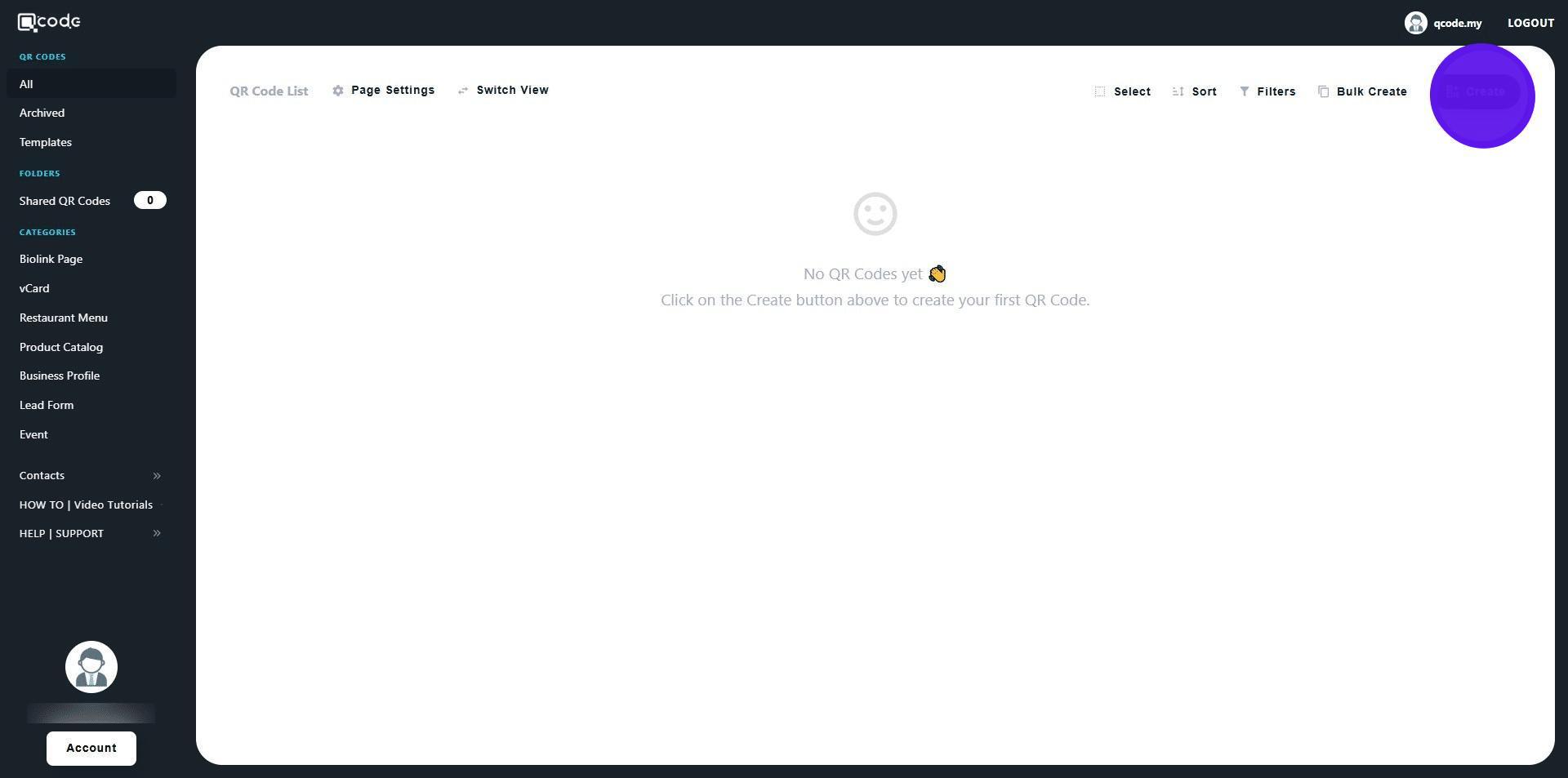
2. Click on Create to start creating your vCard
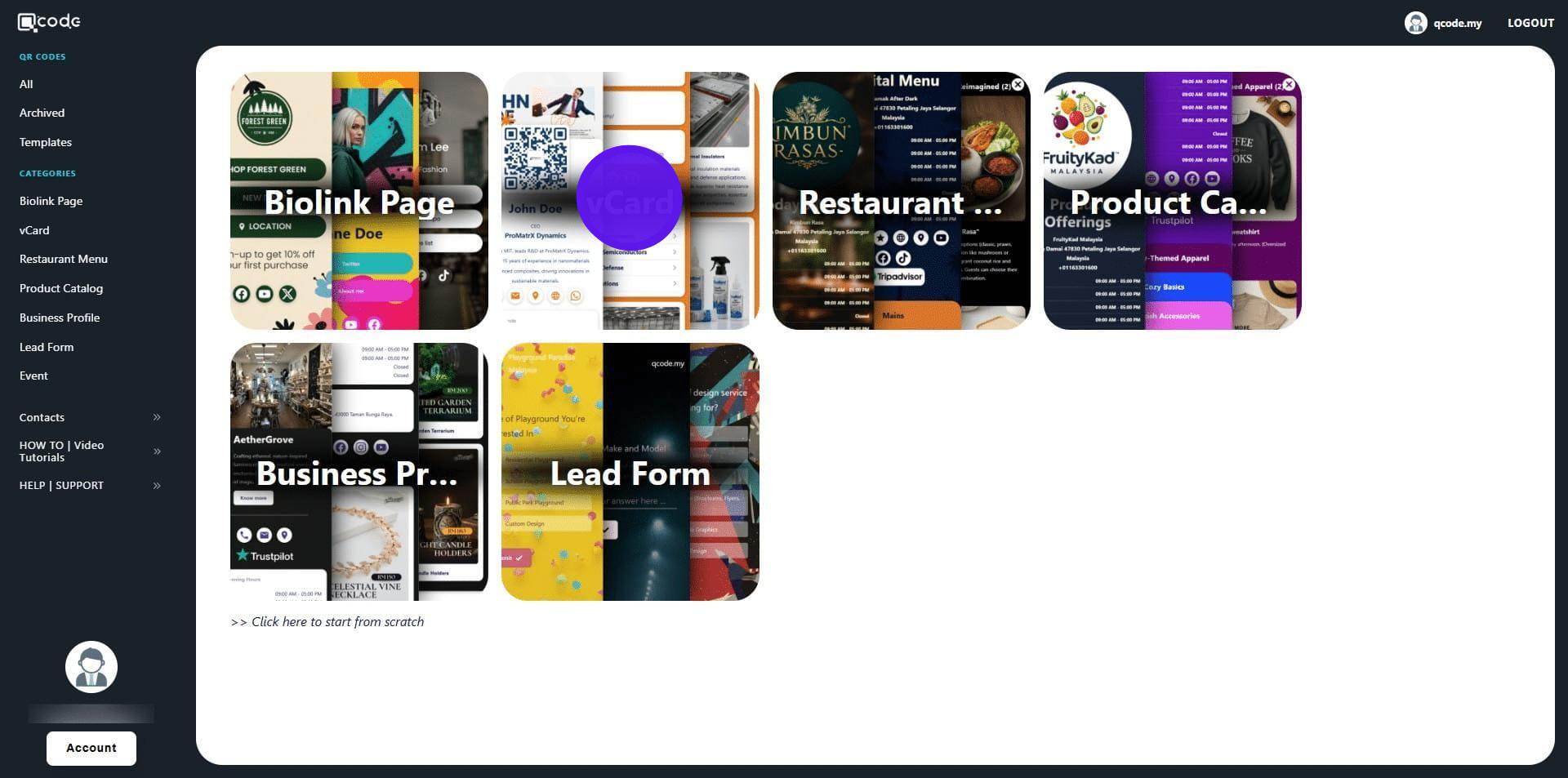
3. Click on vCard to choose from a selection of templates
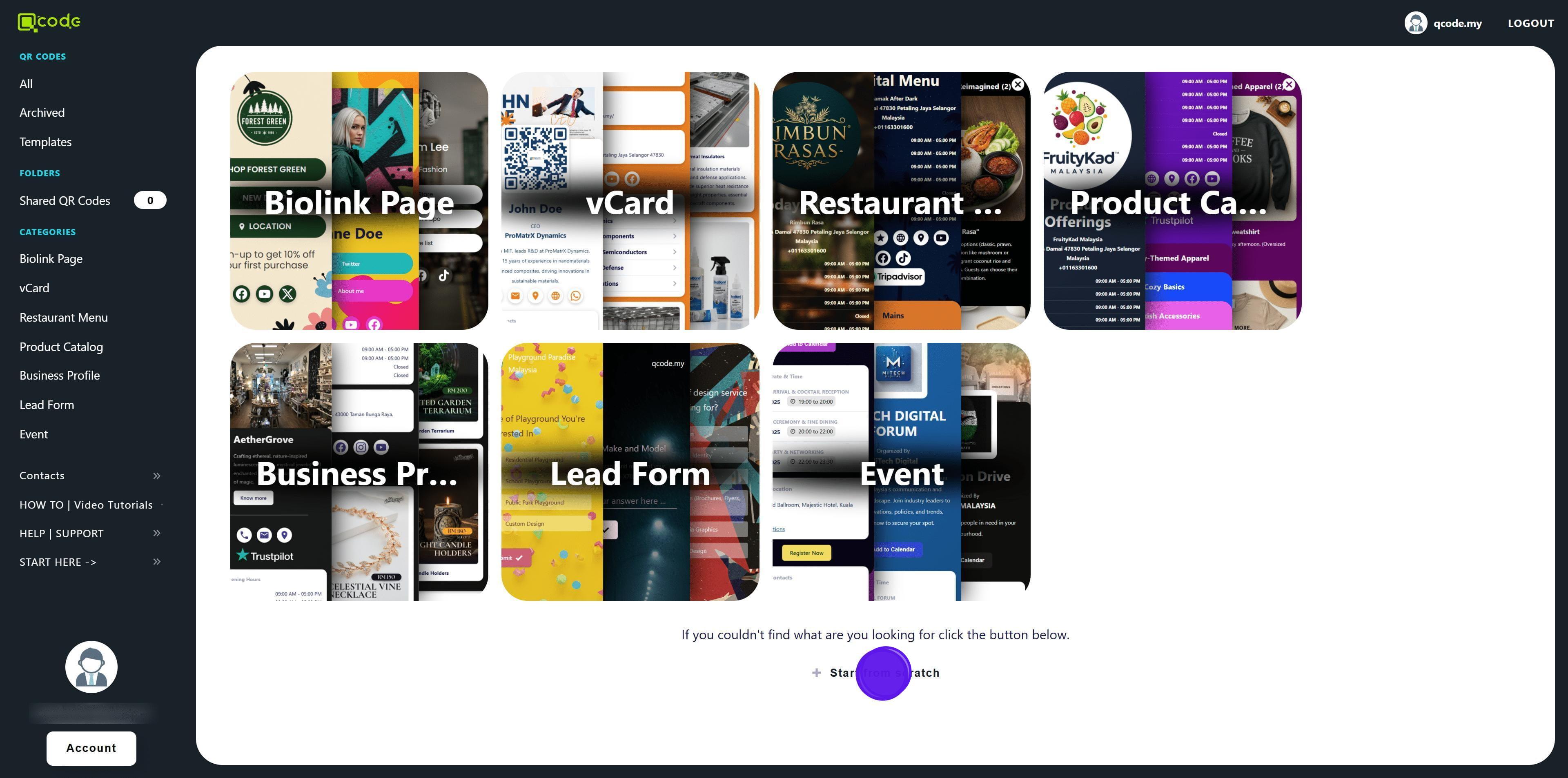
4. Click on Start from scratch
5. Select vCard Plus
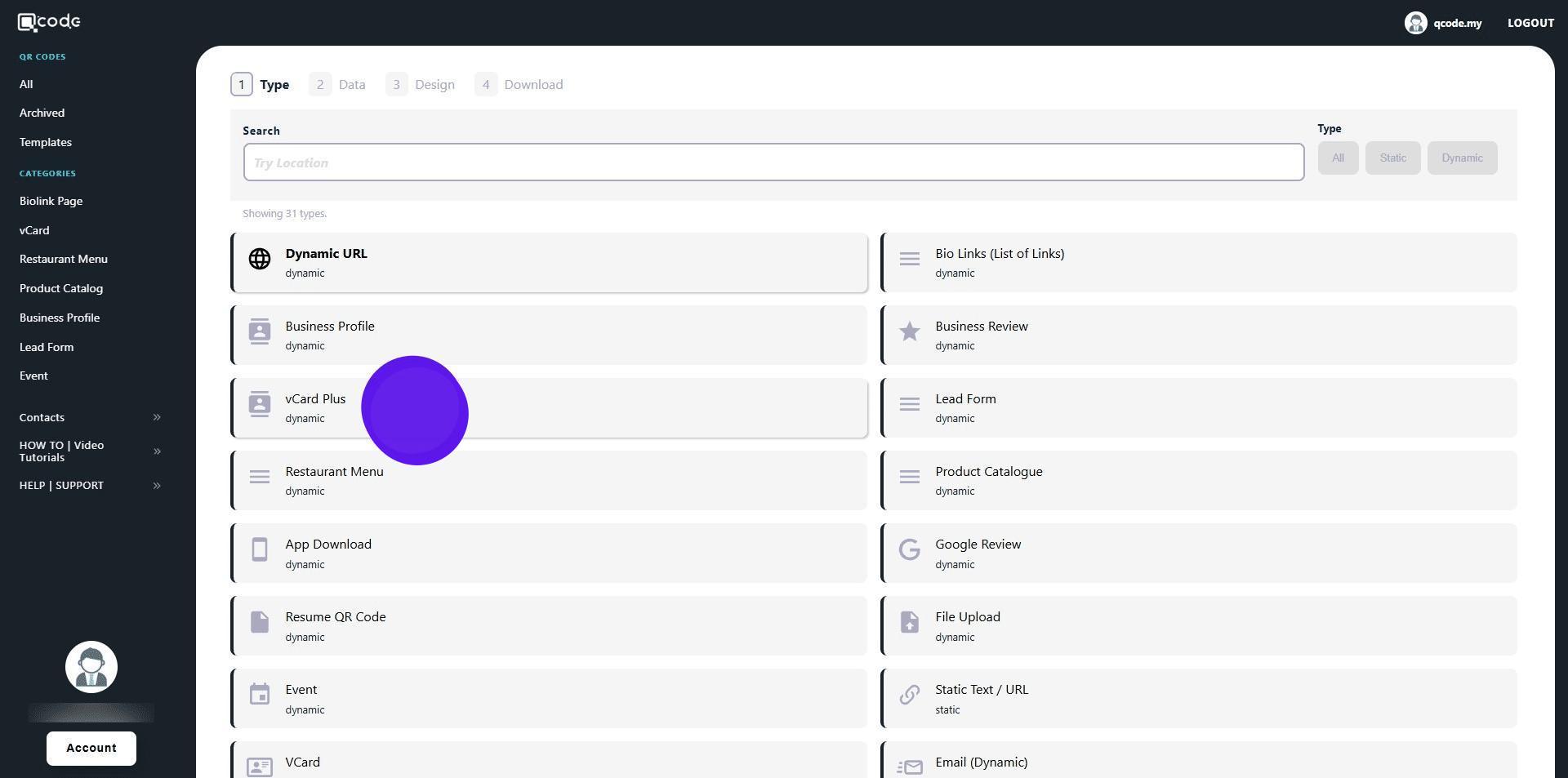
6. Type in your first name here
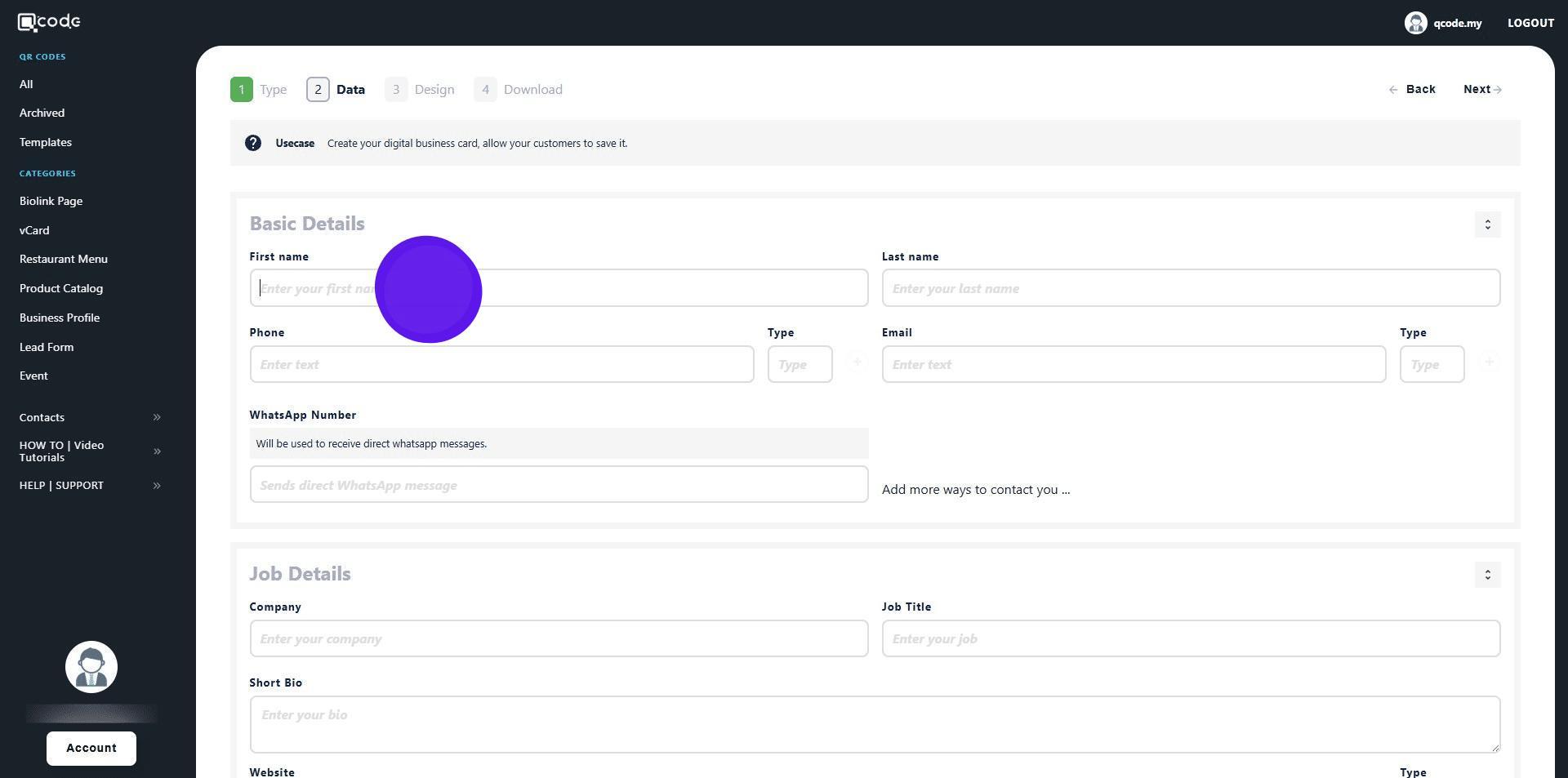
7. Type in your last name here
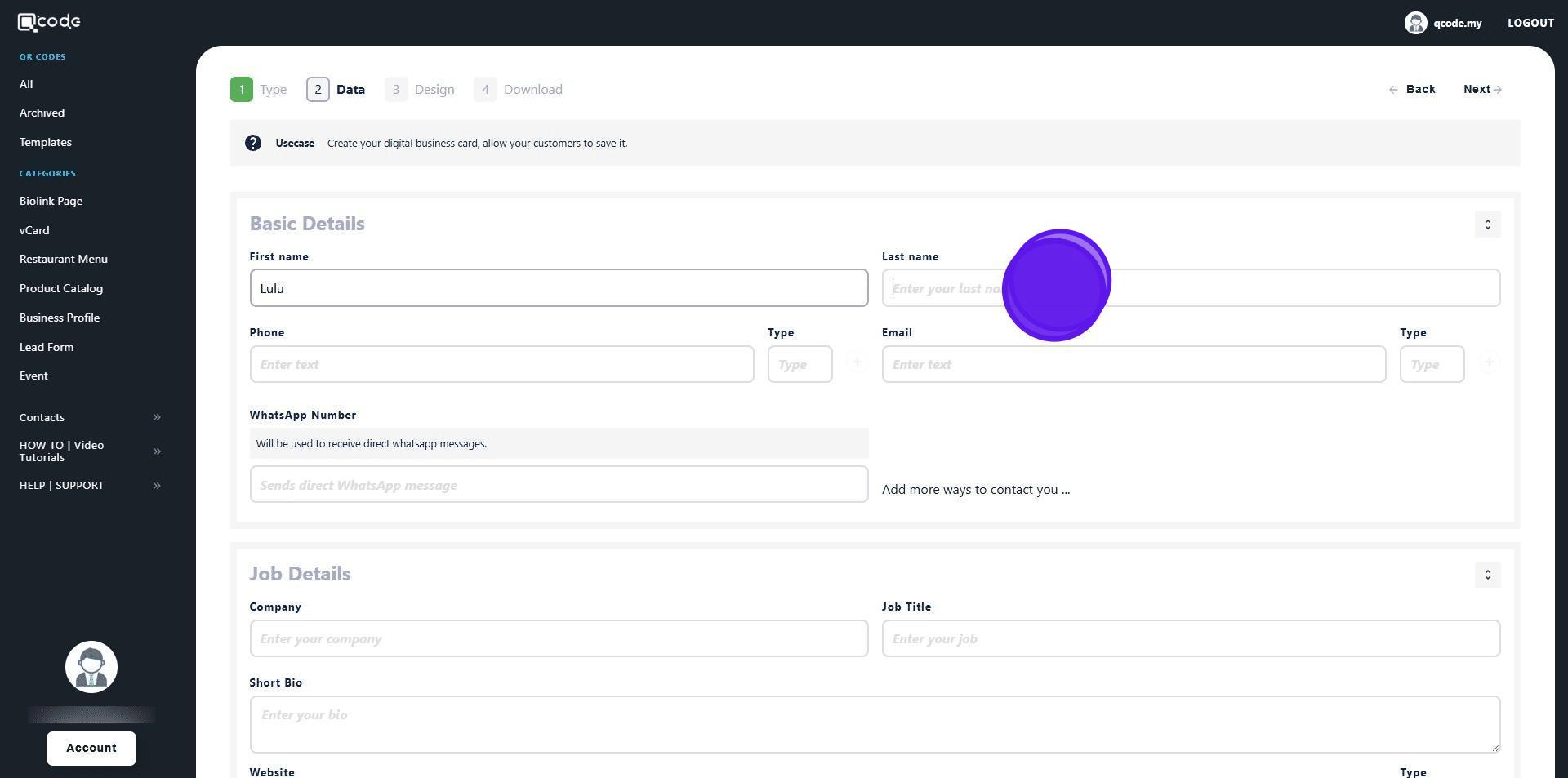
8. Type in your phone number here
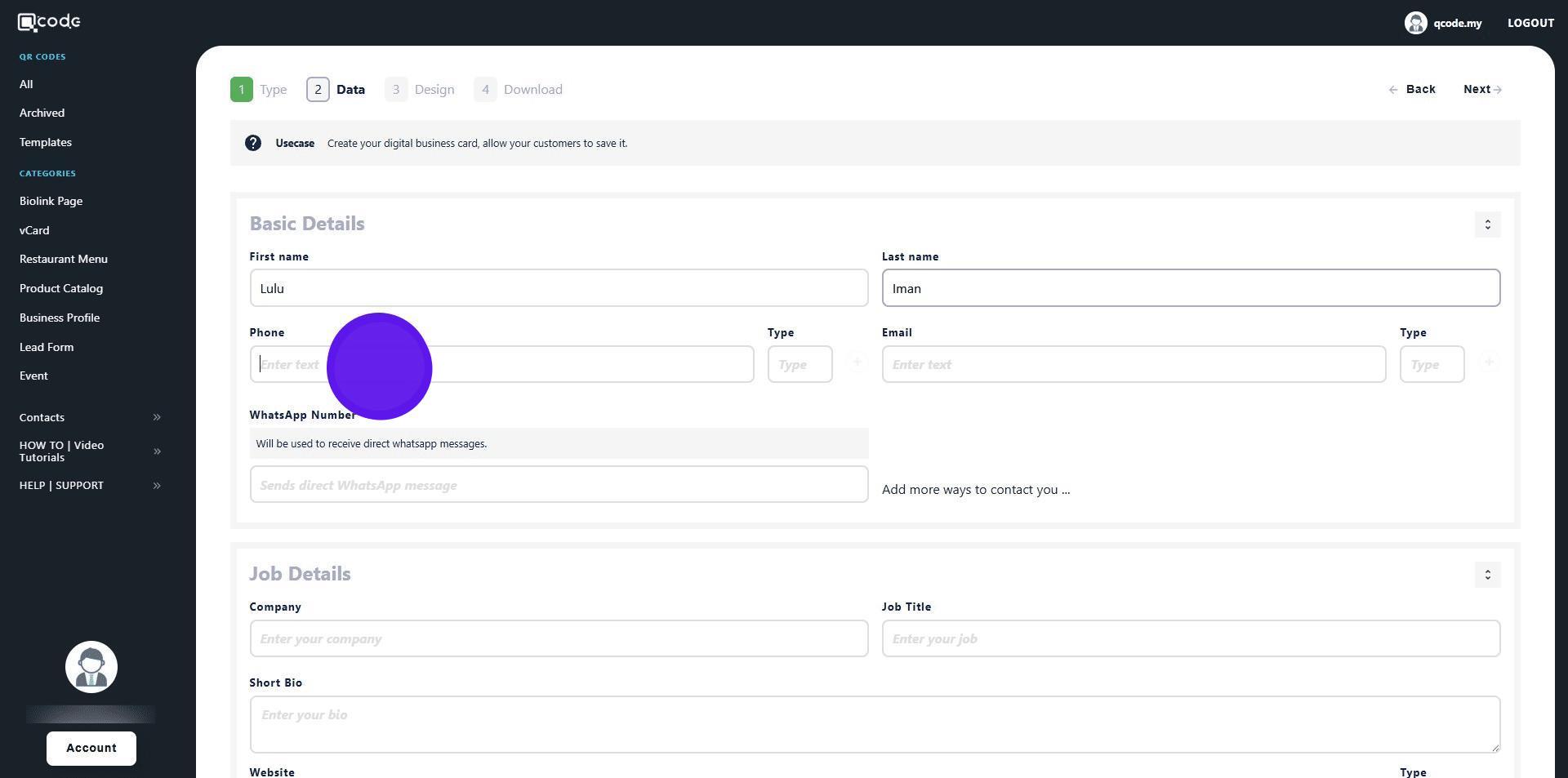
9. Click here to give it a label
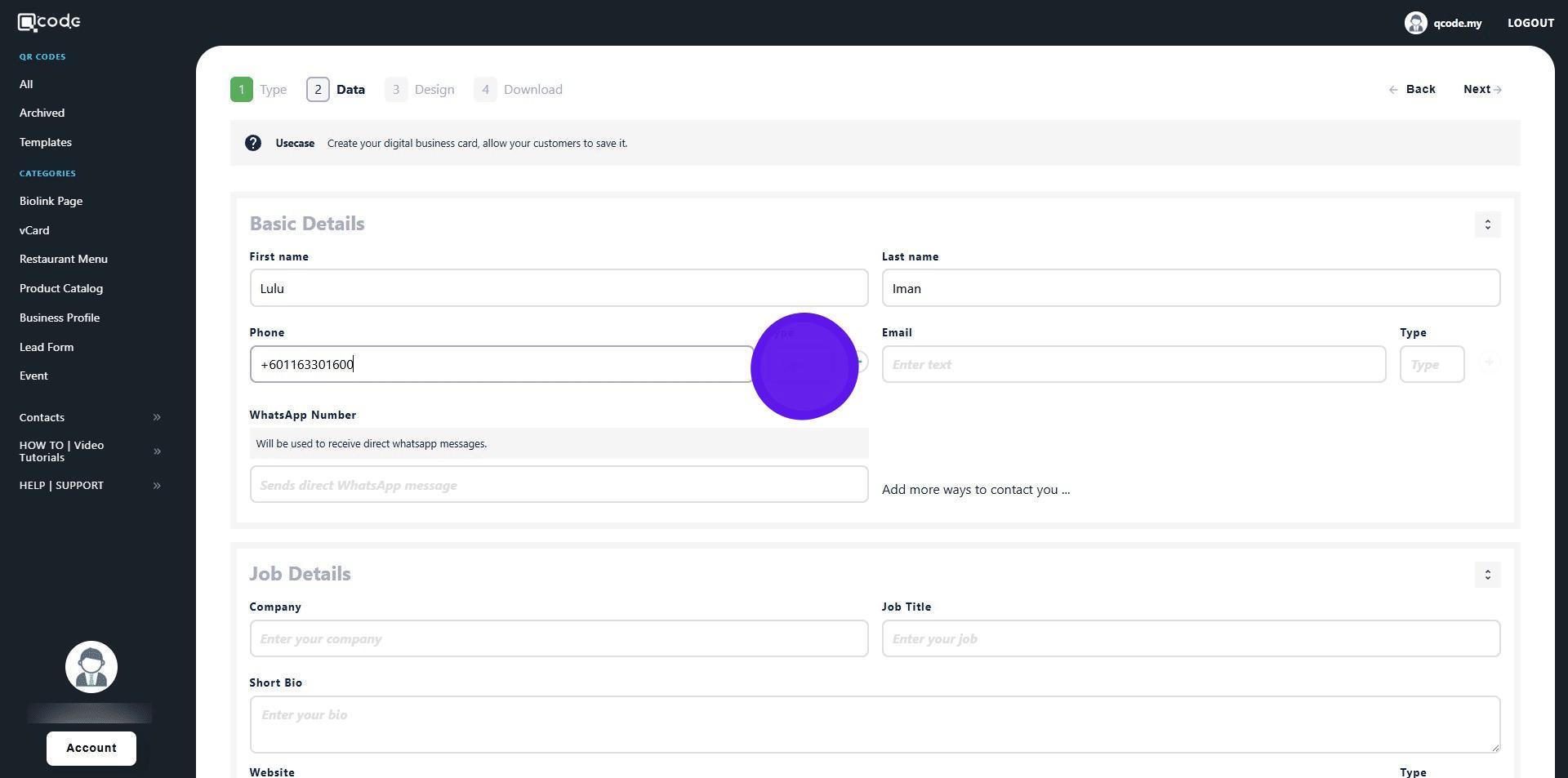
10. Click on the plus icon to finish adding your phone number
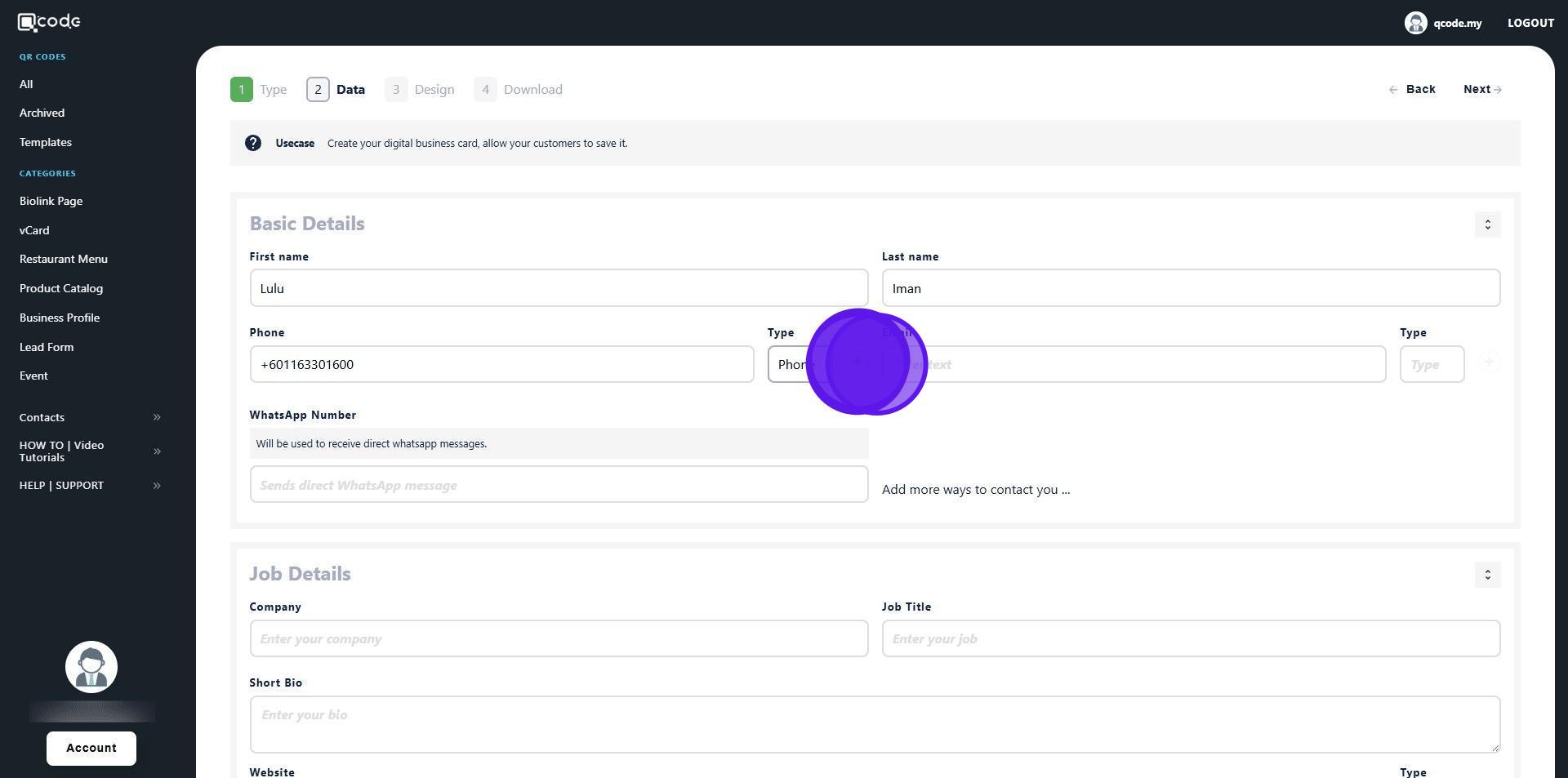
11. Type in your email here
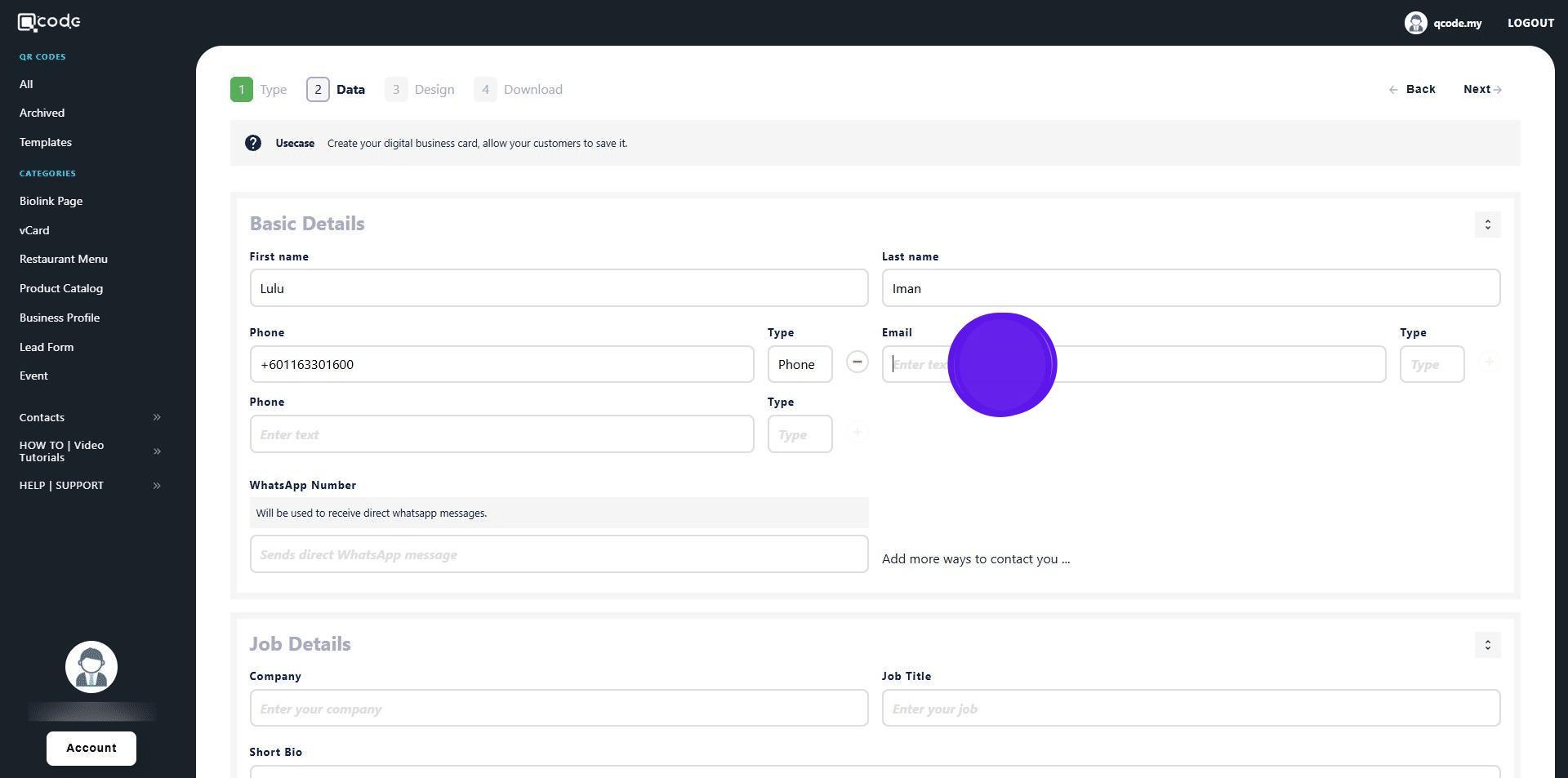
12. Click here to give it a label
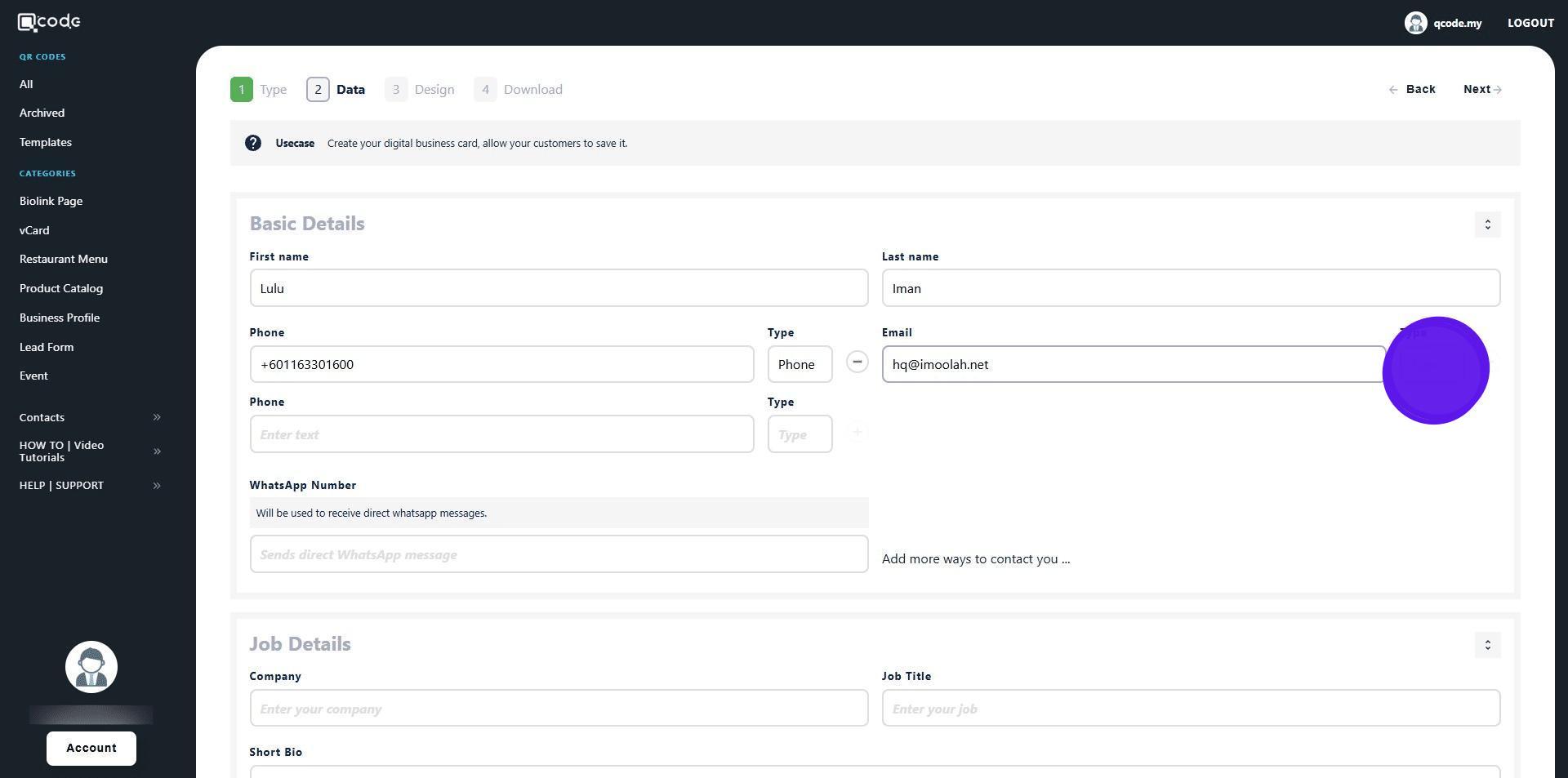
13. Click on the plus icon to finish adding your email
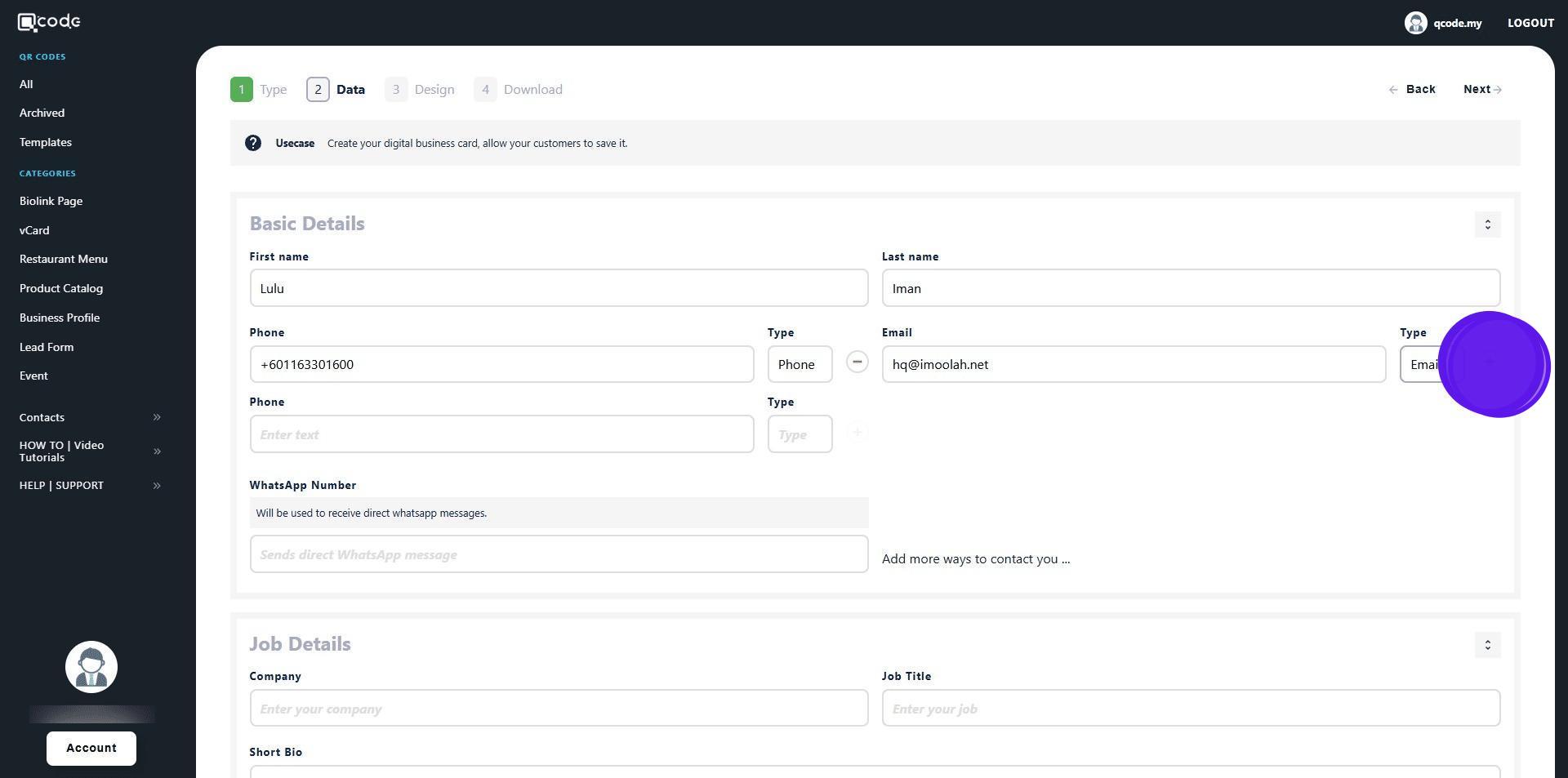
14. Type in your WhatsApp number here
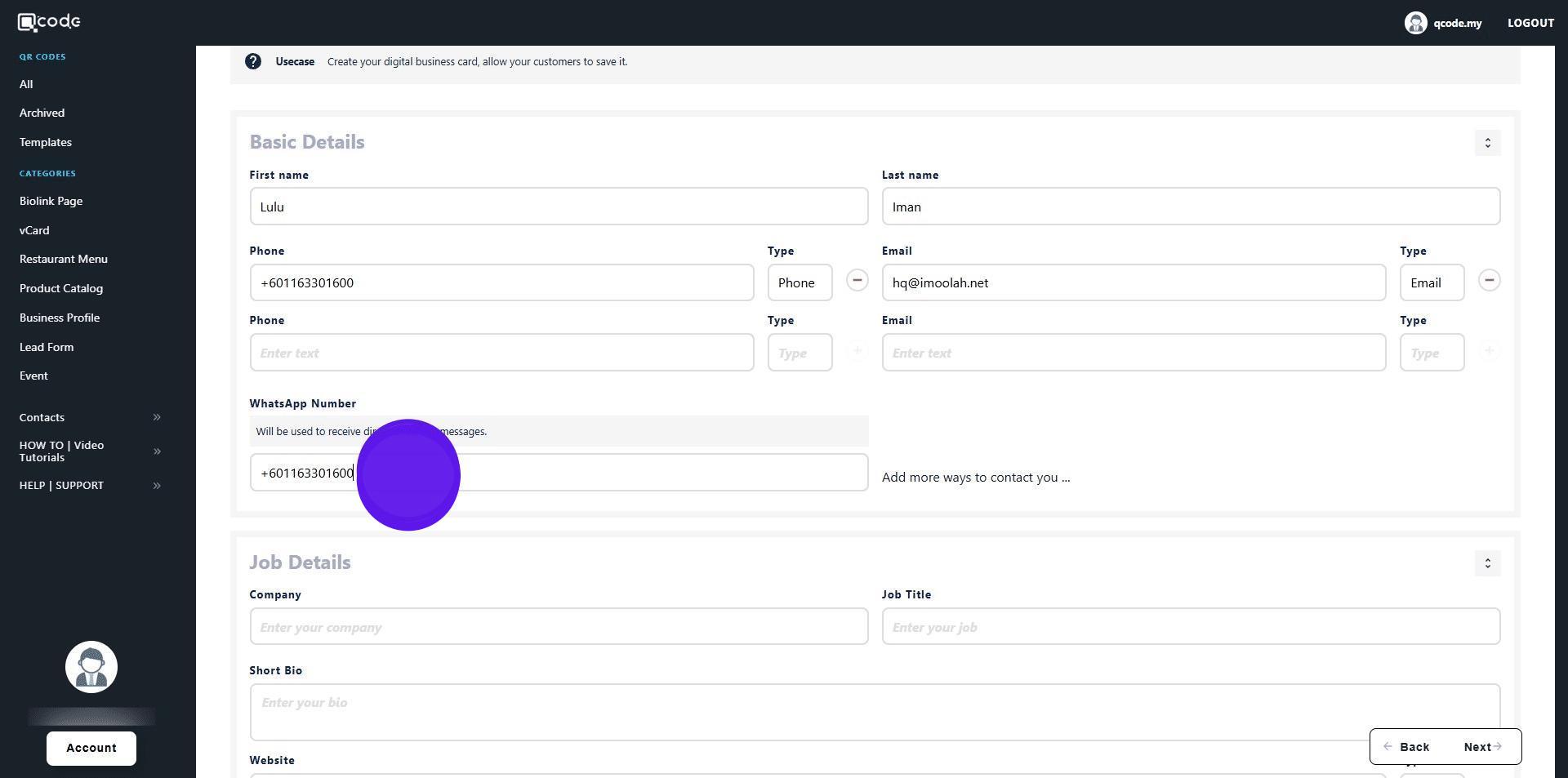
15. Type in your company name here
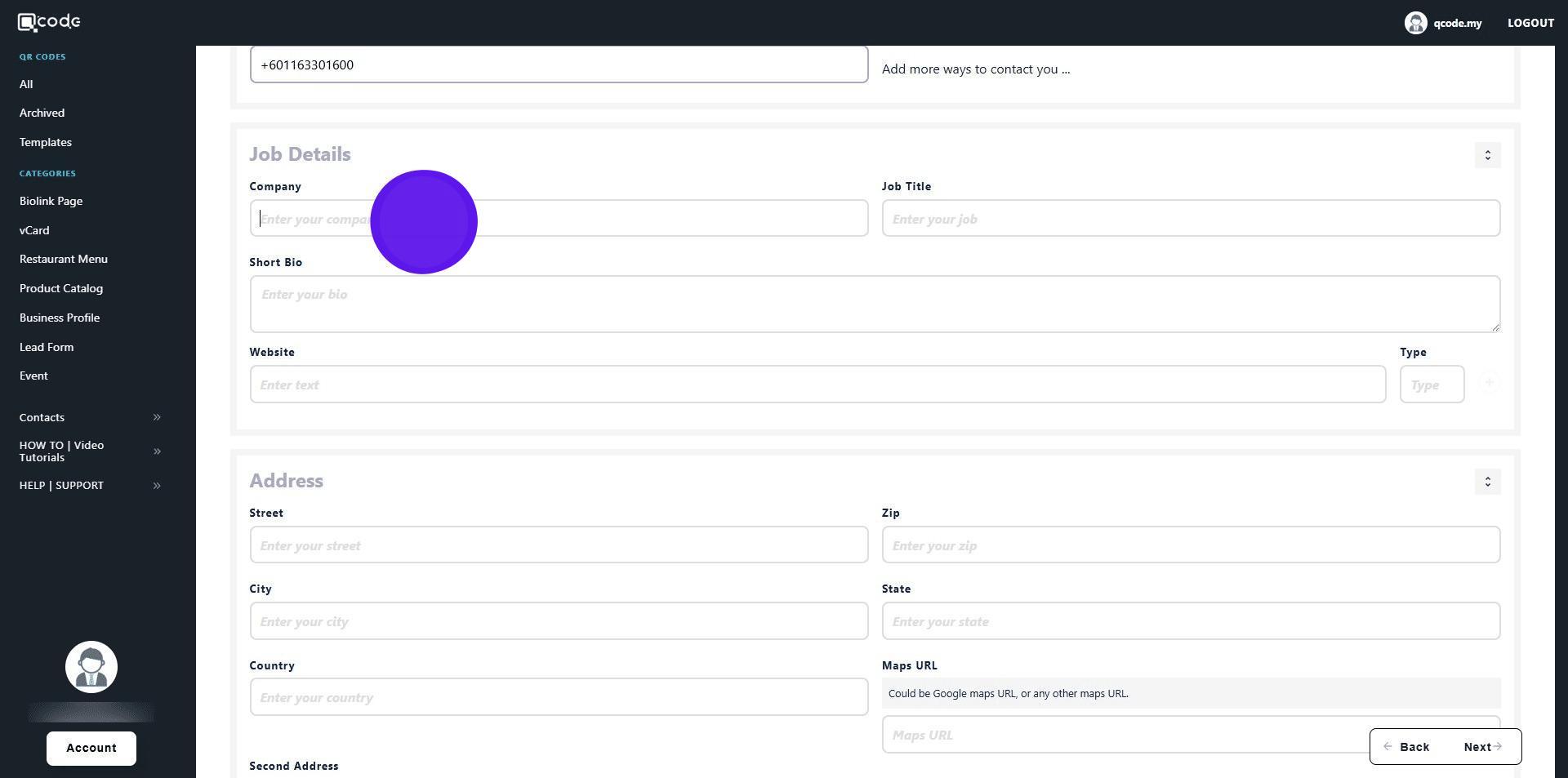
16. Type in your job title here
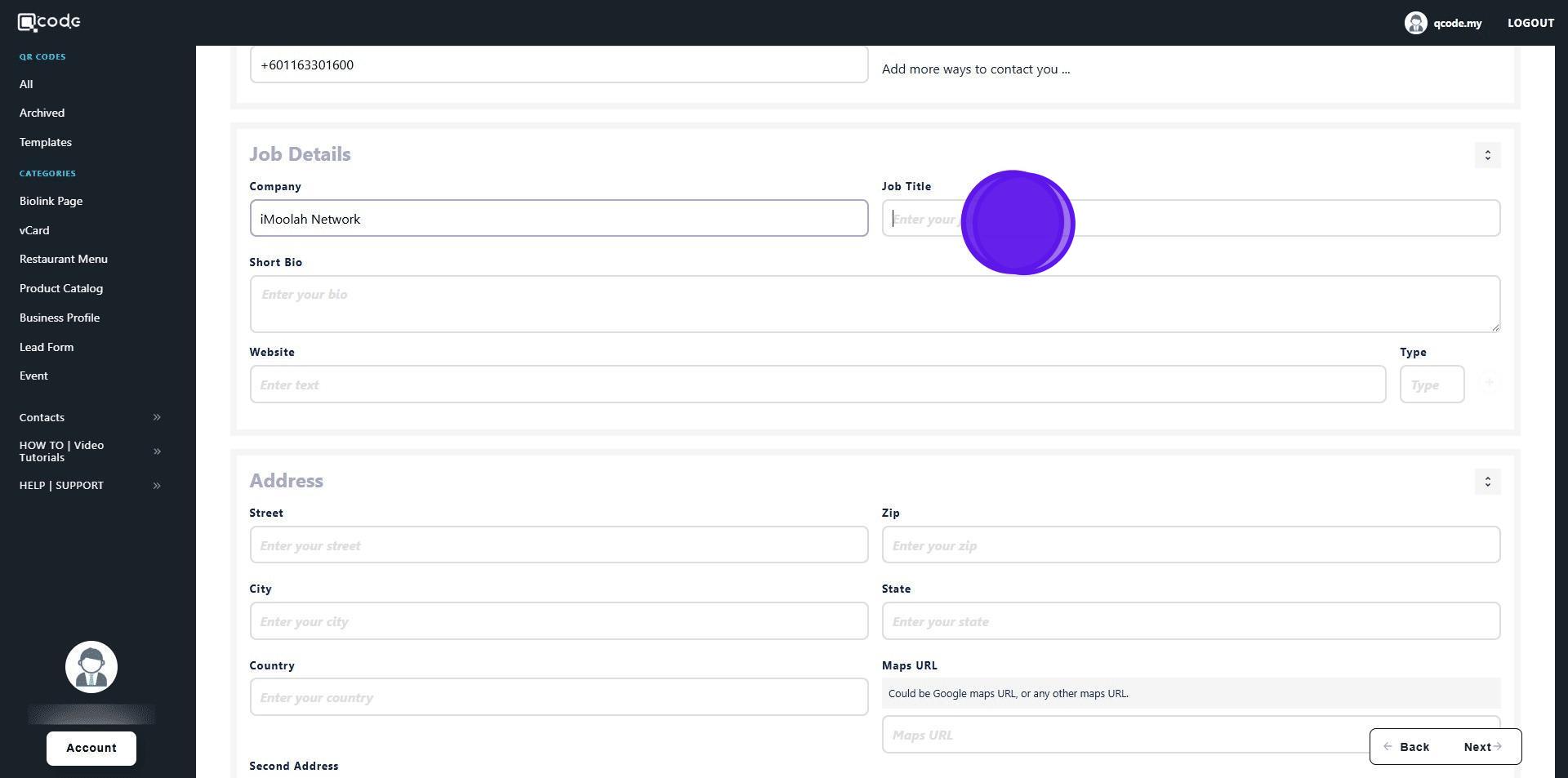
17. Type in your short bio here
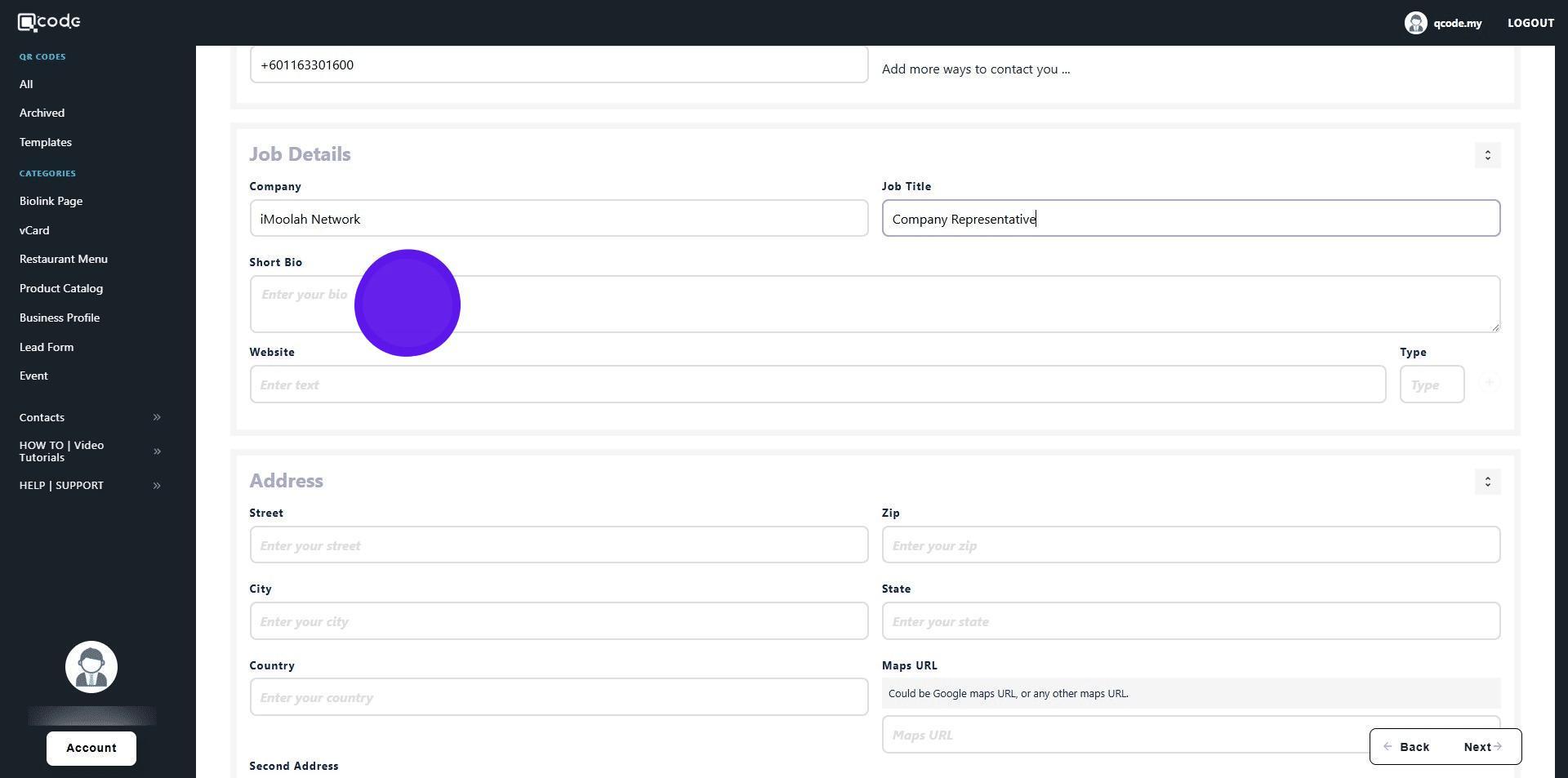
18. Type in the URL of your website here (include https://)
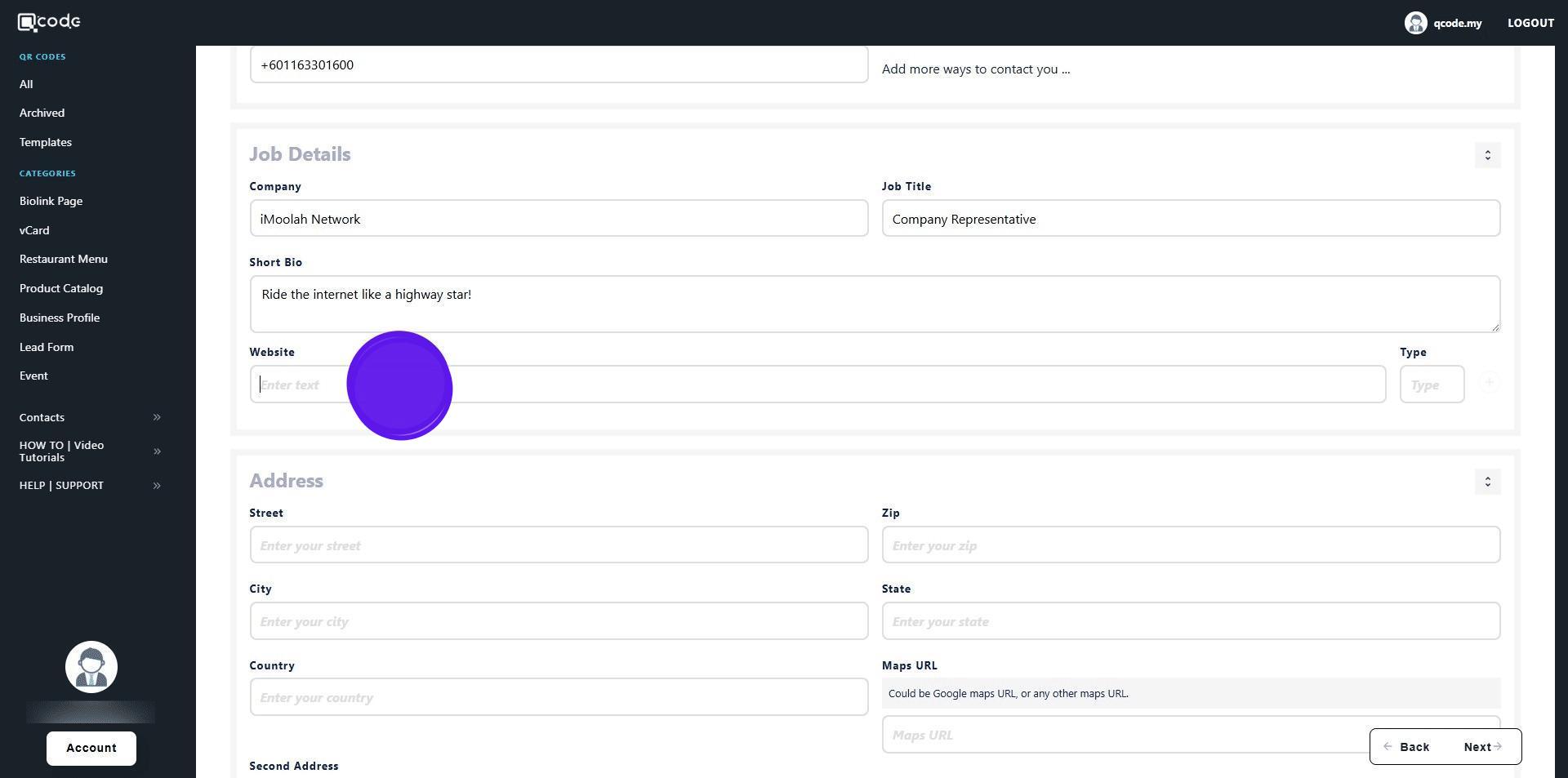
19. Give it a label here
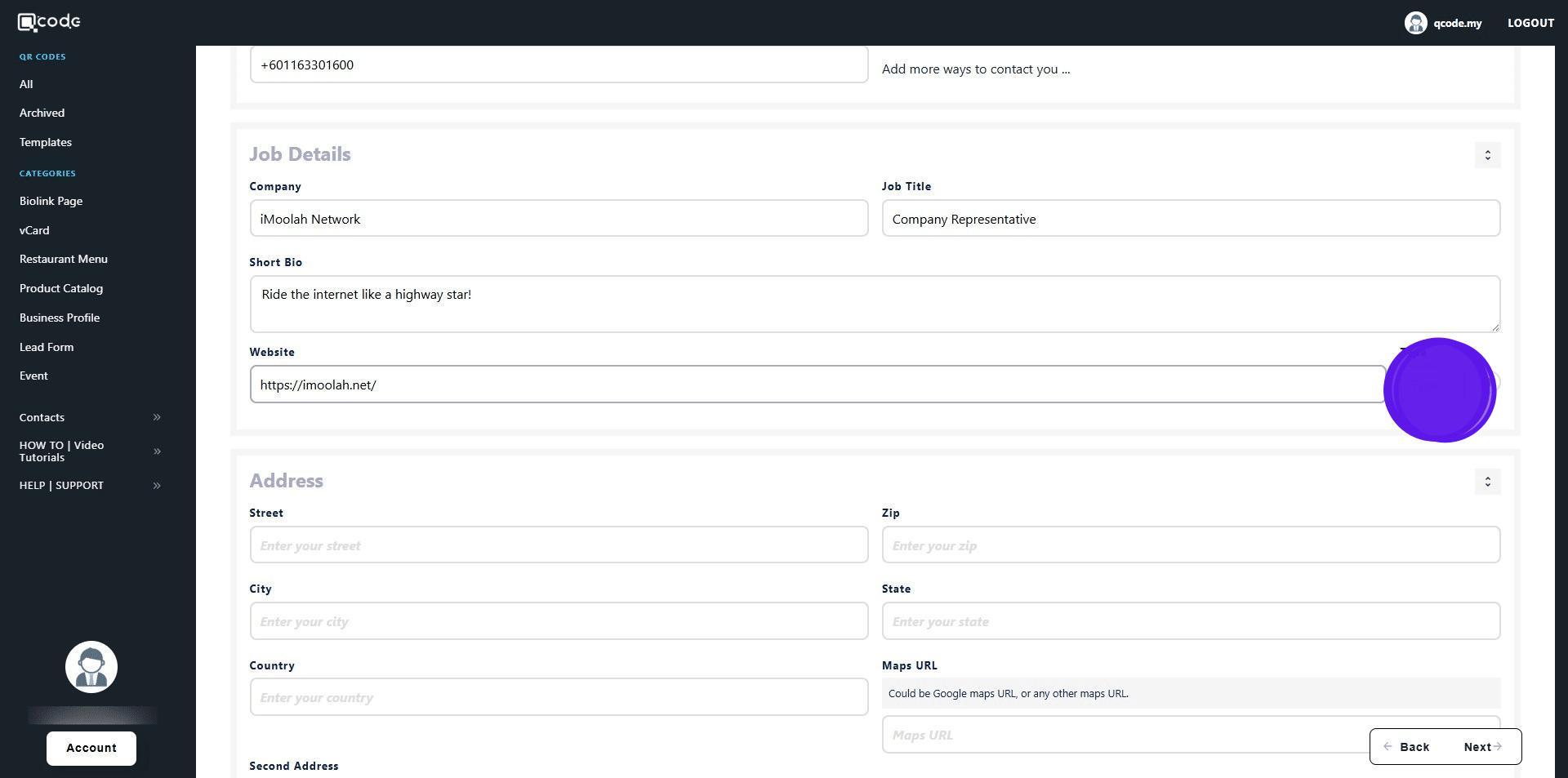
20. Click on the plus icon to finish adding your website
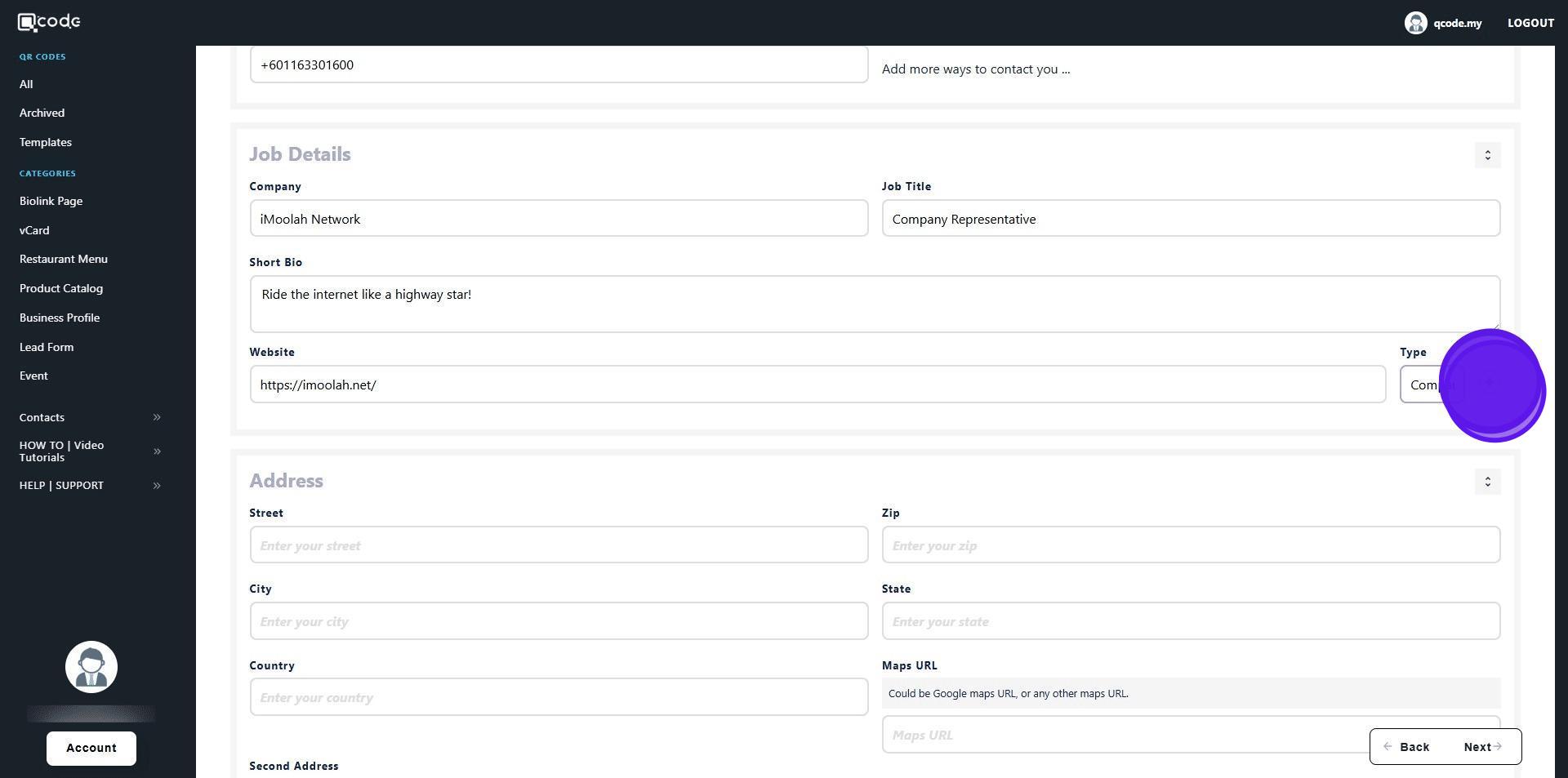
21. Type in your street here
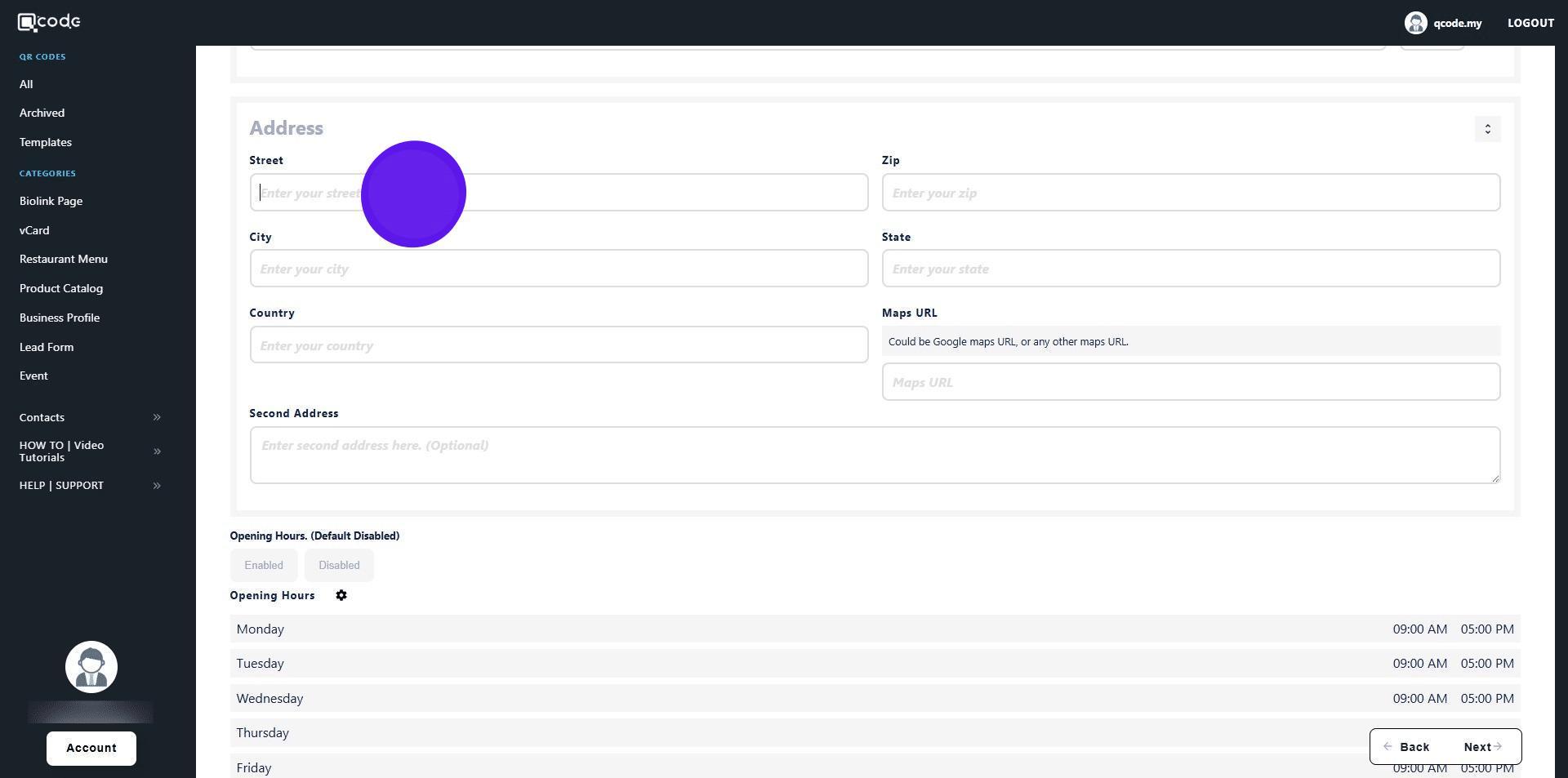
22. Type in your zip code here
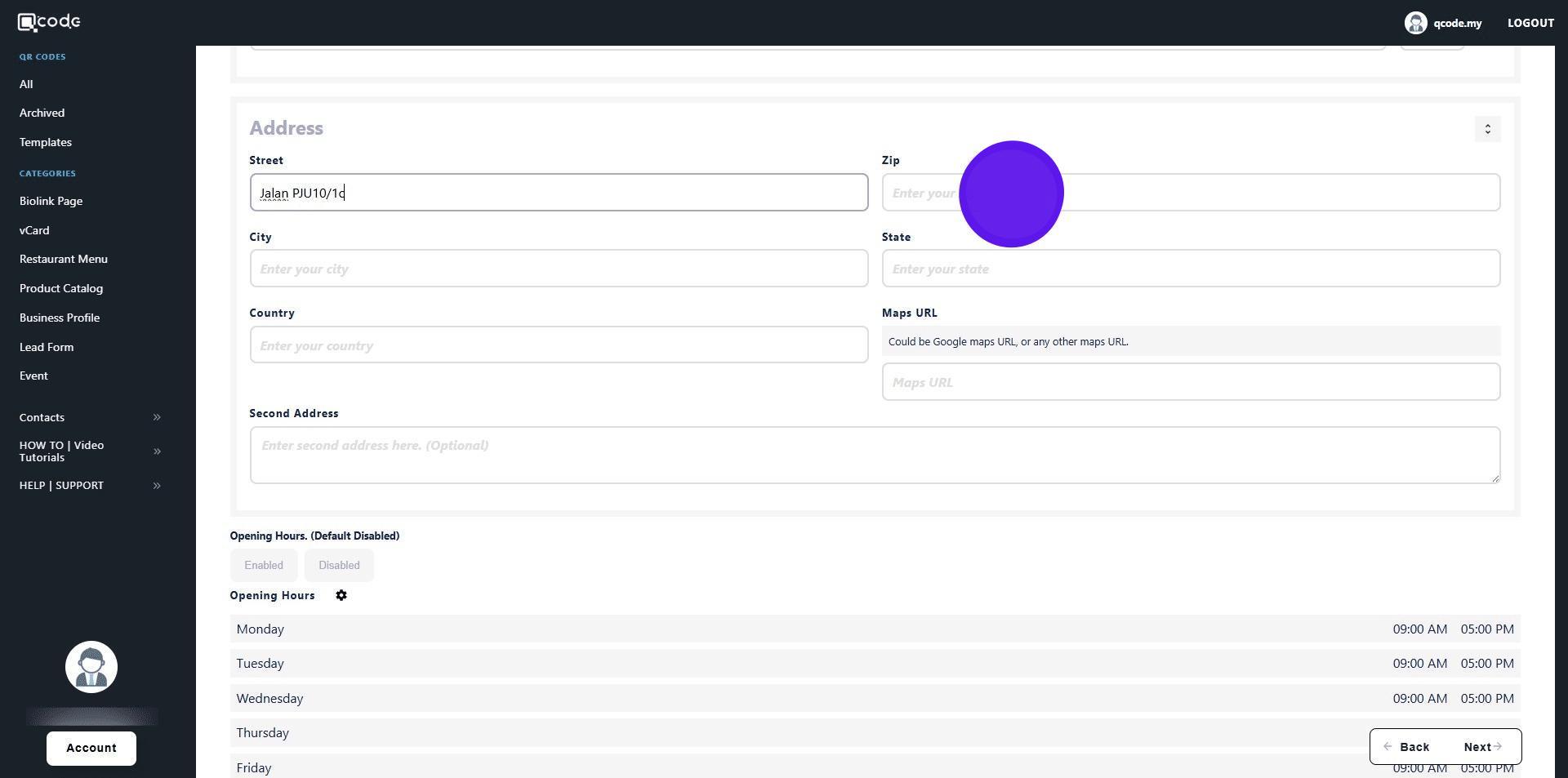
23. Type in your city here
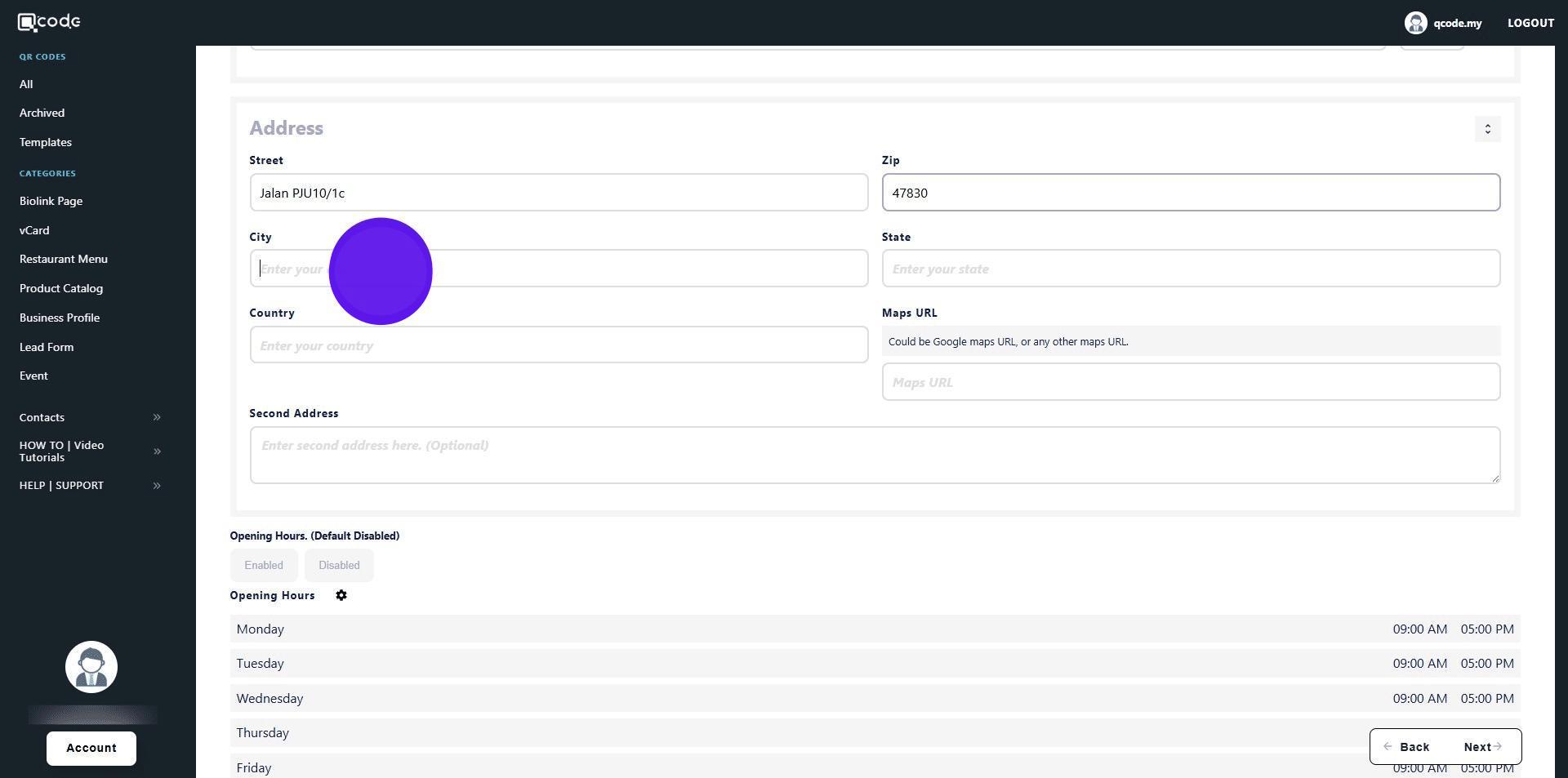
24. Type in your state here
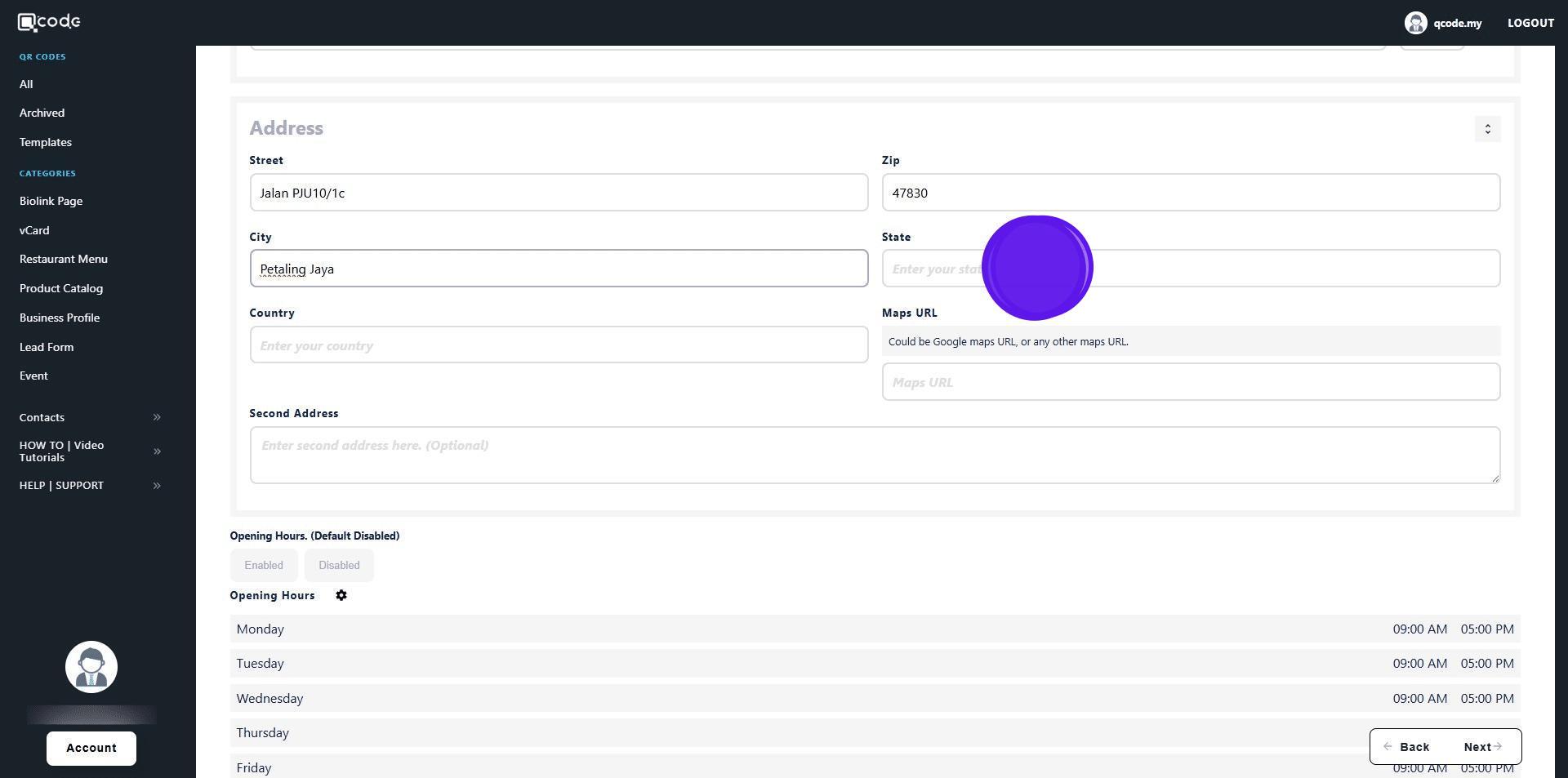
25. Type in your country here
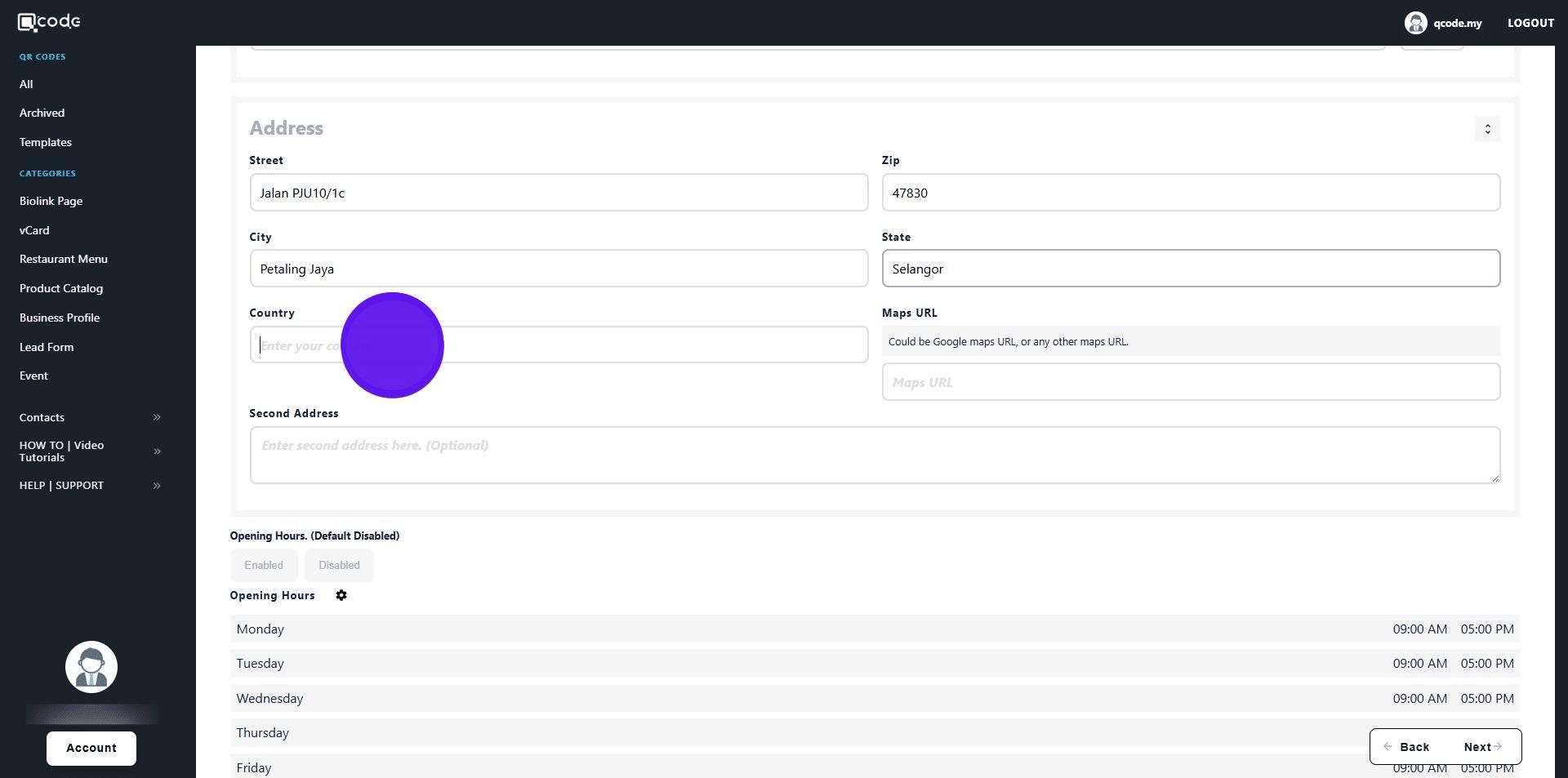
26. Insert the URL of your Google Maps here
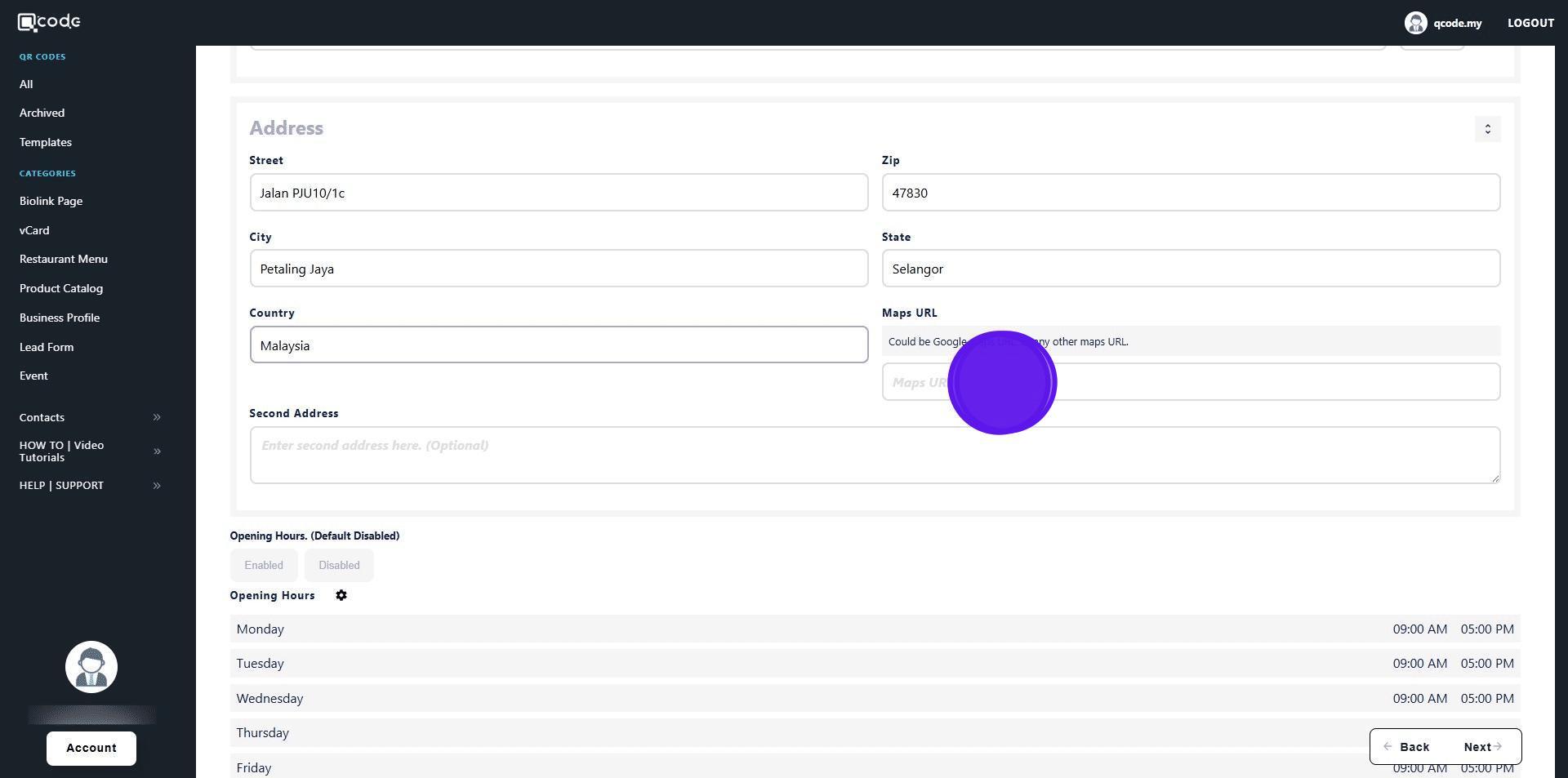
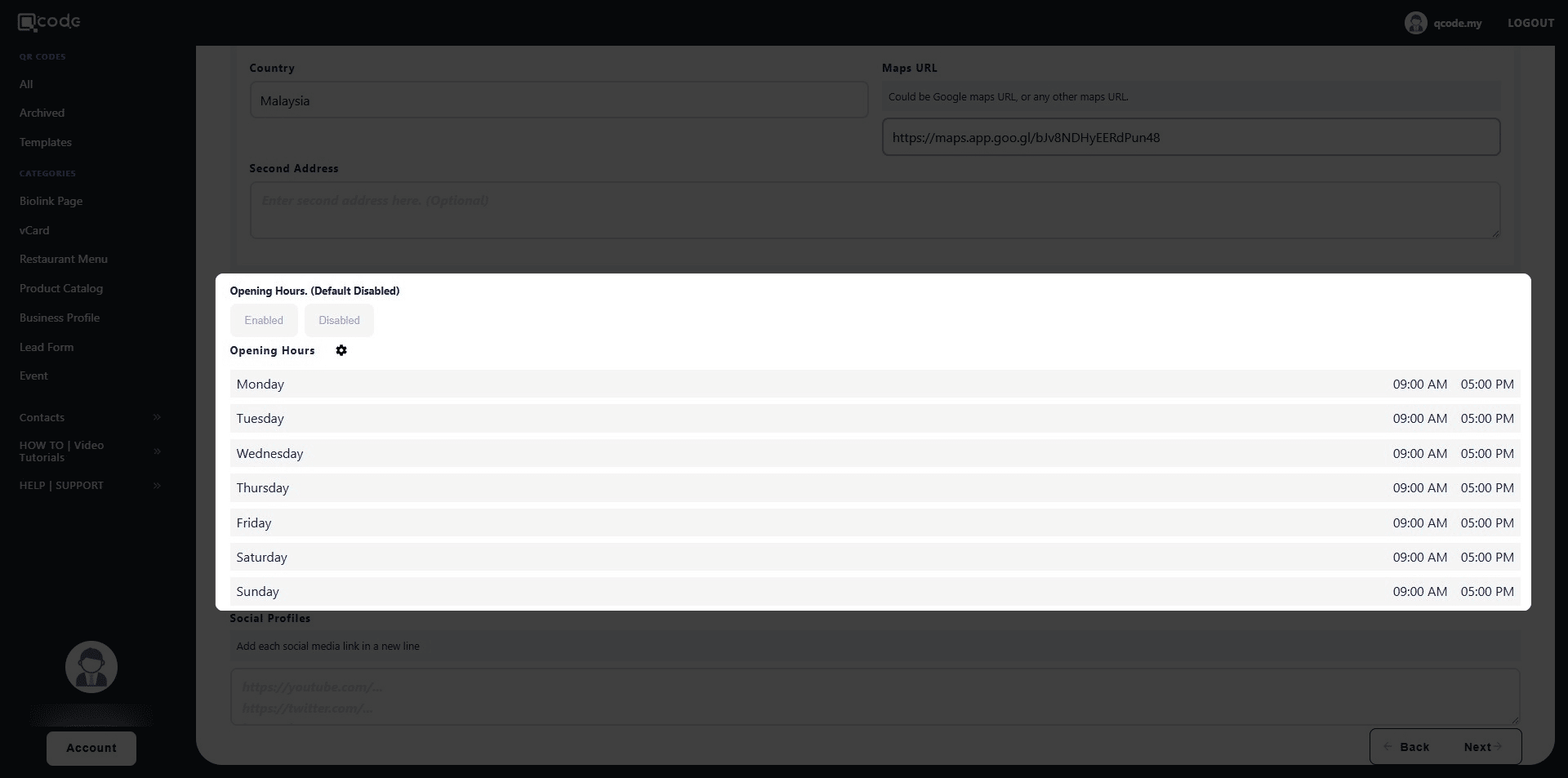
27. Here is the settings for opening hours. Click the link to learn more: https://kb.imoolah.network/guides/mbtKyRzccP3YSopGckez
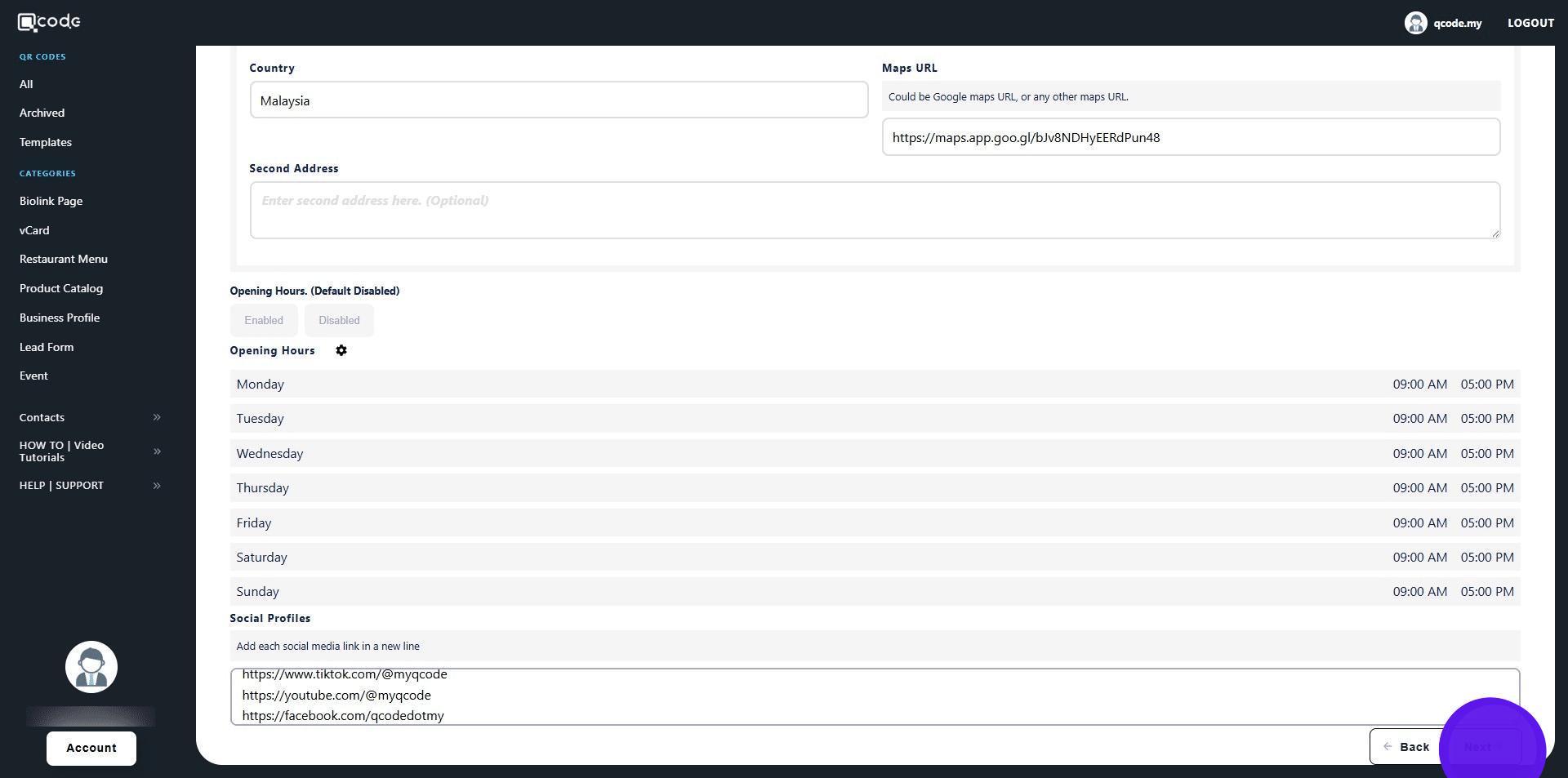
28. Insert your social media links here
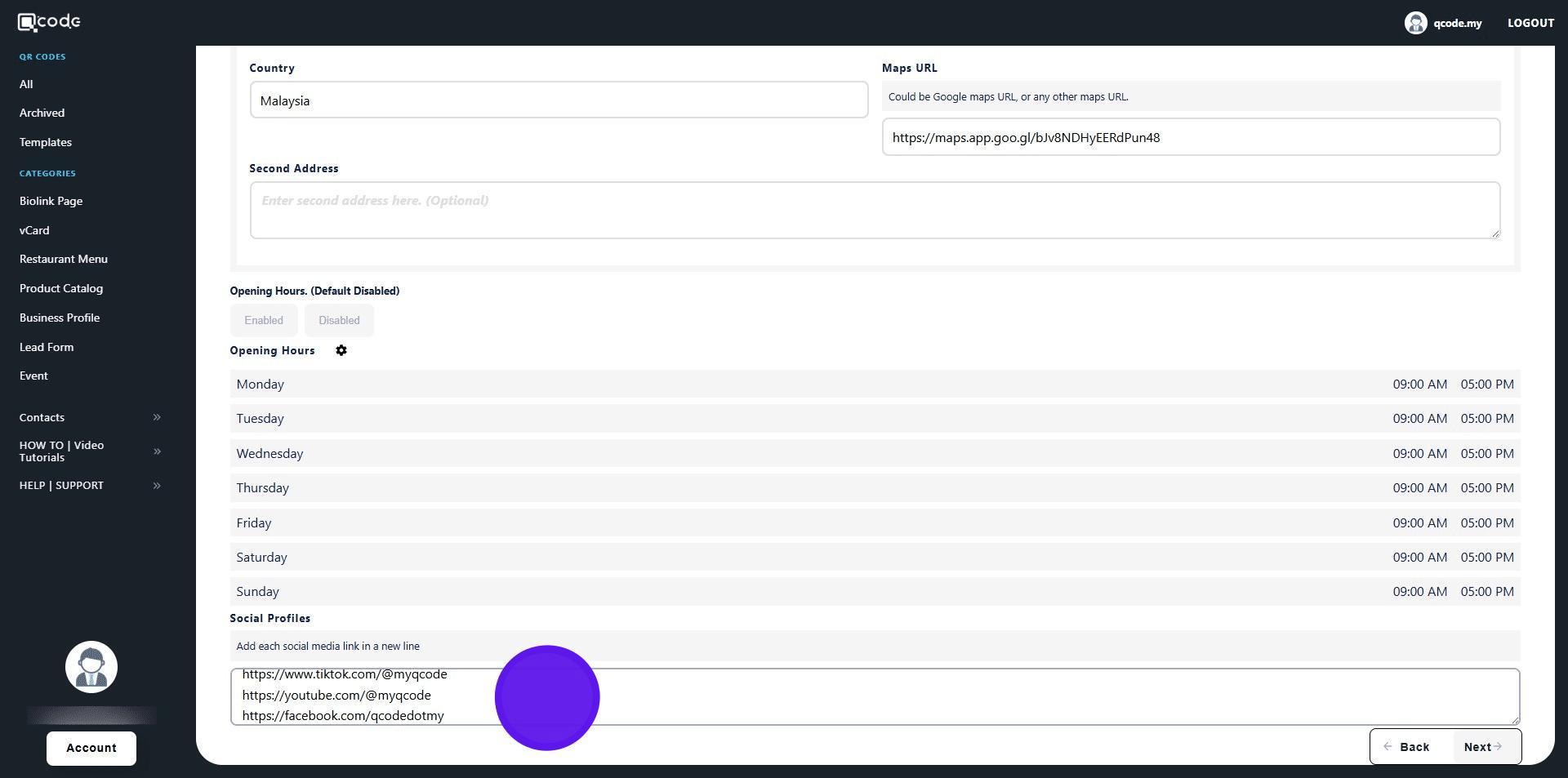
29. Click on Next to move to the next page
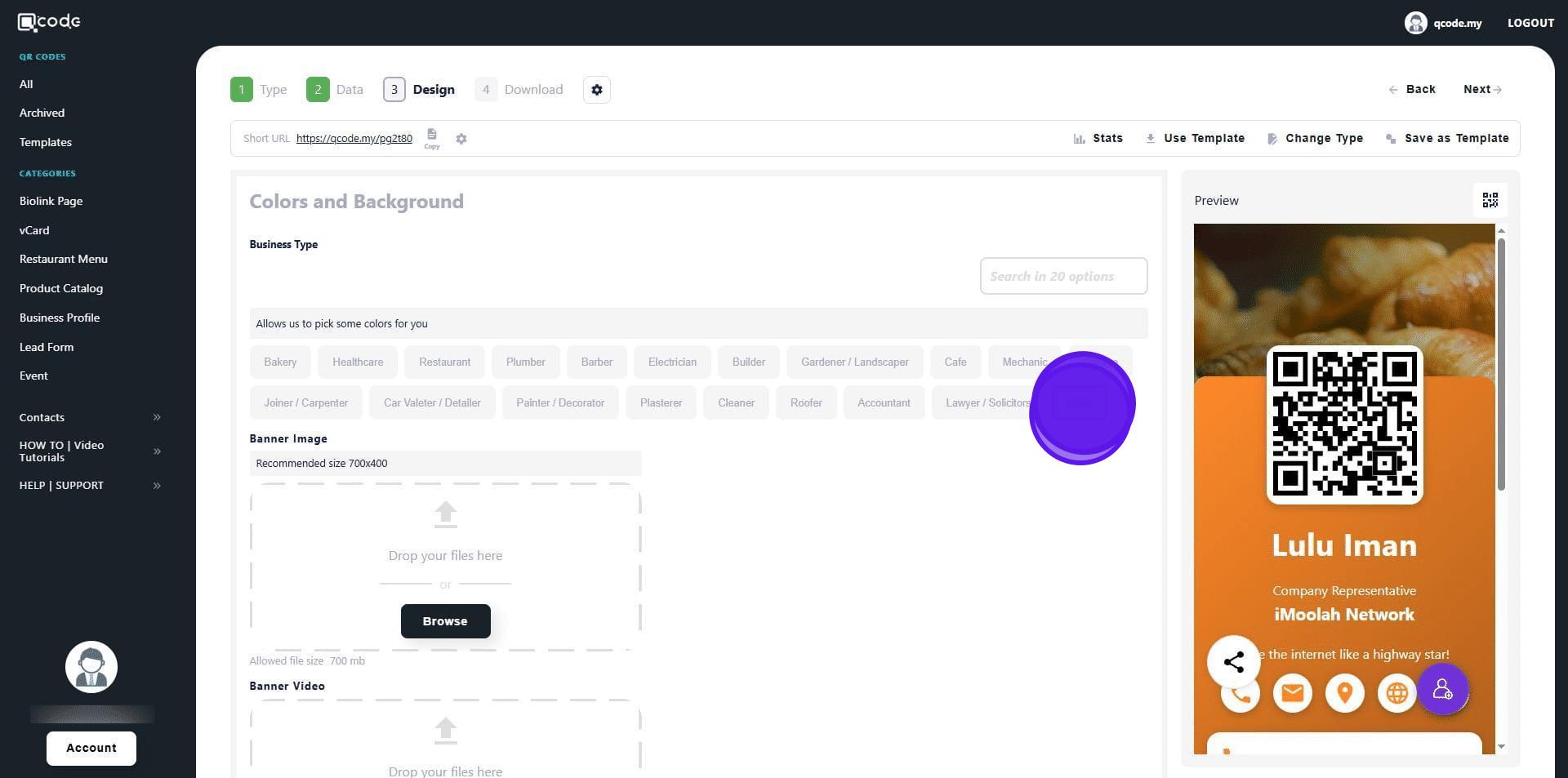
30. Click on Other to manually adjust your vCard colors
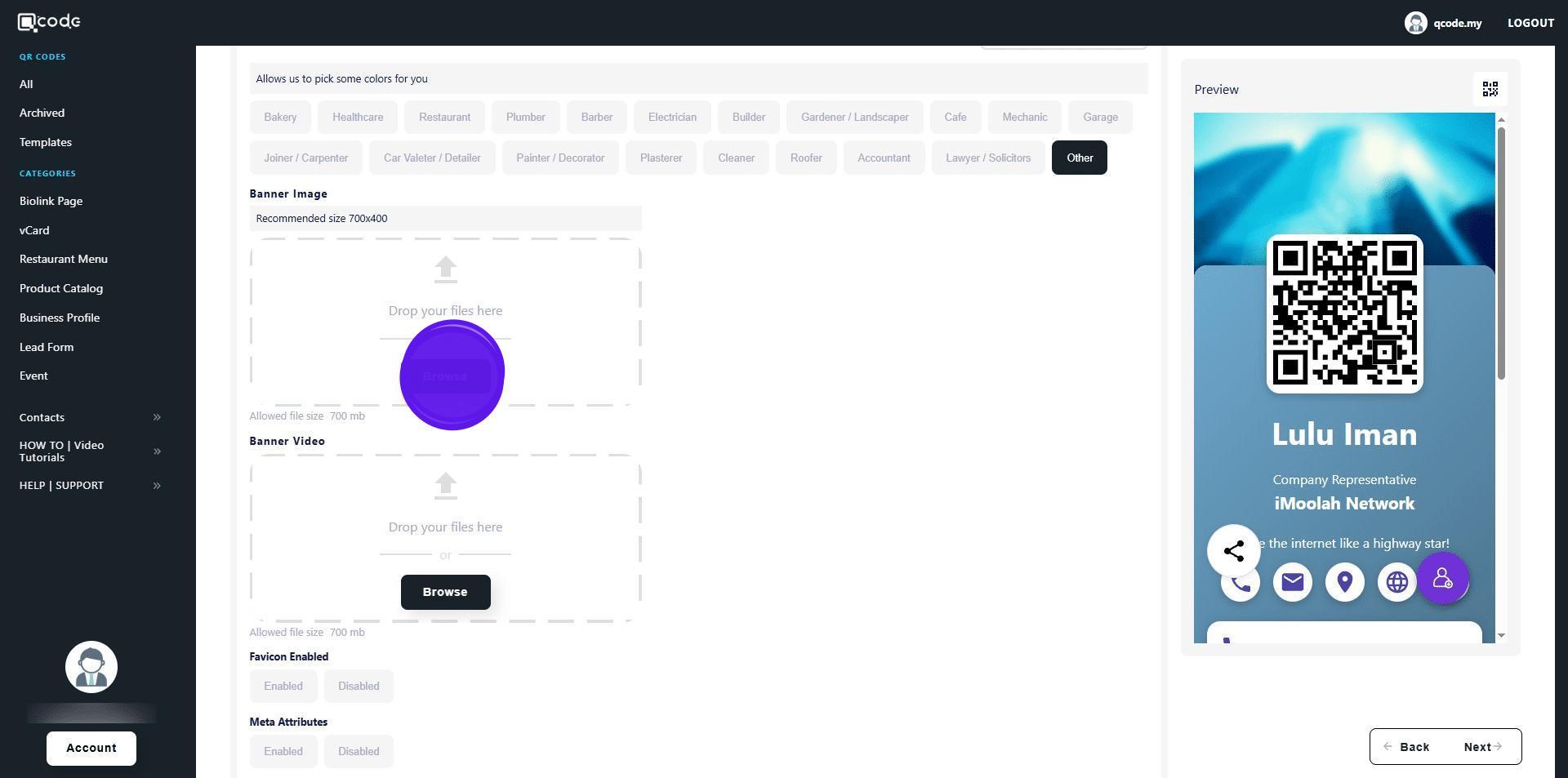
31. Click on Browse to upload your banner image
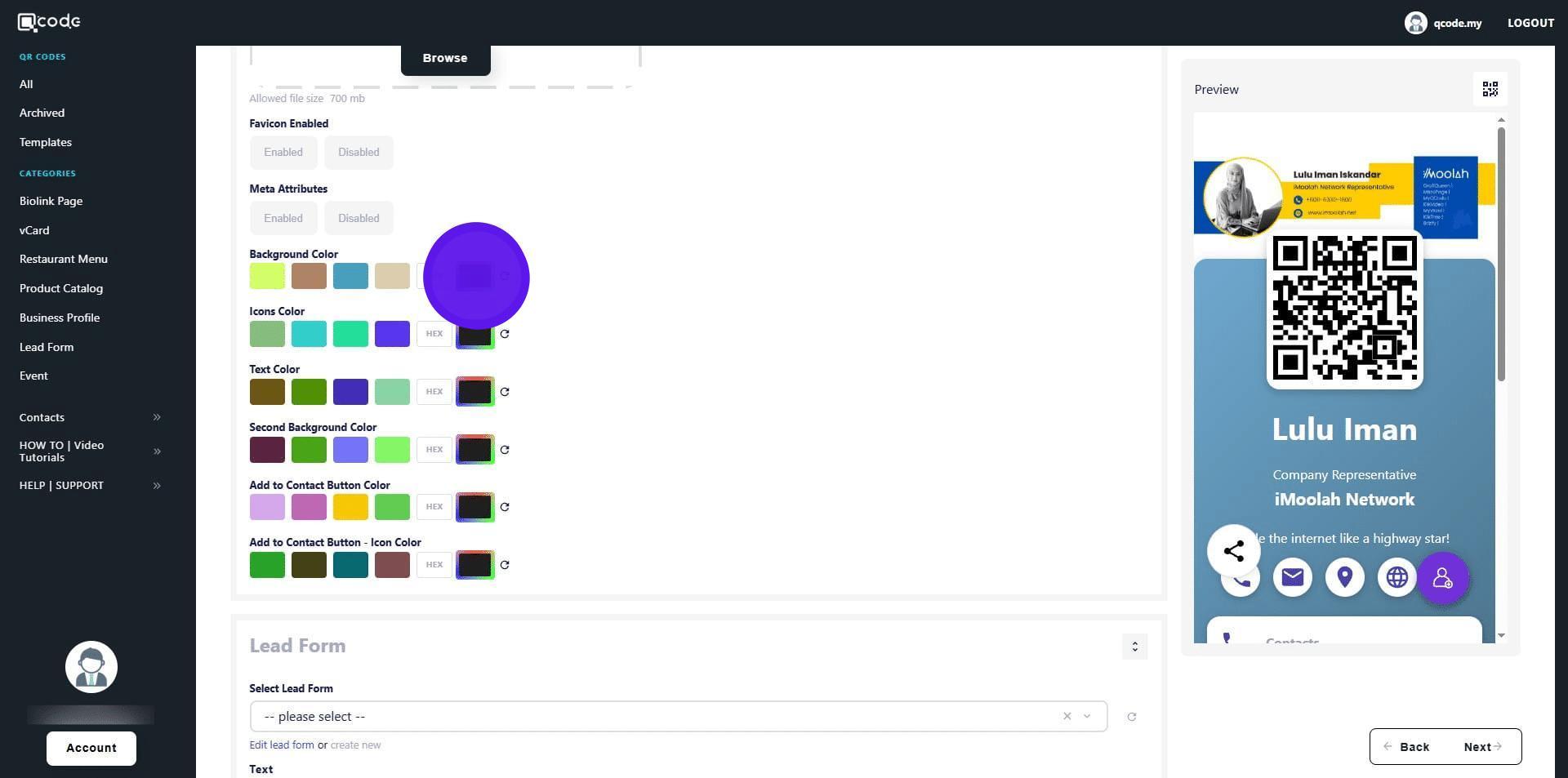
32. Click here to change background colors
33. Click here to change icons color
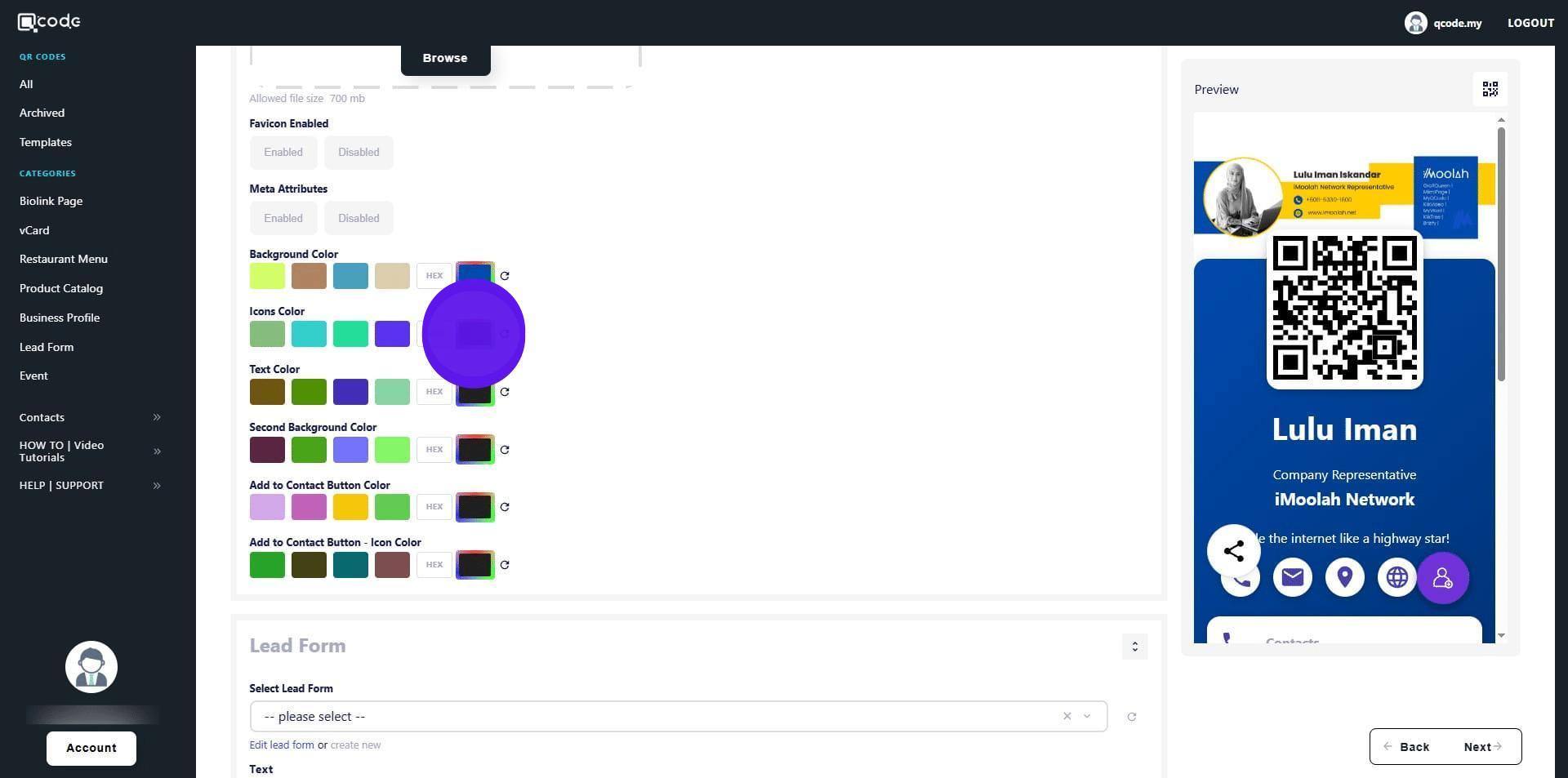
34. Click here to change text color
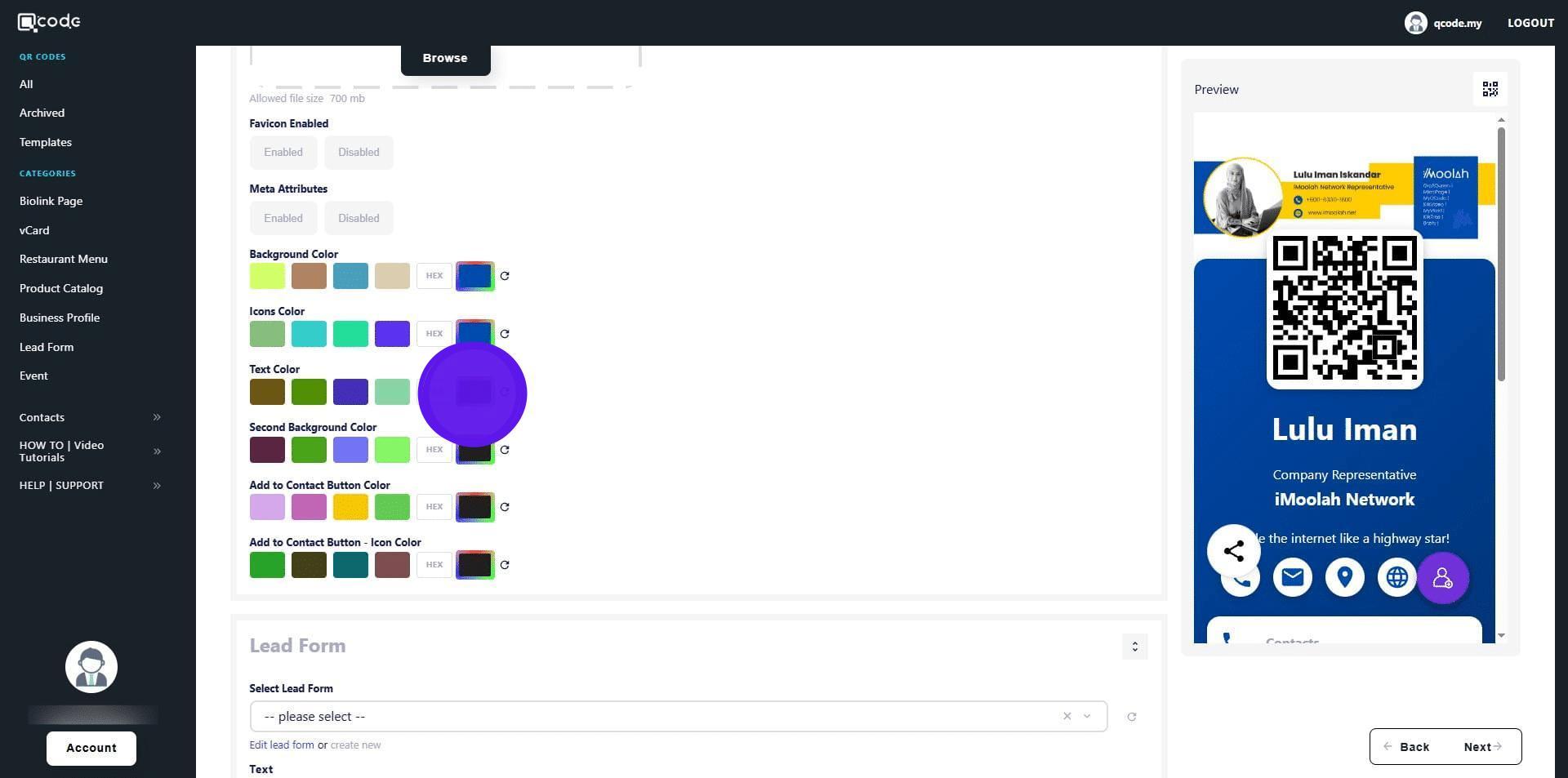
35. Click here to change second background color
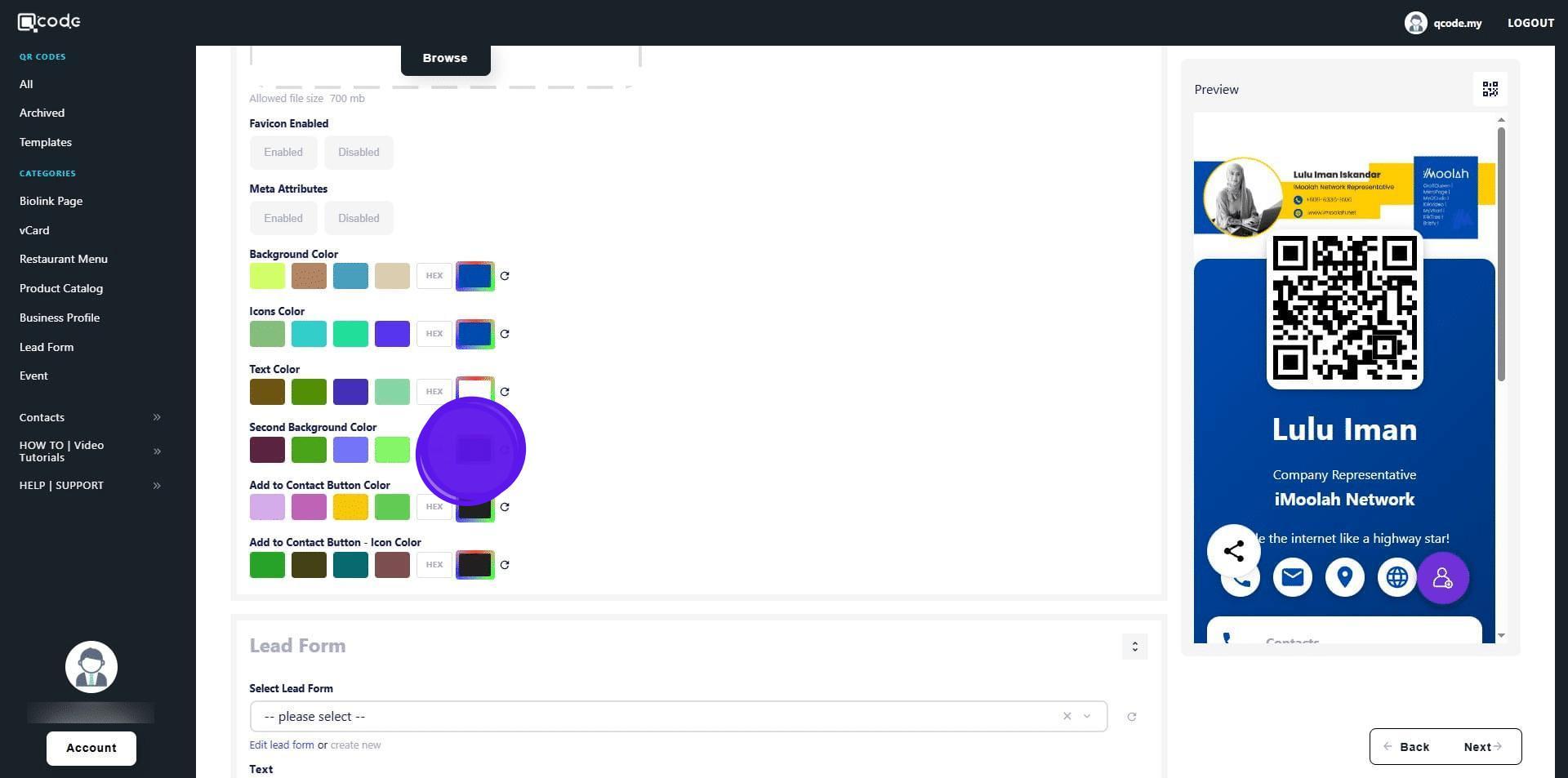
36. The second background color will be applied at the bottom half of your vCard
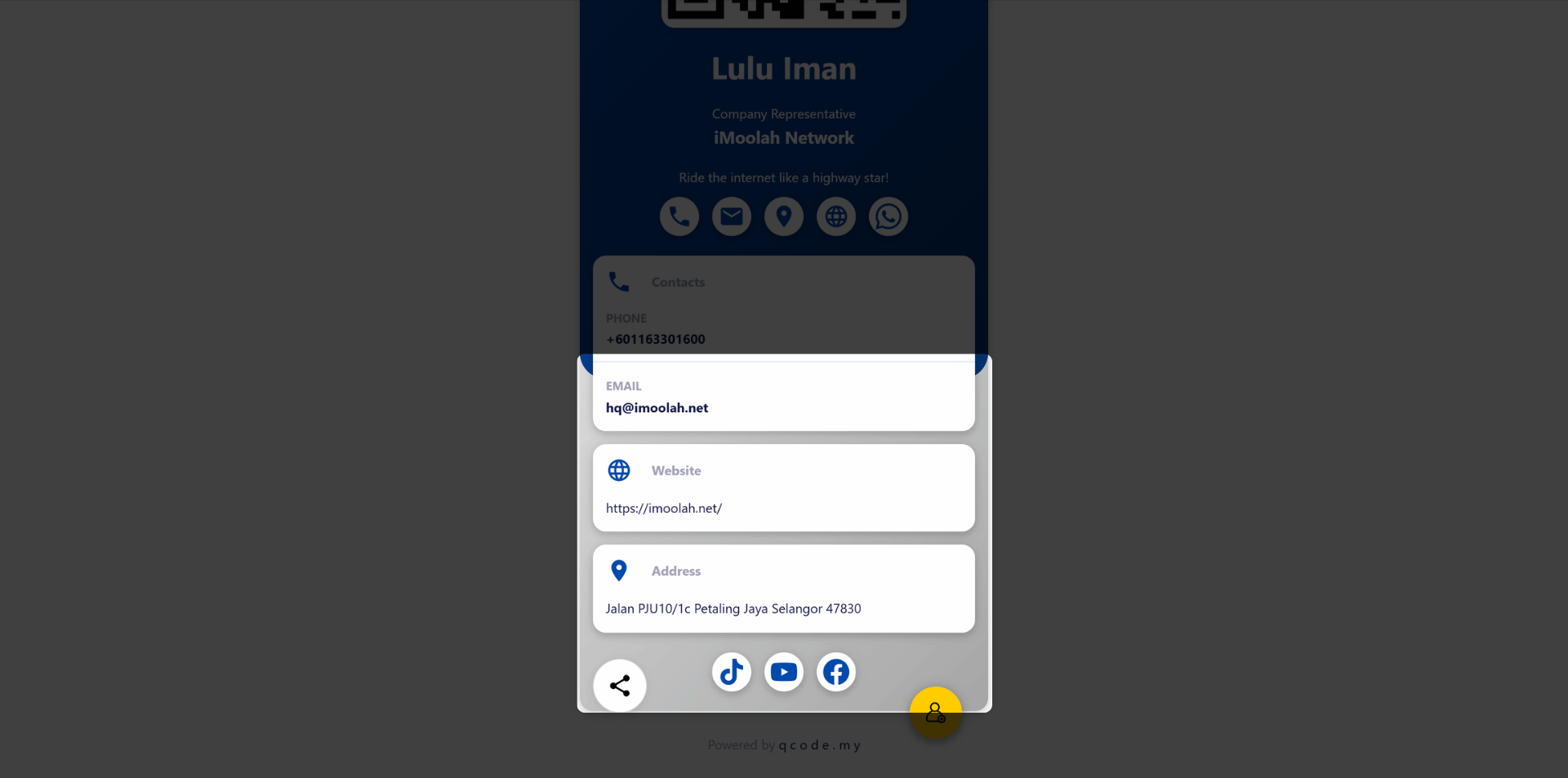
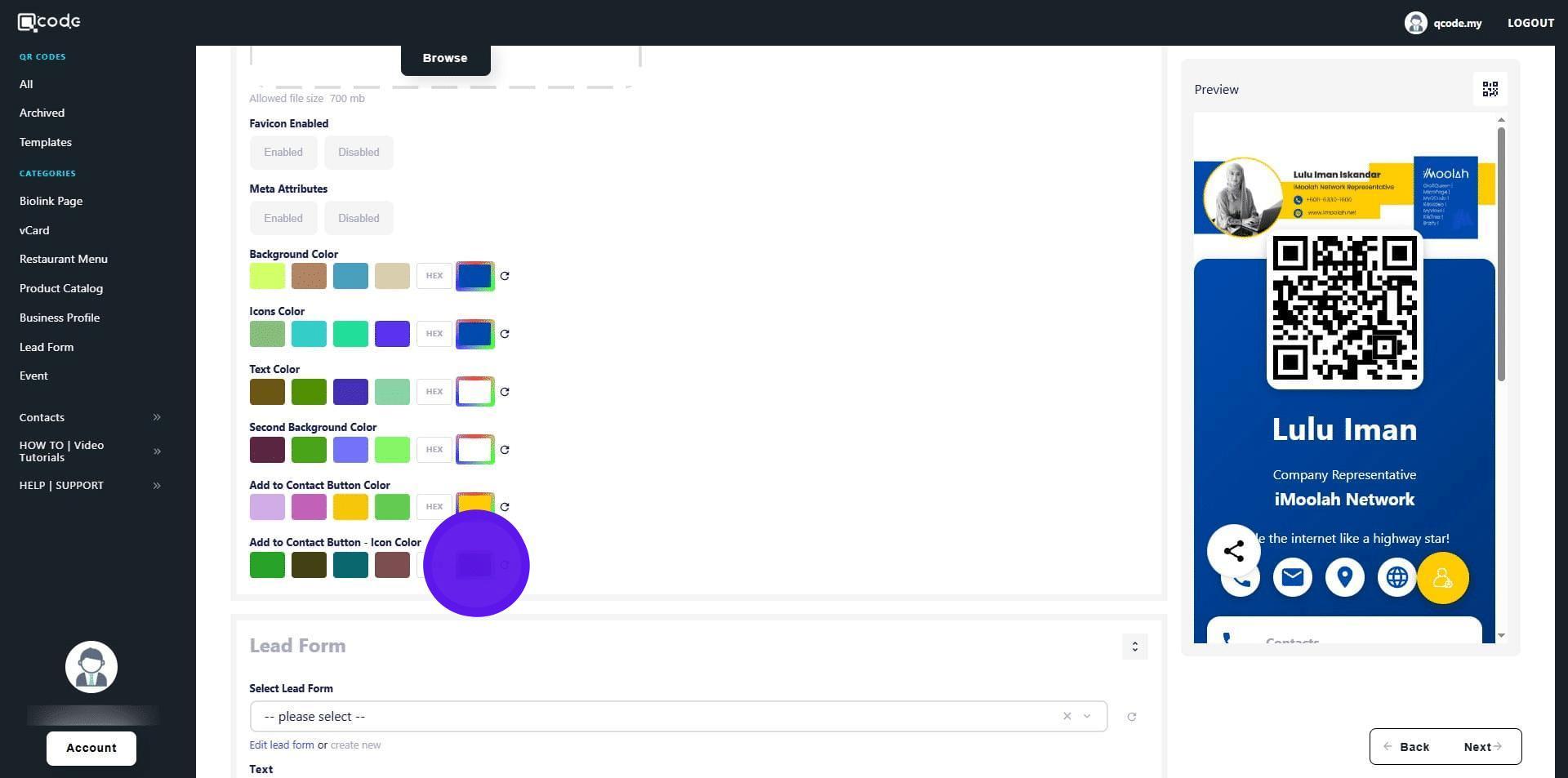
37. Click here to change the contact button color
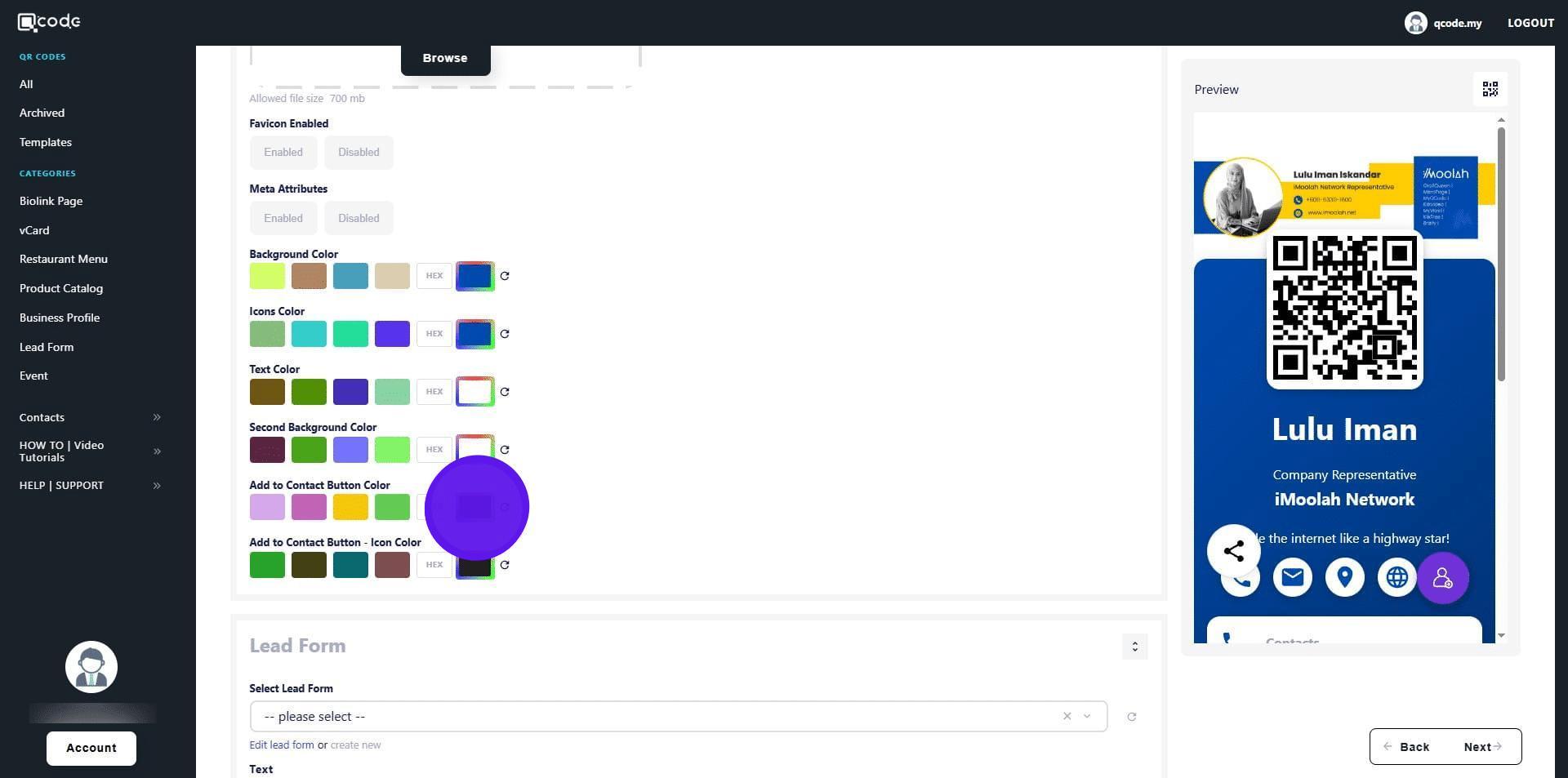
38. Click here to change the icon color of the contact button
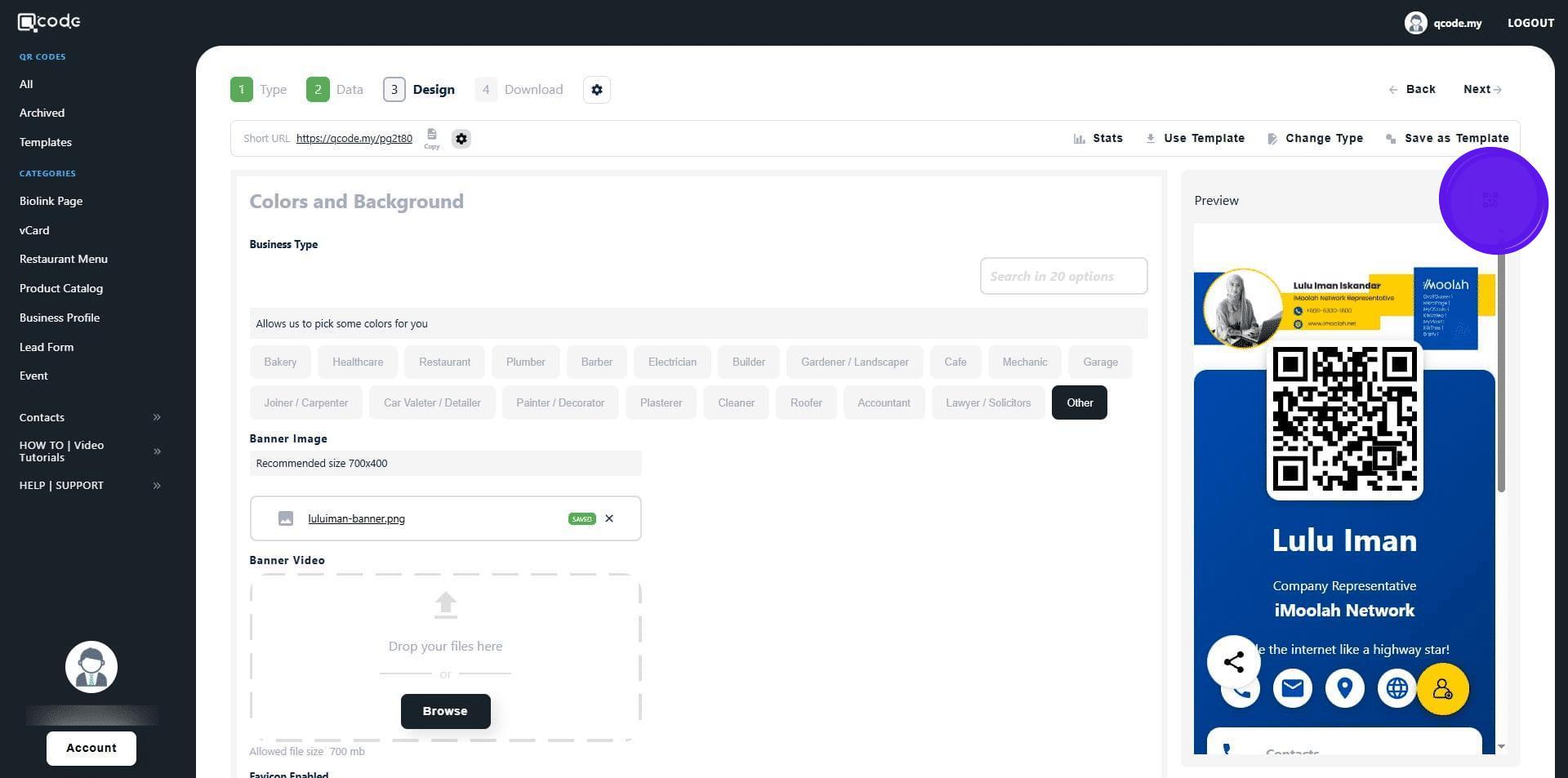
39. Click the QR Code icon to customize your QR Code. Click the link to learn more: https://kb.imoolah.network/guides/YUFgbQ5mkC4Zy2JfZH25
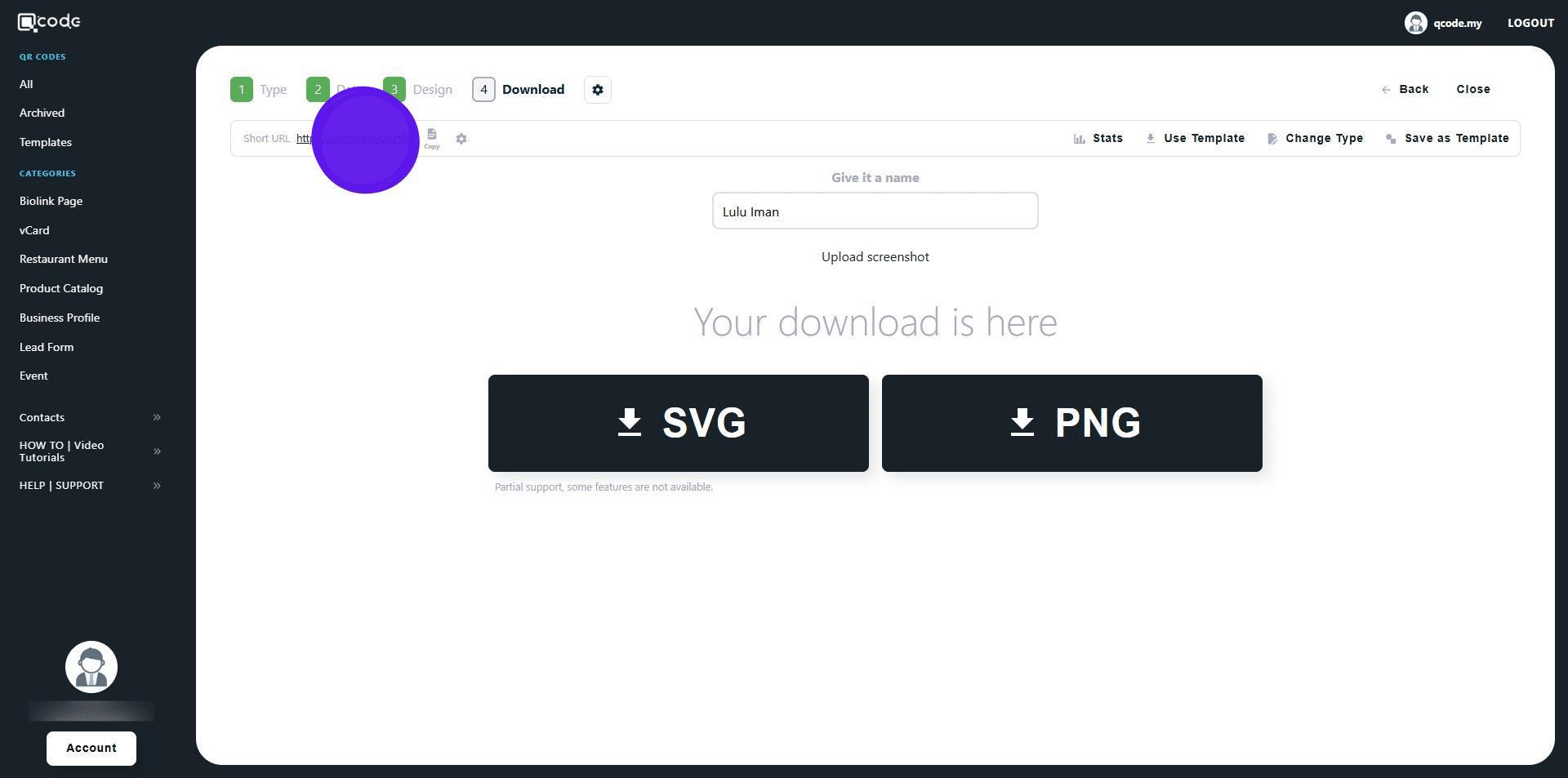
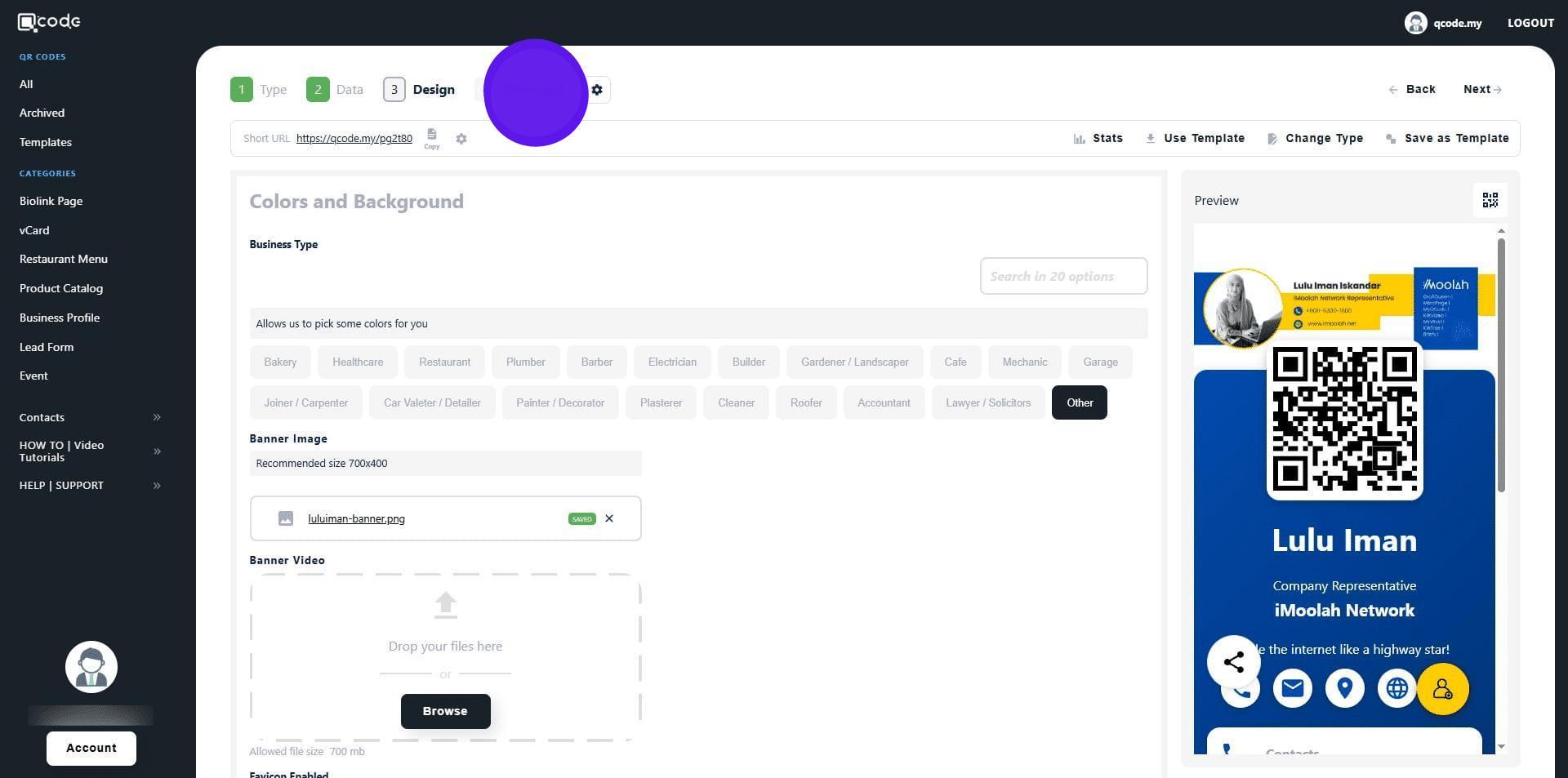
40. Click on Download to download your QR Code
41. Click here to give your vCard QR Code a name
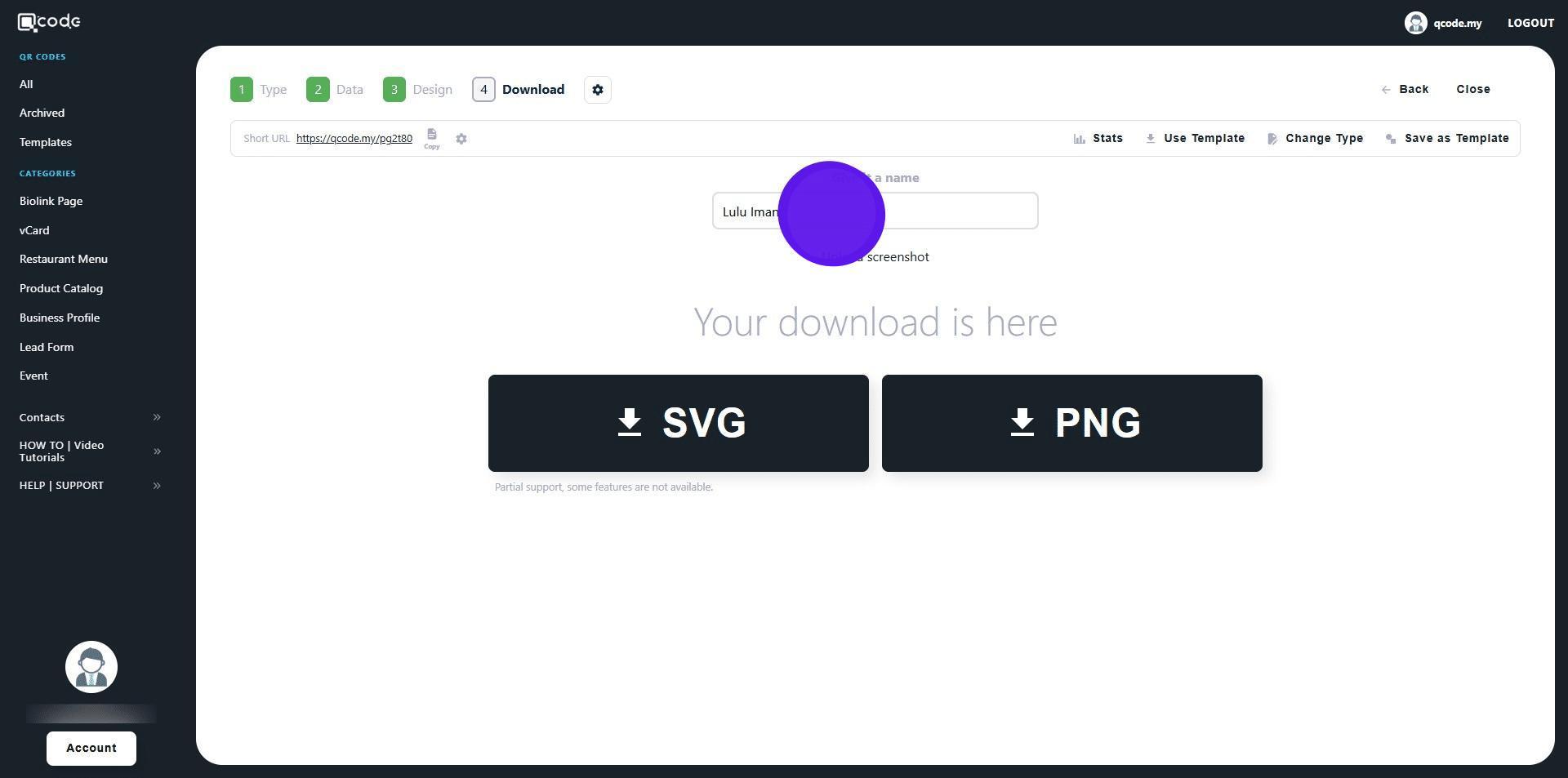
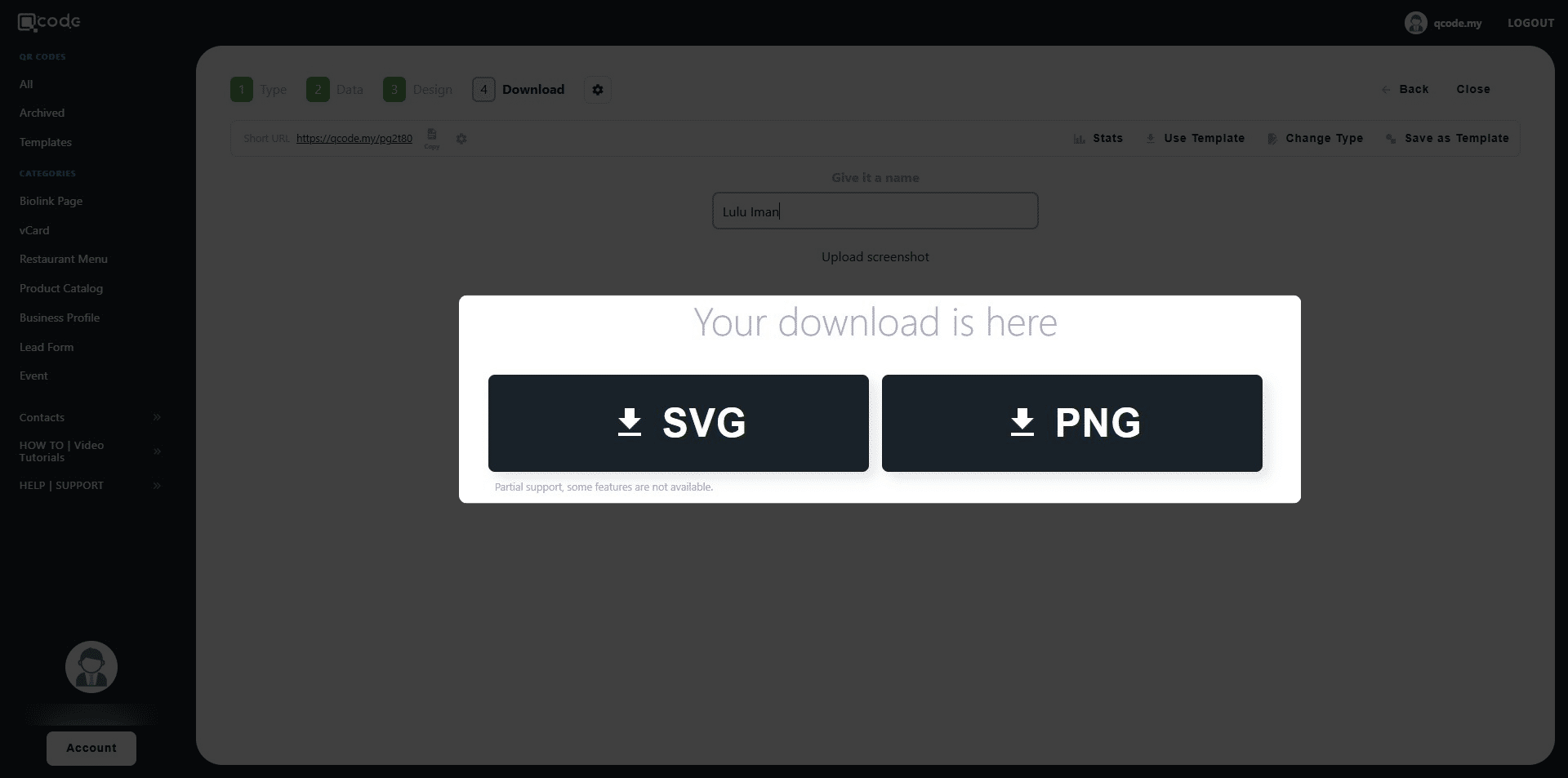
42. Click the following buttons to download your QR Code in the desired formats
43. Click the cog icon to change your Slug/Username. Click the link to learn more: https://kb.imoolah.network/guides/WyWZY38vTRTbItuows4P
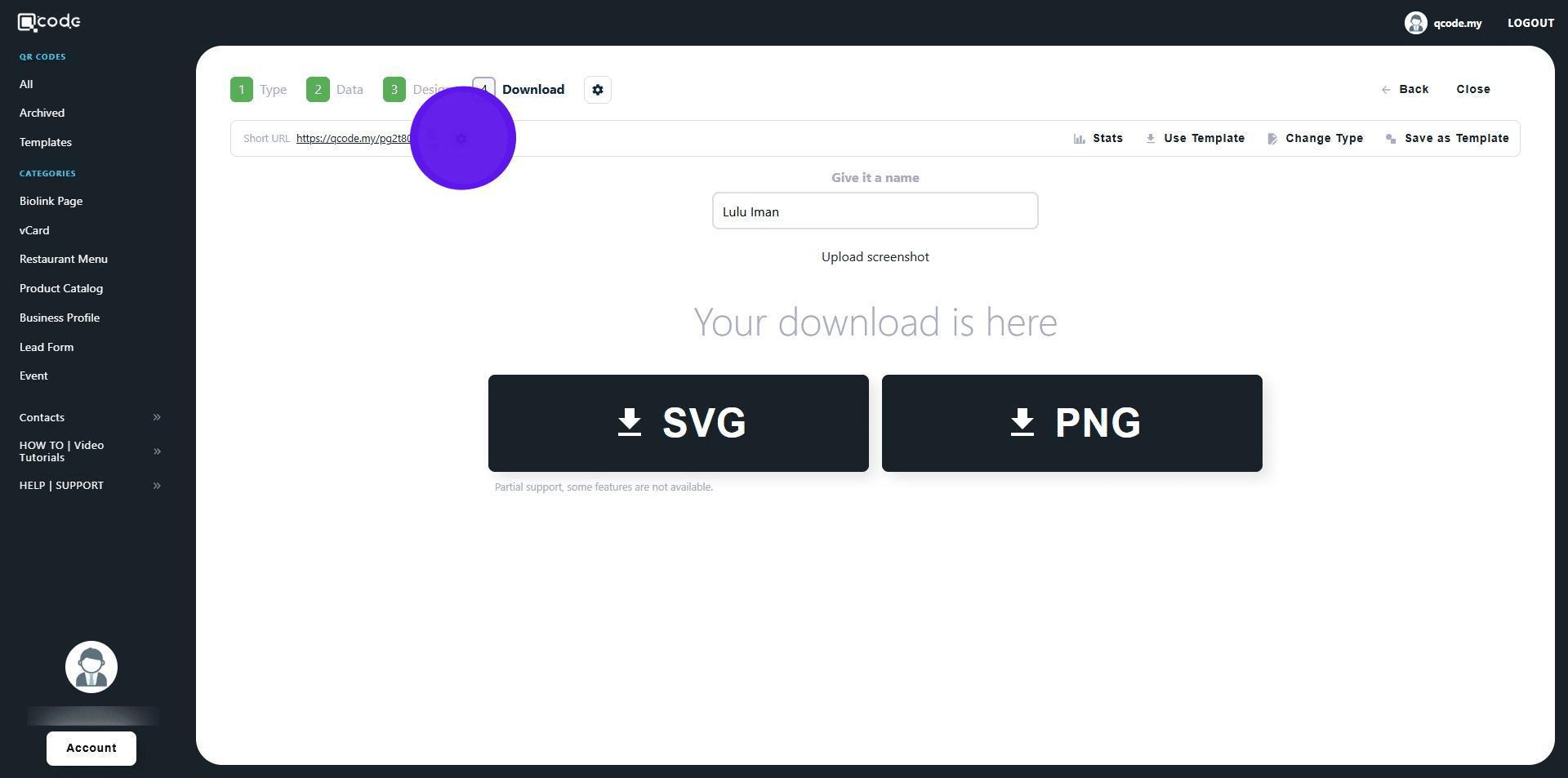
44. Click the Short URL to view your vCard